






OBS Studio Highlights
Completely free and open source: no ads, no watermarks, users can freely modify the source code or extend functions.
Highly customizable: supports customized layouts, shortcut keys, file formats, etc. to meet diverse needs.
Cross-platform compatibility: supports Windows, macOS and Linux, adapting to users of different operating systems.
Strong community support: It has an active user community and provides a wealth of plug-ins, tutorials and problem solutions.
OBS Studio FAQ
1.How about obs studio?Record screen?
obs studio screen recording tutorial
1. Download and unzip, find the .exe file in bin and double-click it to run, no installation required;
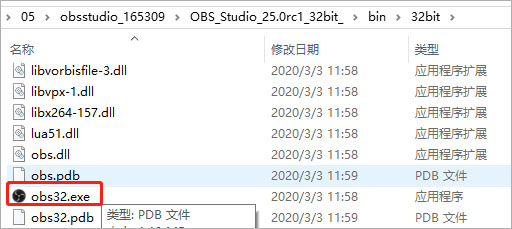
2. In the dialog box, click the "+" button in the scene bar below;
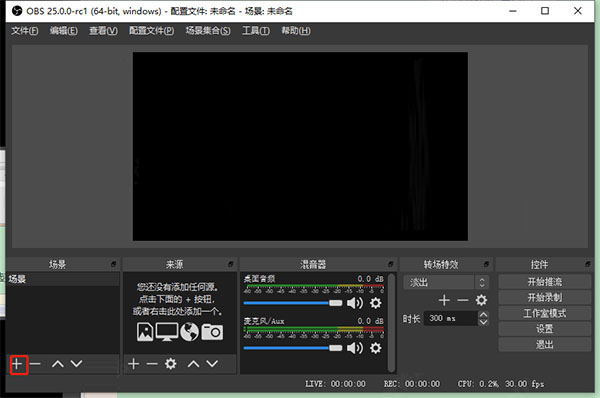
3. Open the dialog box to add a scene and enter the name of the scene. Select the default here and click the OK button;
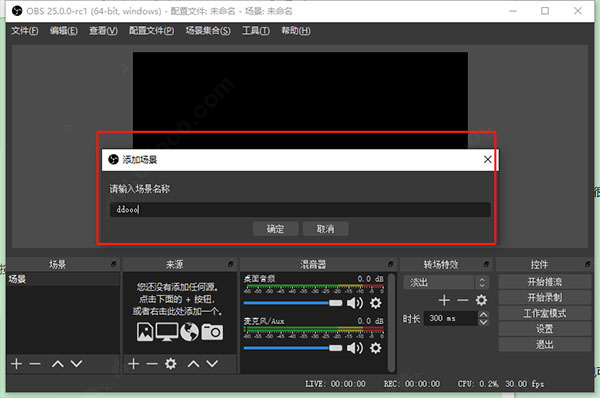
4. Click the Add button in the source column options;
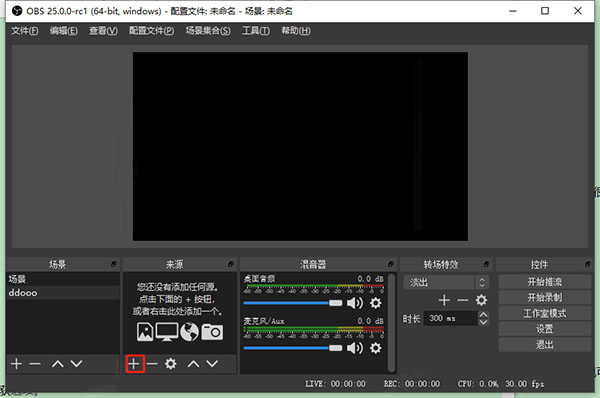
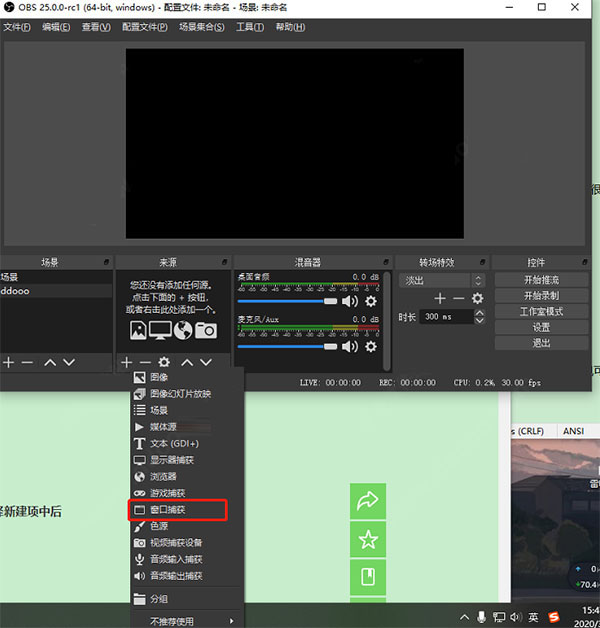
5. Open the list option and select the source type. For example, here you want to record the window, so select the window capture option;
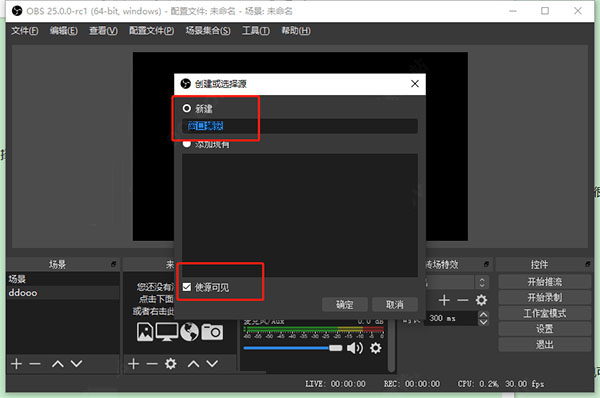
6. In the Create or Select Source dialog box, there are two items, New or Add Existing. If there is no existing item, select the New item and enter a name. Check Make Source Visible to preview the current screen. Click the OK button at this time;
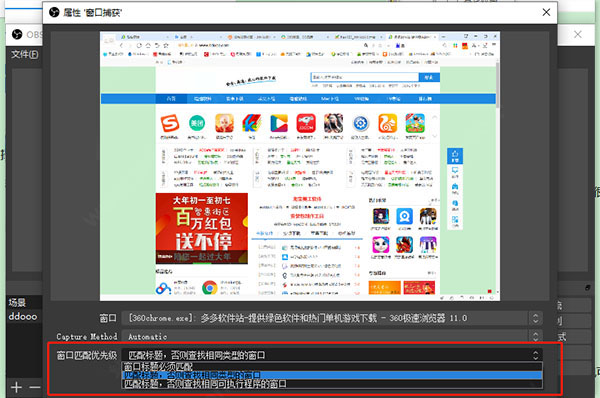
7. In the Properties window capture dialog box, select the type in the window matching priority column and click the OK button;
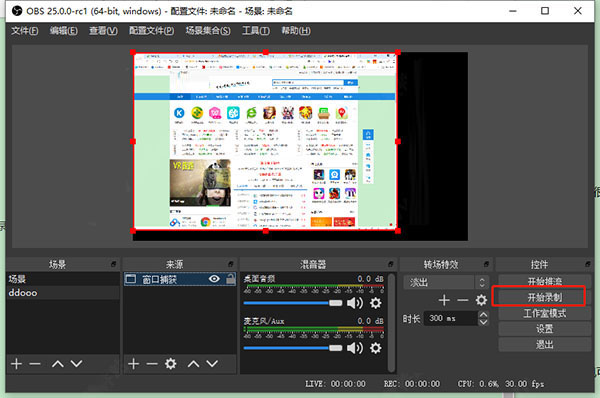
8. Return to the main interface and click the Start Recording button. When the recording is completed, click the Stop Recording button.
The above is the graphic tutorial for using obs studio brought by the editor. I hope it will be helpful to you. Please continue to pay attention to Huajun Software Park for more content!
2. Why is there no virtual camera in the tool options of obs studio?
Install the virtual camera plug-in in the same directory, and then restart obs. You can use the virtual camera.
3.How to set the picture quality in obs studio?
First open the settings panel, switch the left tab to video, and adjust it here. The editor recommends: frame number 25, code rate 1100-1500, quality 6 or 7, and leave the rest alone. The video compression ratio is 1280x720, and it doesn’t matter whether the live broadcast delay is enabled or not.
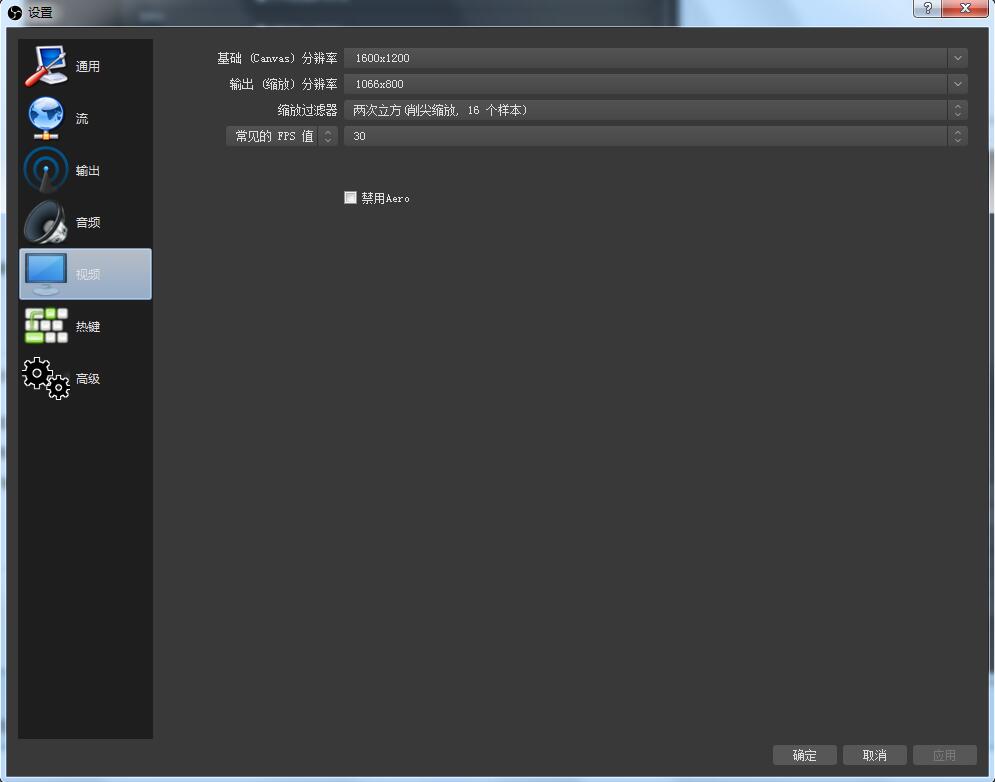
Dear friends, the setting is very simple, everyone should try it!
OBS Studio application features
Game live broadcast
Through the game capture function, the game screen is pushed to the live broadcast platform in real time, and the picture-in-picture (camera + game screen) layout is supported to enhance interactivity.
Online teaching and conference recording
Capture screen content (such as PPT, code demonstration) and camera footage, and combine it with the text annotation function to produce professional teaching videos or meeting records.
Video creation and material recording
It supports high frame rate (60fps) recording to ensure a smooth picture; the audio track can be separated to facilitate independent adjustment of microphone, system sound and other volumes during post-editing.
Corporate live broadcast and promotion
Through the multi-scene switching function, seamless switching of scenes such as corporate videos and product launches can be achieved to enhance the professionalism of live broadcasts.
OBS Studio function introduction
Multi-source scene management
Scene: Supports the creation of multiple independent screen scenes (such as game main screen, camera close-up, interactive interface), each scene can contain multiple "sources".
Source types: Covering window capture, monitor capture, game screens, cameras, pictures, text, browser windows, media files, etc., to meet the needs of diverse content combinations.
Dynamic switching: Quickly switch scenes through shortcut keys or mouse clicks to achieve seamless screen connection (such as switching to the audience interaction screen after the game).
High-quality audio and video processing
Audio mixer: Independently adjust the volume of multiple audio sources such as microphone, system sound, background music, etc., and supports filters such as noise reduction, compression, and equalizer to ensure clear sound quality.
Video encoding: supports custom resolution (up to 8K), frame rate (up to 120fps), and bit rate, provides x264/x265 hardware accelerated encoding (such as NVIDIA NVENC), and balances image quality and bandwidth usage.
Low-latency optimization: Built-in low-latency mode, combined with adjustment of push streaming parameters, achieves second-level latency, which is suitable for highly interactive live broadcast scenarios.
Real-time effects and filters
Visual special effects: Supports color correction, blur, masking, cropping and other effects to enhance picture expression.
Transition animation: Provides scene transition effects such as fade in and fade out, sliding switching, etc. to enhance the audience's visual experience.
Green screen keying: Realize virtual background replacement through the chroma key function, suitable for virtual anchors or creative content production.
Multi-platform streaming and recording
Push protocol: Supports mainstream protocols such as RTMP, SRT, HLS, and WebRTC, and can directly connect to platforms such as Twitch, YouTube Live, Bilibili, and Douyin.
Multi-format recording: Output MP4, MKV, FLV and other formats, support segmented recording (such as automatic splitting every 15 minutes) and manual marking of key nodes.
Virtual camera: Output the OBS screen as a virtual device, which can be called by third-party software such as Zoom, Teams, WeChat Video, etc., to achieve the integration of "live screen + real-time interaction".
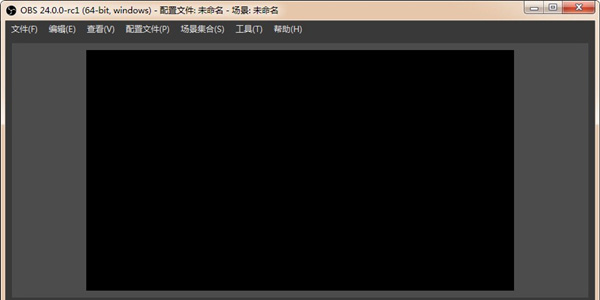
How to use OBS Studio
Huajun Software Park provides you with how to use this software:
1. Open the main interface.
Scene: The scene is equivalent to PS drawing. The scene is the main picture and the source is the layer. You can set several different pictures.
Source: The meaning of layer is the source of the picture you want to show to the audience. Just right click on the source and add it.
1) Get the window: Add a single window for the audience to see.
2) Monitor acquisition: Single screen or multiple screens, select a monitor to show full screen or part of the screen to the audience (League of Legends selection)
3) Picture source: If you have your own logo or station logo or cute pictures, you can hang them up. If you don’t want the audience to watch your computer operations, you can delete the monitor and put the underlying picture as the desktop. This way you can live broadcast and do other things to prevent unintentional data leakage.
4) Slide show: add a variety of pictures by yourself and show them to the audience in the form of slides.
5) Text source: Write some words or tips or advertisements for the audience to read
6) Video capture equipment:camera, capture card and other capture peripherals screen access port
7) Game source: Full-screen games must be broadcast live using the game source, otherwise the audience will see a black screen. Borderless or windowed full screen, you can directly add a window for live broadcast. (dota2, Hearthstone selection, League of Legends)
③Settings: Live broadcast program settings
④Start streaming: Start live broadcast
⑤Edit scene: Manually adjust the live broadcast screen, such as text and picture position adjustment or scaling.
⑥Start recording: Use OBS to record the screen.
⑦Global source: overall source, basically no settings required.
⑧Preview streaming: Simulate the live broadcast screen without live broadcast. You can test whether frame skipping, bit rate changes, screen adjustment and other data are available.
Note: For all games, the game source is selected first, the monitor acquisition is the second, and the window acquisition is the third.
PS: There are two red bars. The left side represents the microphone output volume and the right side represents the sound output volume. Click the red bar to adjust the output volume. Click the icon to directly mute the device.
2. Encoding settings such as maximum bit rate
PS: The higher the final number, the better. Generally speaking, the bit rate settings are adjusted according to the game. The following is an introduction to the optimal bit rate:
Other competitive games 1800kb/s (such as League of Legends, DOTA, etc.)
Shooting and stand-alone games 2000kb/s (such as: CSGO, World of Tanks, etc.)
Nostalgic memory: 1500kb/s (such as War of the Three Kingdoms, MC, etc.)
Game screening room: 1500kb/s
3. Broadcast settings
4. The FMS URL streaming code acquisition address is as follows: (fill in the corresponding top and bottom lines and copy them in)
5. Resolution, frame rate (fps) and other settings
Try to use 720P or lower for laptops. Please choose 720P for desktop I3 and I5. Overclocking I5 and I7 series can increase it to 1080P. AMD please test it yourself.
ps:
Recommended settings for each game:
Other competitive games 30FPS 1920X1080 (League of Legends, DOTA2, etc.)
Shooting and stand-alone games 30FPS 1920X1080 (CSGO and other shooting stand-alone masterpieces)
Nostalgic Memories 25FPS 1280X720
Game screening room 25FPS 1280X720
6. Sound effect settings
7.Microphonesettings
8. Quick setup for fools on OBS interface (lol)
Add a scene: Move the mouse to the scene, right-click to add the scene, no settings are required, just OK
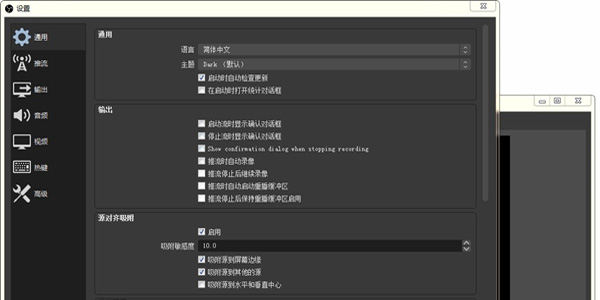
Source: Right click and add game source, as shown in the figure:
9. After the addition is completed, enter the game loading screen and follow the above steps to add a game source. After ensuring that the server and streaming codes are filled in correctly, select start streaming. After entering the game, change the image to borderless or full-screen mode.
The above is the overall usage of OBS Studio for your reference.
Comparison between OBS Studio and similar software
BandicamIt is a high-definition video recording tool developed in South Korea and has low computer configuration requirements. Bandicam can record high-quality videos with a resolution of up to 2560×1600. At the same time, you can add your own LOGO to it when recording. This can be a picture in bmp, png and jpeg format. It is easy to operate and is a good video recording tool.
Bandicam download link:http://softwaredownload4.com/soft/117623.htm
Through the above editor's introduction to OBS Studio, I believe everyone has seen how powerful it is. Its biggest feature is that it takes up little resources and is free. OBS Studio can not only record games, record video tutorials, but also record live broadcasts. Compared with other recording tools, it is more powerful in game live streaming and the video quality is also better.
OBS Studio update log
v30.2 (July 2024)
Multi-track video streaming: Supports Twitch enhanced broadcasting. Hosts can locally transcode multi-resolution streams. NVIDIA/AMD specific graphics cards and drivers are required.
Theme system reconstruction: Simplify theme creation, old themes need to be updated, and high contrast mode needs to be supported by system settings.
Format support: HEVC/AV1 adds inner subtitles, and Linux is forced to use Qt Fusion style.
Performance Optimization: Improve text source performance and fix QSV AV1 issues on multi-GPU systems.
Compatibility warning: Game capture signature changes may trigger anti-cheating false positives, so use with caution.
v30.1.2 (April 2024)
Fix old driver/device NVENC failure, resolve macOS 11 startup crash and missing HDR metadata.
v30.1 (January 2024)
New features: Support for HDR over RTMP, AV1 via WebRTC, asynchronous image slideshow sources, GPU scaling options.
Improvement: The default recording format is changed to FMP4, obs-websocket is updated to 5.4.2, and audio channel selection is added.
Fixed: virtual camera crash, audio track out of sync, third-party transition loss, etc.
Huajun editor recommends:
Believe me, as long as you use OBS Studio and other recording software, you can uninstall it and it will definitely meet all your needs. The editor has also carefully prepared for youZhuanzhuan Master screen recording software (video recording),Aoruan screen recording,Minimal screenshot tool (FastStone Capture),Screen recording software,zh-u1led display control software




Your comment needs to be reviewed before it can be displayed