



Hi Format Screen RecorderSoftware features
Cross-platform compatibility
Windows version: supports Windows 7/8/10/11, compatible with NVIDIA/AMD graphics card hardware acceleration, reducing CPU usage.
macOS version: optimized for Apple Metal graphics technology, runs smoothly on MacBook, iMac and other devices, and supports Touch Bar quick operations.
Minimalist operation and deep customization
Novice mode: Start recording with one click and complete basic settings within 3 seconds, suitable for quick recording.
Professional mode: Provides advanced parameter adjustments such as bit rate, key frame interval, audio sampling rate, etc. to meet the needs of professional users.
High performance and low resource usage
Background silent recording: minimize to the system tray without affecting the use of other applications, suitable for long-term monitoring or conference recording.
Intelligent frame rate adjustment: Dynamically adjust the frame rate according to the screen content to reduce resource waste (such as lowering the frame rate during static images).
Security and privacy protection
Local storage: All recording files are saved locally by default to avoid the risk of cloud transmission leakage.
No watermark restrictions: users of the official version can freely use all functions, and the output video has no software logo or duration limit.
HiFormat Screen Recording Master function
Diverse recording modes
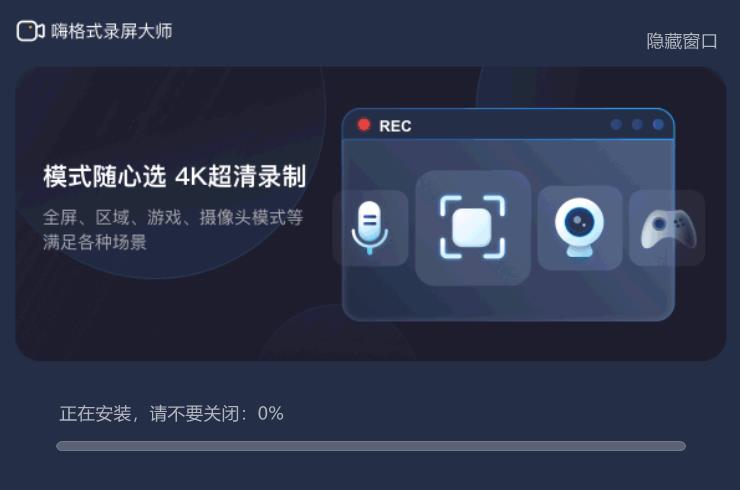
Full-screen recording: Capture the dynamics of the entire screen, suitable for recording business presentations, teaching videos, and other scenes that require the complete display of screen content.
Area recording: Users can choose to record specific areas of the screen as needed, focusing on key operations or content to avoid interference from irrelevant information.
Game recording: Designed specifically for gamers, it supports high frame rate recording to ensure the smoothness and integrity of the game screen and capture exciting moments and operating skills during the game.
Camera recording: Supports external cameras or Mac’s built-in FaceTime camera to achieve picture-in-picture (PIP) effect, suitable for game commentary, video log (Vlog) creation and other scenarios.
Sound recording: Supports system sound recording and microphone input recording, which can be recorded separately or simultaneously to meet audio needs in different scenarios.
High quality recording
High-resolution support: Supports up to 4K (3840×2160) resolution recording to meet professional video production needs.
Multi-frame frame rate selection: Provides multiple frame rates from 15fps to 120fps, allowing users to balance smoothness and file size according to needs.
Audio and video synchronization optimization: Automatically calibrate audio and video delays to avoid lip synchronization problems and ensure the sound and picture quality of recorded content.
Convenient operations and shortcut keys
Floating window quick operation: The simple and intuitive operation interface supports floating window quick operation, and novices can get started quickly.
Shortcut key control: Users can customize shortcut keys for start/pause, annotation, screenshots, etc. to improve recording efficiency. For example, during game recording, you can use shortcut keys to quickly capture wonderful moments.
Video editing and post-processing
Basic editing functions: Supports basic operations such as video editing, cropping, merging, and adding subtitles/watermarks. Users can complete preliminary video editing within the software.
Format compatibility: Output MP4, MOV, GIF and other common formats, compatible with mainstream editing software such as Final Cut Pro and iMovie, making it convenient for users to perform further post-processing.
Hi Format Screen RecorderTutorial
Step 1: Select recording mode
You can choose from five recording modes: "game mode, full screen recording, area recording, camera recording, and sound recording only".
Step 2: Make recording settings
Set the format of the recorded video, the different definitions of the recording quality, the recording frame rate, the opening and closing of the camera, the opening and closing of the system sound, and the opening and closing of the microphone sound;
Step 3: Click the [Start Recording] button
Click the "Start Recording" button to start recording the computer screen. After starting recording, click the "Pause Recording" button to pause the current screen recording. Click the "Stop Recording" button to terminate the screen recording process.
Frequently Asked Questions about HiFormat Screen Recording Master Software
What should I do if there is no sound in the recording?
Check the system sound settings: Make sure the computer system sound is not muted and the volume is appropriate. For example, in Windows, click the small speaker icon in the lower right corner of the taskbar to view the volume slider position; in Mac, click the volume icon in the menu bar to set it.
Check the software sound settings: Open HiFormat Screen Recorder, in the recording settings, make sure the "System Sound" option is turned on and the volume is adjusted to an appropriate position. At the same time, if you need to record microphone sound, you should also check whether the "Microphone" option is turned on and the volume setting.
Check audio equipment: Confirm that audio equipment such as microphones (if recording is required) and speakers are connected properly and are not damaged. You can try to test whether the audio device works properly in other software.
HiFormat Screen Recorder software update log
1. The pace of optimization never stops!
2. More little surprises are waiting for you to discover~
Huajun editor recommends:
A very good video recording software. The editor also uses this software. It is powerful, green and safe. This site also providesZhuanzhuan Master screen recording software (video recording),Aoruan screen recording,Screen recording software,B station recorder,zh-u1led display control softwareWaiting for you to download.










Useful
Useful
Useful