





Screen capture tool CapScreen software features
CapScreen, a computer capture and screenshot tool, has a flexible way of capturing images. It can mainly capture the entire screen, active windows, selected areas, fixed areas, etc. The image output methods are diverse, including files, clipboards, drawings and printers.
CapScreen, a computer capture and screenshot tool, has functions such as capturing icons, cursors, setting the delay before capturing, editing commonly used pictures, and setting wallpapers. Captured images can be output in various ways such as saving image files, copying to the clipboard, outputting to Paint, printing to a printer, etc.
Screen capture tool CapScreen function introduction
1. There are various image output methods, including files, clipboard, drawing and printer. The software has functions such as capturing icons, cursors, setting the delay before capturing, editing commonly used pictures, and setting wallpapers.
2. Computer screenshot tool CapScreen is a completely free professional-grade screen capture software that allows you to easily capture the screenshots you need.
3. The image capture method is flexible and can mainly capture the entire screen, active window, selected area, fixed area, etc.
4. The images captured by the computer screenshot tool CapScreen can be output in various ways such as saving image files, copying to the clipboard, outputting to Paint, printing to a printer, etc.
Screen capture tool CapScreen installation steps
1. Download the screenshot tool CapScreen installation package from Huajun Software Park and run the .exe file;
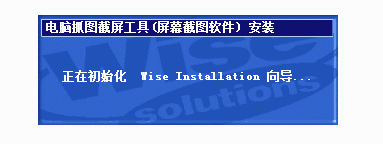
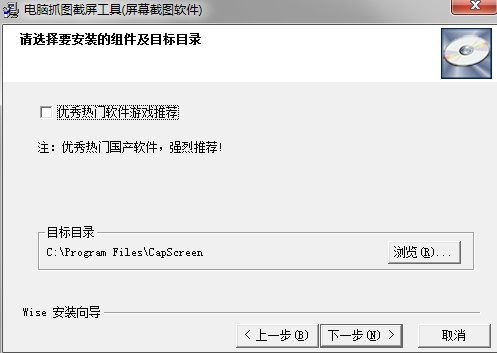
2. Select the installation directory, select recommended software according to your needs, and then click Next;
3. The installation time is not long, just wait for a while;

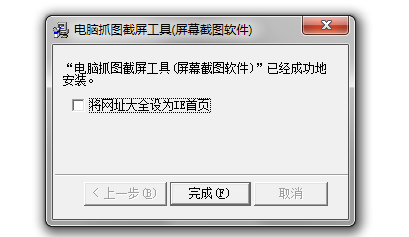
4. The screenshot tool CapScreen is installed, come and experience it.
Screen capture tool CapScreen usage tutorial
1. Run the screenshot tool CapScreen and click the icon in the red circle on the following interface to [Capture full screen]

2. The captured content is as follows:
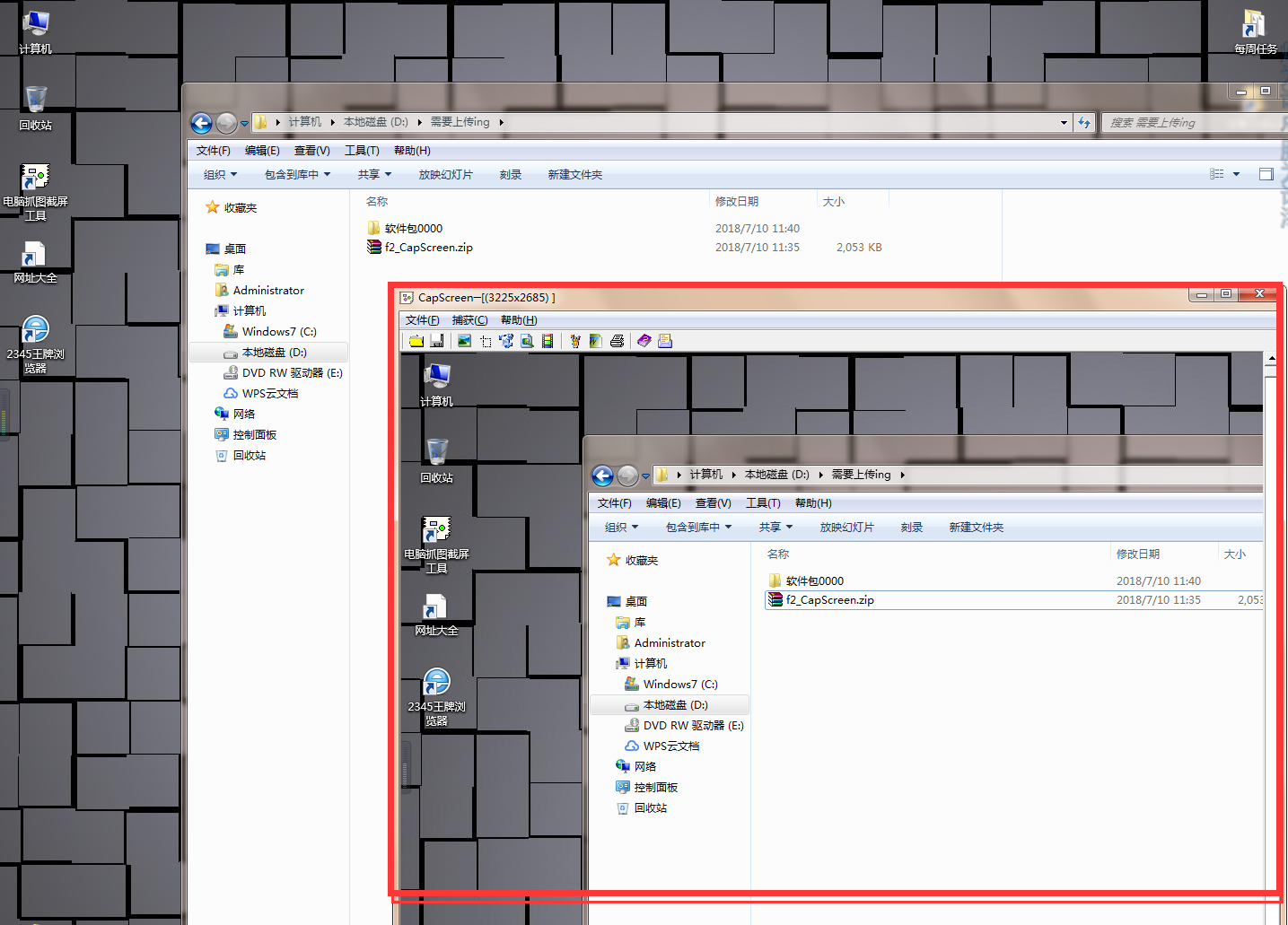
3. If you want to experience other screenshot buttons, you can choose some of the buttons in the picture:

4. The buttons in the picture above are all tools that can be used to take screenshots, but the screenshot methods are different. You can take a look for yourself.
5. In addition, if you want to edit the current screenshot, please select the left one in the picture below. The middle button can set the cutout as wallpaper, and the last one is the print button.

Screenshot tool CapScreen FAQ
1. How to save the content captured by the screenshot tool CapScreen?
To save the screenshot content, click the previous [Save Image] in the red circle.

Screen capture tool CapScreen comparisonRed Dragonfly Picture Capture Wizard
CapScreen and Red Dragonfly Capture Wizard are both tools that can realize the screenshot function. Next, the editor will briefly describe the differences between the two tools.
Compared with the screenshot tool, the Red Dragonfly Snapshot Wizard is more flexible and free in terms of screenshot functions. For example, the Red Dragonfly Snapshot Wizard can support capturing fixed areas, selected menus, selected web pages, selected areas, active windows, the entire screen, etc. The Screenshot Tool focuses on simple operation and quick use. Its scope of use is also relatively wide. All information on the screen can be captured with the help of the Screenshot Tool.
If you want to experience the red dragonfly capture wizard, please get the download address here:http://softwaredownload4.com/soft/13389.htm
Screenshot tool CapScreen update log
1. Increased the speed of capturing images
2. CapScreen adds free screenshot function
3. CapScreen solves some crawling failure problems
4. Fixed some bugs and optimized the software interface.
|
Huajun editor recommends: Computer screenshot software (CapScreen), as a time-tested screenshot tool, has been updated in version after version, bringing users a very high experience. The editor here strongly recommends users who need it to download and experience it. In addition, the editor of Huajun has also collected and compiled other [screenshot] tools for you to choose and download, such as: FastStone Capture, universal screenshot software, etc. |













Useful
Useful
Useful