




Samsung SCX-4521F all-in-one scanner driverThe official version is for Samsung SCX-4521FprinterDrivers built. The Samsung SCX-4521F driver can quickly connect to both ends of the scanner and promptly repair and improve various problems that occur in the scanner. The Samsung SCX-4521F all-in-one scan driver allows the printer to better adapt to the computer and improve the printer's operating efficiency. Huajun Software Park provides download services for the Samsung SCX-4521F all-in-one scanning driver. Everyone is welcome to download and use it!
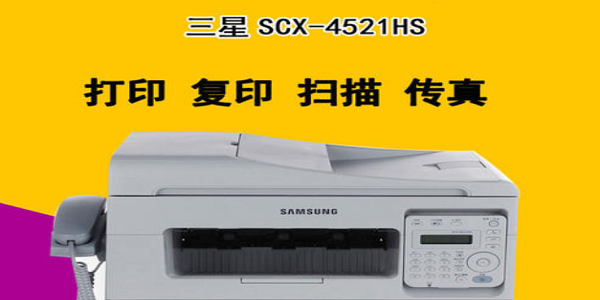
Samsung SCX-4521F all-in-one scanner driver features
Full feature support
Covers the entire process of printing, copying, scanning, and faxing to meet the diverse needs of office scenarios.
The scanning function supports single-page glass plate scanning and multi-page automatic document feeder (ADF) scanning to improve efficiency.
Compatibility and stability
Supports Windows 2000/XP/Vista/7/8/10 and other systems, and is compatible with 32/64-bit environments.
Official driver versions have been rigorously tested to reduce the risk of crashes or data transmission errors.
Simple and easy to use
The installation wizard guides users to complete driver deployment and supports customized installation paths and languages.
Scanning parameters (such as resolution, file format) can be flexibly adjusted, and the operation interface is intuitive.
Performance optimization
Fix issues such as scanner connection abnormalities and image distortion, and improve scanning speed and quality.
Optimize memory usage and resource scheduling to reduce system load.
Samsung SCX-4521F all-in-one machine scan driver function
Print function
Supports A4 format printing with a resolution of 600×600dpi (some versions support 1200×1200dpi) and a printing speed of 20-24 pages/minute.
The consumables adopt an integrated design of drum and powder (model MLT-D4725A) to reduce long-term use costs.
Copy function
Supports special size copying such as ID cards, and provides text/photo mode selection.
The A4 format copy speed is up to 20ppm, and the resolution is 600×600dpi.
Scan function
Optical resolution 600×600dpi, supports output in BMP, JPG, PDF and other formats.
Use SmarThru software to achieve convenient operations such as "scan to folder" and "scan to email".
Fax function
Compatible with ITU-T G3 standard, supports speed dialing and group broadcast fax.
Device management
Monitor the remaining amount of consumables (such as toner, paper) in real time and prompt for timely replacement.
Support device firmware upgrades, fix known vulnerabilities and unlock new features.
Samsung SCX-4521F All-in-one Scanner Driver Printer Instructions
1. Print. This machine supports printing on many types of paper, and you can use 4521 to print CD stickers. The first print requires about 10 seconds of warm-up and the print quality is high;
2. Copy and fax. Supports both flatbed and continuous paper feeding modes, with average speed and quality.
3. Scan. It is an additional function and the effect is on the lower side. At this price, it cannot perform very well.
Advantages: Simple and elegant appearance, complete functions, cheap consumables, high printing quality, and good speed
Disadvantages: The scanning effect is not very good. There is no phone receiver on the machine. I have to buy one separately. Sometimes there will be paper jams.
Copy
Speed A4 format up to 20ppm
Resolution (optical) 600 x 600 dpi text; text/photo: 600 x 300 dpi (ADF) Photo mode: 600 x 600 dpi (platen), 600 x 300 dpi (ADF)
Resolution (enhanced) 600 x 600 dpi
Samsung SCX-4521F all-in-one scan driver configuration parameters
Product type: Black and white laser multi-function machine
Functions covered: Print/copy/scan/fax
Maximum processing format: A4
Consumables type: Drum and powder all in one
Black and white printing speed: 20ppm
Print resolution: 600×600dpi
Network function: Not supported
Double-sided function: Manual
Samsung SCX-4521F all-in-one scanner driver installation steps
1. Download the Samsung SCX-4521F all-in-one scanning driver from the Huajun Software Park and unzip it to the current folder. Click the scx-4521f_Scan.exe application to enter the installation wizard interface, select the installation location, and click Next.

2. Next we need to select the language for installation and click Next.

2. Choose the type of installation you want according to your needs.

3. The installation of the Samsung SCX-4521F all-in-one scanning driver is completed, click Finish.
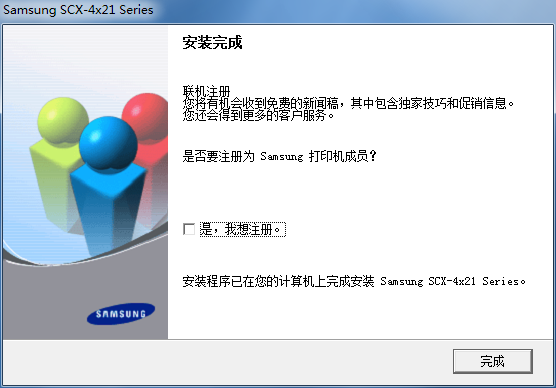
Samsung SCX-4521F all-in-one scanner driver installation instructions
①Plug in the printer power cord and press the switch.
② Plug in the USB cable connected to the printer (but do not connect it to the computer yet, wait for instructions).
③Open the computer operating system, insert the installation CD that came with the machine when you purchased it, and follow the prompts to install the printer driver.
④ Do not plug in the printer’s data connection (computer side) first, wait until the driver installation is completed before plugging it in.
⑤ If the printer data cable is not plugged in, you can install the printer-related drivers and programs first.
⑥Plug in the printer when needed. The operating system will recognize the printer device and restart to confirm.
FAQ
The scan driver cannot be installed or cannot be used after installation?
Scanning poorly?
System compatibility issues?
Driver conflict?
Solution:
Make sure the driver source is reliable
It is recommended to download the latest scanning driver from Samsung's official website to ensure that the driver exactly matches the printer model and system version.
Check system services
Make sure the Print Spooler service on your computer is started and set to start automatically. This is the basis for the printing and scanning functions to work properly.
Turn off anti-virus software
When installing the scanning driver, temporarily turn off the anti-virus software to prevent the anti-virus software from misidentifying the driver as a virus or malware and preventing its installation.
Use driver management tools
You can try usingdriver wizard, Driver Life and other driver management tools to install or update scanned drivers. These tools can usually automatically detect and repair driver problems.
Check hardware connections
Make sure the USB connection between the printer and computer is stable and reliable, and the computer has the Plug and Play option turned on so that the system can automatically recognize and install the driver.
Comparison of similar software
Epson LQ-735K dot matrix printer driverThe official version is a driver for Epson LQ-735K model printer. Epson LQ-735K dot matrix printer driver can help users solve lq The problem of 735kii not being recognized by the computer is a necessary program for using the printer. Epson LQ-735K dot matrix printer driver can also be applied to Win2000, WinXP, Windows Vista system.
Lenovo M7450FPro driverThe official version is a driver built for Lenovo's M7450FPro model printer. The Lenovo M7450FPro driver can solve the problem of the printer not being recognized by the computer or unable to print during use. The Lenovo M7450FPro driver also includes UFR II V20.31 printer driver, ScanGear V11.3 USB scanning driver.
Huajun editor recommends:
The Samsung SCX-4521F driver can quickly connect to both ends of the scanner and promptly repair and improve various problems that occur in the scanner. With simple operation and powerful functions, it is one of the leaders in the software industry. Everyone is welcome to download it.








Useful
Useful
Useful