






Diskgenius Professional FAQ
DiskGenius is aDisk managementTools commonly used for partitioning, formatting,repair diskWait for operations. The following are common problems and solutions to DiskGenius:
1. How to retrieve lost files?
Method 1: Use the file recovery function of DiskGenius, find the required files in the deleted folder list and select "Recover".
Method 2: If the file is accidentally deleted and the Recycle Bin is not emptied, you can open the computer Recycle Bin, find the required file in the Recycle Bin list and right-click and select "Restore."
2. How to improve the performance of SSD?
Common methods to improve SSD performance include: 4K alignment, adjusting SATA interface speed, using professional partitioning tools, etc. Among them, using DiskGenius to perform 4K alignment and adjust the SATA interface speed are relatively common methods.
3. How to solve the problem that the mobile hard disk cannot be opened?
The inability to open the mobile hard disk may be caused by a variety of reasons, such as abnormal plugging and unplugging, data cable problems, insufficient power supply of the USB port, etc. One of the most common reasons is improper removal of the mobile device. The correct approach is to click "Safely Remove Hardware" before unplugging the mobile device to avoid data loss and device damage. If the data is very important, you can choose professional data recovery software to recover mobile hard drive data.
4.How does DiskGenius partition?
Step 1: Double-click the tool to open it, select the hard drive for the desired partition, and the hard drive capacity to avoid misdiagnosing other hard drives.
Step 2: Select the hard drive with the required partition
Step 3: Place the mouse on the hard disk to be partitioned, right-click the mouse and the following selection menu will appear.
Step 4: Select Quick Partition (F6) and click to enter
Step 5: Select the number of partitions required or manually select the number of hard disk partitions, and keep "Rebuild Boot Record" unchanged
Step Six: The primary partition of the hard disk remains unchanged by default.
Step 7: Click with the mouse and use the keyboard to modify the capacity of the primary partition of the hard disk (select the appropriate capacity based on the size of the hard disk)
Step 8: Modify the number and capacity of partitions. And click on the blank space of other partition capacities to automatically adjust all capacities.
Step 9: After setting the partition capacity, click OK
Step 10: Partitioning in progress
Step 11: The hard disk is now partitioned, you can check it out
Introduction to Diskgenius Professional Edition software
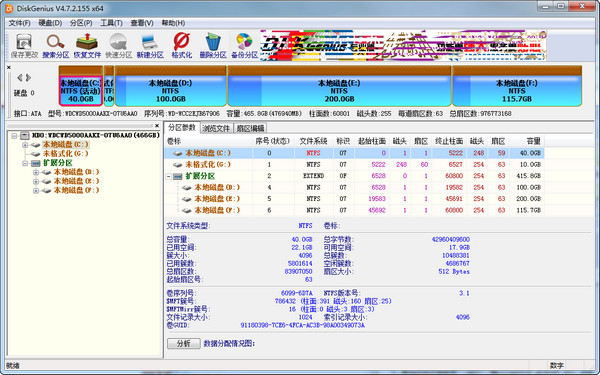
DiskGenius has basic partition creation, deletion,FormatIn addition to other disk management functions, it also provides powerful lost partition search function, accidental deleted file recovery, file recovery function after accidental formatting and partition destruction, partition mirror backup and restore function, partition copy, hard disk copy function, quick partition function, integer partition function, partition table error checking and repair function, bad sector detection and repair function.
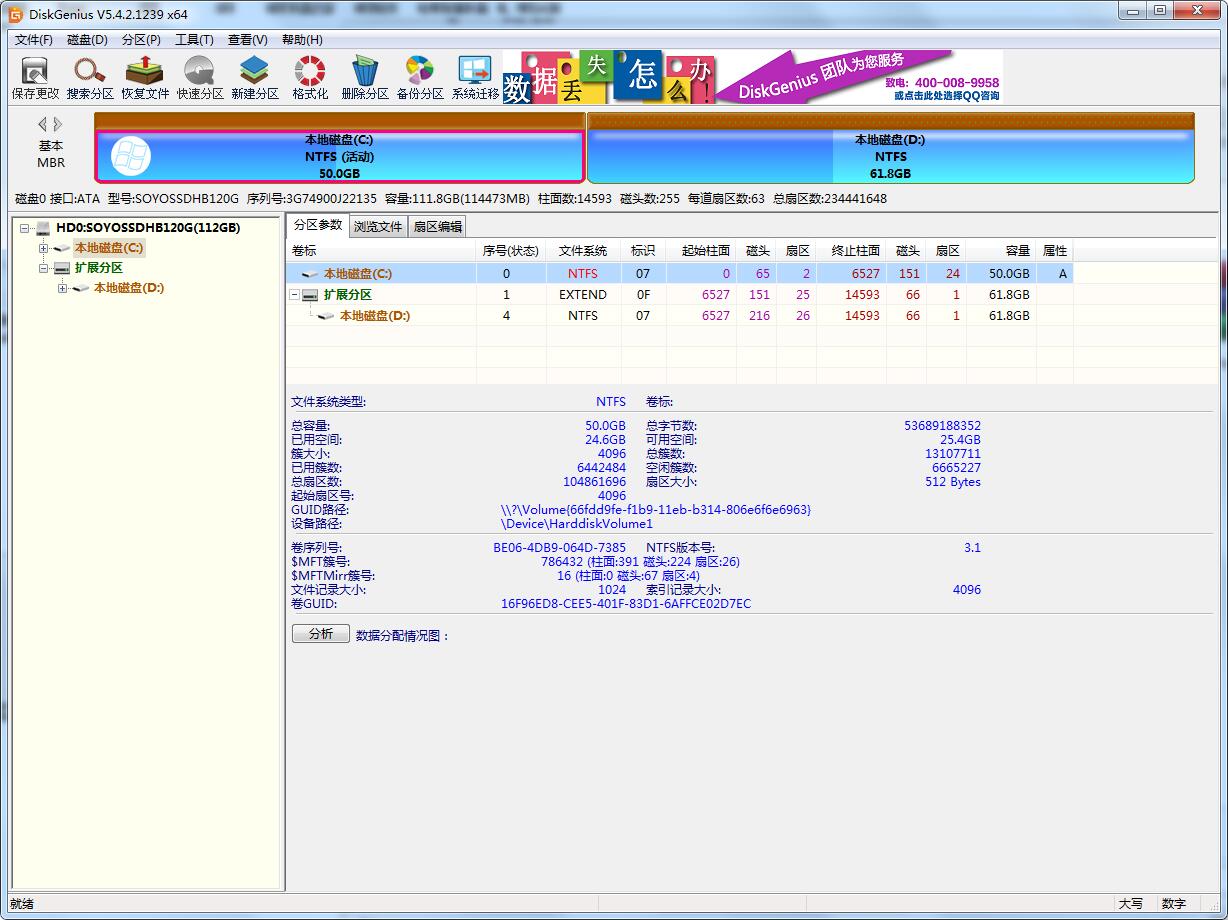
Diskgenius Professional Edition Software Features
1. Data recovery
DiskGenius is a professional-level data recovery software with superb algorithms and powerful functions. It supports file loss and partition loss recovery under various circumstances; supports file preview; supports sector editing, RAID recovery and other advanced data recovery functions.
2. Partition management
DiskGenius is comprehensive, safe and reliable. Partition management functions include: create partitions, delete partitions, format partitions, non-destructively adjust partitions, hide partitions, assign drive letters or delete drive letters, etc.
3. Backup and restore
DiskGenius supports partition backup, partition restoration, partition copy, disk copy, etc.
4. More functions
Quick partition, integer partition, partition table error checking and repair, bad sector detection and repair, deleted files, virtual hard disk and dynamic disk, DOS version included, etc.
Features of Diskgenius Professional Edition software
1. Supports the traditional MBR partition table format and the newer GUID partition table format.
2. Support basic partition creation, deletion, hiding and other operations. Detailed partition parameters can be specified;
3. Supports various types of hard drives such as IDE, SCSI, SATA, etc. Support U disk, USB hard disk, memory card (flash card);
4. Supports FAT12, FAT16, FAT32, and NTFS file systems;
5. Support file reading operations of EXT2/EXT3 file system. Support Linux LVM2 disk management method;
6. You can quickly format FAT12, FAT16, FAT32, and NTFS partitions. The cluster size can be set during formatting and the compression attributes of the NTFS file system can be supported;
7. You can browse any files in any partition, including hidden partitions, including files that cannot be accessed through normal methods. You can read and write files and forcibly delete files by directly reading and writing disk sectors;
8. Support the allocation and deletion of drive letters;
9. Supports deleted file recovery of FAT12, FAT16, FAT32, and NTFS partitions, and file recovery after the partition is accidentally formatted. The success rate is higher;
10. Enhanced lost partition recovery (rebuilding partition table) function. During the recovery process, the searched partition parameters and files in the partition can be displayed in real time. After the search is completed, the files in the partition can be recovered without saving the partition table;
11. Provide backup and recovery functions for partition tables;
12. The entire partition can be backed up to an image file, which can be restored when necessary (such as the partition is damaged). Supports backing up system disk while Windows is running;
13. Support partition copy operation. It also provides three copy methods such as "Copy All", "Copy by Structure", and "Copy by File" to meet different needs;
14. Support hard disk copy function. It also provides the same three replication methods as partition replication;
15. Supports virtual hard disk files of VMWare, VirtualBox, and Virtual PC (".vmdk .vdi .vhd” file). After opening the virtual hard disk file, you can operate the virtual hard disk just like a normal hard disk;
16. You can start VMWare, VirtualBox, Virtual In the case of PC virtual machine, copy files from the virtual hard disk, recover deleted files in the virtual hard disk (including file recovery after formatting), copy files to the virtual hard disk, etc.;
17. Supports the creation, reading and writing of ".img" and ".ima" disk and partition image files;
18. Supports the creation of USB-FDD and USB-ZIP mode boot disks and its file operation functions;
19. Supports disk bad sector detection and repair functions to minimize data damage during the process of repairing bad sectors;
20. You can open the PMF image file created by DiskGenius;
21. Support sector editing function;
22. Support virtual disk file format conversion function;
23. Supports lossless partition resizing function.
Diskgenius Professional Edition installation steps
1. Download the installation package of Diskgenius Professional Edition in Huajun Software Park
2. After downloading, unzip the compressed package into a folder named after this software
3. Open the folder and double-click the "exe" program
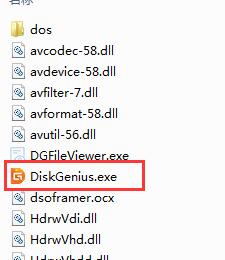
4.Diskgenius Professional Edition is green software and can be used without installation.
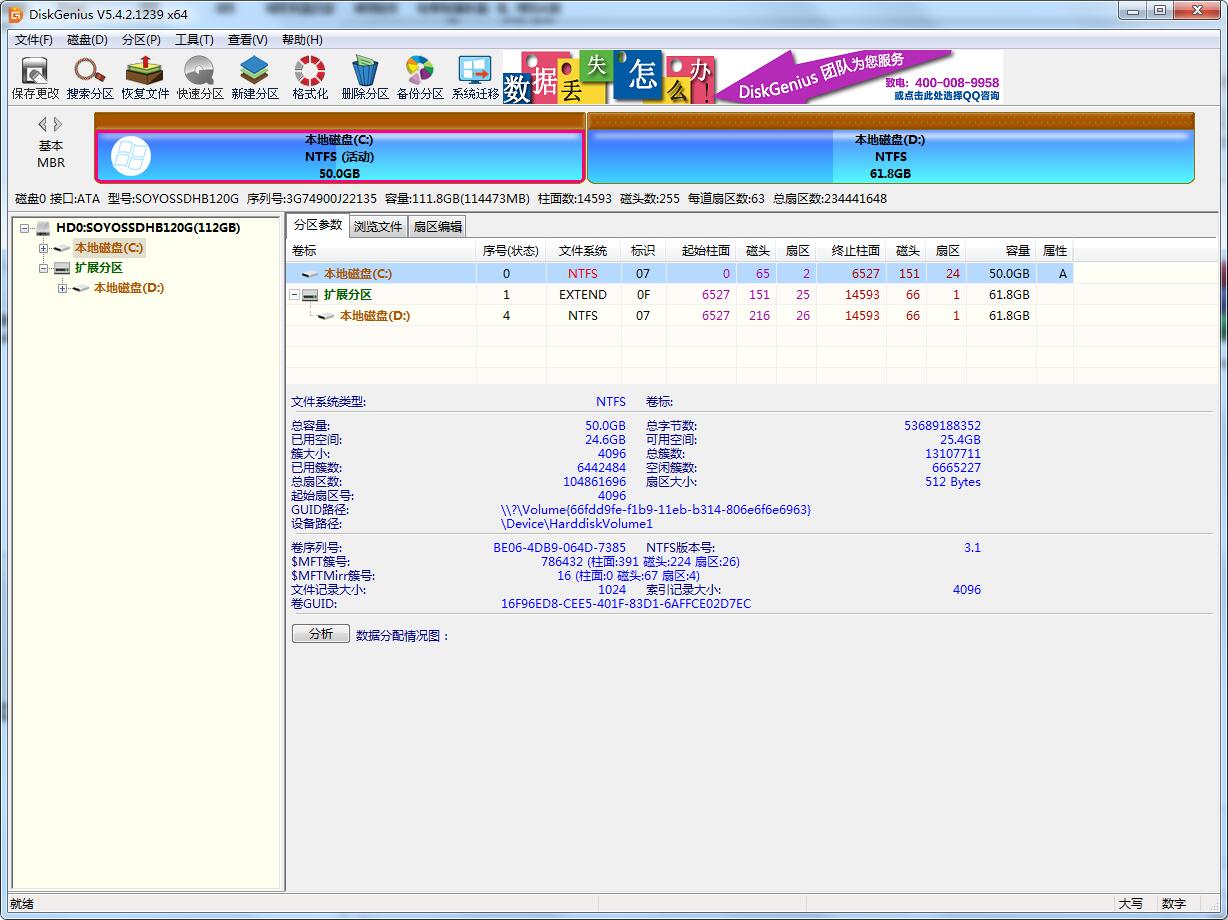
Diskgenius Professional Edition update log
1. Search partition function. After searching for the lost ESP partition and Windows system partition, restore its partition GUID as much as possible so that the restored system can start.
2. Search partition function. After searching for the lost LDM metadata partition, the dynamic volume will be displayed immediately to support the recovery of files on the dynamic volume.
3. File recovery function, adding type recovery of DSF, DFF, and FLAC audio format files.
4. File recovery function, enhanced type recovery of MP4 and APE format files.
5. Optimize exFAT partition file recovery function.
6. Added support for previewing DSF and DFF audio format files.
7. Improve the stability of the function of adjusting partition capacity.
8. Improve the compatibility of video preview.
9. Corrected the problem that copying files may cause the program to stop responding.
10. Corrected the problem that after cloning a disk with an LVM partition, the target disk did not display the LVM partition.
11. Corrected the problem of frequent disk reading at the end of the function of clearing partition free space.
12. Corrected the problem that the EXT4 partition capacity could not be adjusted in some cases.
13. Corrected the issue where all partitions of a dynamic disk are displayed as "simple volumes" but still cannot be converted to basic disks in some cases.
14. Corrected the problem of abnormal backup disk to image file function.
15. Corrected the problem that the "Start" button of the backup disk function of the single-file version is always invalid.
16. Correct some display problems.
Huajun editor recommends:
Diskgenius Professional Edition is a very practical and simple tool. Interested users can download and use it from the Huajun Software Park. In addition, there are many similar software of the same type available for download, such as:Virtual optical drive tool,Hard disk serial number reading tool,Hard disk virtual partition wizard,Huahong HHD02A card reader driver,Laomaotao USB boot disk creation toolWait.














Useful
Useful
Useful