



- Green versionView
- Green versionView
- Green versionView
- Green versionView
- Green versionView
How to use photoshop
How about Photoshop7.0Cutout?
1. First open Photoshop, select and open the picture that needs to be cut out.
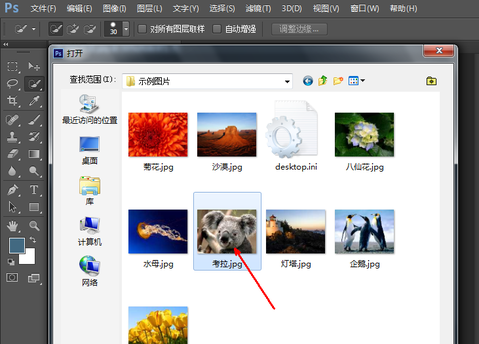
2. Click to select the Pen tool in the left toolbar.
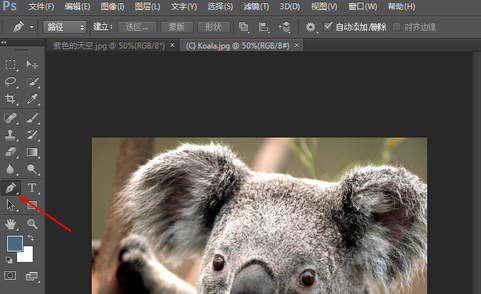
3. Use the pen tool to stroke along the edge of the image that needs to be cut out. After tracing, press ctrl and enter on the keyboard to select.
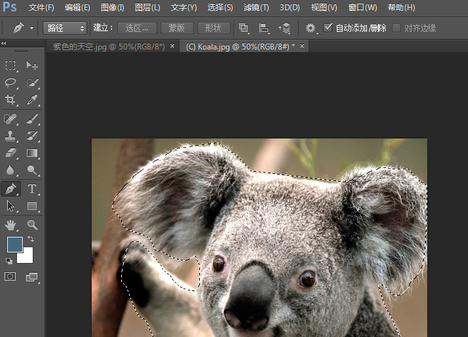
4. UsemouseRight-click on the image and select the "Adjust Edges" option in the drop-down menu.
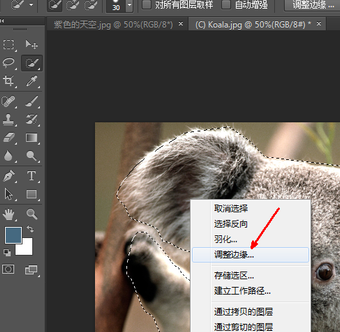
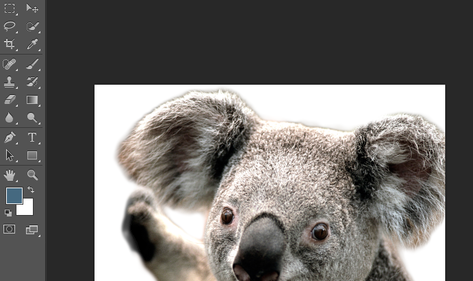
5. In the Adjust Edge window, you can set multiple values such as edge smoothness, feathering value, contrast, etc., and view the adjustment results in real time. When the adjustment results meet the requirements, click "OK" below.
6. This completes the cutout, come and try it.
photoshop shortcut keys
Multiple tools share oneShortcut keysYou can press [Shift] at the same time and add this shortcut key to select
Rectangular and elliptical marquee tool [M]
Cropping tool【C】
Mobile Tools【V】
Lasso, Polygonal Lasso, Magnetic Lasso [L]
Magic Wand Tool 【W】
Spray gun tools 【J】
Brush Tool 【B】
Rubber stamp, pattern stamp【S】
History Brush Tool【Y】
Eraser Tool【E】
Pencil, straight line tool 【N】
Blur, sharpen, and smear tools【R】
Dodge, Burn, Sponge Tools [O]
Fountain pen, free pen, magnetic pen【P】
Direct selection tool【A】
Text, text mask, vertical text, vertical text mask [T]
Measuring tools【U】
Straight line gradient, radial gradient, symmetrical gradient, angle gradient, diamond gradient [G]
Paint Bucket Tool【G】
Straw, color sampler【I】
Default foreground and background colors【D】
Switch the foreground color and background color [X]
Switch between standard mode and quick mask mode【Q】
Standard screen mode, full screen mode with menu bar, full screen mode [F]
photoshop FAQ
Q: How to create hollows in photoshoptext?
Answer: Open the computer desktop and select the installed PS (photoshop) to create layers
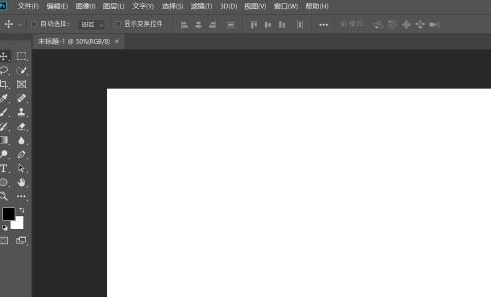
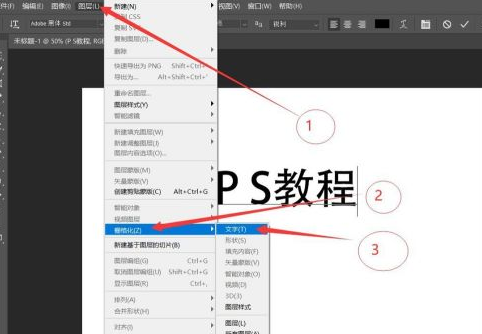
Then enter the text you want, then select Layer→Rasterize→Text
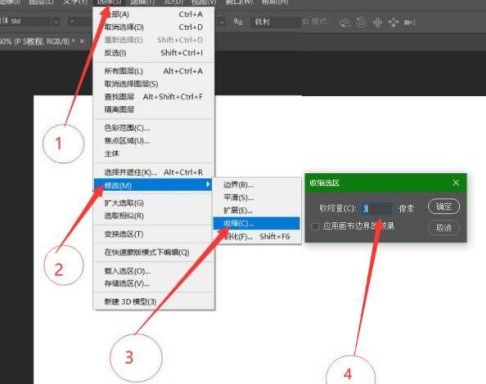
Next step, hold down Ctrl and click on the textLayersLoad the selection, then click Select → Modify → Shrink, select 3 pixels, and click OK
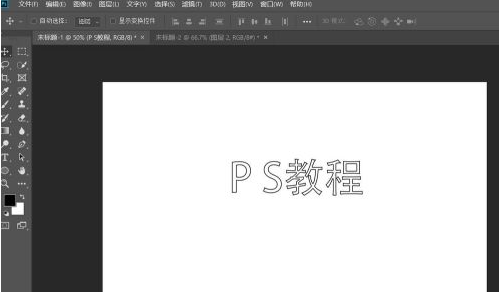
Finally, press the Delete key to delete the redundant part, then Ctrl+D to cancel the selection and save it.
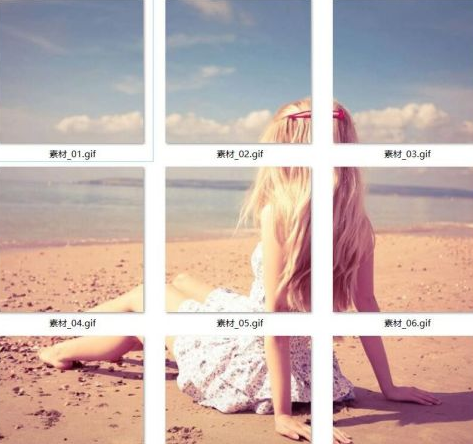
Question: How to create a nine-square grid in photoshop?
Answer: Open the computer desktop, select the installed PS (photoshop) to open and importMaterial
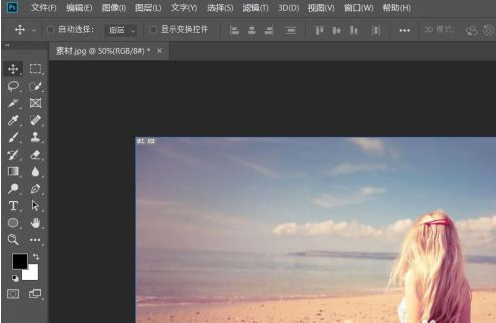
Then select the crop tool, select a 1:1 square for the ratio, and click OK.
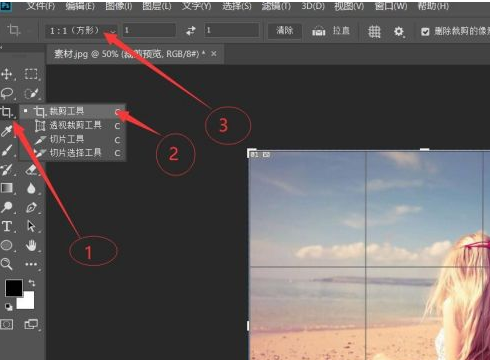
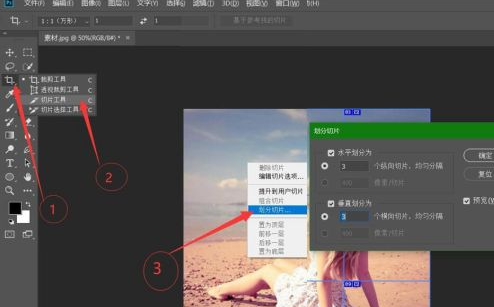
Then select Crop Tool → Slice Tool again, then right-click on the image, select Divide into Slices, set both Horizontal Divide and Vertical Divide to 3, and then click OK.
The next step is to select File→Export→Save for Web.
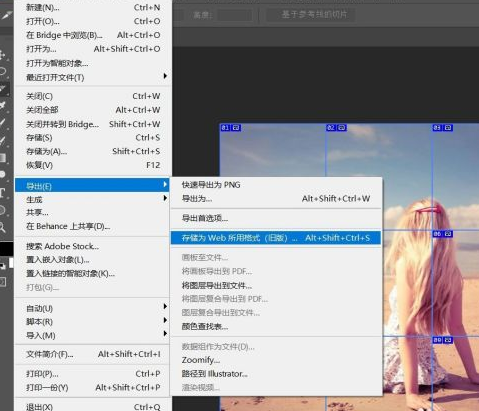
Finally, select Save, save to the location you want to save, and click OK.
photoshop software features
1. Intelligent reference line
2. Improvements in linked smart objects
3. Layer composition in smart objects
4. Use fonts in Typekit
5. Search fonts
6. Blur gallery motion effect
7. Select the image area in focus
8. Content recognition function with color mixing
9. Enhancement of Photoshop generator
10. 3D printing
11. Enable experimental features
12. Improved synchronization settings
13. 3D image processing
14. Export color lookup table

photoshop software features
1. Supports a variety of image formats
The image formats supported by Photoshop include PSD, EPS, DCS, TIF, JEPG, BMP, PCX, FLM, PDF, PICT, GIF, PNG, IFF, FPX, RAW and SCT. You can use Photoshop to save images in a certain format as other formats to meet special needs.
2. Support multiple color forms
The color modes supported by Photoshop include bitmap mode, grayscale mode, RBG mode, CMYK mode, Lab mode, indexed color mode, two-tone mode and multi-channel mode, etc., and can realize conversion between various modes. In addition, using Photoshop, you can also adjust the size, resolution and cloth size of the image at will. You can not only increase the image size without affecting the resolution, but also increase or decrease the resolution without affecting the image size.
3. Provides a powerful function for selecting the image range
Using rectangular, elliptical masks and extraction tools, you can select one or more different sizes. The shape selection range is magnetic and the tool can make the selection range close to the image to be selected based on the pixel contrast of the selection edge. Use the magic wand tool or the color range command to automatically select the desired part based on the color. With the use of a variety of shortcut keys, you can add, subtract, and invert the selection range.
4. Able to make various modifications to pictures
Such as moving, copying, posting, cutting, erasing, etc. If an error is made during modification, it can be revoked and restored unlimited times. Photoshop can also rotate and deform the image at will, such as flipping or rotating in a fixed direction.
5. Able to adjust the color harmony and color of pictures
Makes the adjustment of hue, saturation, brightness, and contrast simple and easy. Photoshop can adjust a certain selection range alone, or a certain selected color. Use the color balance reverse order to change the color mixture in a color image. Use the level and curve commands to adjust the highlights, dark harmonies, and center tones of the image respectively. This is a function that is difficult to achieve with traditional painting techniques.
6. Provides painting function
Using airbrush tools, brush tools, pencil tools, and straight line tools, you can create various graphics. By setting the brush shape, size, and pressure, you can create different brush effects. Using the mutation tool can produce a variety of mutation effects. The burn and lighten tools can selectively change the exposure of the image.
7. Use multiple layers together
Photoshop users can create a variety of layers such as general layers, background layers, text layers, adjustment layers, etc., and easily modify each layer. Users can copy, move, and modify the layers at will. Delete, flip, merge and combine to complete the placement of layers, and you can also use operations such as adding shadows to create special effects. Adjusting layers can control image effects such as transparency and saturation of the layer without affecting the image. The text layer can modify the text in the image at any time. Users can also modify different color channels separately. Use masks to accurately select the range for storage and loading operations.
8. Provides nearly 100 types of filters
Each type of filter is different, and users can use these filters to achieve various special effects, such as using wind filters to add motion to images, and using embossing filters to create relief effects, etc.
photoshop installation steps
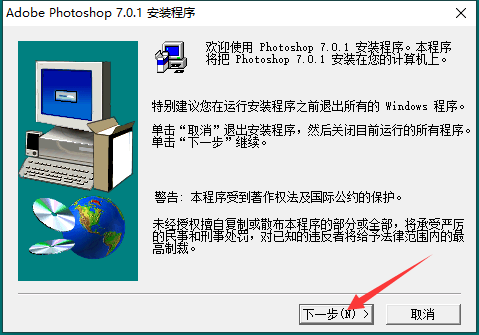
1. Download photoshop from Huajun Software Park and extract it to the current folder. Click on the exe application to enter the installation wizard interface, and then click Next.
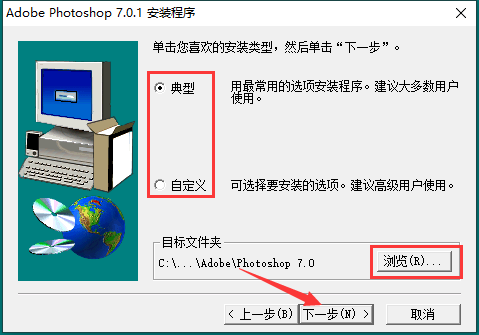
2. Select the software installation location interface. Huajun editor recommends that users install it on the D drive, select the installation location and click Next.
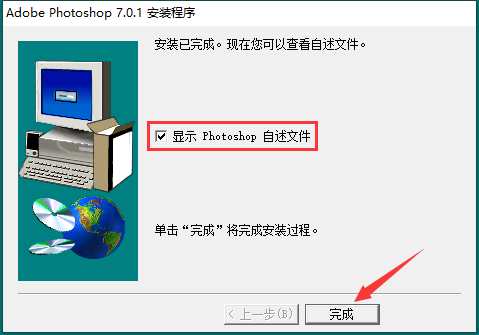
3. When the installation of photoshop is completed, click Finish.
Comparison of similar software in photoshop
Picture editing and text additionIt is a powerful, easy-to-use picture and photo editing software with a large number of built-in popular backgrounds, various types of lyrical texts, ever-changing stickers, etc. It supports automatic layout, adding any text, and can easily rotate stickers and text, and move text to any position.
Hi format picture lossless amplifierThe official version is a professional and efficient AI image lossless enlargement tool. The latest version of HiFormat Picture Lossless Amplifier is powerful and supports functions such as intelligent image amplification, image enhancement, and powerful noise reduction processing. HiFormat Picture Lossless Amplifier uses professional AI artificial intelligence technology to perfectly preserve image quality, reduce noise and sharpen, conveniently and quickly.
photoshop update log
1. Improved file browser
2. Full support for 16-bit images
3. Customized shortcut keys
4. Match color command
5. Support raw mode of digital camera
Huajun editor recommends:
photoshopIt can also effectively perform picture editing work and has strong practicality in many fields. Photoshop has always been a commonly used image processing tool for most netizens. Its dominant position in the minds of netizens can be seen. It is strongly recommended that users download and use Photoshop. Come to Huajun Software Park to download it.










Useful
Useful
Useful