




- Green versionView
- Green versionView
- Green versionView
- Green versionView
- Green versionView

How to use PhotoShop CS6
adobe photoshop cs6 how toCutout?
1. First open the Photoshop CS6 desktop shortcut, and then click "File"Menu, click "Open" in the pop-up options and find your material.
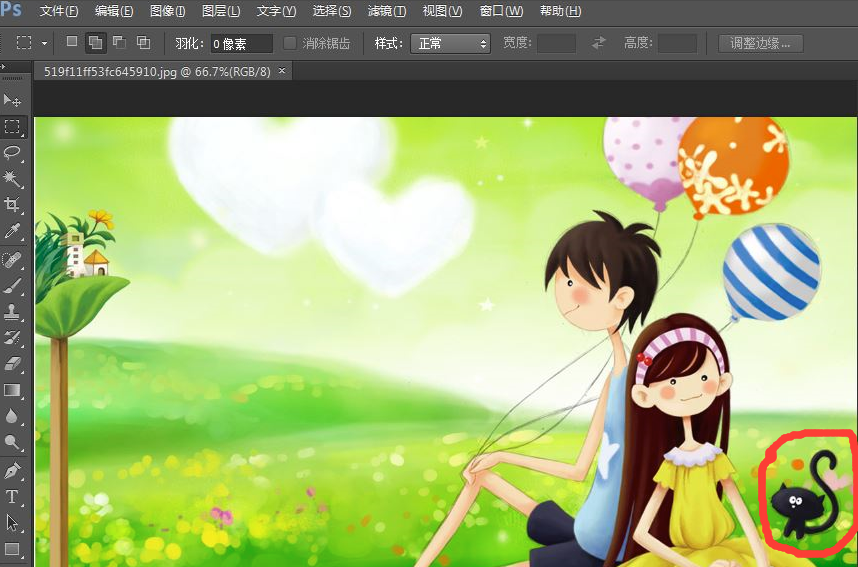
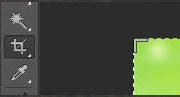
2. After opening the picture, click on the left toolbarCroptool to convert the kitten in the pictureCropCome out, after the cropping is completed, hold down the Alt key, scroll the wheel up, and cut the kitten'spicturesEnlarge to appropriate size.

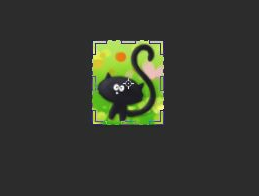
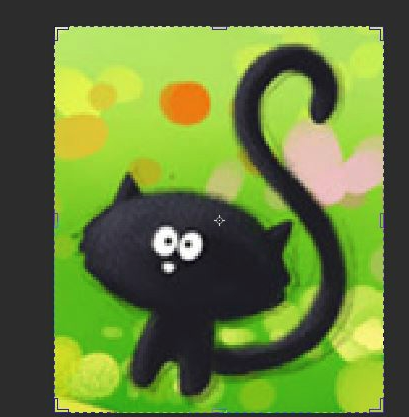
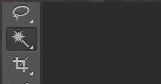
3. Click the Magic Wand tool on the left toolbar, adjust the Magic Wand tolerance to 40, and then pressshiftClick on the kitten and draw all the parts of the kitten in the dotted lines. Click when finishedmouseRight-click and select "Select Reverse" from the pop-up options. Use "Select" in the filled content.background"Color", select 100% opacity, click OK, and the little black cat will be cut out.
Note: The tolerance here is allowedColorThe greater the difference, the greater the tolerance, the greater the range of choices. When the tolerance is 0, only ranges of the same color can be selected. When the tolerance is 255, all ranges will be selected.


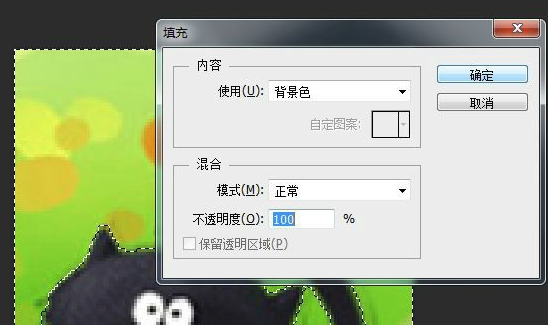
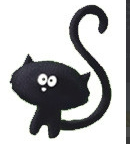
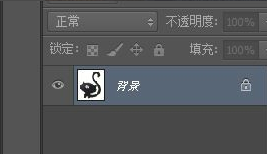
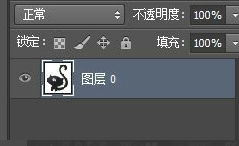
4. Double-click the layer and click "OK" in the pop-up options. You will find that the small lock on the layer is gone. Then use the magic wand to click on the white part and press the Delete key to getbackgroundA transparent little black cat. Just save it in png format.
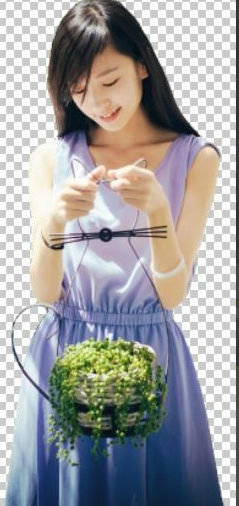
5. In the actual operation process, we will deduct some complexpictures, this is where we need the magnetic set lock tool. Use the magnetic lasso to carefully walk around the person you want to pick, forming a closed circle. Likewise, right-click - "Select Reverse" - and press the Delete key to isolate the selected part. During this process, try to surround as many areas as possible. If you accidentally surround someone, press the Backspace key to return to the previous range.

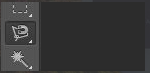


6. If the range of your painting is a bit large, you can useeraserJust use the tool to erase the extra drawn range. If you make a mistake in erasing, hold down the Ctrl key and the Alt key, and then press the Z key to restore it.


Adobe Photoshop CS6 FAQ
howUninstallPhotoShop CS6?
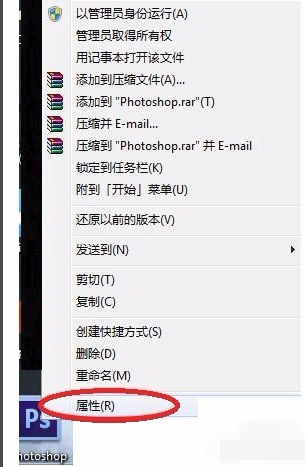
1. Find the PhotoShop CS6 desktop shortcut and clickmouseRight-click and click the "Properties" option in the pop-up options.
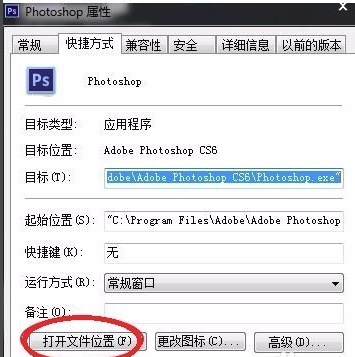
2. In the PhotoShop CS6 property interface, click "Open" in the lower left corner.FileLocation" button.
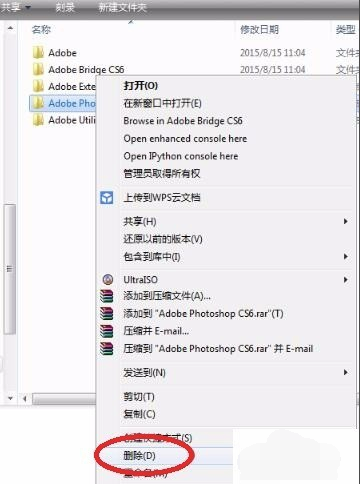
3. Open the PhotoShop CS6 installation location interface and clickmouseRight click and select "Delete" option.
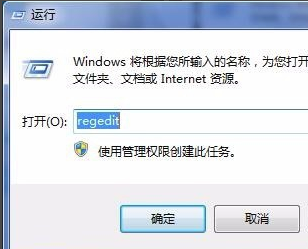
4. Press Win key + R key and enter REGEDIT to open the registry.
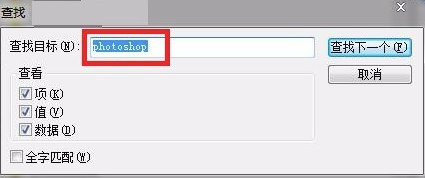
5. After opening the registry, press CTRL+F to open the search box and enter photoshop to search for relevant entries.
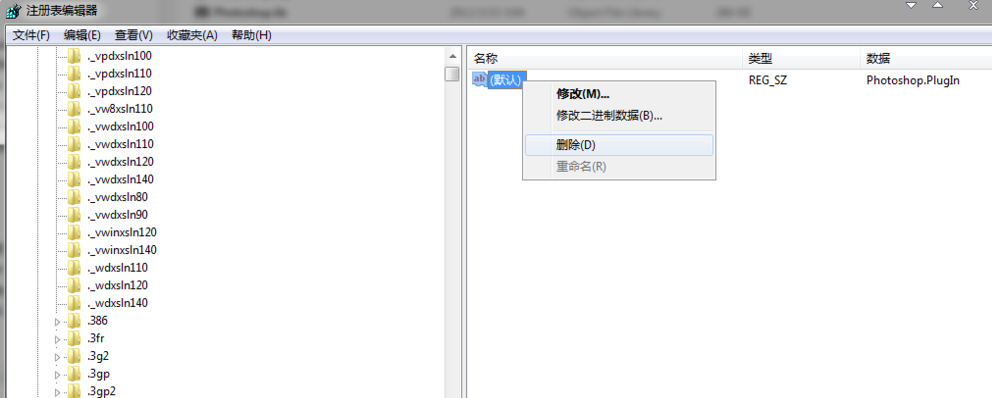
6. Find the relevant photoshop file and click to delete it.
Photoshop CS6 commonly usedShortcut keysDetailed explanation
1.imageSize: Ctrl + Alt + I
2. Create a new layer: Ctrl + Shift + N
3. Liquify: Shift + Ctrl + X
4. Invert: Ctrl + I
5. Full canvas display: Ctrl + 0
6. Ruler: Ctrl + R
7. Show grid: Ctrl +’
8. Show reference lines: Ctrl +;
9. Lock guides: Alt + Ctrl +;
10. Brush size: In the brush state, press [and] to quickly change the brush size
11. Brush hardness: Hold down Shift + [ and Shift +] to adjust
12. Move Tool: V
13. Marquee tool: M
14. Lasso Tool: L
15. Crop tool: C
16. Quick Selection/Magic Wand: W
17. Healing Brush: J
18. Eraser: E
19. Gradient Tool/Paint Bucket: G
20. Pen Tool: P
21. Text tool: T
22. Switch foreground/background color: X
23. Default foreground/background color: D
24. Rectangle/Circle/Polygon/Ellipse Tool: U
25. Dodge/Burn/Sponge Tool: O
26. History Brush Tool: Y
27. Rotate View Tool: R
28. Gripper tool: H
New features in PhotoShop CS6
fullNew crop tool
Use new non-destructive cropping tools to quickly and accuratelyCrop image, you can also view the adjustment results in real time.
Content aware patching
Take more control with content-aware patchingimageRepairing, P-picture is easier.
Auto correction function
Use improved automatic curves, color levels, brightness/contrast and other controls to provide a more suitable starting point, allowing you to adjust at will, making drawing more convenient!
PhotoShop CS6Software features
1. Support a variety ofcolorform
2. Support multiple image formats
3. Provides a powerful function for selecting the image range
4. Able to make various modifications to pictures
5. Be able topicturesMake adjustments to hue and color
6.PhotoshopNearly 100 filters are provided in total
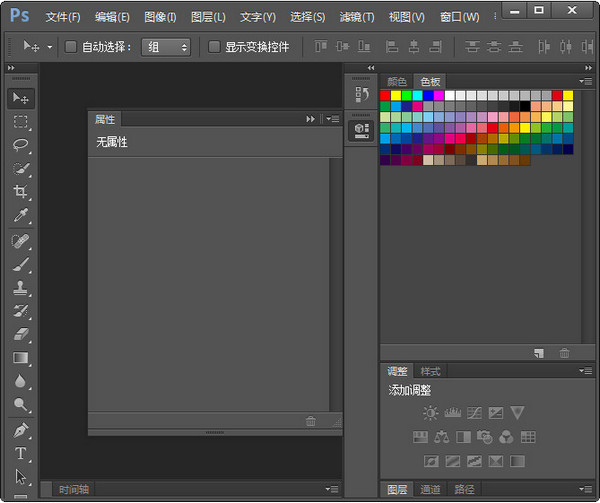
photoShop CS6 installation steps
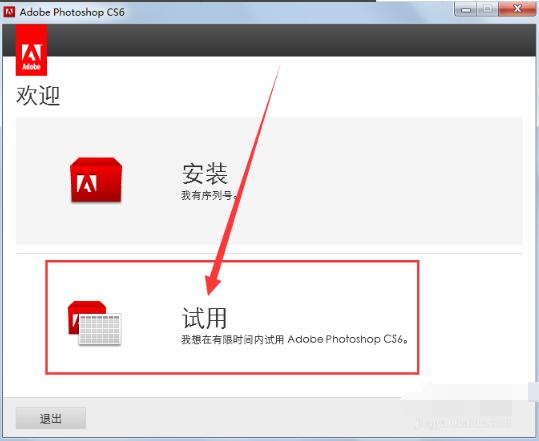
1. After downloading adobe photoshop cs6 software from this site, use 360UnzipAfter decompressing the software, click the .exe file to enter the Adobe Photoshop CS6 welcome interface, and click the [Trial] option.
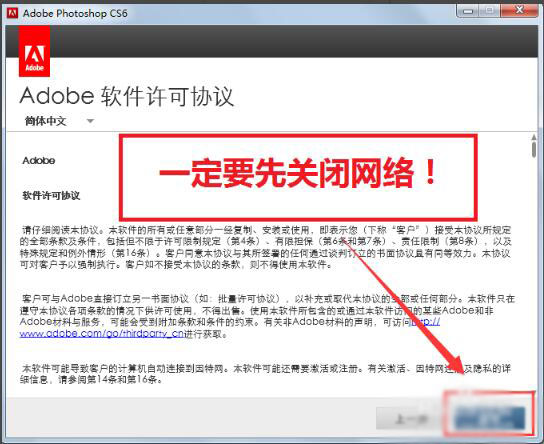
2. Enter the adobe photoshop cs6 license agreement interface. You can read the terms of the agreement first.readAfter finishing, if you have no objection, click [Accept], otherwise just close the software installation interface.
Note: You need to disconnect the network before installation (unplug the network cable directly).
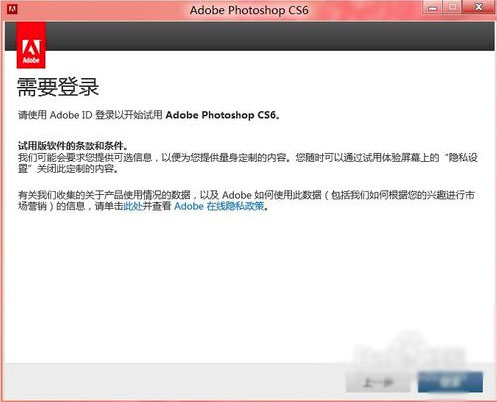
3. Enter the adobe photoshop cs6 login interface and click the [Login] button in the lower right corner.
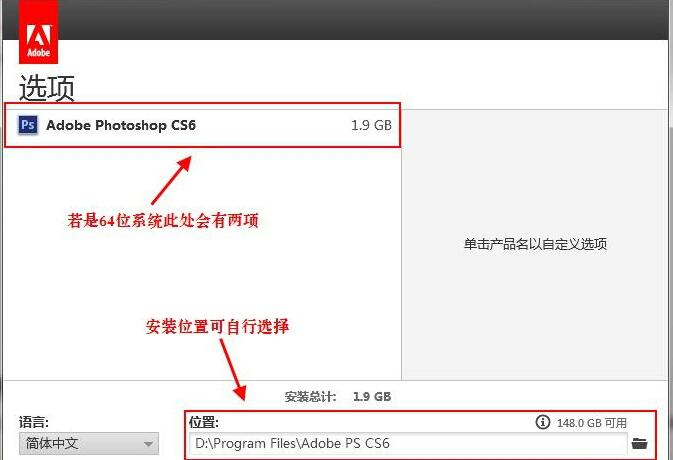
4. After logging in, enter the adobe photoshop cs6 installation options interface. You can click [Install] directly, and the software will automatically be installed by default. Or you can click the folder icon, select the installation location of Adobe Photoshop CS6, and click [Install] after completing the selection.
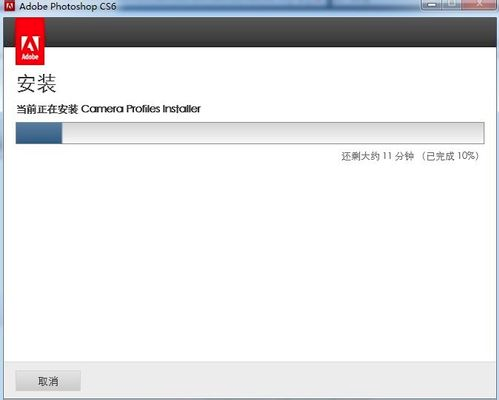
5. Adobe photoshop cs6 software is being installed. The software installation will take 6 to 10 minutes. You need to wait patiently.
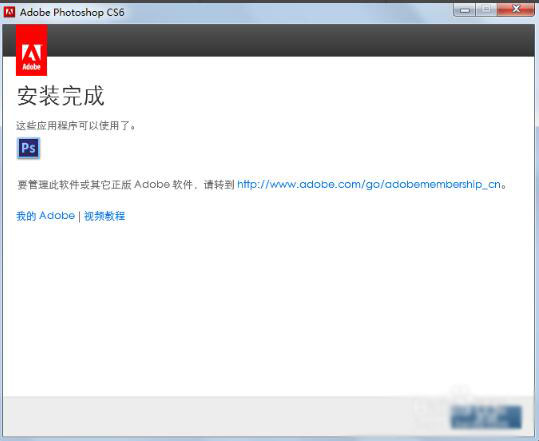
6. The installation of Adobe Photoshop CS6 is completed. You can click [Close] to exit the software installation interface. .
Photoshop CS5What are the differences compared to CS6?
photoshop cs5, photoshop CS6, is continuously improved as the version improves.
photoshop CS5: New layout that supports widescreen monitors. Toolbar takes up less space. Automatically generate a panorama from multiple photos. Improved vanishing point characteristics, better 32-bit HDR image support.
photoshop CS6: Paint with realistic brush strokes and blend colors. Native 64-bit cross-platform support experience, and comprehensive optimization for Windows. New versions of Adobe Photoshop: Adobe PhotoShop CS6 Adobe AIR Adobe Device
Central Adobe Media Player Adobe CS6 Extension Script Toolkit CS6 Adobe Extension Management Adobe Fonts Adobe Bridge CS6 CS6
Adobe Photoshop






















Useful
Useful
Useful