





- Green versionView
- Green versionView
- Green versionView
- Green versionView
- Green versionView
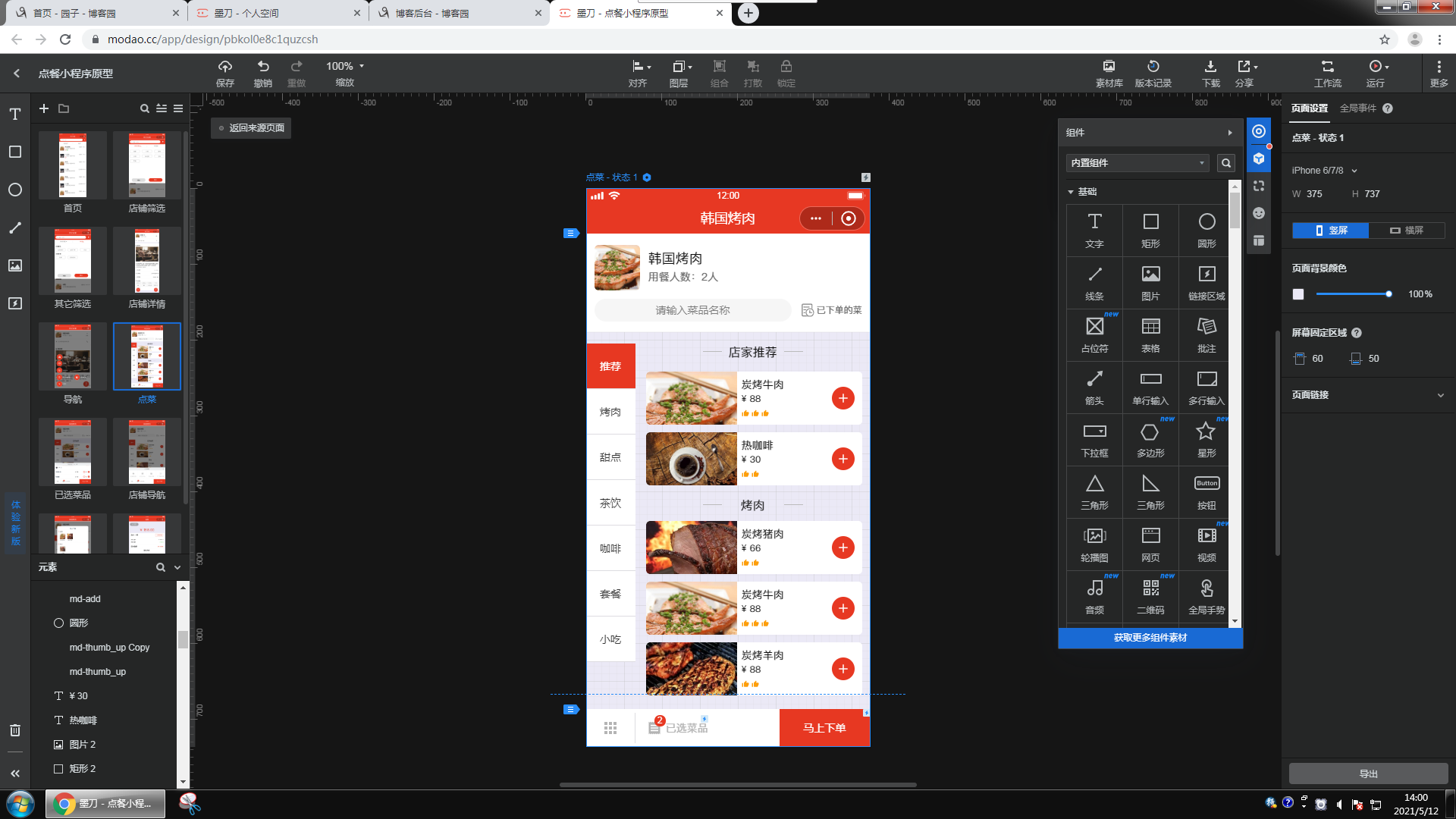
Ink knifeSoftware function
Material library
Rich built-in components and templates
Customizable personal material library
You can also share team component libraries
Design
Easily build the interface with one drag and one drop
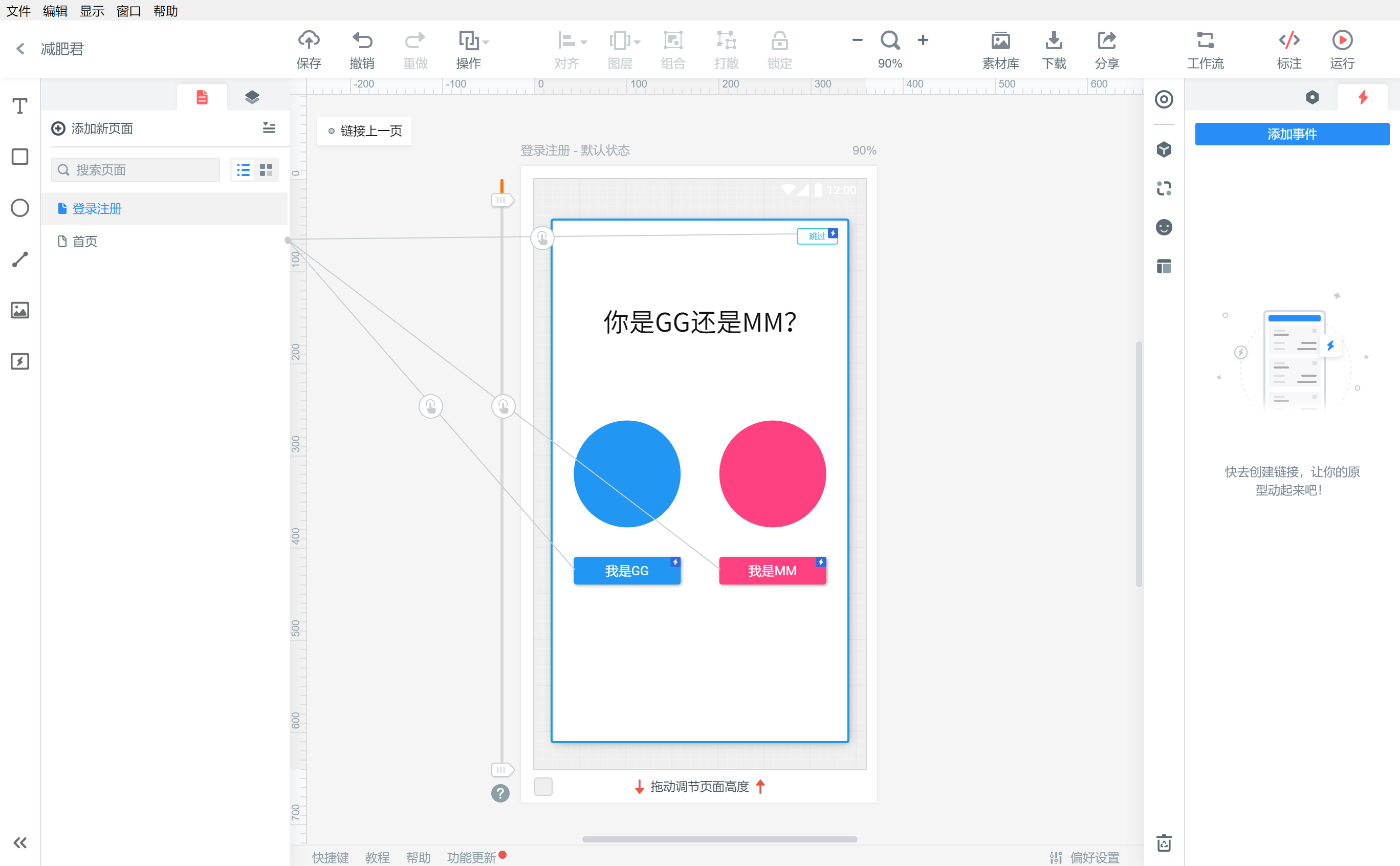
A variety of gestures and transition effects
No needcodeCan also create cool animation effects
Efficient presentation and review
Real device borders, full screen demonstration
One-click sharing
Get reviews online
SketchPlugins & Annotations
Import Sketch draft
Automatic labeling and cutting
Get the full platform code
Cloud editing
BrowserLog in directly
Work anytime, anywhere
Remote team collaboration
Multi-person collaboration
Collaborative editing, viewing, and review
Project synchronization and transparent communication
Convenient project & member management
How to use ink knife
Links, gestures and timers
Using Mo Knife can very conveniently create links between pages. Mo Knife's original drag-and-drop link method allows the link relationship between pages to be clearly displayed. To create a link between pages, you only need to select the component to be linked, and then drag the small circle on the right side of the component to the target page, as shown below:
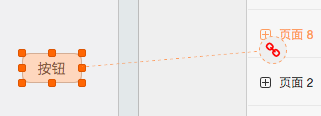
After creating the link, we will see the link options panel:
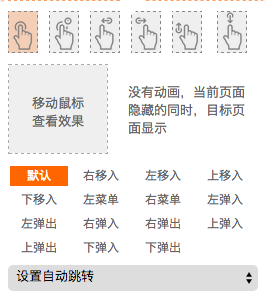
As you can see, the link panel contains three parts: gestures, switching animations, and timers. Let’s introduce these three parts in turn.
Since gestures require a large clickable area, not all components support gestures. Currently, components that support gestures include: global gestures, link areas, pictures, and rectangles. There are 6 optional gestures as shown in the figure: tap, long press, and up, down, left, and right slides.
The next step is to select the page switching animation. There are 15 special effects to choose from. If you are not sure which effect you want, you can move the mouse to the preview box above to preview the effect after selecting it.
Finally, there is the timer, which can set the automatic jump time of this link. After the time is reached, even if the user does not perform any operations, the application will automatically jump to the target page, which is suitable for making carousel animations, etc.
Frequently Asked Questions about Ink Knife:
Unable to log in to Mo Knife
Possible reasons: incorrect account or password, network problems, server maintenance, etc.
Solution:
Confirm that the account number and password are entered correctly.
Check whether the network connection is stable and try changing the network environment.
Visit the official website of Mo Dao to see if there are any notices about server maintenance.
Ink knife client cannot be opened
Possible reasons: network instability, network proxy (VPN) interference, system firewall or anti-virus software blocking, etc.
Solution:
Check the network connection and try to use the browser to open the Mokou web version to see if it is normal.
Close the network proxy (VPN) and try to reopen the MokDao client.
Check your system firewall or anti-virus software settings to make sure they are not blocking the Mok Knife client from running.
Mo Knife update log
1. Fixed other bugs;
2. Optimized software compatibility.
Huajun editor recommends:
The editor of Huajun Software Park has compiled and collected software that you may like, such as:Adobe Illustrator CC,AutoCad 2020,Beautiful pictures,ps download Chinese version free cs6,Picture Factory Official VersionYou can download it from this site.












Useful
Useful
Useful