



Instructions for use
1. Start the ZTE Supplicant program. The network connection dialog box provides the user name and user password for authentication and authorization. You can choose to save the user name and password so that the saved user information can be used for authentication when the program is run again, as shown in the figure below.
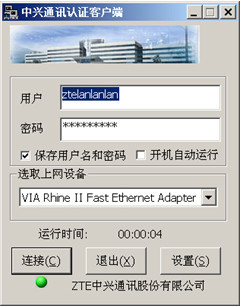
Tip: The username cannot exceed 20 characters, and the password cannot exceed 20 characters.
2. Check "Automatically run at startup" to indicate that ZTE Supplicant will automatically start the next time you turn on the computer, and the main window for startup will be displayed.
3. The network card selection drop-down box displays all the network devices that can be connected in the system. You need to select the certified network device in the drop-down box.
4. Click the "Settings" button to set detailed network information in the settings dialog box.
5. After setting the relevant information, click the "Connect" button and the program starts the authentication process. During the authentication process, you may be required to confirm your username and password. You can see whether the authentication was successful or not through the connection information and connection icon.
6. Click the "Exit" button to exit the program without performing any authentication.
WinXP operating system users please note:
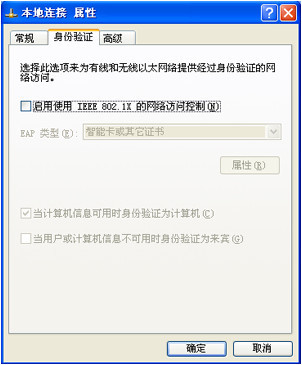
When using 802.1x authentication client software, please disable the use of IEEE 802.1x network access control in the "Authentication" dialog box in the network card properties, as shown in the figure below.










Useful
Useful
Useful