





FlashFXP is a powerful and user-friendly FTP/SFTP/FTPS client software designed for efficient management of remote server files. It supports a variety of file transfer protocols, provides an intuitive interface and rich automation functions, and is widely used in website maintenance, file backup, server management and other scenarios. Friends who like FlashFXP come to Huajun Software Park to download and experience it!
-
Collaborative officeView
-
Large screen ultra-clear picture qualityView
-
Funny videos are endlessView
-
Safe decompressionView

FlashFXP FAQ
1.How to set Chinese in FlashFXP?
During the installation process, a language selection window will pop up for you to choose. The default English option is click the drop-down box to select Simplified Chinese, and then click "ok".
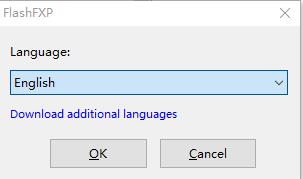
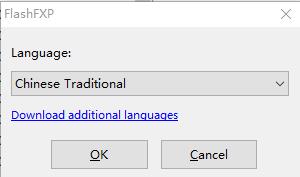
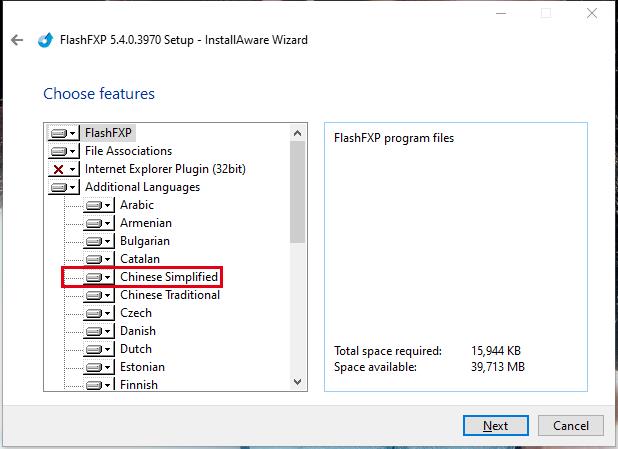
Or check Simplified Chinese in the additional language settings during the installation process, and then click "next".
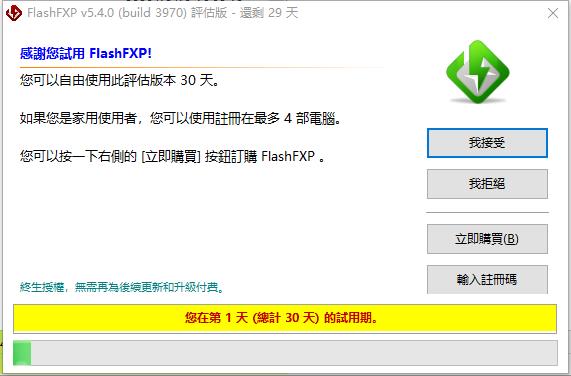
2.How to upload files in flashfxp
If you want to use FlashFXP software to upload local files to the server, but you do not know how to indicate the upload file, you can click:http://softwaredownload4.com/article/10002171.htm, in this tutorial, we introduce the upload method in detail, I hope it can help you.
3. When using FlashFXP, it prompts that it cannot connect to the FTP server.
There may be three reasons:
1) FTP configuration error,
2) It may be that FlashFxp is set incorrectly.
3) The firewall on the FTP server blocks your FlashFxp access. You can right-click "Local Area Connection" on your computer, find the "Settings" of the firewall in the "Advanced" tab, and "Add Port" in "Exceptions", "Name": FTP, "Port": TCP settings of 21.
4. FlashFXP displays garbled characters when connecting to a Linux server.
Please select the corresponding site in the site manager, switch to the connection tab, and change the character encoding from automatic detection to UTF-8
5. FlashFXPSolution to slow loading
You can click:http://softwaredownload4.com/article/10002168.htm, in this tutorial, we introduce in detail the solution to the slow loading of FlashFXP, I hope it can help you.
FlashFXP function introduction
Multi-protocol support
FTP (File Transfer Protocol): Basic file upload/download, suitable for most servers.
SFTP (SSH File Transfer Protocol): Encrypted transmission through SSH, with higher security (requires server support).
FTPS (FTP over SSL/TLS): Adds SSL/TLS encryption based on FTP, taking into account compatibility and security.
FXP (Site-to-Site Transfer): Transfer files directly between two servers without going through your local computer (saving bandwidth and time).
Intuitive interface design
Dual-window layout: the local file system is on the left and the remote server directory is on the right, supporting drag and drop operations.
Tab management: Multiple connections or directories can be opened at the same time to facilitate task switching.
Queue management: Add multiple file transfer tasks to the queue and execute them according to priority or order.
Automation and scripting support
Task schedule: Set up scheduled transmission (such as daily backup of website data).
Scripting: Implement complex operations (such as batch renaming, conditional transfer) through built-in scripting languages (such as FlashFXP Script).
URL shortcut: Save frequently used server connections as URLs for quick access with one click.
Advanced file management
Breakpoint resume download: Automatically resume from the breakpoint after the transmission is interrupted to avoid repeated downloads.
File synchronization: Compare local and remote directories and automatically update differential files.
Permission settings: Modify the CHMOD permissions of remote files (applicable to Linux/Unix servers).
Compressed transmission: Supports ZIP compressed package upload/download to reduce transmission time.
Security and privacy
SSL/TLS encryption: Protects data during transmission.
Master password protection: Encrypt locally stored server passwords to prevent unauthorized access.
Proxy support: Compatible with HTTP/SOCKS proxy, suitable for use in intranet environments.
FlashFXP software features
Cross-platform compatibility:
Supports Windows (XP/Vista/7/8/10/11), but runs on macOS/Linux via Wine (compatibility tested).
Performance optimization:
Supports multi-threaded transmission (can upload/download multiple files at the same time), improving large file transfer speed.
Low resource usage and suitable for long-term background operation.
Logs and reports:
Record transmission logs in detail and support exporting to text or HTML format for easy auditing or troubleshooting.
FlashFXP installation steps
1. After downloading the FlashFXP software from this site, get an .exe file locally on your computer. Double-click the .exe file to enter the software installation interface, and click [next] to continue the installation.
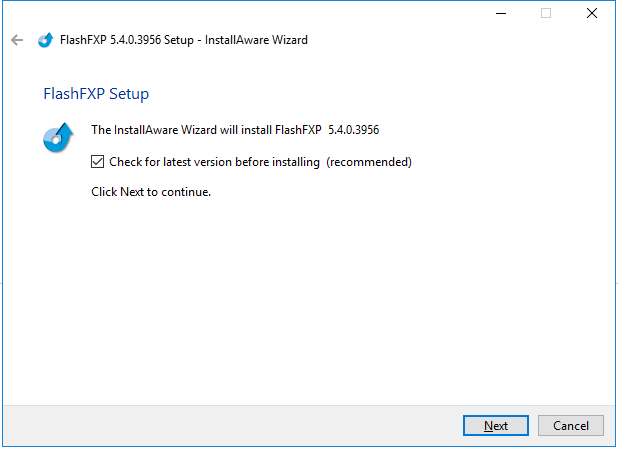
2. Enter the FlashFXP software introduction interface and click [next] to continue the installation.
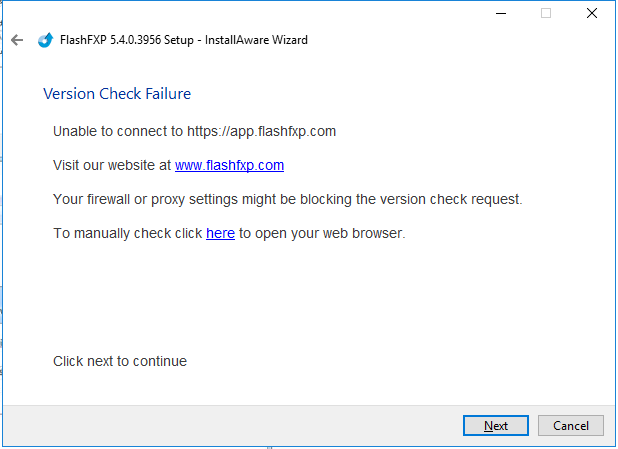
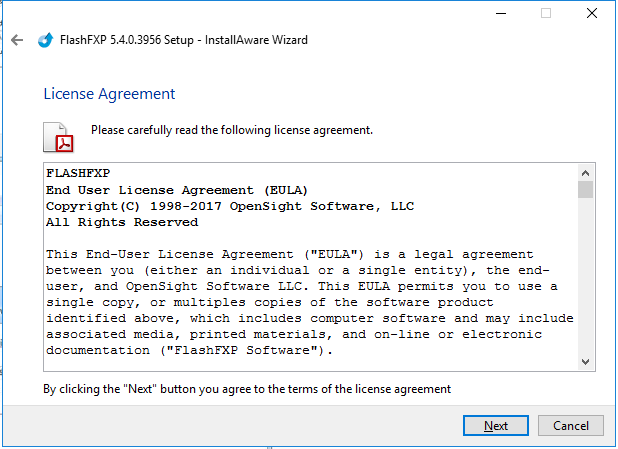
3. Enter the FlashFXP installation protocol interface and click [next] to continue the installation.
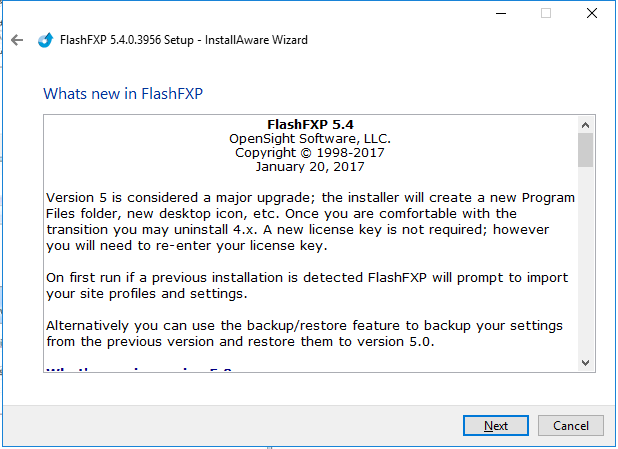
4. Enter the introduction interface of flashfxp’s new functions and click [next].
5. Enter the FlashFXP program setting interface. The editor recommends that the default is enough, and then click [next]

6. Select the installation location of FlashFXP. You can click [next] and the software will be installed by default, or you can click [change]. In the installation location interface that opens, you can choose the installation location of the software. After selecting, click [next].

7. Enter the FlashFXP feature interface. The editor recommends that the default is enough, and click [next].
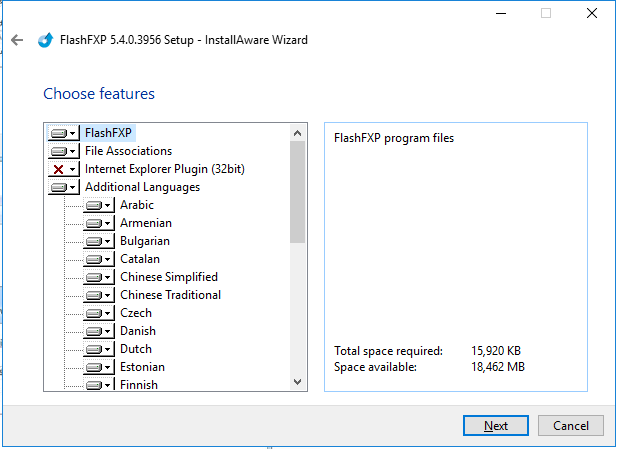
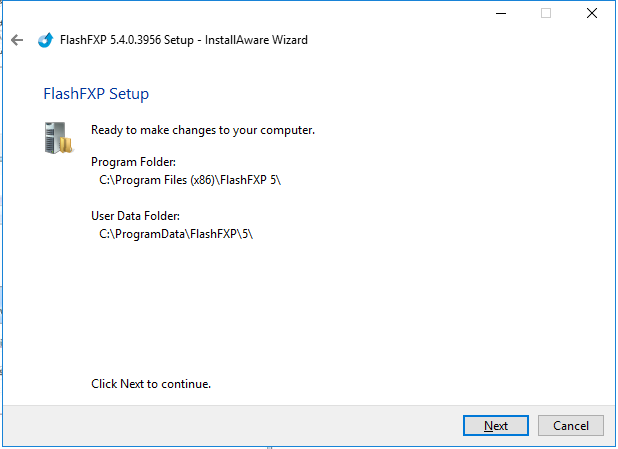
8. Prepare to install the FlashFXP software. You can check whether the installation location of the software is correct. If it is correct, click [next].
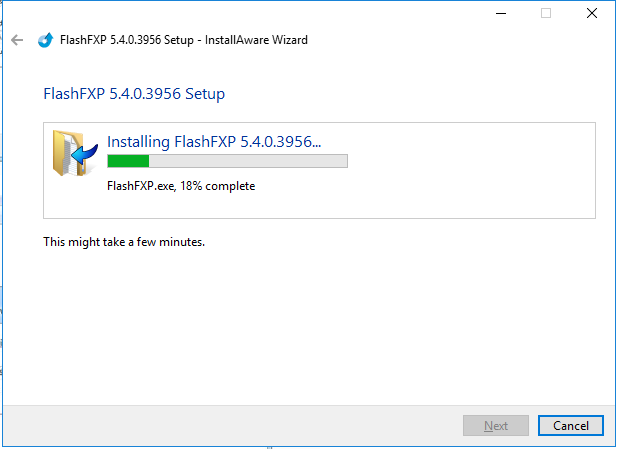
9. FlashFXP is being installed. You need to wait patiently for the installation to complete.
FlashFXP basic setting method
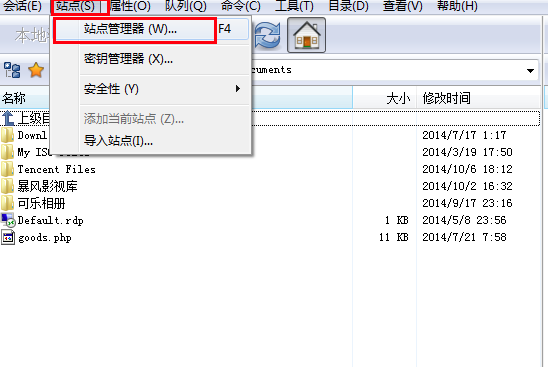
1. Open FlashFXP downloaded from this site. After opening the software, click [Site] on the menu bar at the top of the software and click the [Site Manager] option in the pop-up options.
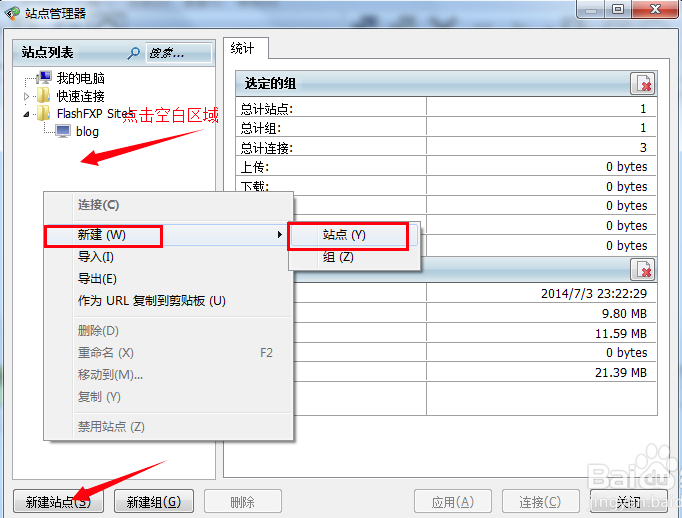
2. After opening the site manager window, you can click the [New Site] option in the lower left corner. Or right-click the blank area, click [New] in the pop-up options, and then select [Site].
3. Then enter the address, port, username and password of the site you want to create. After completing the input, click [Apply].
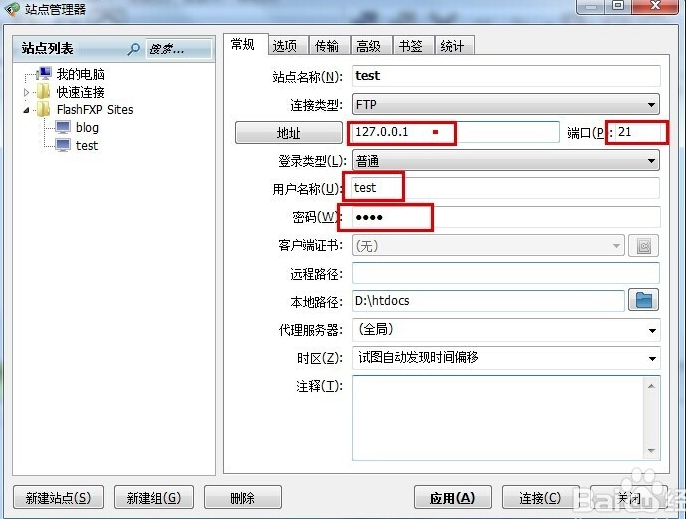
4. Click the "Connect" button to connect to the site. Once connected, you can upload/download files.
FlashFXP download file method
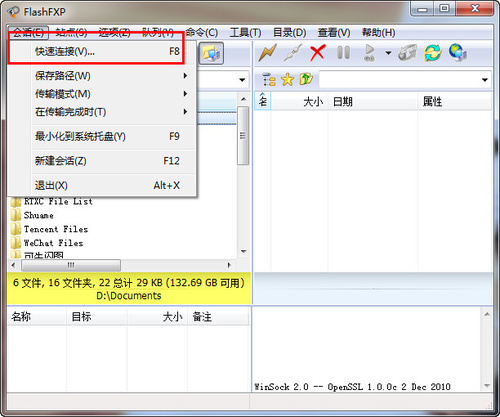
1. Open the FlashFXP software, click the [Session] option on the menu bar, and click "Quick Connection" in the pop-up options.
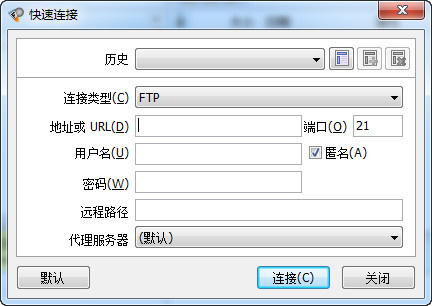
2. Enter the quick connection window, which requires you to enter your address, account, password and other information. After completing the input, click [Connect]. Successfully connected and obtained space information.
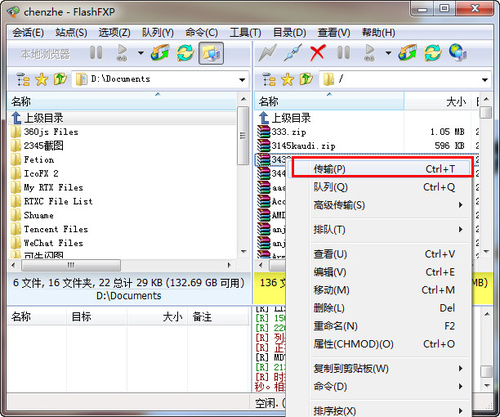
3. After the connection is successful, enter the main interface of FlashFXP and find the file you want to download in the right interface of the software. After finding the file, right-click the mouse and click the [Transfer] option in the pop-up options.
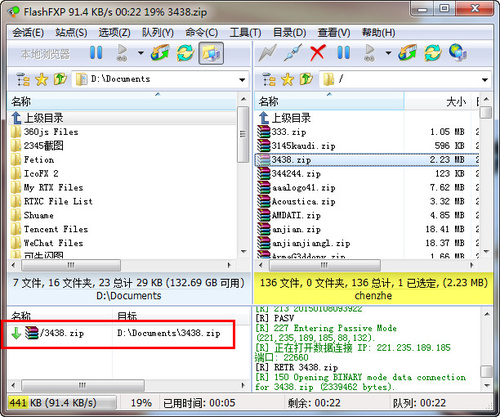
4. You can see the file you downloaded in the lower left corner of the software. You just need to wait patiently for the software download to complete.
Comparison between FlashFXP and FileZilla
FlashFXP has a simple interface, is convenient and easy to use, and all functions are clear at a glance. FlashFXP supports site encryption or password input when starting the FTP tool, which facilitates daily management. FlashFXP can also save the queue so that it can continue to be transmitted the next time it is started. FlashFXP does not support the simultaneous transfer of many files. If there are many files to be transferred, it will take a long time, and it is a paid software.
FileZillaAlthough the interface is fully functional and relatively neat, it looks a little cluttered due to the large number of functions. FileZilla supports the simultaneous transfer of multiple files, is faster in multi-file tasks, and is a free software compared to FlashFXP. The disadvantage of FileZilla is that it does not support queue saving. If there is an unexpected power outage or computer restart, it will be more troublesome to continue uploading next time.
FileZilla download address:http://softwaredownload4.com/soft/3005.htm
FlashFXP update instructions
1. FlashFXP improves program performance for Windows 7; supports SFTP publishing (SSH file transfer protocol);
2. Support remote file editing and automatic saving and uploading; improved local shell file browser;
3. FlashFXP optimizes and improves the size of the TCP/IP buffer; improves the file search function of FTP;
4. Optimized the user interface and adopted a new toolbar background; upgraded OpenSSL to 1.0.0b
Huajun editor recommends:
FlashFXP is a powerful FXP/FTP software. It can help users upload local files to the server or download files in the service to the local area, which is very convenient. Also recommended to you: ftp,filezilla,winscp, ftp upload tool,8uftpWait for related software to be downloaded, welcome to download.













Useful
Useful
Useful