
Hot search terms: 360 Security Guard Office365 360 browser WPS Office iQiyi Huawei Cloud Market Tencent Cloud Store
Hot search terms: 360 Security Guard Office365 360 browser WPS Office iQiyi Huawei Cloud Market Tencent Cloud Store
However, netizens who have just downloaded the FTP management tool may not yet know how to set up flashfxp to upload files. Let’s learn the tutorial of flashfxp to upload files together! I hope this tutorial can help everyone!
1. First, open the FlashFXP software;
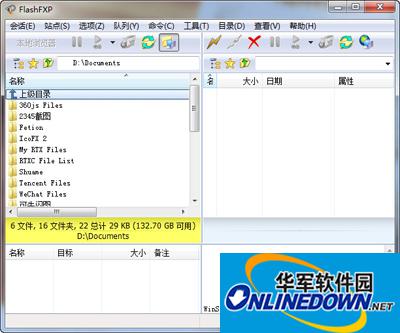
Graphical steps for uploading files in flashfxp
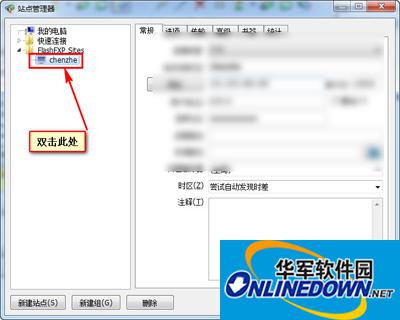
2. Click the "Site" button to add the website to the new site;

Graphical steps for uploading files in flashfxp
3. After the site is added, add the "Connect" icon button or double-click the user under flashifxp sites to connect to the website. Confirm that the website FTP connection is successful. If the connection is not successful, you can modify the site settings according to the prompts, confirm that the FTP account and password are correct, and the FTP connection port and the FTP port set by the space are correct;
Graphical steps for uploading files in flashfxp
5. After confirming that the website FTP connection is successful, drag and drop the files or website programs that need to be uploaded to the FlashFXP upload list;
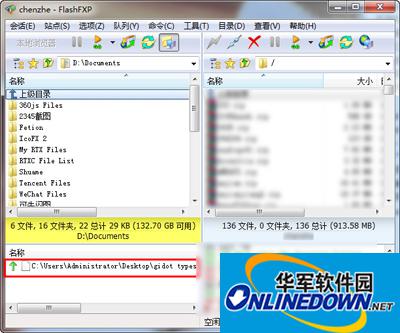
Graphical steps for uploading files in flashfxp
6. In the FlashFXP upload list, right-click the mouse and select "Transfer", or hold down ctrl+z to upload.

Graphical steps for uploading files in flashfxp

 How to add background music in python-How to add background music in python
 How to configure environment variables in python - How to configure environment variables in python
 How to run python - How to run python
 How to create a project in python - How to create a project in python
 How to make a blue sky background with scratch-How to make a blue sky background with scratch
 Microsoft Edge browser
 Steam
Steam
 Tencent Video
 WPS Office
 iQiyi
iQiyi
 Sohu video player
 Lightning simulator
 MuMu emulator
 Eggman Party
 What to do if there is no sound after reinstalling the computer system - Driver Wizard Tutorial
 How to switch accounts in WPS Office 2019-How to switch accounts in WPS Office 2019
 How to clear the cache of Google Chrome - How to clear the cache of Google Chrome
 How to fire bullets in scratch-How to fire bullets in scratch
