




Features of Disc Burning Master
1. Burning tool: Disc Burning Master uses advanced anti-burn technology to burn quickly and stably.
2. Audio tools: convert, split, merge, and burn your favorite music files.
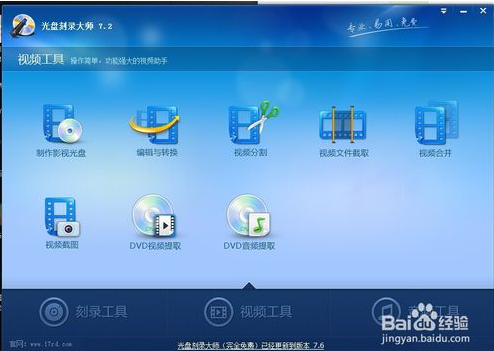
3. Video tools: CD Burning Master is a simple-to-operate, powerful video assistant
Disc Burning Master Installation Steps
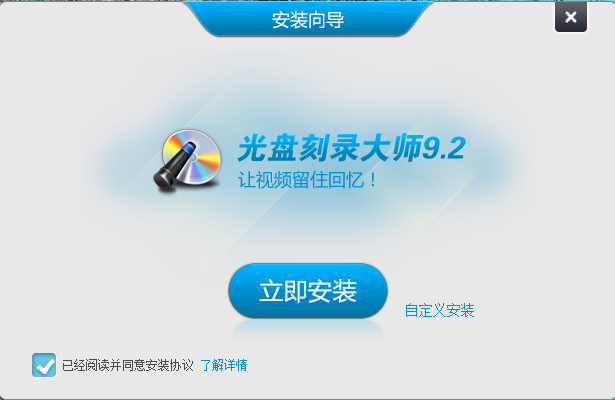
1. First download the official version of the CD Burning Master software package from this site, and then unzip the file to find the RDAllIn92_360.exe file. Double-click to run the file to enter the Disc Burning Master 9.2 installation interface, as shown in the figure below.
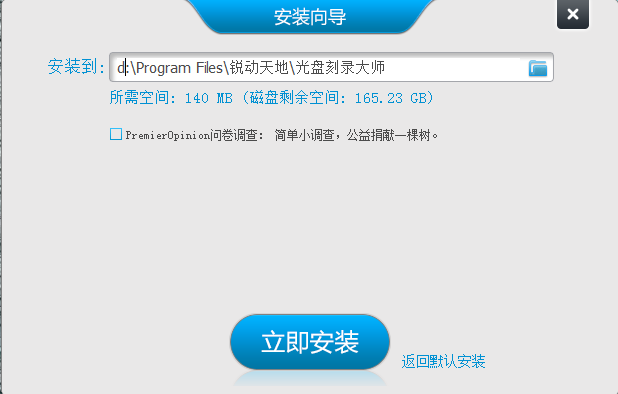
2. Check the installation agreement of the software and click to view the details. Select the installation method: You can directly click "Install Now" to start the installation. The software will be installed to the system C drive by default. Of course, you can also click Custom Installation, and the interface in the picture below will appear. The user needs to select a suitable installation location. There are additional options below. If the user does not need it, he can uncheck it and click Install Now, and the installation of the Disc Burning Master software will begin. (The editor recommends that users choose custom installation and install the software to the appropriate location.)
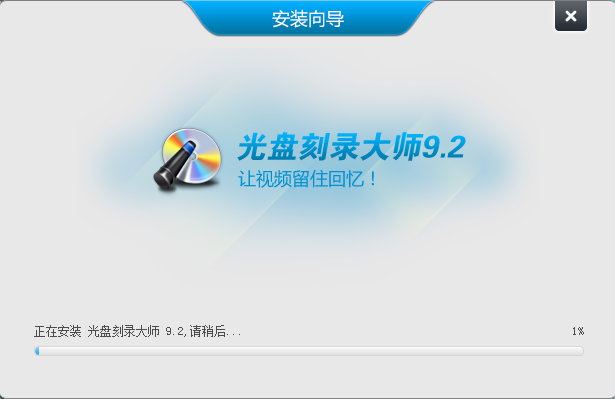
3. Wait for the CD Burning Master software to be installed. The editor personally tested that the installation is very fast, please wait patiently during the installation process.
4. The installation of Disc Burning Master is completed. The interface in the figure below appears. Click Finish to exit the Disc Burning Master installation wizard.

Disc Burning Master User Tutorial
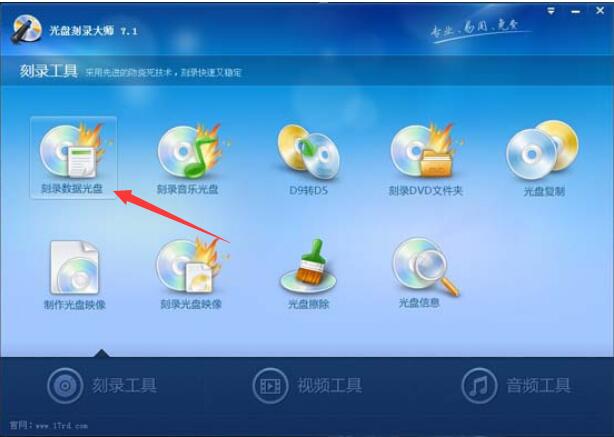
1. Open the CD Burning Master we have installed. After opening, you will see the following interface. In the main interface, we can see that there are many functions such as burning data discs, burning music discs, disc copying, etc. Friends can choose according to their own needs.
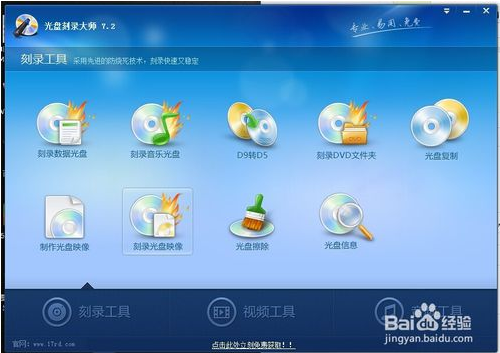
2. Burn data discs: Select this function to burn videos, pictures, music and other files, as well as various documents, which is very convenient.
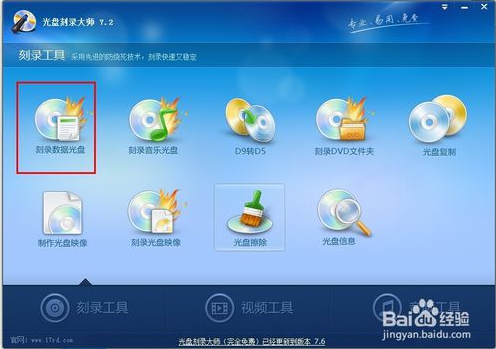
3. Burn music discs: It can help you burn music discs and collect your favorite music onto one disc.
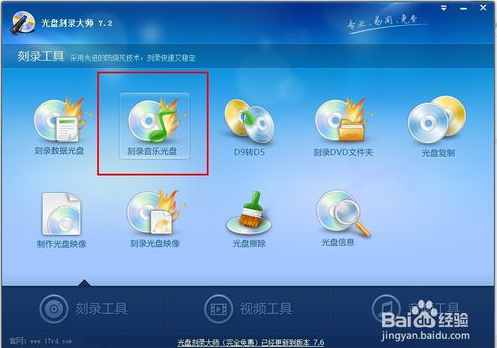
4. Disc copy function: It can help you copy discs in any format, simple and practical.
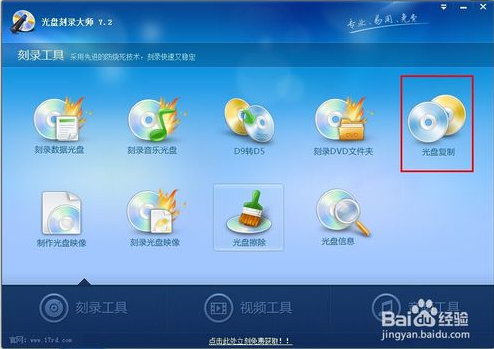
5. Disc image: You can use this function to burn system disks or large games. If you want to use it, you can click and try it.
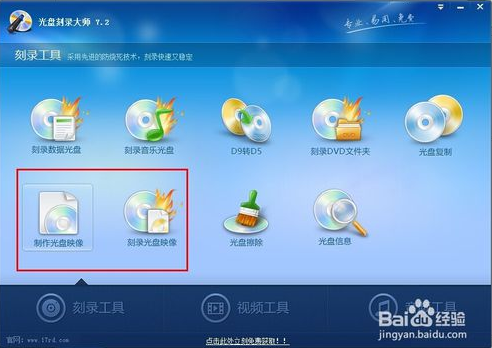
6. The above are just some of the functions of the burning tool that the editor introduces to you, and they are our commonly used functions. Of course, in addition to the above functions, there are also video tools and audio tools. You can choose the appropriate function according to your own needs and operate it according to the upgrade. The use process is very simple, so come and try it.
Disc Burning Master FAQ
1. How to burn system disc using Disc Burning Master? How does Disc Burning Master create a system disk?
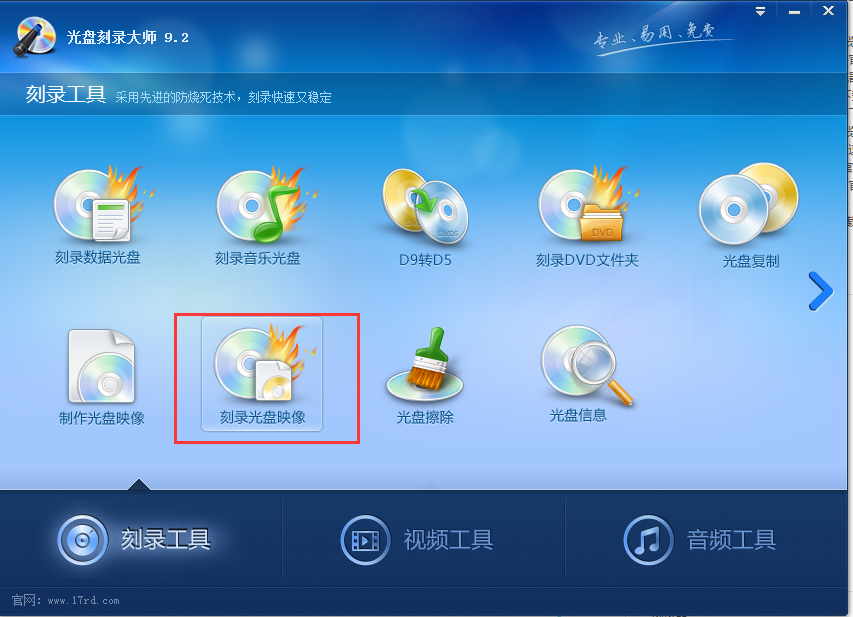
1. First, open the Disc Burning Master and enter the main interface of the software, as shown in the figure below. Click the burning tool at the bottom of the main interface and find the burn disc image function in the upper interface.
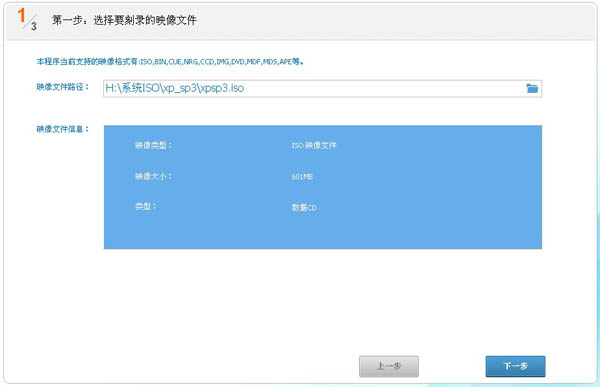
2. After clicking the Burn Disc Image option, you will enter the image below. Click the folder icon to add the system .ISO file you downloaded first, and then put the blank CD into the CD-ROM drive (Note: XP system uses CD disc, Vista and win7 require DVD disc), and finally click Next;
3. Then enter the interface to select the recording device and set the recording parameters: here you need to select the recorder first (the default state is sufficient and generally does not need to be changed). Then in the interface, you can set the number of burning copies, burning speed, burning method, etc. according to your own needs. After the settings are completed, click the Start Burning button below.
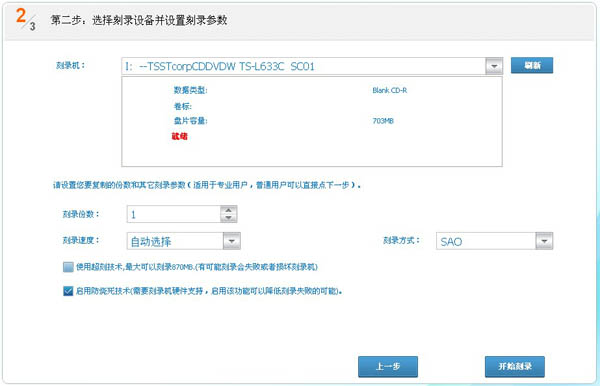
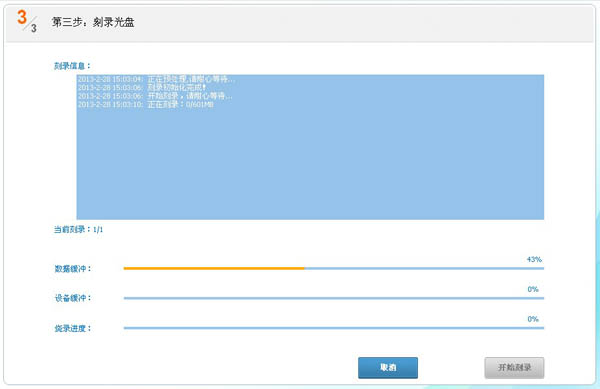
4. Wait for burning. Please do not do other operations during the burning process to prevent errors. Burning may take a little longer, so please be patient and don't rush.
2. How to burn data CD/DVD using Disc Burning Master?
1. Open the disc burning master we have installed. Click the burning tool at the bottom of the main interface and select the burn data disc option at the top.
2. The following interface will open. Here we can see four options: burn data CD, burn data DVD, burn bootable CD, and burn bootable DVD. To make a data CD, choose the Burn Data CD option. If you want to burn a Data DVD, choose the Burn Data DVD option. You can choose according to your own needs, and click Next after completing the selection.
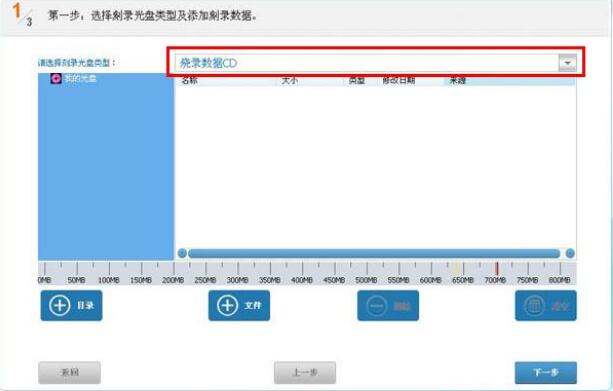
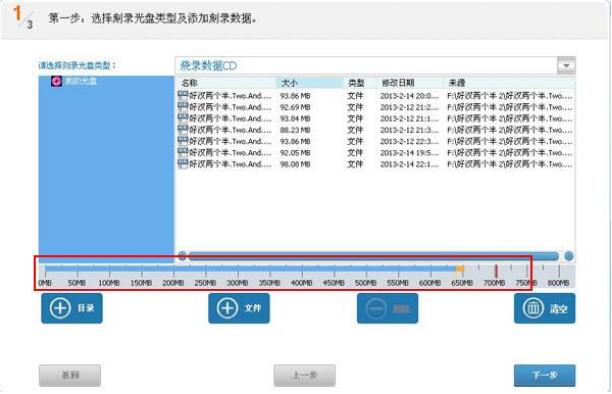
3. The following will continue to explain to you, taking burning data CD as an example. Open the following interface and add the files to be burned. (Note that when adding files, be careful that the blue band does not exceed the red line, otherwise data loss will occur.) After adding, click Next to continue.
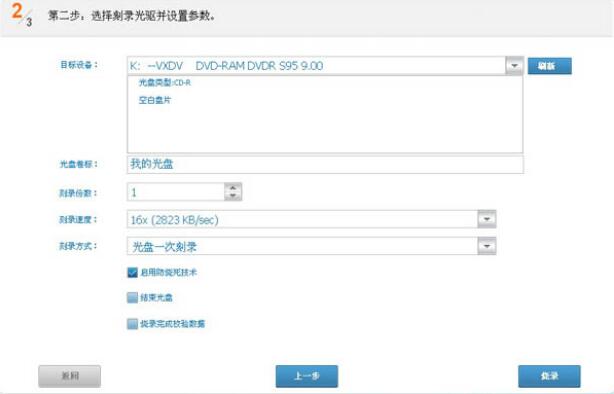
4. Then enter the interface to select the burning optical drive and set parameters, as shown in the figure below. Here you can set the number of copies to be burned. After the settings are completed, click Burn and wait.
The above are the common problems of CD Burning Master that the editor explains to you. If necessary, you can refer to the tutorial for manual operation. If you want to use Disc Burning Master to burn music, folders, photos, etc., you can select the corresponding function and follow the prompts. It is very simple, so I will not explain it to you one by one.
Comparison of similar software like Disc Burning Master
Disc Burning Master: Disc Burning Master not only covers popular functions such as data burning, disc backup and copying, video disc production, and music disc production, but also has various media functions such as audio and video format conversion, audio and video editing, and CD/DVD audio and video extraction.
Beaver's DVD burning: Add videos directly without using a converter to convert the format. The software will automatically create files that are suitable for burning. Video editing: intercept video clips, cut video black edges, adjust video picture effects, add your own watermark, and flip the picture 90 degrees/180 degrees.
Beaver DVD burning software download address:http://softwaredownload4.com/soft/114751.htm
Disc Burning Master update log
1.Fix bugs
2. Optimize some functions
Huajun editor recommends:
The free version of Disc Burning Master software feels really good! The editor specially tested it for this purpose, and it works really well.Disc Burning Master,Nero BurnLite,Disc Burning Wizard,Nero8,Disc Encryption MasterThese are all very good software tested by the editor, come and choose the one that suits you!











Useful
Useful
Useful