



Software introduction
The 3D map positioning technology used by Google Earth can push the latest satellite images on Google Map to a new level. Users can search for a specific area on the 3D map, zoom in and out of the virtual image, and then form a driving guide. In addition, Google Earth has also carefully crafted a special option - a bird's-eye view of the journey, which makes motorists more energetic. Google Earth mainly achieves these above-mentioned functions by accessing Keyhole's extended database of aerospace and satellite images. The database was updated last week. It contains a large amount of terrain data provided by NASA, and will cover more terrain in the future, including pastoral areas, wastelands, etc.
Installation steps
1. Double-click the installation package downloaded from this site. After the file extraction is completed, start the installation preparation.
2. Open the installation wizard and click [Next] to start the installation
3. Click [Change] to select the software installation location. If you do not select it, it will be installed on the C drive by default. After confirmation, click [Next]
4. Confirm the installation and click [Install] to install the software. If you do not want to install, click [Cancel] to exit the wizard. If you are not sure about the installation configuration, click [Previous] to return to modify settings.
5. After waiting for a period of time, the installation is completed, click [Finish], and the software is installed successfully.
Tips
1. Positioning using longitude and latitude
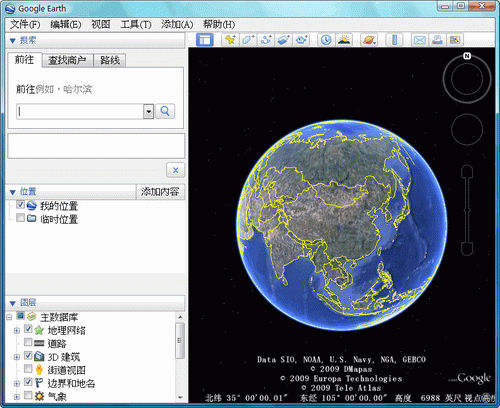
In the Fly To input box of the Search panel, enter the corresponding longitude and latitude, and press Enter, the geographical information of the location will be displayed.
2. Take screenshots in the software
Use the shortcut to take a screenshot, select a picture and press [Ctrl+Shift+E]. An interface for sending a screenshot via email will appear. Double-click the image in the attachment and save it to your hard drive.
3. Export landmark file
Right-click on the landmark folder that needs to be exported, select [Save As] in the menu and enter the export file name. You can export both KMZ and KML landmark file formats.
User reviews
User 5 loves 33: Try this software, it’s easy to use,
User Moonlight: Google Earth only labels the Third Ring Road in dark yellow. The overall color scheme is relatively light, and icon-style labels are not used much. Google Earth displays more text information by default, and after trying different zoom ratios, it is found that its information focuses more on scenic spots, communities, and hotels, but the information is still a bit mixed and the readability is relatively low.
Editor's message
Google Earth fully displays the mountains, rivers, lakes and seas on the globe. It is a simple and practical software!



























Useful
Useful
Useful