




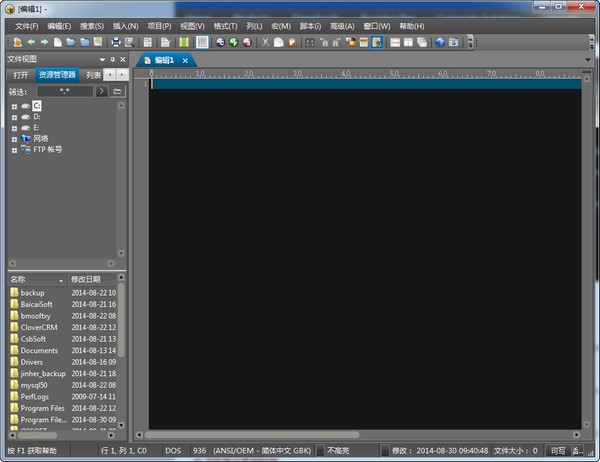
UltraEdit 26 software features
1.Upgrade search in file output
UltraEdit v25 brings some compelling new enhancements to find file output results. Most obviously, the new syntax highlighting for finding results is easier on the eyes and allows you to browse search results quickly and intuitively. Of course, you can customize the colors used for Find in Files output to suit your preferences in the new Output tab of the Theme Manager. You'll also notice collapsing controls, allowing each search result (each file) to be collapsed. Hide all results to quickly find the file you want, then expand it to see line matches.
2. Brand new spell checker
V25 also introduces a new spell checker based on the Windows spell check API. This is a significant improvement over previous Aspell-based functionality, which was limited to UTF-8 formats and characters. Windows Spell Checker supports all languages you enable in the operating system (you can enable them in the Region and Language section of Windows Settings), and dictionary options can be configured just like in previous versions. (Since Microsoft has With the Windows Spell Checking API introduced in 8.1, UltraEdit must use legacy Aspell functionality on Windows 7 systems. )
3. Internally reconstructed UTF-8 processing
We take a deep dive into UTF-8 handling in UltraEdit. While v24 introduced the first fully native Unicode version of UltraEdit, v25 builds on the Unicode foundation and features refactored UTF-8 handling and display capabilities. What does this mean to you? You will see performance improvements when opening UTF-8 files of any size because file conversion no longer requires the file to be displayed. Some editing operations were slow in previous versions, and you may notice significant speedups. Using non-Unicode multibyte encodings, such as Asian scripts? Rendering and editing performance is significantly better in v25.
4. Filter rows based on selected text
Need to filter lines in a file based on a specific string or phrase? Version 25 makes it easier than ever with the new Filter Select command in the Home tab. Select your string, click filter, and UltraEdit will hide all lines that don't contain the string. Click "Expand All" in the View tab (or press Ctrl + *) Show all rows again.
5. Open the folder in UltraEdit from Windows Explorer
Doing a lot of work with folder-based projects? UltraEdit's new "Open Folder" option in the Windows Explorer context menu makes loading project folders in File View a breeze. When you open a folder this way, UltraEdit will display it as the root folder in the file view Explorer pane. Additionally, UltraEdit will default to the folder location for "File Open" and "Find in Files" as long as UltraEdit remains open.
6. Add macros and scripts to the ribbon/toolbar
If you have custom macros and scripts, you can now add them to the toolbar, ribbon, or Quick Access Toolbar (QAT)! UltraEdit will display the first 25 loaded macros and scripts in the Customize dialog box, and you can simply drag and drop them to the ribbon or toolbar to add them. For further help on how to do this, check out the online help articles on Customizing the Ribbon, Customizing the QAT, and Customizing the Toolbar (if in Menu/Toolbar Mode).
7.Click on the bookmark
Everyone wanted to set bookmarks with a click? Now you can! V25 introduces click-to-bookmarks with the new bookmark gutter. You'll see the bookmark gutter to the right of the line number, and when hovering over it, the cursor will change to a bookmark to indicate a click on the bookmark action. You can also right-click in the bookmarks gutter to access almost all bookmark features. If you don't want to see the bookmarks gutter or use the mouse to do so, you can disable it by unchecking it in the layout tab, or by right-clicking on it and selecting "Hide Bookmarks Gutter".
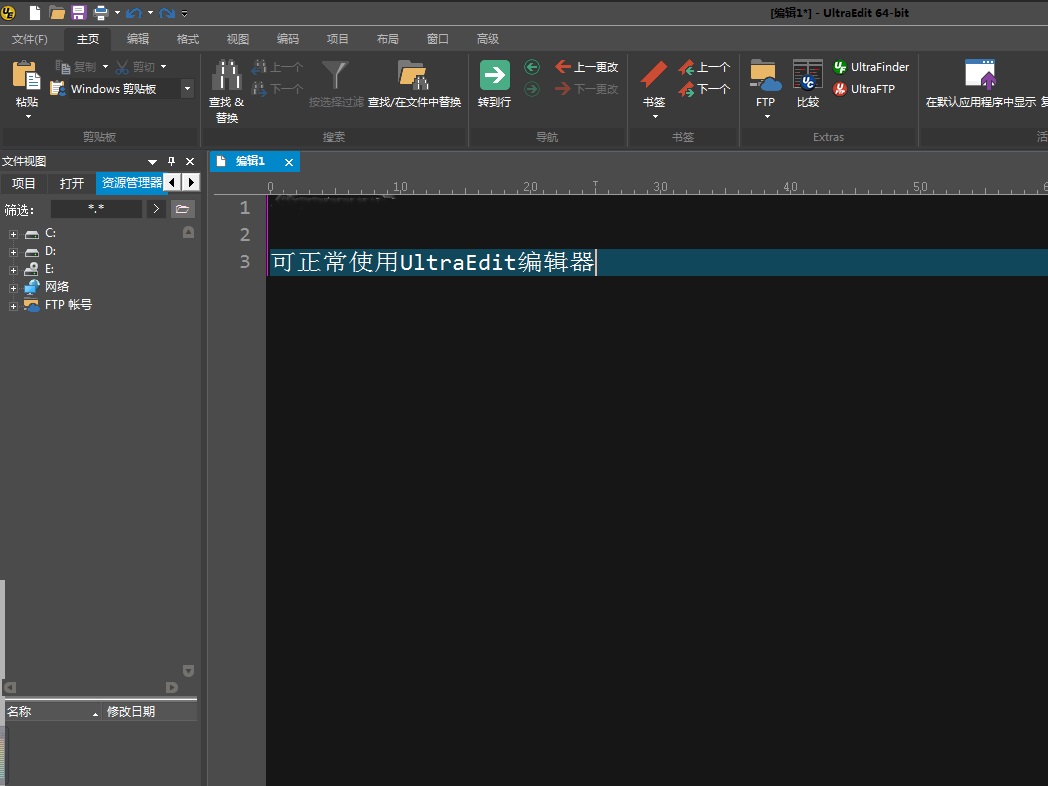
8. Keymap/icon for uploading FTP linked files
Did you know that UltraEdit allows you to link folders in your project to an FTP location, enabling you to sync/push local changes to an FTP server? V25 brings more integration to this feature with key mapping and ribbon/menu support. Use the new "Save and Upload to Server" command in the FTP drop-down menu and file tag context menu to save files locally and send them to the server in one go. You can also type a mapping for this command in Advanced » Settings » Key Mapping. Finally, you can set UltraEdit to automatically upload files for locally saved FTP-linked folders by selecting this option in the folder's context menu (in the Project pane).
9. Customizable HTML buttons/labels
V25 includes the ability to customize HTML buttons in the Coding tab (or HTML toolbar in menu/toolbar mode). You can customize this under Advanced » Settings » HTML User Tools.
10. XML/JSON manager optimized for large amounts of data
Big data is only getting bigger, and we’re always working hard to ensure that UltraEdit’s XML and JSON managers are fully adapted to it. To this end, we have completely rewritten these components to make them fast and highly responsive even with large amounts of data. Scroll and browse your huge XML data structures directly in the XML manager. Search huge JSON files directly in JSON Manager and view results in flash. You will be blown away by its speed!
11. Find better folder selector in Files, Projects
We’ve done some UI work to provide a more intuitive folder picker in several areas of the application. You can click on several new "Select Folder" dialogs in Find/Replace Files, Add Folder (to Project) and Settings!
UltraEdit 26 software features
- Disk-based text editing
-Unlimited document size, even multi-megabyte files occupy minimal memory
-Can open and display multiple documents at the same time
- Column mode editing!!! Insert columns/delete/subtract/add sequences
-Drag and drop compilation
-File sorting (including deleting duplicate files, ignoring case, ascending order, descending order)
-100,000 word spell checker
-Syntax highlighting - configurable, pre-configured for C/C++, VB, HTML and Java
- Automatically wrap lines with a hard return in a specific column
-Insert a file at the cursor position of an existing document
-File manager supports drag and drop functionality
- Configurable toolbar
-Divider window
- Insert and overprint modes for editing
-Multiple levels of undo and redo
-UltraEdit compatible with Windows 3.x CUA
-Find and Replace - After pressing the shift key, the text between the caret and the search target is allowed to be selected, and all content in the selected area can be replaced
- Search within files, replace within files
-Go to line number/page break
-Monitor and printer font selection. (Supports all installed fonts, including TRUE-TYPE fonts)
-Printing supports headers, footers, margins and pagination
-Automatically zoom in
-Tab setting
-Support automatic line wrapping
-Hex editor - allows editing of any binary file - supports hex cut, copy and paste
- Insertion and deletion of hexadecimal characters
-Hex find, replace and replace all
-Bookmarks
-Simultaneous multi-window editing
- Comprehensive macro support, including saving and loading
-Context-sensitive help
-The file generated by automatic backup in the original file directory, with the extension (.BAK)
-UltraEdit maintains its screen position every time it is used
-Display of row and column numbers (the display of row numbers can be disabled)
-Use the right mouse button to pop up the menu
-The text can be switched between upper and lower case and the first character is capitalized
-UNIX/MAC to DOS conversion
-DOS to UNIX conversion
-Automatic detection of UNIX/MAC files
Converts the line wrap mode to CR/LF's, allowing the line wrapping to be written to the file with a hard return
-CR/LF's Convert to line wrap (remove CR/LF's from file)
-Support templates
-Code folding
-More....
Also: UltraEdit accepts command line input and can be used to replace NOTEPAD or other editors that are invoked from the file manager by clicking on the file.
UltraEdit 26 installation steps
1. Download the official version of ultraedit26 installation package from this site. After unzipping, double-click the exe program to run, enter the installation wizard, and click Next

2. You can click [Browse] to select the installation path of the software; or click [Next] directly, and the software will be installed in the default location.

3. Check this area according to your needs and click [Next]

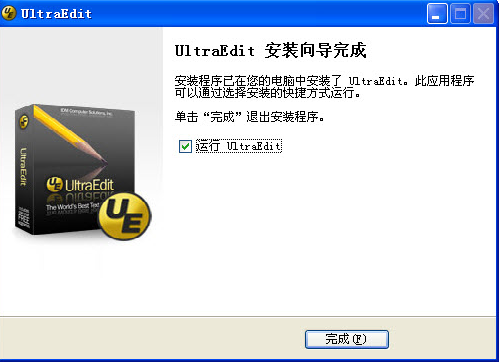
4. Wait patiently for the software to be installed and click [Finish].
UltraEdit Green Version Instructions for Use
How to use column mode in UltraEdit
1. First use the UltraEdit editor to open a text. The text needs to be composed of numbers and letters. Currently, column mode does not support Chinese mode.

2. The default editing mode is normal mode, click column mode in the menu bar.
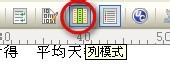
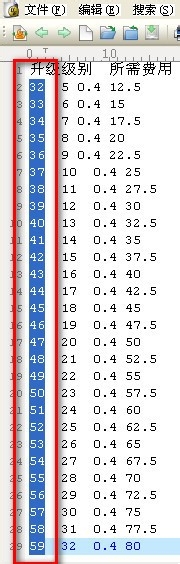
3. After entering column mode, you can use the mouse to select text by column. In the picture we have selected the first column of numbers.
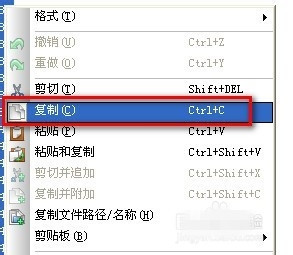
4. Right-click on the selected text and select Copy.
5. Create a new notepad, and you can paste the column of text you just copied into the new notepad.

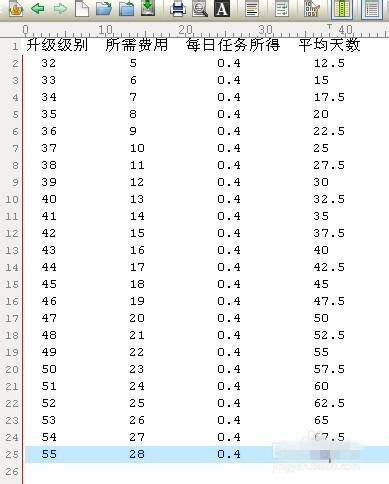
6. In addition to copying text, you can also edit using column mode. The 0.4's in several columns in the image below are not aligned. We choose the space before 0.4.
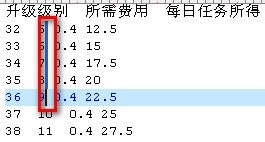
7. Click Space twice on the keyboard, and spaces will be entered in all selected columns at the same time in the editor, so that the text will be aligned.
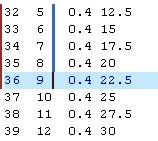
8. Using this method, all columns can be aligned, and the entire text will look very comfortable.
9. Column mode can also be deleted, select the column content that needs to be deleted.
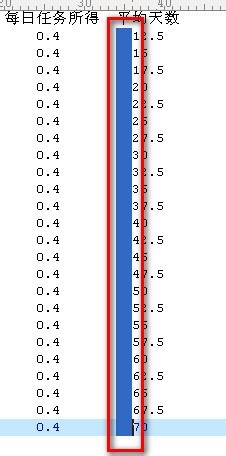
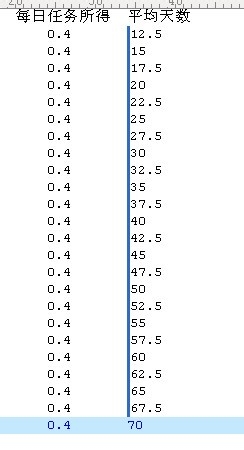
10. Click the delete key on the keyboard to delete the selected column or columns.
UltraEdit 26 update log
Resolved incorrect file change detection prompt when using FTP files
Solved the problem that unencrypted files will cause other prompts to decrypt again
Solved the folding problem of HTML comments
Resolved an issue with XML manager actively validating file encoding
Solved the multi-select issue with double-click "Highlight All" behavior
Solved the problem of bookmark gutter expanding width when switching
Solved the problem that in large source files, all functions cannot be displayed using the function list
Fixed an issue where the CSS compressor incorrectly removed spaces before color references
Solved the problem of key mapping
Huajun editor recommends:
After official continuous improvements, UltraEdit 26 can meet all your needs. Come download and experience it. Of course, this site has also carefully prepared for youFoxit PDF Suite Advanced Editor,GWD Text Editor,Lizard Safeguard Secure PDF Viewer,XML Explorer(XML Editor),Sante CT Viewer











Useful
Useful
Useful