





Highlights of Jinzhou Desktop
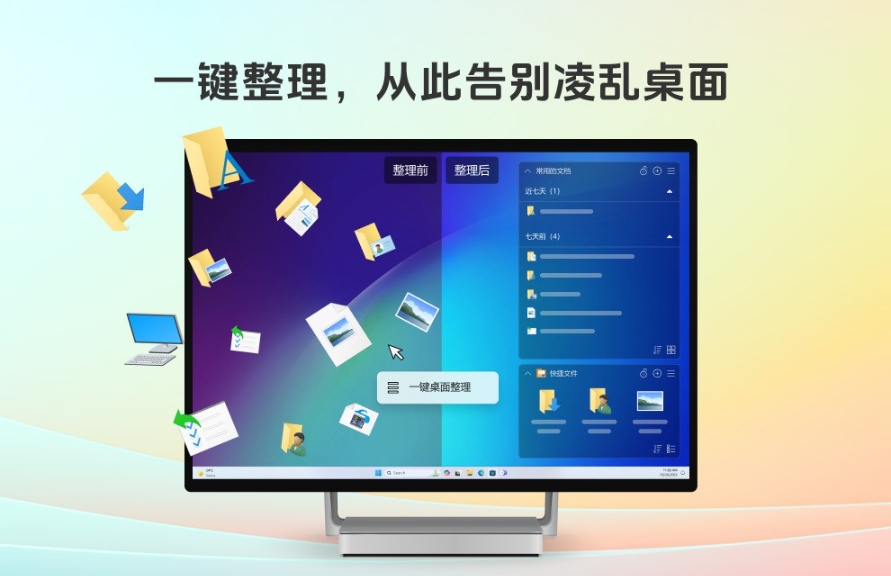
Organize with one click and say goodbye to clutter
Partition classification: Supports classification and organization of files and folders through desktop partitions, and one-click classification of scattered files through the right-click menu.
Automatic classification: Automatically manage documents and folders, and quickly organize them by type (such as pictures, videos, compressed packages, etc.).
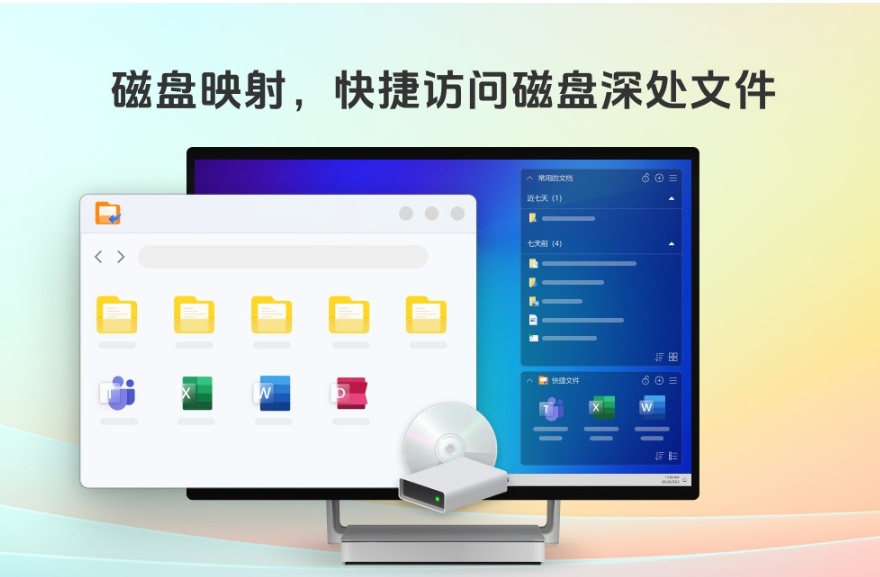
Disk mapping, quick access
Shortcut folder partition: Create desktop shortcuts to directly access files deep in the disk without opening folders layer by layer.
Save space: Quick access does not occupy C drive space and improves system performance.
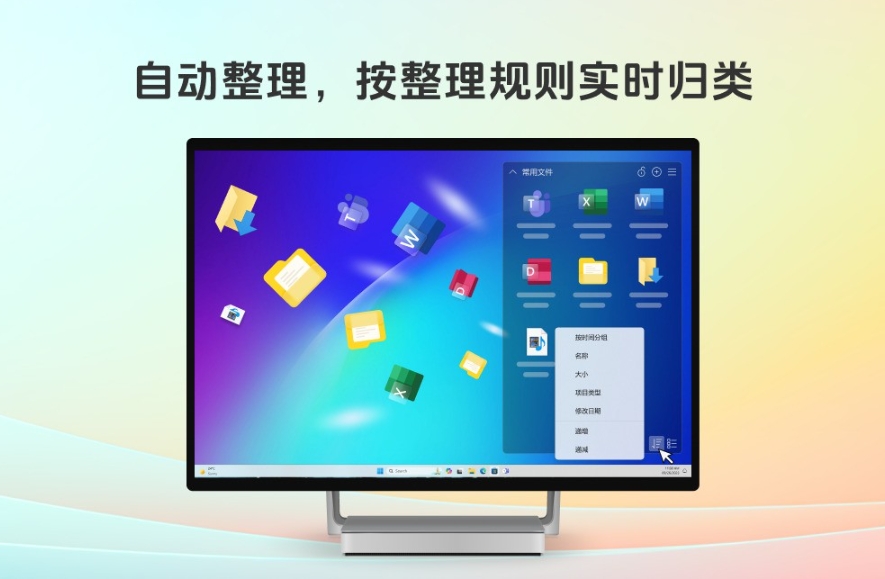
Automatic sorting and real-time classification
Real-time self-organization: After automatic organization is turned on, new icons are automatically classified into corresponding partitions to keep the desktop tidy.
Rule configuration: Users can customize organizing rules and classify files according to needs.
Minimalist, pure, safe and worry-free
No ads: Focus on desktop organization and reject any form of advertising interference.
Privacy protection: Do not pry into user privacy and ensure data security.
Features of Jinzhou Desktop
Efficient organization
Cluttered desktop nemesis: classify and organize dozens of folders and shortcut icons on the desktop with one click.
Merge similar files: Merge similar files by creating partitions to make searching easier.
Flexible layout
Partition Drag: Drag a single partition to any location on the desktop at any time to customize the layout.
Partition lock: Lock partition content to ensure stable layout.
Intelligent automation
Automatic classification: Automatically classify desktop resources into corresponding partitions according to rules set by the user.
Real-time updates: Automatically organize new files as they appear, keeping your desktop tidy.
Pure experience
No advertising interference: focus on core functions, no pop-ups and no promotions.
Privacy and security: No user data is collected to ensure privacy and security.
Jinzhou desktop function
Basic management
One-click organization: Supports one-click organization of the desktop, automatically classifying documents, folders, etc.
Drag and save: Drag any resources on the desktop to the Jinzhou desktop partition to save, easy to operate.
Partition creation
Free partition: Supports the creation of folder partitions, document partitions, application partitions, etc.
Partition management: Manage desktop content in different partitions and quickly find files.
Quick access
Software shortcut: Drag the desktop software shortcut to the partition to quickly launch the application.
Web page link management: Automatically organize web page links saved on the desktop for easy access.
Advanced features
One-click dismissal: Supports one-click dismissal of all partitions and restores Windows default desktop layout.
Partition lock: Lock the partition contents to prevent accidental modification.
Rule configuration: Enter the settings interface to configure one-click sorting rules and customize classification logic.
Jinzhou Desktop FAQ
How to organize the desktop with one click on Jinzhou Desktop?
Operation steps:
Open the Jinzhou desktop software.
Click the "One-click Organizing" button in the interface.
The software automatically classifies desktop files into corresponding partitions by type (such as documents, pictures, compressed packages, etc.).
Things to note:
When using it for the first time, it is recommended to create partitions (such as "Documents", "Pictures", etc.) so that the software can be accurately classified.
Misclassified files can be manually adjusted through the right-click menu.
How to create a shortcut folder partition?
Operation steps:
Click "New Partition" on the main interface of Jinzhou Desktop.
Select the "Quick Folder Partition" type.
Select the target disk folder and click "OK".
Advantages:
Access deep folders directly from the desktop without opening the disk hierarchy.
It does not occupy C drive space and improves system performance.
How to turn on the automatic sorting function?
Setting method:
Enter the "Settings" interface of Jinzhou Desktop.
Check the "Turn on automatic sorting" option.
Configure sorting rules (such as by file type, modification time, etc.).
Effect:
When new files appear on the desktop, they are automatically classified into the corresponding partitions.
Desktop remains tidy at all times without manual intervention.
Jinzhou desktop update log:
Developer GG said there are really no bugs this time~
Huajun editor recommends:
After many updates and optimizations, Jinzhou Desktop has become more user-friendly and easier to operate. The editor of Huajun Software Park personally tested it and recommends it to everyone. Interested friends can also download it.Sticky Memo,AcerGridVista desktop split screen tool,Hide windows with one click,Take regular breaks,Desktop Notes for Kids Latest Version.




Your comment needs to be reviewed before it can be displayed