



DirectX 12It is a new generation API officially launched by Microsoft. It is a very important media interface in Microsoft systems and is integrated in the newWin10 systemin. DirectX 12 has many improvements and new features. When running games, performing media tasks or watching 3D movies, you can enjoy better visual effects and operating efficiency. It can be called a revolutionary version. Now Win7 system also supports DX12, and game performance will be improved by more than 60%. If you need it, come to Huajun Software Park to download it!
-
Tools for optimizing computer systemsView
-
Prevent hardware failureView
-
Professional-grade driver managementView
-
Hardware detection toolsView
-
Clear computer junk filesView
DirectX 12 software features
1. New features
DirectX12The most important change is the lower-level API, which is very similar to AMD Mantle. It goes deeper than ever on the hardware abstraction layer and can reduce the overload of the CPU and GPU at the same time.
Specifically, it includes: applications can track the GPU pipeline, control resource state transitions (such as from rendering targets to textures), control resource renaming, fewer APIs and driver tracking, predictable attributes, etc.
In addition, Directx 12 greatly improves multi-threading efficiency and can fully unleash the potential of multi-threaded hardware. DX11 is severely limited by CPU performance in this regard, mainly because it cannot effectively utilize multiple cores.
Microsoft claims that Microsoft’s utilization of multi-core CPUs grows almost perfectly linearly, which means that four cores can be close to four times that of a single core.
In addition, DirectX12 also has improvements in the rendering pipeline, rendering features, resource management, command lists and bindings, descriptor jumping, etc. Since it is mainly about development and is relatively deep, I won’t go into too much detail here.
2. Hardware support
NVIDIAIt is confirmed that all Kepler, Fermi, and Maxwell architectures support DX12, that is, all models since the GeForce 200 series can be used, as well as DX11.
AMDIt is confirmed that all graphics cards with GCN architecture support Directx 12, that is, Radeon HD 7000 and Radeon R200 series.
Intel confirmed that the fourth generation Haswell can support Directx 12, but in fact it is only limited to the two highest-end models: GT3 Iris 5100 and GT3e Iris Pro 5200.
It is not yet known whether they are 100% API support or just feature set support, but at least one thing is that DX12 does not require new hardware to implement, existing ones will do, so it is more like an extension of DX11.
3. Xbox One
AMD has just said that Directx 12 will be fully directed to Xbox One. Microsoft said that it only took four people and months of effort to switch the core rendering engine of Xbox One from DX11.1 to DX12.
Before this, some DX12 features already existed on Xbox One (it seems to have been planned for a long time), and others have also been ported over.
In addition, Epic Games also stated that it is working closely with Microsoft and NVIDIA to make the newly released Unreal Engine 4 perfectly support DX12-not mentioning AMD, it seems that Unreal 4 games will be very inclined to N cards.
4. Qualcomm and Mobile
The reason why Qualcomm is listed separately is because this is the first time it has cooperated with Microsoft DX, and it is also the first time Microsoft DX has officially been oriented to the mobile field.
According to Qualcomm, DX12 can greatly improve energy efficiency, improve mobile device performance, and is very good in terms of scalability and portability.
DirectX 12 installation steps
1. First, unzip the downloaded directx12 file on this site and find DXSTUP.exe
2. Double-click to install, the user agreement will pop up, check and agree, then click Next to install.
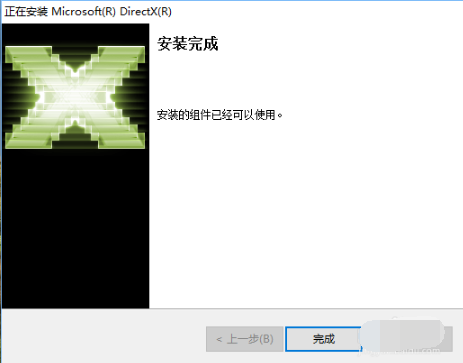
3. After completion, the installation completion interface will pop up. Click Finish to open DirectX12 and use it.
DirectX 12 FAQ
Question 1: How to enable DX12 in Win10? How to check if your graphics card supports DX12?
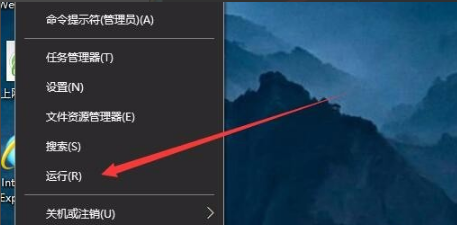
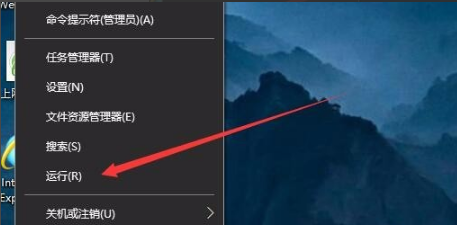
1. On the Windows 10 system desktop, right-click the Start button in the lower left corner of the desktop and select the "Run" menu item in the pop-up menu.
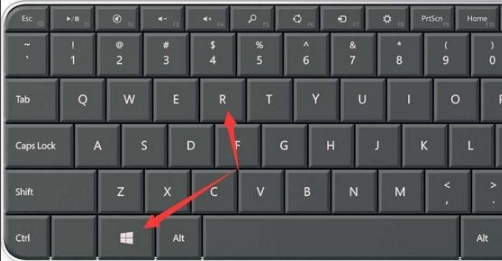
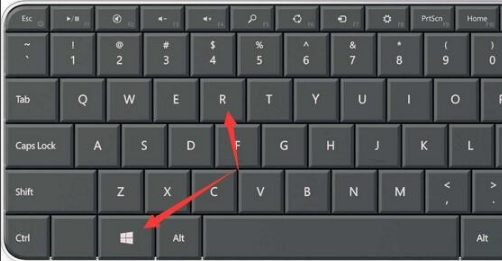
2. Or on the Windows 10 system desktop, press the shortcut key Win+R on the keyboard at the same time
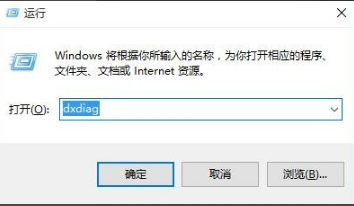
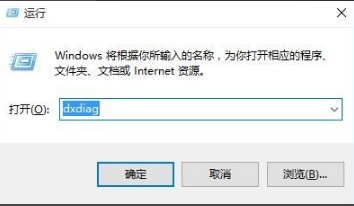
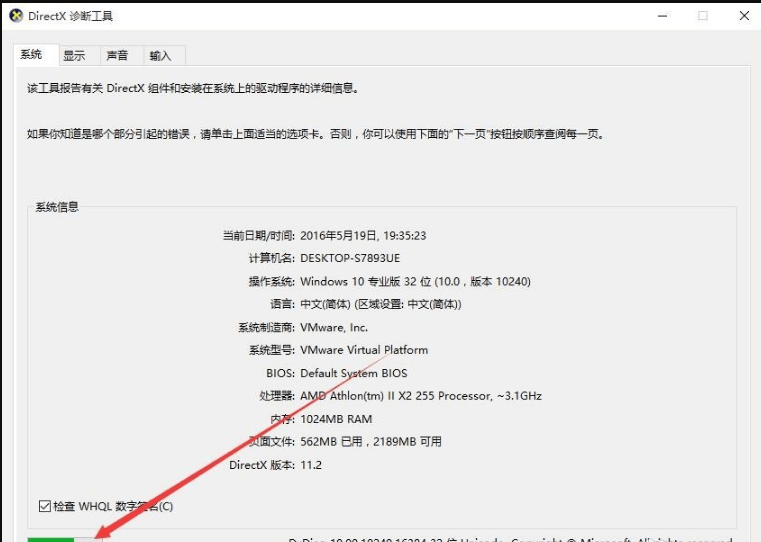
3. At this time, you can open the run window of the Windows 10 system. Enter the Dxdiag command in the opened run dialog box, and then click the "OK" button
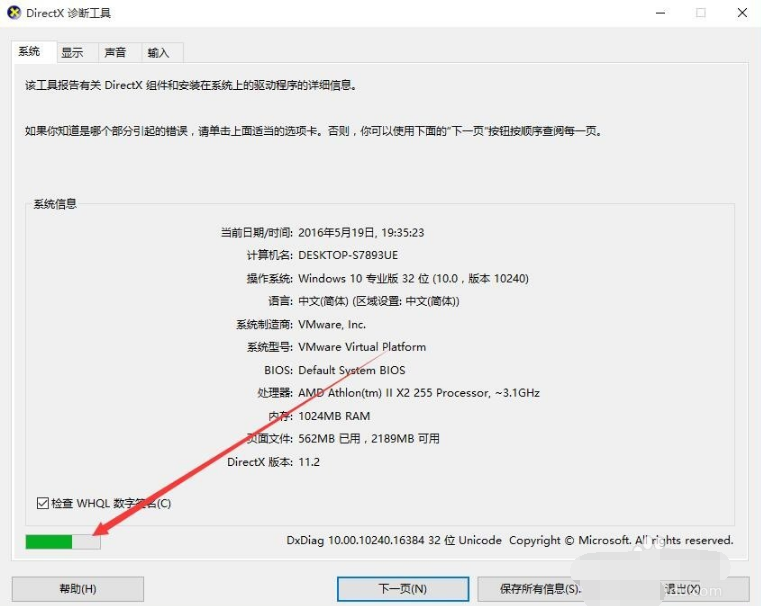
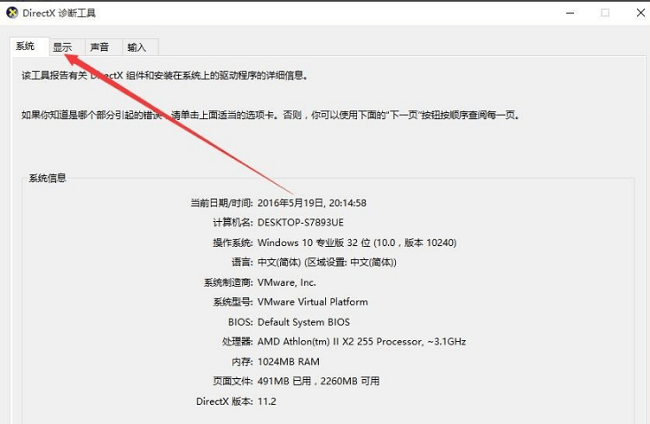
4. The DirectX diagnostic tool will be opened at this time. At the same time, the software will automatically scan the system, and its diagnostic process will be displayed in the lower left corner.
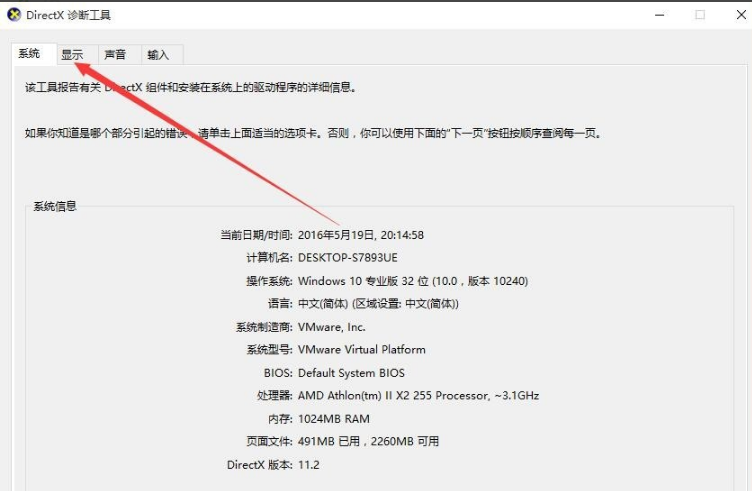
5. After the diagnosis is completed, we click the "Display" tab above
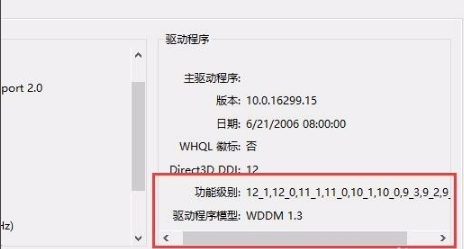
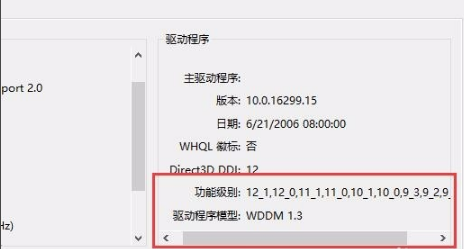
6. Here you can view some information about the graphics card. Let’s check the functional level and driver model in the lower right corner. If your graphics card supports DX12, there will be 12 in its functional level. The driver model below is WDDM2. If not, it means that your graphics card does not support DX12.
question2. Uninstall method of directx12
1. Use the DirectX uninstall tool, among whichBUEDirectX Uninstall WizardIt is a very good tool that can uninstall all DirectX versions;
You can also delete it using the registry:
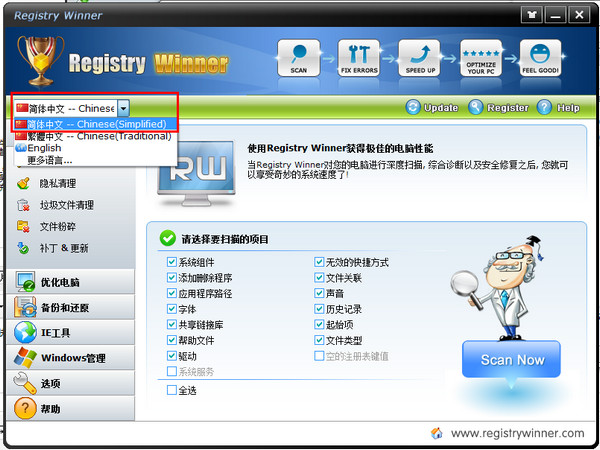
1. Registry method: Click the "Start" menu to open the "Run" dialog box, enter "regedit" and press Enter to enter the Registry Editor;
2. Click the "Find" command in the "Edit" menu in the Registry Editor;
3. Enter "DirectX" in the "Search" dialog box to search, and delete all the found primary keys about DirectX;
4. Then restart the computer to install the previous version of DirectX.
Question 3:What graphics cards does DirectX 12 support?
DX12 supports NVIDIA Kepler, Fermi, and Maxwell architectures, which are GeForce 200 series and higher models; AMD GCN architecture, which is Radeon HD 7000, Radeon R200/300 series; Intel Haswell (GT3), Broadwell, and Skylake core graphics cards.
Of course, DX support is divided into different feature levels, and currently only the NVIDIA GTX 900 and AMD Fury series can fully support the high-level DX12.
How to enable directx12?
Confirm system and hardware support: Windows 10/11 system is required, and the graphics card needs to support DirectX 12 (such as NVIDIA GTX 900+/AMD RX 200 + series).
Update your graphics card driver: Update to the latest driver through NVIDIA GeForce Experience, AMD Radeon Software, or Device Manager.
Enable in the app: Open the supported game/software, go to Settings → Graphics Options, select API rendering mode as "DirectX 12" and save.
Verification: Press Win+R and enter "dxdiag". In the "Display" column, you can check whether the current DirectX version is 12.
How to check if your computer supports directx12
Press Win+R and enter "dxdiag" to open the DirectX diagnostic tool. In the "Display" column, check whether the "Function Level" is 12_0/12_1 and the "DirectX Version" is 12.
Right-click "This PC" → "Manage" → "Device Manager" → "Display Adapter" and check whether the graphics card model is in the supported list (NVIDIA GTX 900+/AMD RX 200+/Intel 7th generation and above).
Confirm that the system is Windows 10/11, Win7 and below are not supported.
Check whether the graphics card driver is the latest version (updated through NVIDIA/AMD official tools) to ensure that the function is enabled properly.
Recommended software of the same type as DirectX 12
1.ccleaner: is mainly used to clear junk files that are no longer used in Windows systems to free up more hard drive space. Another great function of it is to clear the user's Internet history. ccleaner is small in size and runs extremely fast. It can clean temporary folders, history records, recycle bin, etc., and scan and clean junk items in the registry. Comes with software uninstall function.
Download address:http://softwaredownload4.com/soft/614276.htm
2.super bunny: It is a tool dedicated to optimizing computer systems. Friends can use Super Rabbit to detect the stability and speed of the current computer's graphics card, hard disk, CPU and other hardware devices. Super Rabbit can also be used to clean system junk, block pop-up ads, and protect against various virus software.
Download address:http://softwaredownload4.com/soft/2636.htm
3.Master Lu Green Edition: It has professional and easy-to-use hardware detection, which is not only super accurate, but also provides you with Chinese manufacturer information, making your computer configuration clear at a glance and refusing to be deceived by profiteers. It is suitable for various brands of desktop computers, notebook computers, and DIY-compatible computers. It provides real-time monitoring and early warning of key components and comprehensive computer hardware information to effectively prevent hardware failures and protect your computer from troubles. Master Lu helps you quickly upgrade patches, safely fix vulnerabilities, and avoid black screens. There are also hardware temperature monitoring and other features to bring you a more stable computer application experience.
Download address:http://softwaredownload4.com/soft/1203476.htm
DirectX12 update log:
1. The pace of optimization never stops!
2. More little surprises are waiting for you to discover~
Huajun editor recommends:
Don't miss it when you pass by. If you miss DirectX12, you will never experience such a good service again. This site also recommends to youdriver wizard,Seewo Butler,DirectX,dotnetfx.exe,TcSysclean





















Useful
Useful
Useful