





Douyin Live CompanionHow to start a game live broadcast?
Douyin Live Companion is a live broadcast companion for DouyinLive broadcastSoftware that provides auxiliary functions can help users achieve a variety of functions during live broadcasts, includinggameLive broadcast. The following are the steps to enable Douyin Live Companion for game live streaming:
1. Download and install Douyin Live Companion: First, you need to search and download "DouyinLive Companion" app, and then follow the prompts to complete the installation.
2. Open Douyin Live Companion: After the installation is complete, open the Live Companion application.
3. Log in to your account: Use your Douyin account to log in to Live Companion.
4. Start the live broadcast: On the live broadcast companion interface, click "Start"Live broadcast" button.
5. Select the live broadcast type: On the live broadcast settings page, find and select the "Game Live Broadcast" mode.
6. Configure live broadcast settings: Configure live broadcast settings as neededresolution, frame rate, bit rate and other parameters to ensure the quality of live broadcast.
7. Start the game: Start the game you want to live broadcast in the live streaming companion.
8. Start live broadcast: After completing the game and live broadcast settings, click the "Start Live Broadcast" button to start the game live broadcast.
9. Interaction management: During the live broadcast, you can chat and interact, monitor the live broadcast status, manage the audience, etc. through the live broadcast companion.
Frequently Asked Questions about Douyin Live Companion
What are the requirements for Douyin live broadcast?
Condition 1: What the account ownsfansThe number reaches more than 50,000, and any one of the works has 100+ likes.
Condition 2: Be a "technical emperor" and post more technical videos and high-quality videos.
Condition 3: Active internal beta tester of Douyin.
As long as any one of these three conditions is met.
How to fill in the streaming address for Douyin Live Companion?
1. After the software is installed, it will pop up directly.Push streaminginterface. If you accidentally turn off this interface, you can also click the "Gear" settings option on the upper right and select the "Push Address" option.
2. You can see that the push address interface has popped up. The user can enter it in the input box above. If you don’t know the specific push address, you can also open the current broadcast address.DouyinAPP to get the push address. The push address can be changed at any time. After completing the input of the push address, click "Finish".
How about Douyin Live Companion?Live broadcastMobile games?
1. If the user wants to use Douyin Live Companion to live broadcast mobile games, they can also click on the "Add Content" source in the lower left corner and select the "Game" option.
2. The game setting interface pops up. Users can find the most popular ones in the selection box marked in the red box.League of Legends, PlayerUnknown's Battlegrounds,QQ SpeedWaiting for PC games, but if you want to live broadcast mobile games, you can choose "Tencent"Mobile game assistant”, users are downloadingTencent Mobile Game AssistantAfter that, you just need to turn oncast screenmode, cast it to the Douyin Live Companion to live broadcast the mobile game, and finally click to complete.
How to add text to Douyin Live Companion
Use the picture-in-picture function: on DouyinLive Companion, there is a picture-in-picture function. The so-called subtitles actually add another picture-in-picture function. During live broadcast, you can use this function to add text material to achieve the effect of subtitles.
Specific steps:
Open Douyin Live Companion and enter the live broadcast setting interface.
Find the "Add Material" option and select "picture within picture"function.
In the picture-in-picture settings, add text material and adjust the text's position, size and other parameters as needed.
After completing the settings, the text will be displayed in the live broadcast screen.
How to use Douyin Live Companion to sell goods on a small yellow cart
Open the store function: First, you need to open the "My Store" function on Douyin. If you are selling your own products, you need to activate it firstDouyin store, and then upload the product to the Douyin store. If you just want to earn commission by selling other people's products, you can apply for window recommendation if you reach 1,000 fans.
Add products to the yellow cart:
Method 1: In the Douyin app, enter the "Start Live Broadcast" page, click on the product shopping cart icon, enter the "Add Product" page, select the product to be added, and click "Add".
Method 2: Open the Doudian backend, click "Marketing Center", then click "Selected Alliance", and then click "Add Product". Then open Douyin on your mobile phone, click "Product Showcase", enter the "Product Selection Plaza", search for your store name, and select the corresponding products to add to the "Showcase".
Method 3: During the live broadcast, click the "More" option, then select "My Store" to select the products that need to be displayed from the product library.merchandise.
How to play music on Douyin Live Companion
In the settings of Douyin Live Companion, find the audio option and you can add or select music files to play. The specific operations are as follows:
Open Douyin Live Companion and enter the live broadcast setting interface.
Find the "Audio" or "Music" option and click to enter.
Select a music file to play, or add a new onemusicfile.
Adjust the volume and other parameters of the music to ensure it can be played normally during the live broadcast.
How to turn off the microphone on Douyin Live Companion
In the setting interface of Douyin Live Companion, find the audio setting option, which can be turned off.Microphonefunction. The specific steps are as follows:
Open Douyin Live Companion and enter the live broadcast setting interface.
Find "Audio Settings" or a similar option.
In the audio settings, find the microphone option and turn it off.
How to connect Douyin Live Companion to mobile phone camera
Use the camera function of Live Broadcast Companion: In Douyin Live Companion, you can addcameraas live broadcast material. The specific operation is to enter the live broadcast setting interface, click "Add Materials", select "Camera", and then follow the prompts to set up the screen of the mobile phone camera to the live broadcast.
Make sure the device connection is normal: When connecting the mobile phone camera, you need to ensure that the connection between the mobile phone and the computer is normal, you can use a data cable or wireless connection.
How to add materials to Douyin Live Companion
Enter the material adding interface: On the main interface of Douyin Live Companion, click the "Add Material" button to enter the material adding interface.
Select material type: You can choose to add "Camera", "Game Process", "Full Screen", "window”, videos, screen projection (iOS), pictures and other types of materials.
Adjust material parameters: After adding material, you can see the captured content in the central area. By right-clicking on the material, you can change the position, size, rotation, sorting, locking size, etc. of the material.
How to log out of Douyin Live Companion account
In the setting interface of Douyin Live Companion, find the account management or login related options, click "Log out" or a similar button to log out of the current account. The specific operations are as follows:
Open Douyin Live Companion and enter the settings interface.
Find the "Account Management" or "Login" option.
Click the "Log out" button to confirm logging out of the current account.
How to update Douyin Live Companion
Tips for checking for updates: When using Douyin Live Companion, the software usually automatically checks whether a new version is available. If there is an update, a prompt will pop up, just follow the prompts to update.
Manual update: also accessibleDouyinFrom the official website of Live Companion, download the latest version of the installation package, and then install and update it.
How to set block words on Douyin Live Companion
Enter the message window settings: In Douyin Live Companion, find the message window or floating window setting options.
Set blocking words: In the message settings, you can find related options such as "Blocking words" or "Filter messages", enter the words to be blocked, and click Save to block specific words.
Douyin Live Companion PC version usage tutorial
1. When you open the software for the first time, you will be prompted to enter the push address. If you are not ready yet, you can click "Cancel" to skip it.

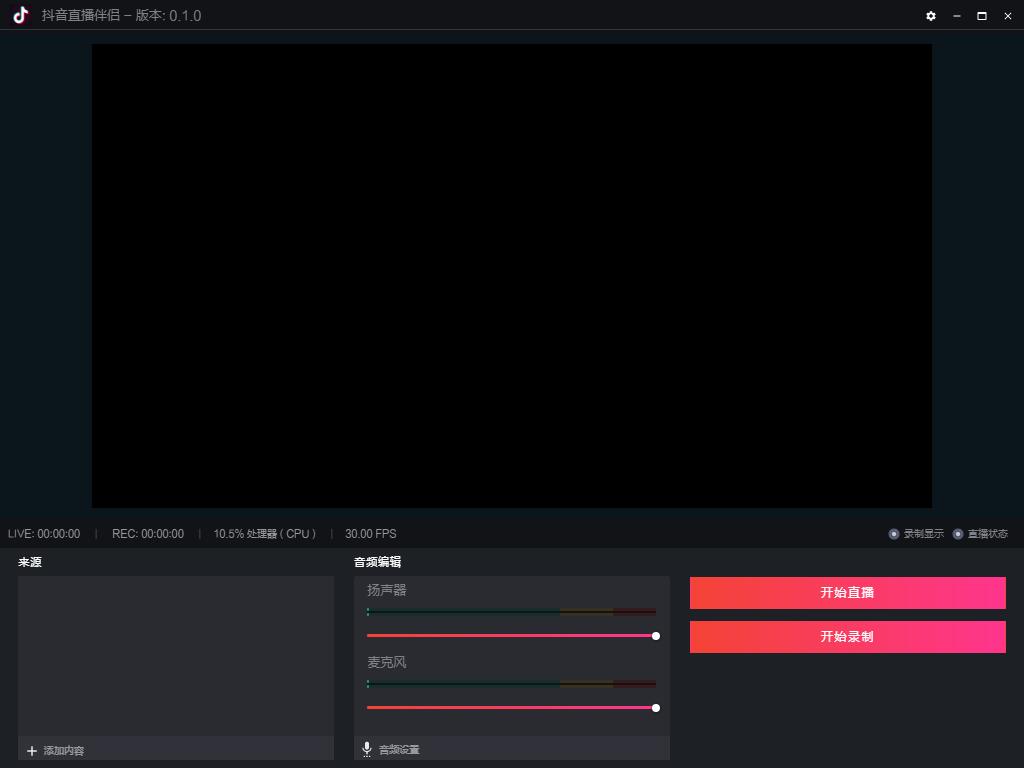
2. Click the “Add Content” button in the lower left corner and select the “Display” option.

3. The software will automatically detect the currently connected monitor, select the monitor to be broadcast live and click "Finish".

4. At this time, you can see the real-time picture of the selected monitor in the software monitor interface, and then you can make personalized settings.

5. Click the “Add Content” button in the lower left corner again and select the “Text” option.
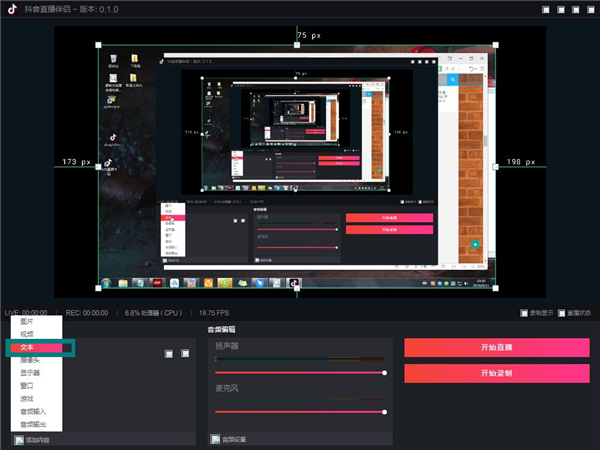
6. Enter the text information to be displayed, and set the font, size, color and other styles as needed.

7. In the same way, you can also superimpose pictures, logos, camera pictures and other materials on the live broadcast screen.
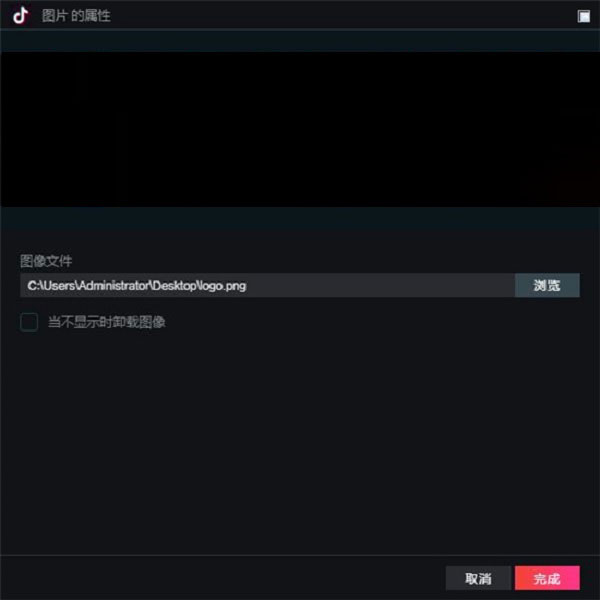
8. Click the “Audio Settings” option in the interface.

9. Here you can set the live sound source and volume, including system sound and headset sound. It is recommended to keep the default and click Finish after setting.

10. After completing the above basic live broadcast settings, click the "Push Address" option under "Settings" in the upper left corner of the software.

11. Enter the live broadcast address obtained from the Douyin APP in the pop-up window, click Finish, and minimize the software to start the live broadcast.
How to fill in the streaming address for Douyin Live Companion?
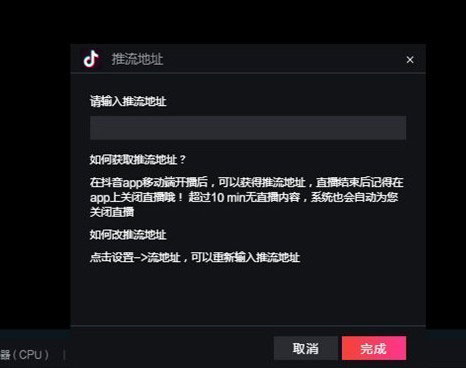
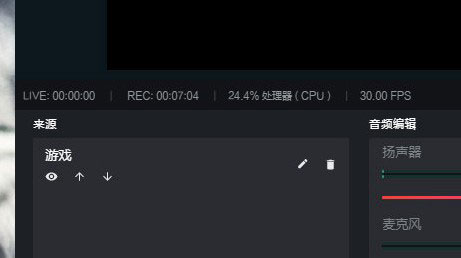
① The computer version of Douyin Live Companion can help anchors conduct live broadcasts more professionally. Many users do not know how to fill in the push address when using it. In fact, when you open the software for the first time after installation, the push address input interface will pop up directly; if you accidentally close this interface, click the "gear"-shaped settings icon on the upper right and select the "Push Address" option to bring it up again, as shown in the figure below:

②After calling up the push address interface, fill in the address in the input box above. If you don’t know the specific push address, you can open the Douyin APP that is currently broadcasting and get the corresponding push address from it. The push address can be modified at any time. After inputting, click "Finish" to complete the setting.
How to live broadcast mobile games on Douyin Live Companion?
① If you want to live broadcast mobile games through Douyin Live Companion, you can click "Add Content" in the "Source" area at the bottom left and select the "Game" option.

② After the game setting interface pops up, in the selection box marked with a red box, you can find popular client games such as League of Legends, PlayerUnknown's Battlegrounds, and QQ Speed; if you want to live broadcast mobile games, select "Tencent Mobile Game Assistant". After downloading and opening Tencent Mobile Game Assistant, turn on the screen casting mode to cast the mobile phone screen to the assistant, and then synchronize it to Douyin Live Companion to live broadcast the mobile game, and finally click "Finish".

③At this time, you can see that the game type you just added has successfully appeared in the source list. At this point, all settings for mobile game live broadcast are completed.
Introduction to Douyin Live Companion Function
Start broadcasting with one click and adapt to multiple scenes
Quickly start broadcasting: After logging in to your Douyin account, you can start live broadcasting with one click. No complicated configuration is required, and novices can easily get started.
Multi-type live broadcast support: covering all scenarios such as games, entertainment, education, e-commerce, and life sharing to meet the needs of different anchors.
Horizontal screen/vertical screen switching: Freely select the screen ratio according to the content type, suitable for viewing on multiple devices such as mobile phones and computers.
HD image quality and low latency transmission
High-definition streaming: Supports 1080P resolution and 60-frame smooth picture output to ensure live broadcast clarity.
Intelligent encoding optimization: Automatically adjust the code rate to adapt to different network environments and reduce lags and delays.
Multi-platform synchronization: The stream can be pushed to Douyin, Douyin Express Edition, Huoshan Video and other byte-based platforms at the same time to expand audience coverage.
Professional-grade audio and video processing
Microphone noise reduction: Built-in AI noise reduction algorithm to eliminate background noise and improve speech clarity.
Virtual audio channel: Supports separation of game sound effects, background music and microphone sound for independent adjustment.
Compatible with external devices: Compatible with professional microphones, cameras, sound cards and other equipment to meet the needs of high-quality live broadcasts.
Real-time interactive toolbox
Barrage management: Display audience barrages in real time, support keyword filtering, barrage color/font customization, and create a good interactive atmosphere.
Gift special effects: Dynamic special effects (such as animation, sound effects) are triggered when viewers give gifts, making the live broadcast more interesting.
Interactive plug-ins: built-in voting, lottery, Q&A, Leverage and other functions to improve audience participation and retention rate.
Exclusive benefits for fan groups: Set exclusive gifts, barrage colors and other privileges for fan group members to enhance fan stickiness.
Multi-scene switching and material management
Preset scene templates: Provides a variety of scene templates for games, chats, goods delivery, etc., which can be switched with one click without interrupting the live broadcast.
Customized material library: supports adding pictures, videos, GIFs, text and other materials as backgrounds or floating windows to enrich live broadcast content.
Green screen cutout: Realize virtual background replacement through green screen technology to create an immersive live broadcast experience.
Virtual image and special effects enhancement
2D/3D virtual images: Provides virtual images such as anime characters and animals, supports facial capture and motion synchronization, and is suitable for virtual anchors (VUP).
Dynamic stickers and filters: Built-in filters such as beauty, face slimming, and big eyes, as well as theme stickers such as festivals and animations, enhance the attractiveness of the anchor's image.
AR special effects interaction: Support viewers to trigger AR special effects (such as snowflakes, hearts, etc.) through barrages to enhance the fun of the live broadcast.
Exclusive functions for e-commerce live streaming
Product management: Directly linked to Douyin store products, supporting operations such as real-time listing, removal, and price modification.
Shopping cart floating window: Display the product list in the live broadcast screen, and viewers can click to jump to the purchase page.
Coupon issuance: Support the setting of coupons such as full discounts and discounts to stimulate viewers to place orders.
Order data monitoring: Check product sales, sales and other data in real time to optimize the delivery strategy.
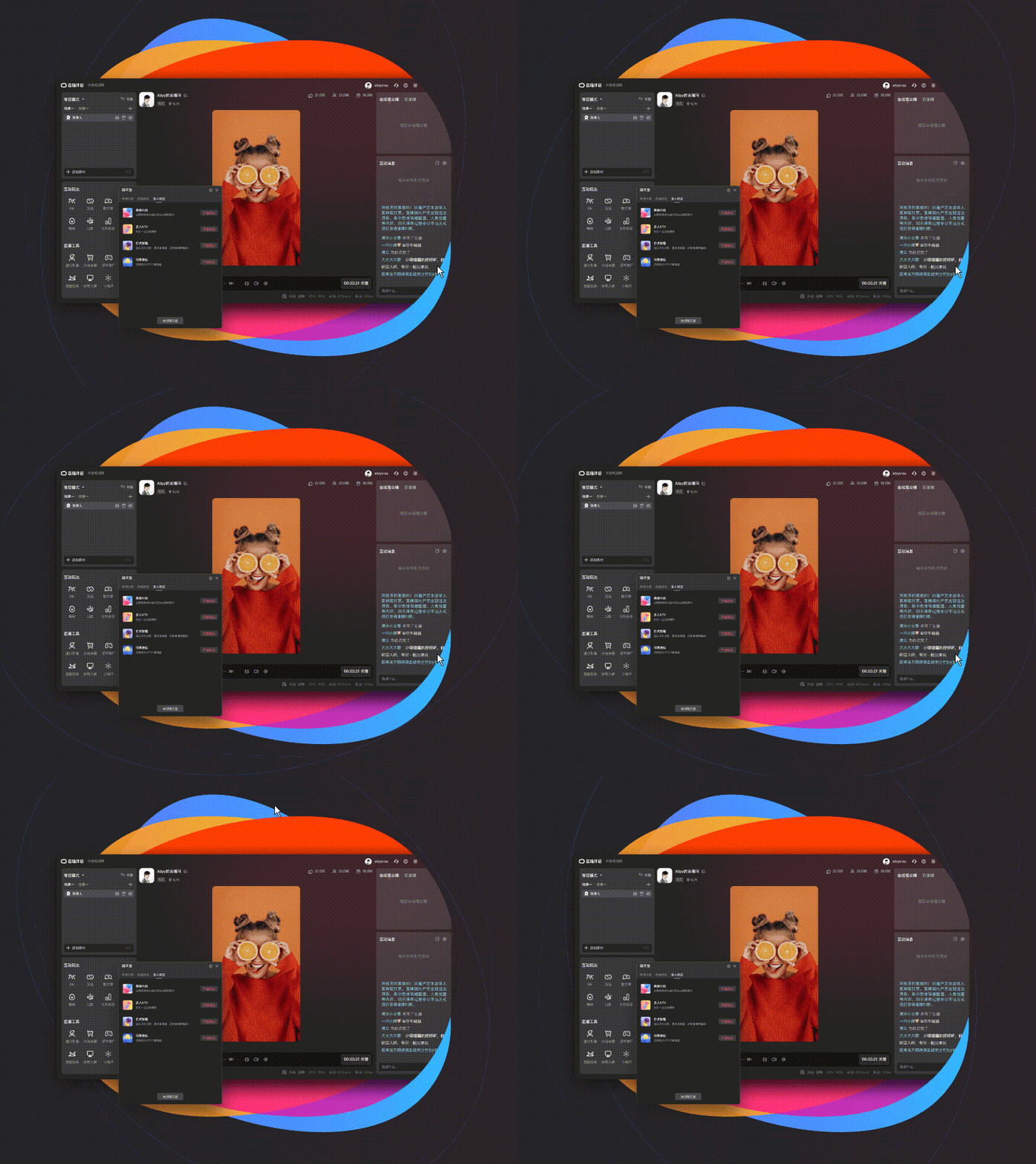
Features of Douyin Live Companion Software
1. Computer live broadcast, multi-person interaction: large screen high definition, exciting live broadcastBattle; Interesting comments, interact anytime and anywhere; choose from online games, e-sports, and shows, and broadcast however you want!
2. Mobile game live streaming and recording are more exciting: Mobile Game Companion can start broadcasting with one click, play mobile games smoothly, live broadcast without worries, record exciting clips at any time, and share show results with one click
3. Unlimited games, exciting broadcasts: Unlimited games, online games, mobile games, strategy,StandaloneYou can play whatever you want. As long as you play games, the live broadcast platform welcomes you to join at any time!
4. The Douyin platform is launched and has hundreds of millions of fans: The billion-level user platform quickly accumulates fans and taps your potential superpowers. There are always exciting things you can’t think of. Your road to becoming an internet celebrity starts here!
Highlights of Douyin Live Companion Software
◆Start broadcasting with one click
Save yourself the trouble of entering the push code,One clickStart live broadcast, quickly and efficiently
◆Rich gameplay
Support various interactive gameplay, andfansintimate interaction
◆Comprehensive functions
Can capture full screen, game, window,cameraand capture cards, covering a variety of usage scenarios.
Douyin Live Companion Installation Steps
1. Download the installation package of Douyin Live Companion from Huajun Software Park, unzip it, and double-click the exe program.
2. Enter the installation wizard, click "Browse" to select the installation folder. Generally, it is installed on the C drive of the computer by default. It is recommended to install on the D drive. Click Install.
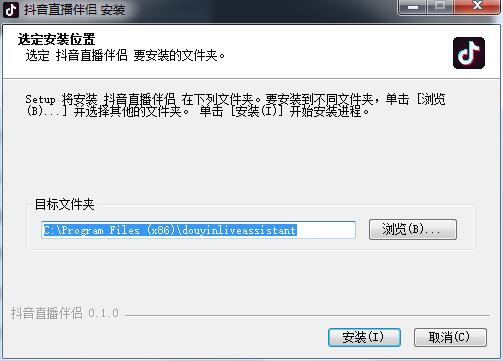
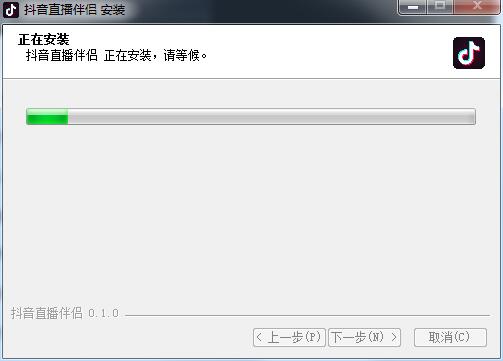
3. The software is being installed, please wait patiently.
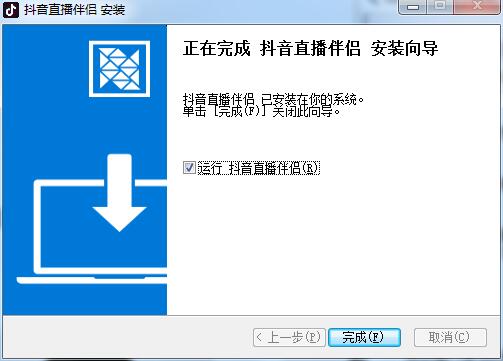
4. The installation of Douyin Live Companion is completed, click Finish to exit the installation wizard
Frequently Asked Questions about Douyin Live Companion
What should I do if my live streaming partner cannot connect or is frequently disconnected?Network connection issues: checknetworkIf the connection is stable, try changing the network environment or upgrading the network equipment.
Application issues: Make sure the Live Companion app is the latest version, try restarting the app or reinstalling it.
Account Issues: CheckDouyinWhether the account is normal and there are no bans or restrictions.
Device issues: Try logging into Live Companion on other devices to see if you can connect normally.
Dedicated line resources: If conditions permit, choose high-quality dedicated line resources to ensure the stability of the network environment.
Douyin Live Companion Update Log
1. Optimize content
2. The details are more outstanding and bugs are gone.
Huajun editor recommends:
Douyin Live Companion is a software that is completely fool-proof and super simple to operate. In addition, the editor also recommends it.Magic Show Live Companion,Paracraft creative space,MP3 automatic player timing editing software,Zhengdu screen reading software,Yijie competition party random question setting softwareDownload and use related software.





































Useful
Useful
Useful