




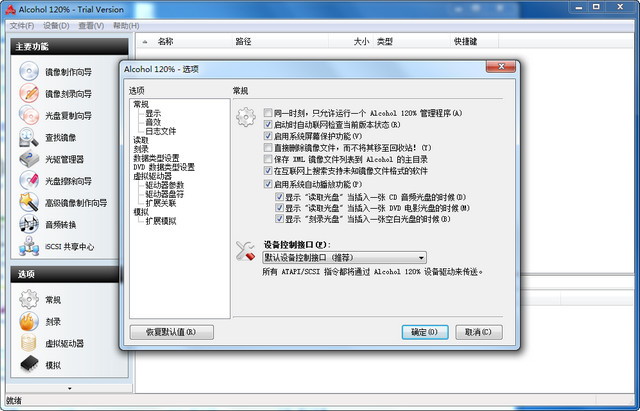
Alcohol 120% product features
Alcohol 120% can virtualize 31 virtual optical drives; allowing computer gamers to have 200 times ultra-high-speed optical drives without having to worry about slow optical drives;
You can burn directly or burn image files to blank discs;
Alcohol 120% supports multiple recorders at the same time and performs reading and burning operations at the same time;
You can perform 1:1 reading and burning in RAW mode and faithfully back up the disc or store it as a disc image file;
Alcohol 120% supports reading and burning various disc image files (mds, ccd, cue, bwt, iso and cdi); use
It’s easy to use, just click three times with the mouse to perform engraving;
Supports the reading and burning of AudioCD, VideoCD, PhotoCD, Mixed Mode CD, CD Extra, Data CD, CD+G, DVD (Data), and DVD-Video.
Alcohol 120% installation steps
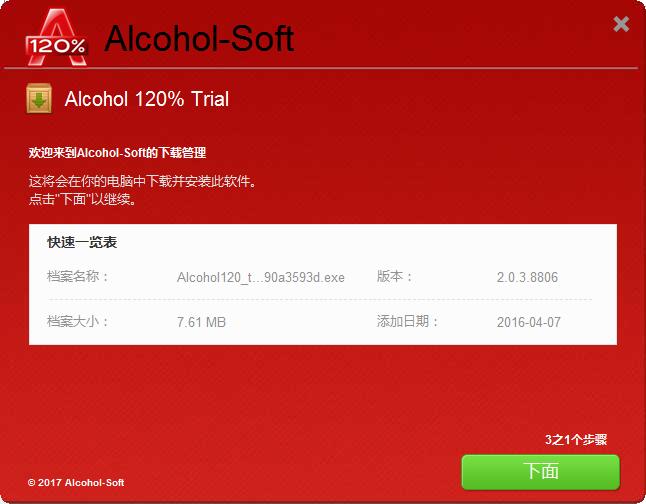
1. Open the Alcohol 120% installation package downloaded from Huajun Software Park, double-click the installation program, confirm the software information and click "Below"
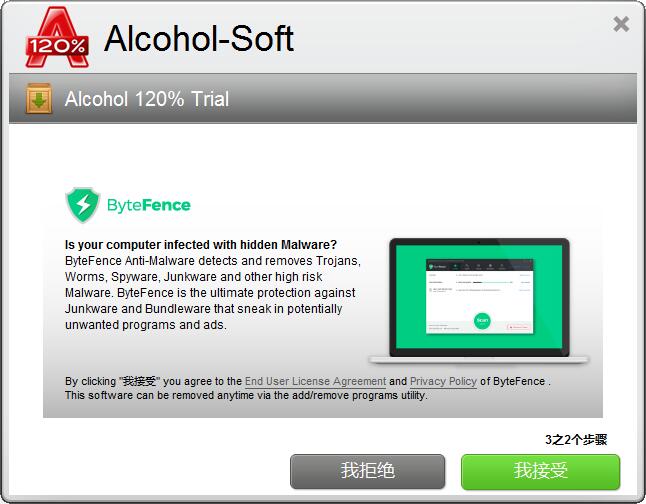
2. Click "I Accept"
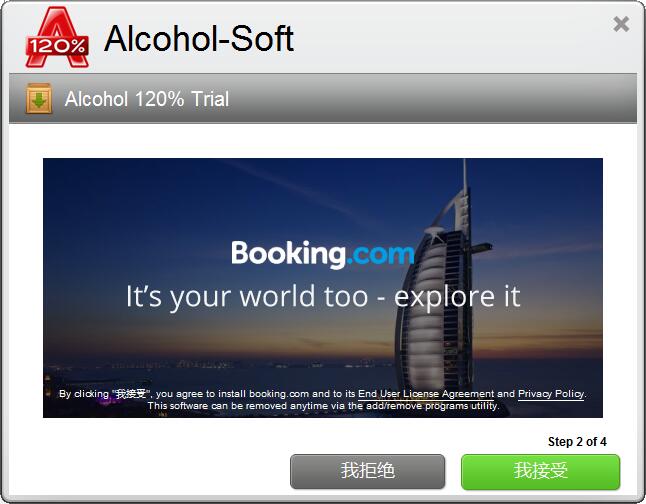
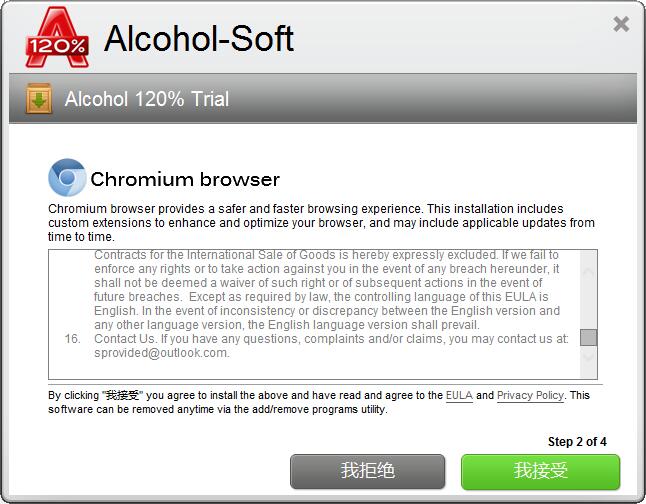
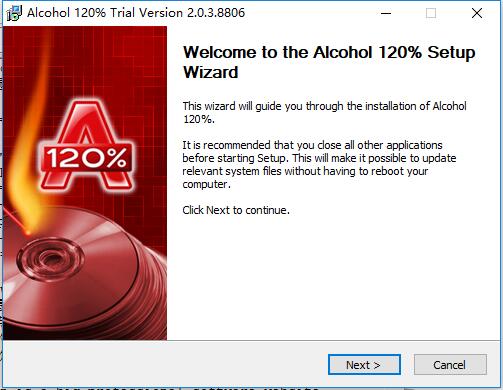
3. Enter the official installation program and click "Next"
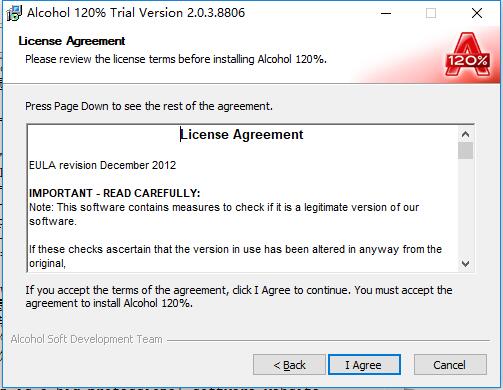
4. Click "I Agree"
5. Then wait for Alcohol 120% installation to be completed.
Alcohol 120% update log
Fixed necessary issues with SSE2. In the virtual driver engine, alcohol.exe and axshlheler crash if you want more CPU that does not support SSE2 instruction set or newer.
but axcmd * fixed program help file does not exist if there is no message.
固定安装/卸载axcmd问题而需要使用驱动器字母数ID of V驱动。
Minor bugs fixed.
Alcohol 120% related questions
Why does the transcription process take a long time when converting some CDs into image files, sometimes even 5 to 6 hours?
In fact, there are many problems with slow reading. Many friends think that there is a problem with the optical drive when using Alcohol 120%. In fact, the real problem is that these transcribed discs use [weak sector technology] technology)] optical disc copy protection technology, because the damaged sectors in these optical discs will cause synchronization problems in many optical drives when reading, making them abnormally slow. For example, the common Safedisc2.51 optical disc copy protection technology also uses this kind of [weak sector technology] technology)], as for another protection technology that destroys logic tracks, it uses data errors to cause difficulty in reading by the optical drive. This protection technology has a way to speed up the reading speed, but the prerequisite is that the optical drive itself supports it.
When creating an image file, a message indicating that the creation failed appears. Why is this happening?
When encountering this kind of problem, there are usually two situations: ① In each case, the source disc of the image file to be created has "Disc Anti-Copy Technology". In this case, just check the [Ignore Read Error] checkbox and select the correct disc [Data Format] ], generally this type of disc can be successfully made into an image file; ② Another situation is that although the disc does not have "disc copy protection technology", the disc itself has been scratched or damaged. In this case, you can try to remove the [Ignore read errors] check box.
After removing it, if the error still occurs, it must be that the disc cannot be read.
Why is it that when I use Alcohol 120%'s "Image Creation Wizard" to create a CD image file, the CD-ROM drive often has to wait for a long time before starting to read it?
This situation often occurs on some older optical drives, because the problem itself is that those older optical drives do not support or are not very compatible with DMA mode. It is generally recommended to try changing its system settings to PIO mode. How to change PIO mode in Windows Under the 2000 operating system, right-click [My Computer]>[Hardware]>[Device Manager]>[IDE/ATA/ATAIP] and then change the mode to PIO. If you do not want to change to PIO mode, you can also try updating the "firmware" version of the optical drive, which should also help solve the problems encountered.
The size of the ISO image file downloaded online is 712MB. I wonder how to burn it to a disc using Alcohol 120%?
It means that the disc overburning function supports it. In fact, Alcohol 120% can also support overburning, but first you must have a blank disc with a capacity that cannot be smaller than the source image file, and then click [File] > [Options] > [General] > [Burn] on the main interface of Alcohol 120%.
Then select the check option of [Turn on overburning function], and then click [OK] to exit. However, Alcohol 120% will still pop up a warning window during burning. Ignore it, just select [Yes]. Also note that not all recorders can support the overburning function, and overburning may cause damage to the recorder hardware. (Friendly reminder: Try to reduce the writing speed as much as possible, it will be safer!
Why does it show that the burning is successful when I simulate burning, but fails when I actually write to the disc?
This problem may be that Alcohol 120% cannot support all recorders, so some models of recorders will show that the burning is successful during simulated burning, but fail during actual writing. For this problem, try updating the "firmware" version of the recorder.
Why can't I use the image file normally after I load it into the Alcohol 120% simulated optical drive?
This problem generally occurs on game discs. Many game manufacturers on the market add "disc copy protection technology" when making discs. Although Alcohol 120% can generally simulate almost all discs with the correct settings, regardless of whether these discs have "disc copy protection technology", so you can try setting different disc data reading formats so that the image files produced by the disc can be read normally by the simulated optical drive.
Alcohol 120% update log
1. Fixed other bugs;
2. Optimized software compatibility.
Special instructions:
Hello, the software you are about to use is an auxiliary tool and may be intercepted and checked by major anti-virus software. This software may have risks, please pay attention to avoid it. If you want to continue using it, it is recommended to close various anti-virus software before use.
Attached is the software package decompression password: softwaredownload4.com
Huajun editor recommends:
Don't miss it when you pass by. If you miss Alcohol 120%, you will never experience such good service again. This site also recommends to youDAEMON Tools Ultra 5,Virtual CD-ROM Magician,PlexTools Professional XL,xp virtual machine,Daemon Tools











Useful
Useful
Useful