





- Green versionView
- Green versionView
- Green versionView
- Green versionView

user community
How to use IE11 browser:
How to improve IE11 browserCompatibleSex?
1. First, please open the main page of the IE11 browser, and thenIE11Click the "Tools" button in the upper right corner of the browser and select the "Internet Options" menu

2. After opening Internet Options, click the "Security" tab on the page, and then click the "Trusted Sites" option under the tab page.
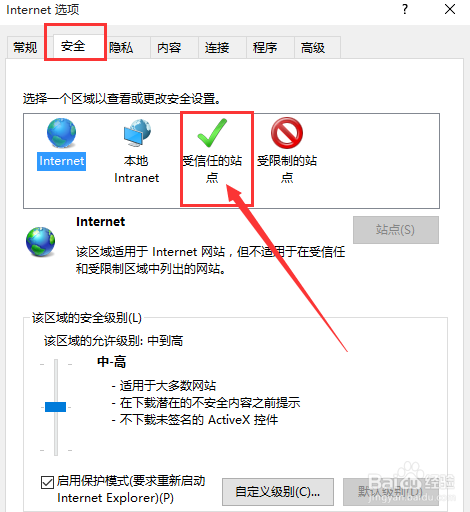
3. Next, click the Select Trusted Sites option, click the "Site" button, open the site page, and start adding websites to be trusted.
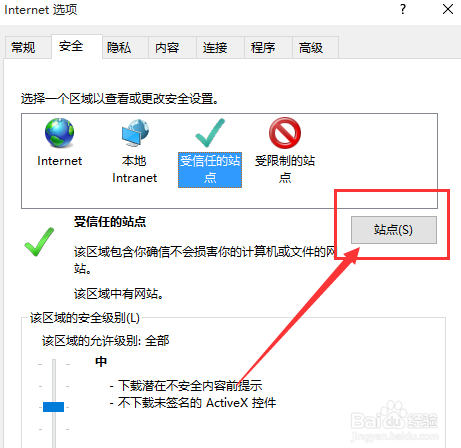
4. After opening the trusted site page, enter the URL to be added in the site page, then select the "Add" button, then save the settings and restart the IE11 browser

IE11 browser FAQ:
1. How to downgrade the version of IE11 browser?
1) First open the IE11 browser and click the "Tools" menu above
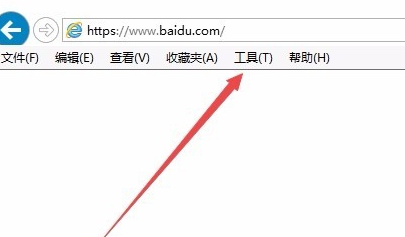
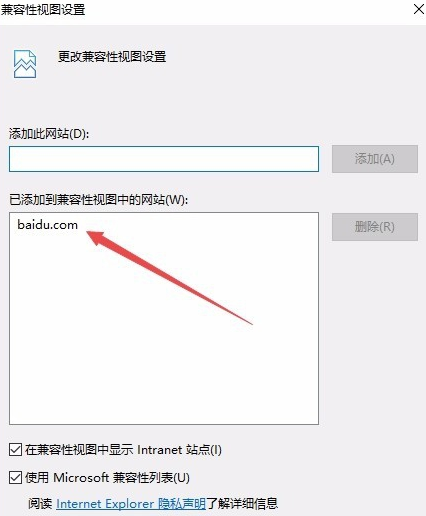
2) In the menu that opens, click "Compatibility View Settings"

3) Enter the URL you want to lower the version of, and then click the "Add" button on the right
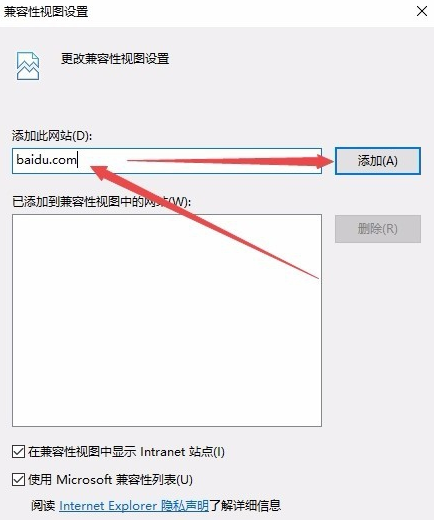
4) At this time, the URL for which the IE version is to be lowered is added to the compatible view list, so that when the URL is opened again, IE11 will open it in compatibility mode, so that it can be opened using the lower version of IE browser.
2. How to set the browser homepage in IE11?
1) Click a setting option in the upper right corner
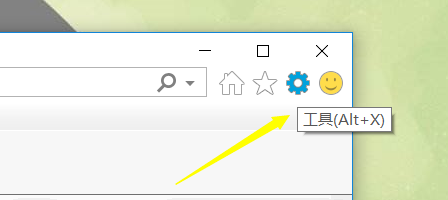
2) Click the Internet option in the pop-up menu here
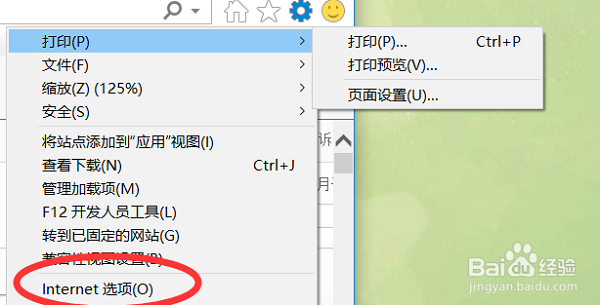
3) There is a homepage setting option in the upper left corner, where you can delete the previous advertising URLs

4) Add the address you want to set as your homepage

5) Click the Apply button in the lower right corner to save

6) After saving, if you find that when you open the IE browser, you still see an advertising page, here we can right-click on the properties to see a target address and modify it.

3.IE11The browser cannot be opened
1. System update: Please ensure that your Windows 10 system has been updated to the latest version. You can search and open "Windows Update" in the Start menu, check and install any available updates, and then restart the system.
2. Reinstall IE11: If the program files of the IE11 browser are damaged, it may not function properly. You can find IE11 through the "Programs" or "Programs and Features" options in the "Control Panel" and choose to uninstall. Subsequently, restart the system and download the latest version of IE11 from Microsoft's official website to install it.
3. Troubleshooting plug-ins and add-ons: Some IE11 plug-ins or add-ons may conflict with other programs, causing IE11 to fail to start. You can try disabling or uninstalling all plugins and add-ons in IE11's Manage Add-ons or Extension Manager, and then enabling them one by one to identify and resolve potential conflicts.
4. User configuration reset: If the user configuration file of IE11 is damaged, it may also cause the browser to fail to start. You can try creating a new user profile. Start IE11 by pressing the Win + R keys and then entering "iexplore.exe -extoff -noframemerging" and check whether it can open normally. If the new user profile works properly, the problem may be related to a corrupted old user profile.
If none of the above methods solve the problem, it is recommended that you contact the technical support of Windows 10 or the official support of the IE11 browser. They can provide you with more detailed guidance and assistance.
4.Can ie11 browser be used with win7?
5. Failed to install IE11 browser?
1. The system environment does not meet the installation standards. In order to successfully install IE11, you need to ensure that the operating system version is Windows 7 or higher. If the system version is too low, the installation process will fail.
2. The computer hardware configuration does not meet the installation requirements. The installation of IE11 has certain requirements for computer configuration. If the computer configuration is low, especially if there is insufficient memory, the installation will fail.
3. The installed IE11 version is incompatible with the system. It may be that the downloaded version of IE11 does not match your operating system. For example, you downloaded a 64-bit version of IE11, but your computer only supports 32-bit programs.
4. The downloaded installation package has integrity issues. Failure during the download process may result in incomplete data, causing errors during installation. To resolve this issue, it is recommended that you download and install again.
5. There may be two versions of IE on your computer. If an old version is used at startup, the installation may fail. Please note that IE browser supports repeated installation, and both browsers will exist in the system at the same time and will not cover each other. In this case, you need to open the IE browser, click "Tools - Internet Options" in the upper taskbar, and click "Reset" in the Advanced tab of the opened Internet Options window to solve the problem.
How to fix ie11?
1. Start IE browser, select [Tools] from the menu bar, and then click [Internet Options] in the pop-up menu.
2. In the options window that opens, click the [Advanced] tab, then find and click the [Reset] button under the [Advanced] tab.
3. A window to reset Internet settings will pop up. If you don't want to keep your personal settings, make sure the "Delete personal settings" option is checked.
4. Click the [Reset] button and the system will begin to reset the Internet settings.
5. After the reset process is completed, click the [Close] button and then restart the IE browser for the changes to take effect.
Upgrade IE11 browser to the highest version
Upgrade through Windows Update: Turn on the automatic update function of IE browser, click the tools button in the upper right corner of the browser, select "About Internet Explorer", check "Automatically install new versions" on the pop-up page, and then close it. Then open the Control Panel, enter "Windows Update" in "System and Security", click "Check for Updates", the system will automatically find and install the latest IE version.
Manually download the upgrade package: If the automatic update is not pushed, you can manually download the latest IE11 upgrade package from Microsoft's official website or other trusted software download platforms and install it.
IE11 browser settings compatibility
Set through the tools menu: Open the IE11 browser, click the "Tools" button in the upper right corner, and select "Internet Options". In the options window that opens, click the "Advanced" tab, then find and click the "Reset" button under the "Advanced" tab. In the pop-up Reset Internet Settings window, check or uncheck "Delete Personal Settings" as needed, then click the "Reset" button and restart the browser after completing the reset.
Add a trusted site: In the IE11 browser, click the "Tools" button in the upper right corner and select "Internet Options". After opening the "Internet Options" window, click the "Security" tab, select "Trusted Sites", click the "Site" button, enter the URL to be added, click the "Add" button, save the settings and restart the browser.
IE11 browser downgraded to IE8
Downgrade by uninstalling updates: Open the Control Panel, go to "Programs and Features", and click "View installed updates". Find the IE11-related update among the installed updates, right-click and select "Uninstall". After the uninstallation is complete, restart the computer. The browser version may be downgraded to IE9 or lower.
IE11 browser opens
The IE11 browser usually exists as a pre-installed application on Windows systems and can be opened directly through the shortcut in the start menu or taskbar. If there is no IE11 in the system, you need to download and install it first.
IE11 browser repair
Repair through Internet Options: Start IE browser, select "Tools" from the menu bar, and click "Internet Options". In the options window that opens, click the "Advanced" tab, find and click the "Reset" button. In the pop-up Reset Internet Settings window, check or uncheck "Delete Personal Settings" as needed, and then click the "Reset" button. The system will begin to reset the Internet settings. After completion, click the "Close" button to restart the IE browser.
IE11 browser features:
1. Providedsafe, fast web browsing experience.
2. Provides address collection management function.
3. Providedad blockingfunction.
4. Providedweb pagePrivacy protection and personal privacy protection.
5. Provides full-screen display function.
6. Provides developer tools.
IE11 browserInstallation steps:
1. Download the software from this site, double-click to open the installation package, the installation interface will pop up, select the version corresponding to your computer, and click Install
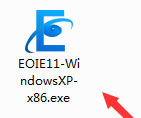

2. Enter the page as shown in the picture and click one-click installation.

3. A prompt window like this pops up, "The corresponding IE version has been downloaded for you, please run and complete the installation", click OK
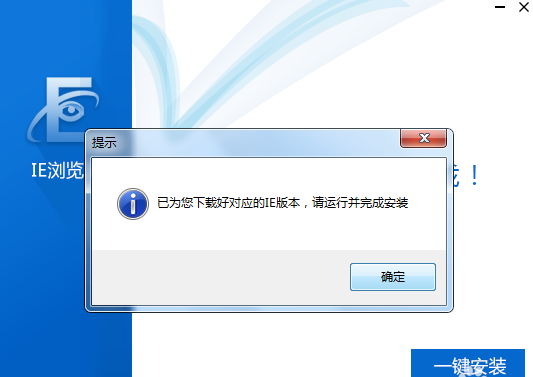
4. Enter the downloaded IE version installation package directory

5. Double-click to execute the installation package and the installation confirmation page will pop up, as shown in the figure.

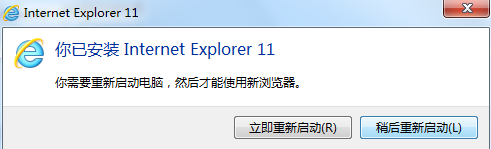
6. Click Install and the execution will begin. When the installation is completed, you will be prompted to restart the computer, as shown in the figure.

IE11 browserWhich one is better compared with similar software:
IE11 browser (Internet Explorer 11) supports the latest network standards and technologies. This is a brand-new browser, which is the embedded browser of Windows 8.1. Its function is very powerful and it is an essential tool for browsing the web.
Google Chrome is safe and fast, and can meet the browser requirements of new websites. It is characterized by simplicity and speed, and supports multi-tab browsing. It is highly secure and powerful. The collapse of one tab page will not cause other tab pages to be closed.
360 secure browserIt is safe and worry-free when surfing the Internet. It has powerful network functions and is a popular browser among users. 360 Secure Browser allows users to restore at any time, with a simple and exquisite interface. It is a browser you should not miss.
Each of these three browsers has its own advantages. You can choose the one you like to download. They are all fully functional, so don’t miss them.
Google ChromeDownload address:http://softwaredownload4.com/soft/7993.htm






























Useful
Useful
Useful