




Chongchong CAD batch processing master software functions
File renaming
Automatically rename DWG files based on file number or file name
Supports batch processing of multiple folders
Intelligent number extraction and management
Text content replacement
Automatically replace the order number, serial number, and project name in the drawings
Supports wildcards and regular expressions
Customized batch replacement rules
Multiple filter conditions (layer, color, line type, text height)
Automatically publish PDF
Automatically control AutoCAD’s AUTOMATICPUB settings
Generate PDF files in batches
Intelligent waiting mechanism ensures that PDF generation is completed
Operation preview and editing
Preview all operation results before execution
Supports real-time editing of file names and folder names
Color highlights different parts (order number, drawing number, project name)
Multiple folder support
Interface layout
Main interface layout
Menu bar: File | Theme | Help
Top panel: Folder list | Important tips
Middle panel: Replacement rules | Options and filtering | Operations and execution
Lower panel: Custom replacements | Logs and status
Menu bar function
File menu
Select folders: Add the folders to be processed
Manually add a folder: Manually enter the folder path
Exit: Exit the program
Theme menu
Win11 Dark: Dark theme
Win11 Light: Light theme
Classic Gray
Help menu
Instructions for use: Show detailed instructions for use
Language settings: Switch interface language
Authorization management: Manage software authorization
About: Show software information
Chongchong CAD Batch Processing Master Operation Guide
Step 1: Add Processing Folder
Method 1: Select through the interface
Click the "Add Folder" button
Select the folder to process in the file selection dialog box
The folder will be added to the list
Method 2: Drag and drop to add
Drag the folder directly from the explorer to the program window
Supports dragging multiple folders at the same time
Method 3: Manual input
Click on the menu "File" → "Manually add folder"
Enter the full path in the pop-up dialog box
Click OK to add
Step 2: Configure replacement rules
Order number replacement
Check "Replace Order Number"
In the input box, enter the text representing the order number in the drawing (such as "---")
The program will automatically extract the order number from the first paragraph of the folder name and replace it.
Drawing number replacement
Check "Replace drawing number"
In the input box, enter the text representing the drawing number in the drawing (such as "===")
The program will automatically extract the number from the first paragraph of the file name and replace it.
Project name replacement
勾选"替换工程名"
In the input box, enter the text representing the project name in the drawing (such as "+++")
Set the project name segment sequence (such as 2,4 means splicing the 2nd and 4th)
Step 3: Set filter conditions (optional)
Layer filtering
can check "Filter by layer"
Enter the name of the target layer, separate multiple layers with commas
Color filtering
Can check "Filter by color"
Enter the color index number, separate multiple colors with commas
Linear filter
can can check "Filter by line type"
Enter the name of the target line type, separate multiple line types with commas.
Text height filtering
Check "Filter by text height"
Enter the minimum and maximum height range
Step 4: Select the action to perform
Rename file
After checking, the program will automatically rename the DWG file according to the file number or file name.
Replacement text
After checking, the program will replace the specified content in the drawing
You can individually control the replacement of order number, serial number, and project name
Automatically publish PDF
After checking, the program will automatically control AutoCAD to generate PDF files
You need to set up automatic publishing in AutoCAD first
Close after completion
After checking, the processed drawings will be automatically closed.
Create a backup before processing
If checked, a backup of the original file will be created before processing.
Step 5: Operation preview and confirmation
Preview function
After the configuration is completed, click "Start Execution"
The program will first display the operation preview window
The left side of the preview window displays a list of operations to be performed
The preview results of file renaming are displayed on the right.
Editing function
You can edit the file name directly in the preview window
The folder name can also be edited (only used to extract the order number, the folder will not actually be renamed)
Different parts will be highlighted in different colors:
Magenta: order number
Red: drawing number
Green: project name
Confirm execution
After confirming that the preview results are correct, click "Confirm Execution"
The program starts actually processing the file
Log monitoring
Show log
Click the "Show/Hide Log" button to open the log window
The log window will display the detailed processing process
Log content
File processing progress
Text replacement details
Error messages and warnings
Processing statistical information
AutoCAD setup requirements
Automatically publish PDF settings
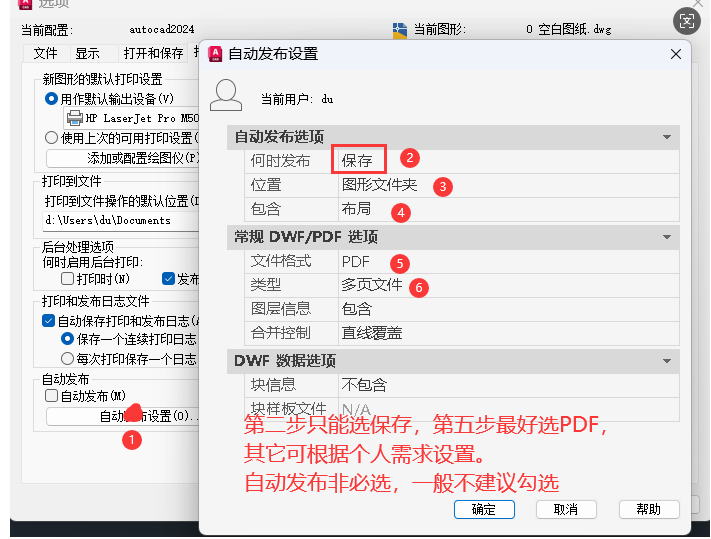
To achieve automatic batch generation of PDFs, the following settings need to be made in AutoCAD:
Open AutoCAD, click the "A" icon in the upper left corner or enter the command OPTIONS
In the Options dialog box, switch to the "Print and Publish" tab
Find the "Background Processing Options" section on the right and make sure "Enable Background Processing" is checked
Click the "Auto-publish settings..." button to pop up the automatic publish settings dialog box
In the "When to Publish" drop-down box, select "Save or Close"
In the "Default output location" section, select "Use DWG location" or specify a custom folder
In the "Default output type" section, select the "PDF" format
In the "Publish scope" section, select "Current layout" or other desired options
Click "OK" to save the automatic publishing settings
Return to the "Print and Publish" tab and make sure the "Auto-publish" option on the previous level is not checked (important!)
Click "Apply" and "OK" to save all settings
Detailed description of automatic publishing settings
When will options be released?
Save: Automatically publish when saving drawings (recommended)
Close
Save or Close: Automatically publish when saving or closing drawings
Default output location options
Use DWG location: Generate PDF in the folder where the drawing is located (recommended)
Use the location specified in the printer/plotter settings: Use the location specified in the printer settings
Specified location: Customized PDF output folder
Page setup options
Use the last successful page settings: maintain consistent rendering effects
Named Page Setup: Saved page setup options can be selected
Output type considerations
PDF settings: When selecting PDF format, you can click "PDF Options..." to adjust the resolution and other PDF settings
DWF settings: If you select DWF format, you can adjust the corresponding DWF options
Output quality: The output quality can be adjusted as needed. High quality will increase the file size.
Troubleshooting Auto-Publish If auto-publish is not working properly, please check the following settings:
Open the automatic publishing log: Check "Save automatic publishing log" in the Print and Publishing tab
Check output folder permissions: Make sure the program has permission to write to the target folder
Confirm printer settings: Check that the correct output device is selected
Check the drawing status: Make sure the drawing is not in editing state
Prevent overwriting: If the "Prevent overwriting" option is enabled, check whether a file with the same name already exists in the destination location
File naming convention
Type naming format description
文件夹名订单号 其他内容订单号为第1段至少有4位连续数字,用空格隔开
图纸文件名编号 工程名 其他内容.dwg编号为第1段至少有4位连续数字,工程名为后续段
Numbering file (TXT) has one number per line. If you need to automatically number in a specified order, you can place the TXT file in the directory.
Advanced features
Multiple TXT file selection When there are multiple TXT files in the directory:
The program will pop up a file selection dialog box
Display a list of all TXT files
Provides file content preview function
The user can select which numbered file to use
System tray
Tray function
After the program is minimized, it will be displayed in the system tray
Left click on the tray icon to show/hide the main window
Right click to display menu (show main window, about, exit)
Singleton Pattern
The program supports singleton operation
Repeated launches activate an already running instance
Avoid problems caused by over-opening
Theme switching
Support themes
Win11 Dark: Dark theme, suitable for night use
Win11 Light: Light theme, suitable for daytime use
Classic Gray
Switching method
Click on the menu "Theme"
Choose the theme you want
Restart the program to apply the new theme
Multi-language support
Supported languages
Chinese (Simplified)
English
Japanese
Switching method
Click on the menu "Help→Language Settings"
Select target language
Restart the program to apply the new language
Frequently Asked Questions about Chongchong CAD Batch Processing Master
Q1: The program cannot connect to AutoCAD A: Please make sure:
AutoCAD has been installed correctly and is running normally
Run this program as an administrator
The firewall does not block the program from accessing AutoCAD
AutoCAD version compatible (supports 2018 and above versions)
Restart your computer and try again
Q2: The system right-click menu and startup settings do not take effect A: Please check:
Make sure the program is running as administrator
Right-click the program icon and select "Run as administrator"
Or set "Run this program as administrator" in the program properties
Some anti-virus software may prevent programs from modifying system settings, and you need to add trust
Windows UAC (User Account Control) may block operations, please allow the program to run
Q3: The PDF file is not automatically generated A: Please check:
Are AutoCAD’s automatic publishing settings configured correctly?
Is the "Automatically publish PDF" option checked in the program?
Is the delay setting reasonable (large drawings may take longer)
Does the target folder have write permissions?
Are the correct printer/drawing devices set up?
Q4: Text replacement does not take effect A: Please check:
Are the placeholders set correctly to ensure they match the text in the drawing exactly?
Whether the original drawing contains the placeholder content set
Are the filtering conditions too strict? Try relaxing the filtering conditions.
Whether the text is a special object (such as text in a block, attribute text, etc.)
Is the text encoding compatible (especially when it contains special characters)
Q4: The program runs slowly A: Suggestions:
Enable the "Performance Optimization" option
Set filtering conditions reasonably to reduce processing objects
Avoid working with large files on network drives
Add batch processing delay parameters
Processing of large amounts of files in batches
Close
Q5: How to back up important files A:
Check the "Create a backup before processing" option
The program will automatically create a backup file with the .bak suffix in the same directory.
You can customize the storage location of backup files in the program settings
It is recommended to manually back up the entire folder before working on important projects
Use version control systems (such as Git) to manage important project files
Q6: The program runs slowly A: Suggestions:
Enable the "Performance Optimization" option
Set filtering conditions reasonably to reduce processing objects
Avoid working with large files on network drives
Add batch processing delay parameters
Processing of large amounts of files in batches
Close
Performance optimization suggestions
Large drawing processing
Enable the "Performance Optimization" option
Set filter conditions reasonably to process only the required objects
Avoid processing too many files at the same time
Consider processing large drawings in batches
Close unnecessary layers in the drawing
Batch processing optimization
Set the delay parameters reasonably (default is 2 seconds, and can be increased appropriately for large drawings)
Processing of large numbers of files in batches (no more than 20 files per batch)
Monitor system resource usage
Close all open CAD files before processing
Save progress regularly to avoid all failures
Memory management
Regularly clean up temporary files (automatic cleaning can be enabled in the program settings)
Close unnecessary background programs
Monitor memory usage
Restart AutoCAD before processing large files
Consider increasing system virtual memory
Network environment
Avoid working with large files directly on network drives
Ensure a stable network connection
Consider copying the file locally for processing before uploading
Use fast and reliable storage
Prevent multiple people from accessing the same network folder at the same time
Authorization management
Probationary period
The program provides a 15-day trial period
Full functionality during the trial period
Authorization is required after the trial period ends
Authorization activation
Click on the menu "Help→Authorization Management"
Copy Hardware ID
Contact the author to obtain the authorization code
Enter the authorization code to activate
Hardware binding
Authorization and hardware binding
Replacing hardware requires re-authorization
Supports independent authorization for multiple computers
System setup requirements
Administrator permission requirements
重要提示:某些系统设置功能需要管理员权限才能正常工作。
Functions that require administrator privileges
Enable system right-click menu: Right-click to display program options in File Explorer
Automatically start at boot: Set the program to run automatically when the system starts
AutoCAD connection: Some AutoCAD versions require administrator rights to connect properly
Run the program as administrator
Method 1: Right-click menu
Right click on the program icon
Select "Run as administrator"
Method 2: Attribute settings
Right-click the program icon and select "Properties"
Switch to the "Compatibility" tab
Check "Run this program as an administrator"
Click "OK" to save settings
Method 3: Shortcut
Right-click the program shortcut and select "Properties"
Click the "Advanced" button
Check "Run as administrator"
Click "OK" to save settings
Things to note
After setting up, the program will automatically run as administrator every time you start it.
If you encounter permission issues, make sure the program is running as an administrator
Some anti-virus software may prevent the program from obtaining administrator privileges and requires adding trust
Chongchong CAD Batch Master update log:
V1.01
Fixed the problem that automatic publishing was not executed by checking the box
Optimize the automatic publishing settings recovery mechanism
Huajun editor recommends:
After continuous official updates and iterations, Chongchong CAD Batch Processing Master has become very stable and powerful, meeting all your needs. The editor has also prepared for youHaochen CAD,Yaochuang CAD,Huiyi CAD,CAD Viewer,Quick CAD viewing software




Your comment needs to be reviewed before it can be displayed