



Many friends have been using Ghost to manage image files, and some friends who are good at exploring have begun to use ImageX to perform image backup and recovery operations. However, firstly, the operation is cumbersome, and secondly, the parameters are complex, difficult to operate and remember, and operation errors are prone to occur. Has anyone thought, why not combine the traditional Ghost and the popular ImageX into one? Coupled with a clear graphical interface? What would that look like?
Our ideas are realized in Easy Image X! (Supports both Ghost and ImageX! Don’t doubt it! :)
Instructions for use:
(1) Image recovery
1. Quick operation: (two clicks, one press)
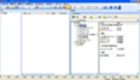
(1) [Select Image] Click to select the image in the image list on the left (for ImageX image, select the sub-image name, for Ghost image, select the image file);
(2) [Set Partition] Click to select the partition in the drive partition list on the right (please restore the system image to the primary partition with the "active" attribute);
(3) [Click Enter] Click the Enter key on the keyboard, and the image recovery work will begin.
2. Image related:
(1) The image backup function supports ImageX images (.wim) and Ghost images (.gho), and the program will automatically determine the image type;
(2) When the program starts, it will automatically search for all ImageX images and Ghost images in the directories within two levels of all partitions;
(3) The automatic search function in the previous article will ignore images smaller than 100MB, but images can be added to the image list by manual addition;
(4) ImageX images usually contain multiple sub-images, and their sub-images must be selected when restoring such images;
(5) ImageX images have the function of "checking image integrity", that is, the "/Check" parameter. Checking will slow down the image recovery speed;
(6) ImageX images have the function of "verifying file correctness", that is, the "/Verify" parameter. Verification will slow down the image recovery speed;
(7) The backup operation cannot be performed on the current system partition.
3. Partition related:
(1) The program will read the partition recognized by the system. If the system cannot recognize the partition, this program will also not be able to recognize it;
(2) The active partition will be displayed in red;
(3) The drive number, partition number, and partition letter may be different under PE than under the system. Be sure to carefully observe the selected target partition.
4. Guidance related:
(1) The system boot function will automatically change the master boot record (MBR) and partition boot record (PBR) according to the system type and target partition location;
(2) If you need to specifically set MBR and PBR, you can select the "Manually set system boot" option in the system boot options;
(3) In addition to the correct MBR and PBR, normal startup of the system also requires two necessary conditions: "being in an active partition" and "having system boot files";
(4) For NT6 generation systems such as Win7, the system source image install.wim does not contain system boot files. After such images are restored, the boot files need to be repaired manually;
(5) The program cannot help you solve all guidance problems. More problems need to be flexibly determined and solved based on the actual situation.
5. Formatting related:
(1) The Ghost image is a sector-based image, and the partition format in the Ghost image after recovery is exactly the same as that in the Ghost image;
(2) ImageX image is a file-based image, and the partition format of the target partition can be determined before restoring the image;
(3) Images backed up using ImageX in NTFS format can be restored to disk partitions in NTFS or FAT32 format, but it is recommended to use NTFS partition format;
(4) The automatic formatting function requires the support of %windir%system32format.com. If not, automatic formatting cannot be completed;
(5) For more formatting needs, you can select the "Manual Format" option in the partition format, or use a third-party tool to complete it.
6. Password related:
(1) Ghost images support encryption, but ImageX images do not;
(2) When restoring the Ghost image, an input box for entering the password will automatically appear.
(2) Image backup
1. Quick operation: (two clicks, one input, one press Enter)
(1) [Select Partition] Click to select the partition in the drive partition list on the left;
(2) [Set Image] Click to select the image in the image list on the right or click the button on the right of "Image File" to set the image save location;
(3) [Write a name] Write a name for the image that is easy to remember; (Chinese is not recommended)
(4) [Click Enter] Click the Enter key on the keyboard, and the image backup will begin.
2. Partition related:
(1) The program will read the partition recognized by the system. If the system cannot recognize the partition, this program will also not be able to recognize it;
(2) The active partition will be displayed in red;
(3) The drive number, partition number, and partition letter may be different under PE than under the system. Be sure to carefully observe the selected target partition.
3. Image related:
(1) The image backup function supports ImageX images (.wim) and Ghost images (.gho), and the program will automatically determine the image type based on the suffix name;
(2) ImageX images support multiple sub-images in one image, but Ghost images do not support this feature;
(3) In the same ImageX image, if multiple sub-images contain the same file, the same file only occupies the size of one file;
(4) When using ImageX backup image, if the target image does not exist, the "capture mode" will be automatically enabled, that is, a new image will be created;
(5) When using ImageX backup image, if the target image already exists, the "attach mode" is automatically enabled, that is, a sub-image is created in the target image;
(6) ImageX images have the function of "checking image integrity", that is, the "/Check" parameter. Checking will slow down the image backup speed;
(7) ImageX images have the function of "verifying file correctness", that is, the "/Verify" parameter. Verification will slow down the image backup speed;
(8) The backup operation cannot be performed on the current system partition.
4. Compression related:
(1) ImageX has three levels: maximum compression (maximum), fast compression (fast) and no compression;
(2) Ghost has four levels of extreme compression (z9), high compression (z6), fast compression (z2) and no compression;
(3) The higher the compression rate, the smaller the image size, but the backup and recovery time will be longer;
(4) In ImageX, the sub-image compression rate is the same as the first image compression rate, and setting the compression rate is invalid.
5. Image description:
(1) Image description is used to distinguish different sub-images in the ImageX image;
(2) It is not recommended to use Chinese descriptions. In some cases, garbled characters may be generated. The reason is not yet clear.
6. Password related:
(1) Ghost images support password encryption, but ImageX images do not;
(2) When saving the Ghost image, an input box for entering the password will automatically appear.
(3) Advanced functions [omitted here]
Change log
[2016.03.22] v1.62
1. Correct the loading method of built-in resources (such as ImageX, Ghost)
2. Correct some language description contents and optimize the loading method of language files.
3. Corrected the problem that the program might get stuck in some cases when scanning the hard disk when starting the program.
4. Corrected compatibility with EasyU
5. Optimize some code execution logic






Useful
Useful
Useful