





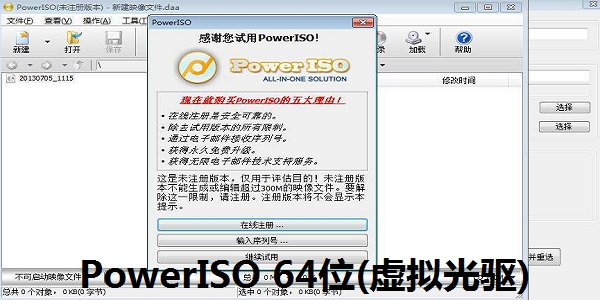
PowerISO 64-bit (virtual optical drive) software functions
Software functions 1. Create ISO files
Create ISO files from local files or folders.
Create ISO files from discs.
Create a bootable CD.
Automatically detect image file types.
Supports ISO9660, Joliet and UDF file systems.
Support unicode file names.
2. Edit ISO file
Open the ISO file.
Supports opening disc image files in various other formats. Supported formats include BIN/CUE, DAA, UIF, DMG, MDF/MDS, ASHDISC, BWI/B5I, LCD, IMG, CDI, CIF, P01, PDI, NRG, NCD, PXI, GI, FCD, VCD, C2D, BIF, etc.
Open a multi-segment image file.
Supports adding files to ISO files.
Delete files from ISO files.
Rename files or directories in ISO files.
The time when files or directories in the ISO file are modified.
Create a boot ISO file.
3. Expand the ISO file
Expand the ISO file.
Expand disc image files in other formats.
, or , or , and or
View or run files in an ISO file.
4. Burn ISO files
Burn ISO files to a variety of discs, supporting CD-R, CD-RW, DVD-R, DVD-RW, DVD+R, DVD+RW, DVD-RAM, DVD-R DL, DVD+R DL, BD-R, BD-RE, BD-R DL, BD-RE DL and other discs.
Burn other disc image files to disc.
Supports flying disc burning.
Create music discs directly from MP3, WMA, APE, FLAC, WAV and other files.
Burn VCD image files to disc. .
5. Erase disc
Quickly erase discs.
Completely erases the disc.
6. Load ISO file
Load the ISO file to the virtual optical drive.
Load disc image files in other formats to the virtual optical drive.
7. Make music CDs
Create a standard music CD.
Create mixed-mode discs.
Support CD-TEXT.
Directly burn mp3, wma, wav, flac, ape and other files to music discs.
Directly burn bin/cue, mp3/cue, wma/cue, wav/cue, flac/cue, ape/cue and other image files to music CDs.
8. Extract audio track
Extract CD audio tracks to various music formats such as mp3, wma, wav, flac and ape.
Extract audio tracks to bin/cue, mp3/cue, wma/cue, wav/cue, flac/cue, ape/cue and other image file formats.
9. Edit music CD
Supports adding MP3 files to music disc image files.
Supports adding WAV files to music disc image files.
Supports adding WMA files to music disc image files.
Supports adding APE files to music disc image files.
Supports adding FLAC files to music disc image files.
Supports deleting music in music disc image files.
Supports playing music in music image files.
10. ISO and BIN conversion
Convert ISO to BIN.
Convert BIN to ISO.
Convert other disc image files to ISO.
Convert other disc image files to BIN.
11. Create image file from CD
Supports creating ISO files from discs.
Supports the creation of BIN/CUE image files from CDs.
Supports the creation of multi-session disc image files.
Supports the creation of music CD image files.
Supports the creation of VCD disc image files.
12. Open/expand/edit disk image file
Supports various floppy disk image file formats (BIF, FLP, DSK, BFI, BWI, BIN, IMG, etc.).
Supports FAT12/FAT16/FAT32 file systems.
Supports NTFS file system (read-only).
Supports the creation of floppy disk and hard disk image files.
Supports editing floppy disk and hard disk image files.
Supports expanding VMWare image files (*.vmdk).
Supports expanding VirtualBox image files (*.vdi).
Supports expanding Virtual PC image files (*.vhd).
13. Support various disc image file formats
ISO (Generic CD images)
BIN/CUE
BIN (CDRWin)
IMA/IMG (Generic disk images)
CIF (Easy CD Creator)
NRG (Nero - Burning ROM)
IMG/CCD (CloneCD)
MDF/MDS (Alcohol120%)
VCD (Farstone Virtual Drive)
VaporCD (Noum Vapor CDROM)
P01/MD1/XA (Gear)
VDI (Virtuo CD Manager)
C2D (WinOnCD)
BWI/BWT (BlinkWrite)
CDI (DiscJuggler)
TAO/DAO (Duplicator)
PDI (Instant Copy)
DMG (APPLE Disk Image)
14. Support multiple optical disc file systems
Standard ISO-9660
Joliet ISO extension (CDs under Windows 95 and higher)
RockRidge ISO Extension (CDs under FreeBSD, Linux)
El Torito Extensions (bootable CDs)
Universal Disk Format (UDF)
XBOX DVD Format
APPLE HFS
APPLE HFS+
15. Support multiple disk file systems
FAT12
FAT16
FAT32
NTFS
16. Easy to use
Supports mouse drag and drop operations.
Support clipboard operations.
Support multiple languages.
Supports all major operating systems: Windows NT 4.0, Windows 2000, Windows XP, Windows 2003, Windows Vista, Windows 2008, Windows 7
Supports both 32-bit and 64-bit Windows operating systems.
PowerISO 64-bit (virtual optical drive) software features
-Supports all common disc image file formats, including ISO, BIN, NRG, CDI, DAA, etc.
Note: DAA (Direct-Access-Archive) It is an advanced image file format generated by PowerISO. It supports some features that ordinary ISO files do not have, such as compression, encryption, and volume splitting.
-PowerISO can process DAA files like other disc image files, such as expanding, burning and loading to a virtual optical drive.
-Open and expand ISO files.
-Burn image files. PowerISO supports burning CDs, DVDs, and Blu-ray discs.
-Burn music discs from MP3, FLAC, APE, WMA or bin files.
-Extract audio tracks to MP3, FLAC, APE, WMA or BIN files.
- Generate ISO or BIN files from CD or hard disk files.
-Edit an existing ISO file.
-Use the built-in virtual optical drive to directly load ISO files. You do not need to install other virtual optical drive software separately.
-Convert image file format.
-Create a bootable USB flash drive.
-Create a bootable CD or image file.
-PowerISO is easy to use. The software supports system shortcut menu integration, drag-and-drop, and clipboard and other common operations.
**Supports 32-bit and 64-bit Windows operating systems.
PowerISO 64-bit (virtual optical drive) installation steps
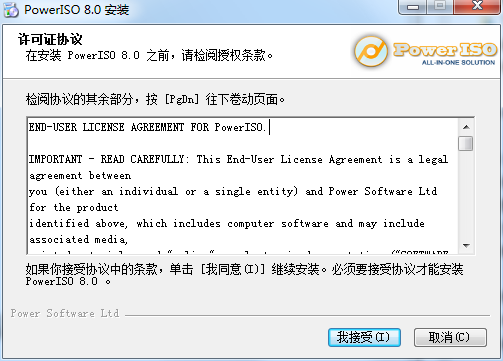
1. Put PowerISO in Huajun Software Park Download the 64-bit (virtual optical drive) and extract it to the current folder. Click on the PowerISO8-x64.exe application to enter the license agreement interface. Click I accept.
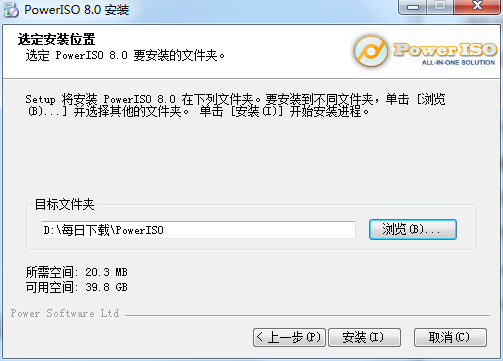
2. Select the software installation location interface. Huajun editor recommends that users install it in the D drive, select the installation location and click Install.
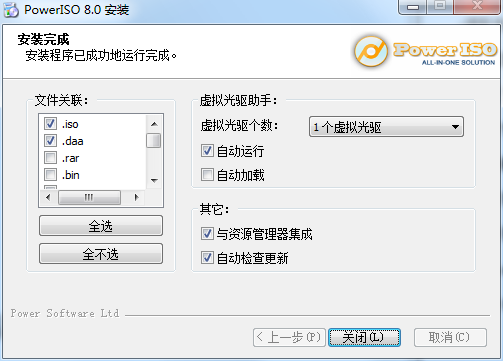
3. The installation of PowerISO 64-bit (virtual optical drive) is completed, click to close.
PowerISO 64-bit (virtual optical drive) supports operating systems
32-bit Windows:
Windows 98, Windows Me, Windows 2000, Windows XP, Windows 2003, Windows Vista, Windows 2008, Windows 7, Windows 8, Windows 8.1, Windows 10.
64-bit Windows:
Windows XP, Windows 2003, Windows Vista, Windows 2008, Windows 7, Windows 8, Windows 8.1, Windows 10.
How to use PowerISO 64-bit (virtual optical drive)
How to load ISO file?
Method 1: Use the main program to load the ISO file
Run PowerISO and press the "Load" button on the toolbar. PowerISO will display the ISO loading popup menu.
Select a virtual optical drive from the pop-up menu.
Select the ISO file you want to load, and then press the "Open" button to load it to the virtual optical drive.

Method 2: Use the shortcut menu to load the ISO file
Open "My Computer" and select the ISO file to be loaded.
Press the right mouse button on the selected file, and the shortcut menu will be displayed.
Select "Load image file to drive [X:]" in the pop-up menu.
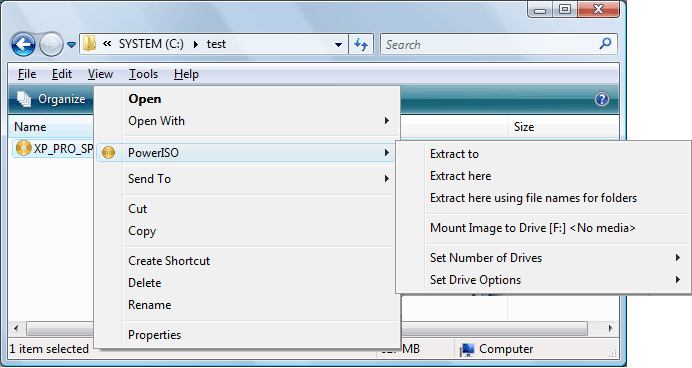
Method 3: Use the shortcut menu to load the ISO file
Open "My Computer" and select the virtual optical drive you want to use.
Press the right button of the mouse on the selected virtual optical drive, and the system shortcut menu will pop up.
Select the menu item "Load image file to virtual optical drive".
Select the ISO file you want to load, and then press the "Load" button to load it to the virtual optical drive.

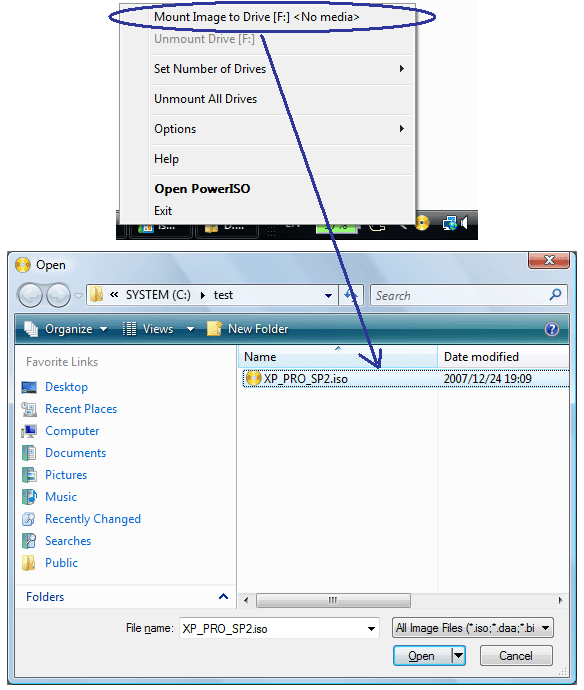
Method 4: Use PowerISO virtual optical drive assistant to load ISO files
Right-click the PowerISO system tray icon, and the PowerISO virtual optical drive assistant program will display a pop-up menu.
Select a virtual optical drive to use from the pop-up menu.
Select the ISO file you want to load, and then press the "Open" button to load it to the virtual optical drive.
PowerISO 64-bit (virtual optical drive) FAQ
Q: Can PowerISO copy CD, DVD or Blu-ray discs to image files?
Answer: Yes. All information will be copied, including boot information.
Q: Can I add a password to the image file in PowerISO?
Answer: Yes. If you save the image file in DAA format, you can password protect the file.
Q: Does PowerISO support unicode file names?
Answer: Yes, unicode is fully supported, so if you are using international character sets you should not encounter any problems.
Q: Can PowerISO compress ISO or BIN image files?
Answer: Yes. The software can compress image files in ISO/BIN and other formats and use the compressed files directly without decompression.
Q: With PowerISO can I open files in an image file without extracting?
Answer: Yes. You can use a software virtual drive manager to mount the image file, which you can then open without unzipping it.
Q: Can I burn ISO files to CD, DVD or Blu-ray disc in PowerISO?
Answer: Yes, this software can burn ISO files to CD, DVD or Blu-ray disc. This software is a burning application that you can use to burn CD/DVD/BD discs.
Q: How to open an ISO file and extract files from it in PowerISO?
Answer: Due to its file association, you can open an ISO file by simply double-clicking it. After opening the ISO file, click on the "Extract" button to extract files from it. You can also use the shell context menu to extract the ISO file.
Comparison of similar software
WinISOIt is a CD-ROM image file format conversion tool and can directly edit CD image files! WinISO can run in the Windows95/98/Me/NT/2000 environment. It can handle almost all CD-ROM image files, including ISO and BIN formats. Through WinISO, you can add/delete/rename/extract files inside the image file. You can convert image files in other formats to the standard ISO format, and you can also create ISO image files from your CD-ROM.
UltraISOis powered by EZB A very practical tool for creating, editing and converting disc image files developed by Systems. UltraISO is very powerful. It can edit ISO files directly through its own program and extract files and directories without using other tools. It can also create disc images from CD-ROM or make files on the hard disk into ISO files. In short, UltraISO is a very convenient and practical software.
PowerISO 64-bit (virtual optical drive) update log
Supports LVM partitioning.
You can test disk sectors.
Some minor bug fixes and enhancements.
Huajun editor recommends:
PowerISO 64-bit (virtual optical drive)You can create, edit, expand, compress, encrypt, split image files, and use the built-in virtual optical drive to load image files. PowerISO 64-bit (virtual optical drive) can also support almost all common image files such as NRG, IMG, ISO, BIN, DAA, etc. You can collect it if you need it!










Useful
Useful
Useful