If you are looking for software to use, go to Huajun Software Park! software release AI product list

Hello, if there is a need for software inclusion, please package the software and attach the software name, software introduction, software-related screenshots, software icon, soft copy, business license (if you do not have a business license, please provide the front and back of the corresponding developer ID card and a photo of yourself holding the ID card), and send it to email http://softwaredownload4.com/sbdm/user/login

Close >>

Send to email:news@onlinedown.net

Close >>

Docker for Windows

Docker for Windows official latest version

QR code
  • Software licensing: free software
  • Software size: 105MB
  • Software rating:
  • Software type: Domestic software
  • Update time: 2025-07-16
  • Application platform: Win All
  • Software language: Simplified Chinese
  • Edition: Official latest version

Download the service agreement at the bottom of the page

Software introduction Related topics FAQ Download address

Recommended for you:- Docker

Basic introduction
Docker for Windows segment first LOGO
Docker for Windows, also known as Docker CE for Windows, is a new version of Docker released by the Docker company. At the same time, Docker is divided into CE and EE versions. The CE version is the community version. It is free to use. We provide you with the latest ce version download. It only supports win10 system. Download it quickly if you need it!

Docker for Windows screenshots

Basic introduction

Docker for Windows stands for Docker Community Edition for Windows and is designed to run on Windows 10. It is a native Windows application that provides an easy-to-use development environment for building, shipping, and running dockerized applications. Docker CE for Windows uses Windows native Hyper-V virtualization and networking and is the fastest and most reliable way to develop Docker applications on Windows. Docker CE for Windows supports running Linux and Windows Docker containers.

Installation method

The required conditions are: 64bit Windows 10, turn on Hyper-V
Turn on Hyper-V in win10
Control Panel -> Programs -> Turn Windows features on or off -> Check Hyper-V
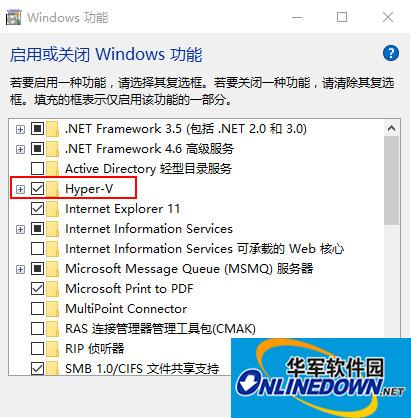
Docker for Windows screenshots

Automatic restart
3. Install Docker
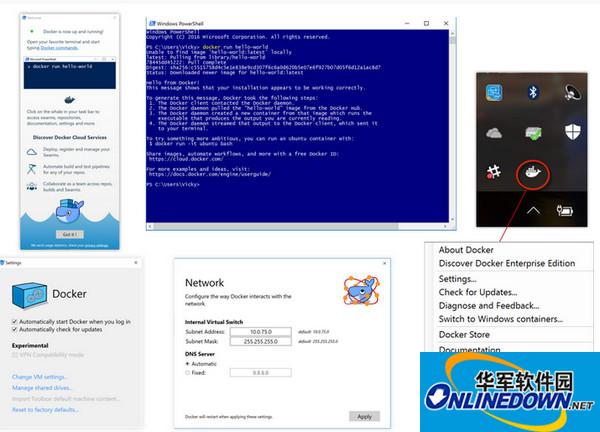
Install with the installation package you just downloaded. After the installation is complete, start Docker
If Hyper-V is not enabled, you will be prompted to enable Hyper-V when starting Docker.
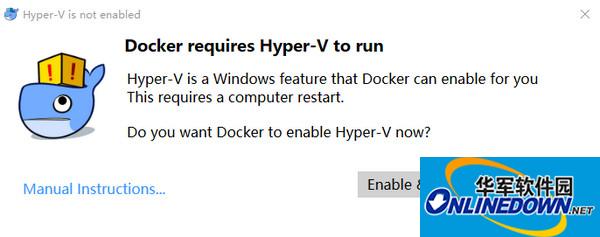
Docker for Windows screenshots

If when starting, it prompts that there is insufficient memory and the startup fails, you can adjust the VM memory size in the settings.
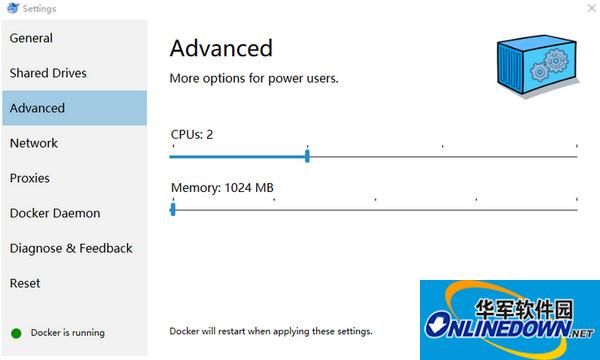
Docker for Windows screenshots

View version and other information
docker info
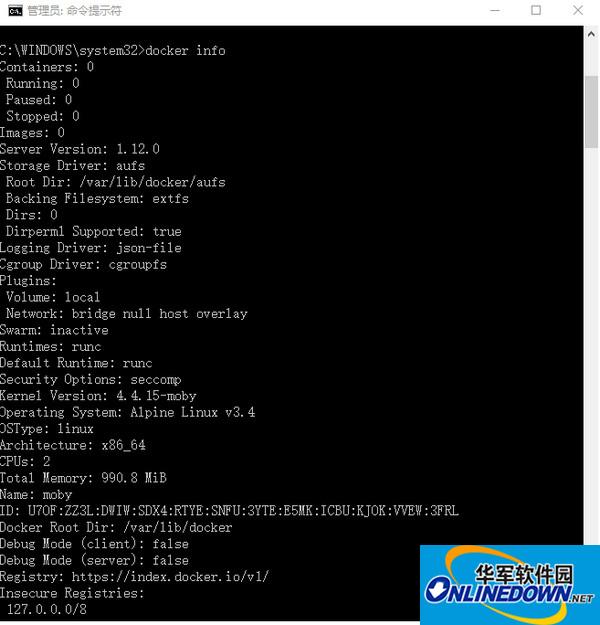
Docker for Windows screenshots

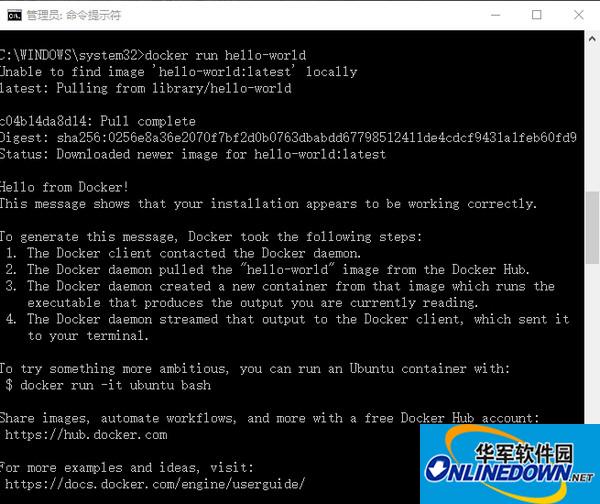
docker run hello-world

Docker for Windows screenshots

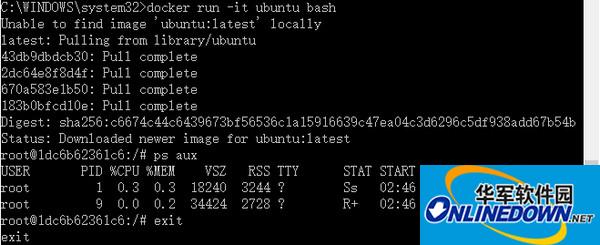
docker run -it ubuntu bash

Docker for Windows screenshots

docker ps -a

Docker for Windows screenshots

FAQ

Docker for Windows

Docker for Windows official latest version

close