



NN interactive recording and broadcasting software official version
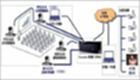
The official version of NN interactive recording and live broadcasting software is a tool that can realize multimedia video recording and broadcasting. NN interactive recording can be used for video or screen live broadcast, online teaching, courseware recording, conference live broadcast, video chat, etc. NN interactive recording and live broadcasting software also has functions such as multimedia courseware recording, interactive live broadcast, streaming video live broadcast, and plug-in-free webpage viewing of live broadcasts. It also supports webpage viewing and video interaction. Huajun Software Park provides download services for NN interactive recording and broadcasting software. To download other versions of NN interactive recording and broadcasting software, please go to Huajun Software Park!
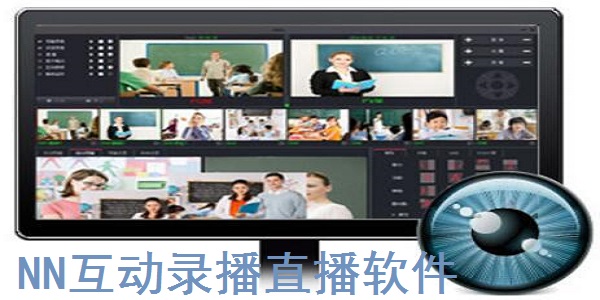
Introduction to the functions of NN interactive recording and live broadcasting software
1. NN video interactive recording and broadcasting, which can be used for video recording, screen recording, document recording, online live broadcast, and interactive conference teaching.
2. Video courseware recording can record local video or computer screen area, document operations, and remote video into a video file of a movie screen.
3. Interactive live broadcast function, live video to the server, synchronous recording, video voice, text interaction.
4. Watch the live broadcast on the web page, support direct viewing of the live broadcast on the web page on the PC, text, video and voice interaction, and support watching on the Android App.
Features of NN interactive recording and live broadcasting software
1. Interactive live broadcast function, video live broadcast to the server, synchronous recording, video voice, text interaction, P2P video conference live broadcast, etc.
2. Watch the live broadcast on a webpage without plug-ins. The viewer does not need to install software and can watch directly on the webpage. It uses standard Flash/RTMP communication protocol and supports Android.
3. LAN live broadcast, you can watch the live broadcast by directly entering the IP port of the live broadcast terminal on the web page, and the video is interactive without the need for a server.
4. Video courseware recording can record local video or computer screen area, document operations, and remote video into a video file of a movie screen.
5.NN interactive recording supports user management, program management, and large-scale user live broadcast on demand. Video text interaction.
6.NN interactive recording and broadcasting client includes a variety of program switching, video program recording, live broadcast, text chat, and video and voice interaction functions.
NN Interactive Recording and Live Broadcasting Software Installation Steps
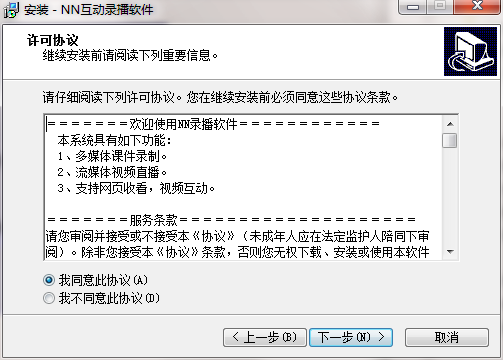
1. Download the NN interactive live recording and broadcasting software from Huajun Software Park, and unzip it to the current folder. Click on the NNvideo_Setup6.01.exe application to enter the license agreement interface. After reading, select I accept and click Next.
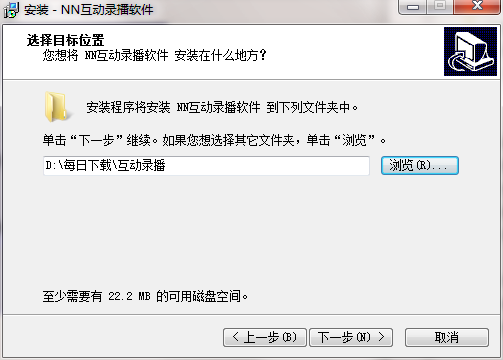
2. Select the software installation location interface. Huajun editor recommends that users install it on the D drive, select the installation location and click Next.
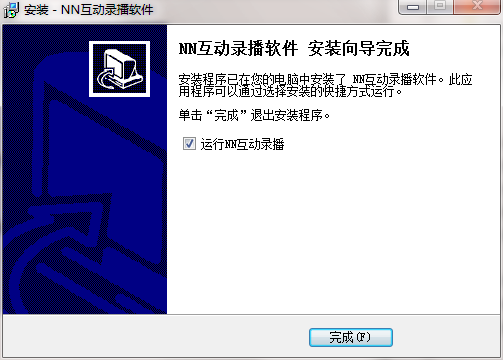
3. The installation of NN interactive recording and live broadcasting software is completed, click Finish.
NN Interactive Recording and Live Broadcasting Software Instructions for Use
1.Main functions:
The client includes a variety of program switching, video program recording, live broadcast, text chat, and video and voice interaction functions.
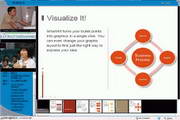
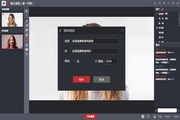
Video sources include the following types: video camera, screen area, PPT document or picture, interactive video, and local video file. Select the right-click menu on the video source to select the video element. Double-click the video to switch the video to the home screen. Right-click the mini video and click Picture-in-Picture to float the current mini video to the main screen to present the picture-in-picture video.
·Screen picture-in-picture (the operation process on the screen can be shared), double-click the "screen area" in the video list on the right to switch the video content to the screen. Before recording, you can change the coordinate position of the screen area by dragging the green box to record the screen content in the specified area.
2. Parameter settings:
Click the "Settings" button to pop up the menu, select Set Parameters, and the parameter setting window will pop up. Depending on the user's different applications, changing parameters can achieve better results. If you are live streaming video, you can set the appropriate resolution and set the video batch bandwidth limit higher. If you are sharing the screen, you can set the resolution higher or select a suitable screen area for recording and broadcasting.
3. Start recording
Click "Start Recording" and choose whether to record. If you don't select "Record to local file", the file will not be recorded. After selecting, the name of the recording file will be prompted below the recording selection.
Publish to the server, if you have an Asp server, Rtmp server or NN video server, you can publish to the server. You can live broadcast locally without publishing to the server. Machines on the same intranet or other computers that can access your machine can watch your live broadcast. The default live broadcast port is 2013.
Click "Record Now" to start video recording or live broadcast.
Frequently Asked Questions about NN Interactive Recording and Live Broadcasting Software
Question: How to uninstall NN interactive live recording and broadcasting software?
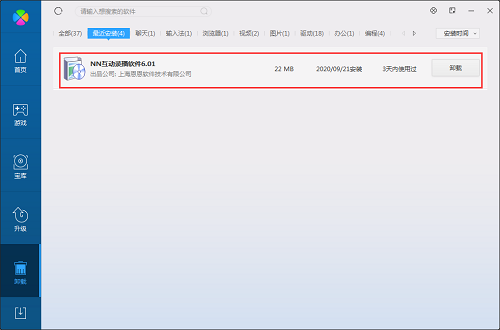
Answer: Method 1: Install and open the computer housekeeper software, select the software management option, click the uninstall option, find the NN interactive recording and live broadcast software in the list, and click uninstall
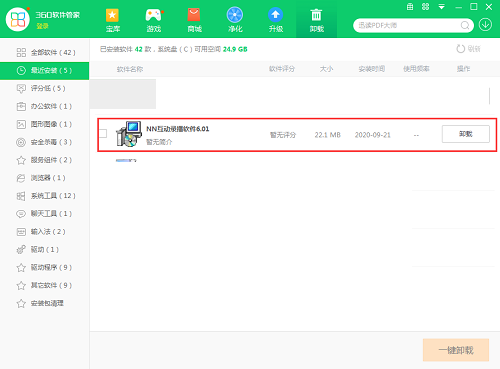
Method 2: Install and open360 software manager, find the NN Interactive Recording and Live Broadcasting software in the list of uninstall options, and click to uninstall it.
Comparison of similar software
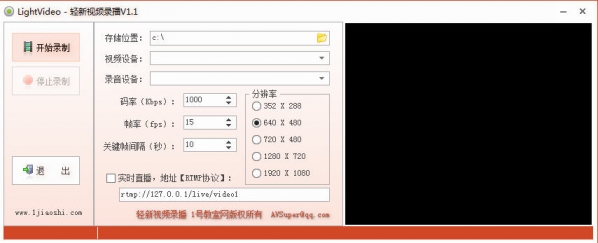
Light new video recordingIt is a simple and easy-to-use video recording and live broadcasting tool. Qingxin video recording and broadcasting software is green and compact. It can record camera video and microphone audio as flv/f4v files. Video compression uses h.264 encoding, and audio compression uses aac encoding. It supports synchronous RTMP live broadcast (the server requires fms/wowza/red5, etc.). You can select code rate, resolution, frame rate, key frame interval and other information.
AVAPlayer HD recording playerIt is an AVA high-definition recording and broadcasting system with full-featured recording and live broadcasting. It has multiple functions such as synchronous recording, real-time live broadcast, online on-demand, real-time guidance, automatic tracking, multi-party interaction, post-editing, etc. The recorded files are stored locally; all functions are concentrated in one device and can be managed directly through IE, making it simple and easy to use.
Huajun editor recommends:
NN interactive recording and live broadcasting software also has functions such as multimedia courseware recording, interactive live broadcast, streaming video live broadcast and plug-in-free webpage live broadcast. It also supports webpage viewing and video interaction, which brings a very high user experience to users. It is highly recommended for users who need a download experience.











Useful
Useful
Useful