



Tutorial
File Submission: Students can submit assignments to instructors.
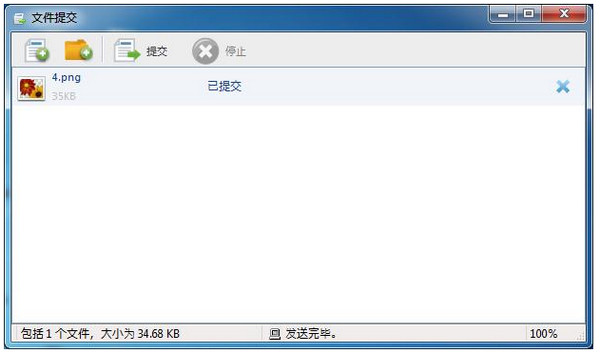
Steps to submit documents:
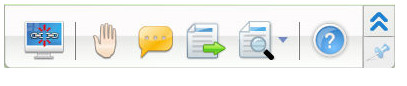
1. Click the "File Submit" button on the student side floating toolbar;
2. In the pop-up "File Submission" dialog box, click Add File or Add Folder;
3. Repeat step 2 until all files and folders have been added;
4. Wait for feedback from the teacher. If the teacher accepts the file submission request, the file will be submitted automatically; if the teacher refuses, the student will receive a prompt message: "Submission rejected! The teacher does not want you to submit any files now, please submit later.".
Instructors may place limits on the number and size of files that can be submitted at a time. Students may not submit more than the limit set by the instructor. If it exceeds, you will receive corresponding prompts. During the file submission process, you can click the Stop button to cancel the current file transfer.
Set a login name: You must set a login name for yourself before connecting to the teacher terminal.
Set login:
1. Click the taskbar icon;
2. Click the "Set Name" button to pop up the corresponding dialog box;
3. Enter your name in the dialog box;
4. Click OK.
Tips
This name will become your special ID to connect to the teacher. You cannot connect to the same teacher with the same name. If you use the same setting name as other students, you will be automatically prompted to change the setting name when you connect to the teacher.
Setting names can be changed offline.
Connect to the teacher's computer: After your computer is connected to the wireless network or LAN, the Jiyu Classroom Management System software will automatically refresh the teacher list on the network. You can then choose your own teacher and start learning.
Student registration: When a student connects to the teacher, the teacher can force the student to register. Students are required to provide their relevant information when registering.
When the teacher initiates student registration, the student-side interface will automatically pop up the student registration dialog box.
Raise hand: During class, students can use this function to ask questions to the teacher.
Message: During class, if students want to communicate with the teacher or view messages sent by the teacher, they can use this function.
Screen broadcast: When the teacher chooses to broadcast teaching in full-screen mode, the student terminal will receive the teacher’s screen in full screen










Useful
Useful
Useful