-
Fool's Invoicing Software
- Size: 79.73M
- Language: Simplified Chinese
- Category: commercial trade
- System: Win






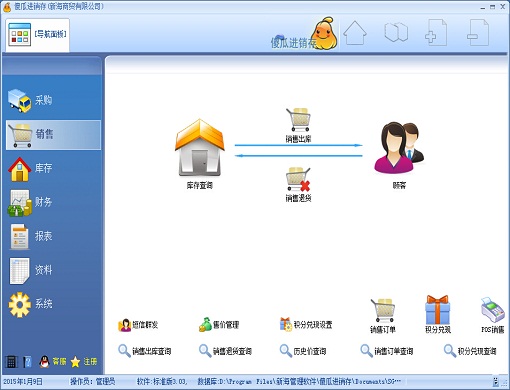
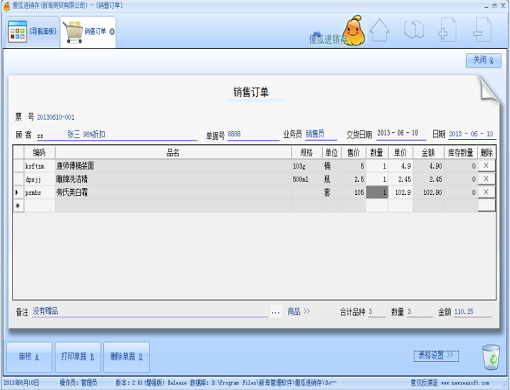
Fool's Invoicing, Sales and Inventory software is a free integrated financial management software for Invoicing, Sales and Inventory. Fool's Invoicing Software can help you purchase, sell and check inventory. The software is simple to operate and the visual interface is more convenient for users to operate. The software can be widely used in industries such as supermarkets, building materials and libraries. Huajun Software Park provides you with the Fool's Invoicing Software download. Welcome to download.
Features of Fool's Invoicing and Sales Software
1. Animated editing effects and recycle bin deletion design allow you to delete and restore easily.
2. Fool's purchase, sales and inventory software visualizes document operations, and the data in the database is intuitively presented.
3. Many operations support dragging operations, which is convenient and fast.
4. The innovative batch inventory method of Fool's purchase, sale and inventory software does not affect the sales of goods at the same time. There is also an intuitive progress bar appearance to clearly reflect the inventory progress.
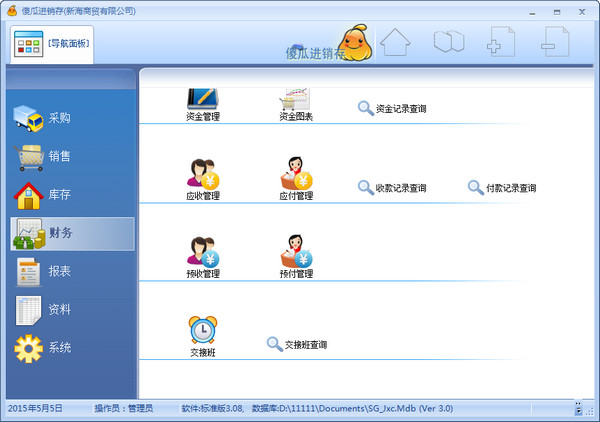
5. The interface directly displays the number of data, making it easy to see the data information intuitively.
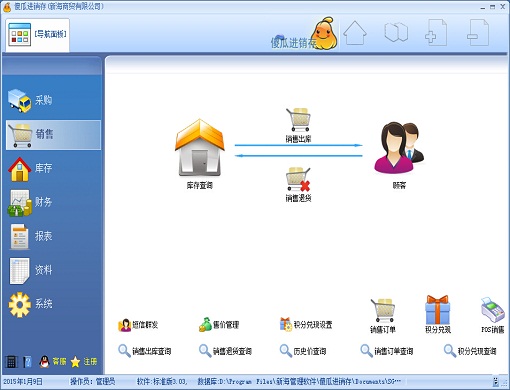
6. The intuitive process design of Fool's purchase, sales and inventory software makes it easy to quickly understand the overall process.
Fool's Invoicing Software Installation Steps
1. After downloading the Fool's Invoicing and Sales software from this site, get an .exe file locally on your computer and use 360 compression software to decompress it.
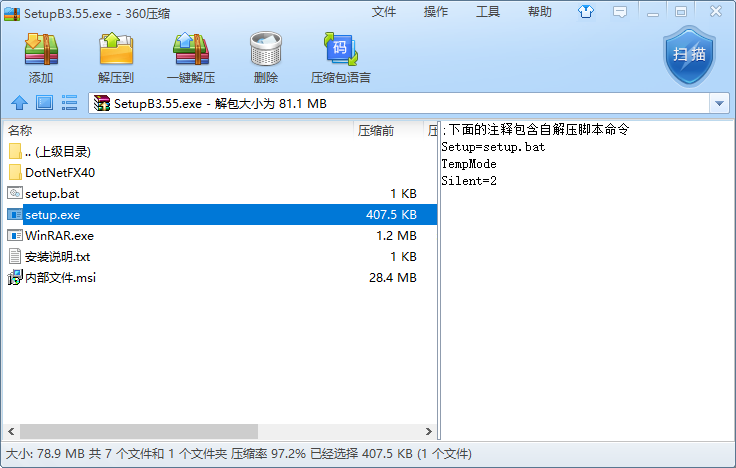
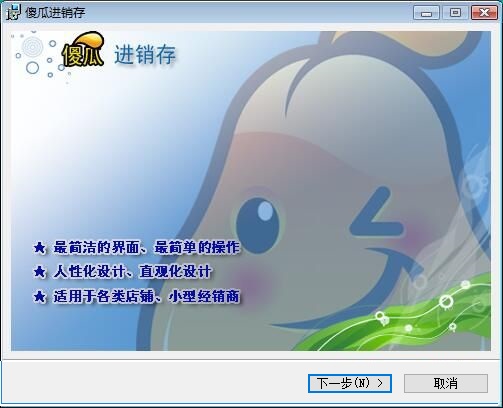
2. After decompression is completed, double-click the setup.exe file to enter the software installation interface, and click [Next] to continue the installation.
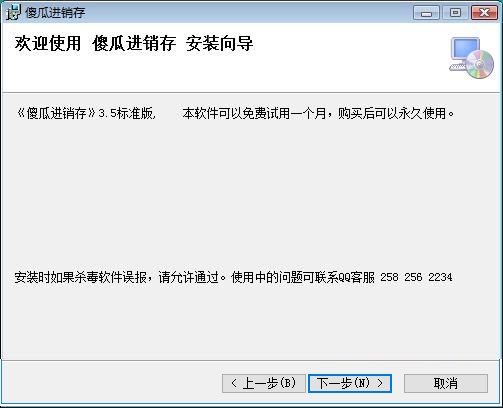
3. Enter the Fool Invoicing Software installation guide interface. You can see that the software is a trial version and can be used for one month. If you want to use it for a long time, you need to buy it. Then click [Next].
4. Select the installation location of the Fool Invoicing software. You can click [Next] to install the software or install it by default, or you can click [Browse]. In the installation location window that opens, you can choose the installation location of the software. After selecting, click [Next] to continue.
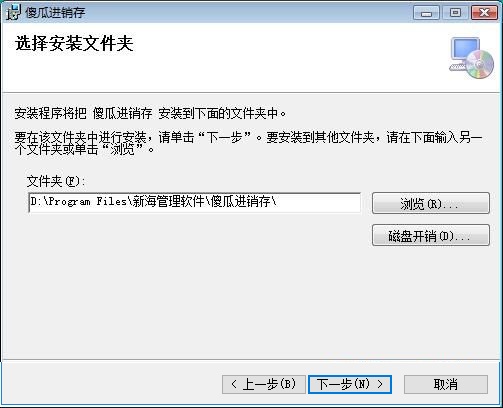
5. You can check whether the installation location of the Fool Invoicing Software is correct. If it is correct, click [Next] to continue the installation.
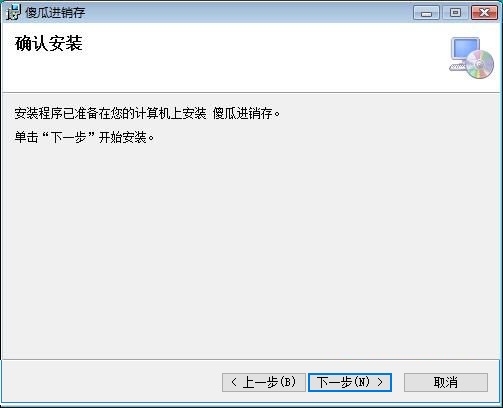
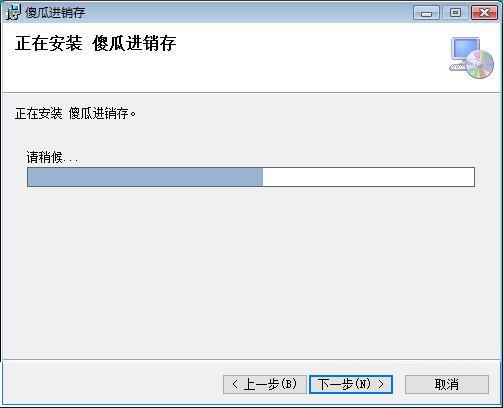
6. The Fool Invoicing software is being installed. You need to wait patiently for the software to be installed.
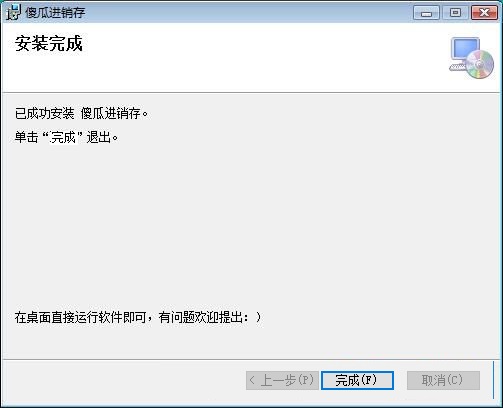
7. The installation of Fool's Invoicing and Sales Software is completed, click [Finish] to exit the software installation interface.
How to use Fool's Invoicing Software
How does Fool's Invoicing Software provide supplier information?
Open the Fool Invoicing software downloaded and installed on this site. After opening the software, click the [Purchase] option in the left interface, and then click the [Supplier] option in the right interface. In the supply management window that opens, you can select [New], [Copy and New], [Modify] and [Delete]. You can choose by yourself.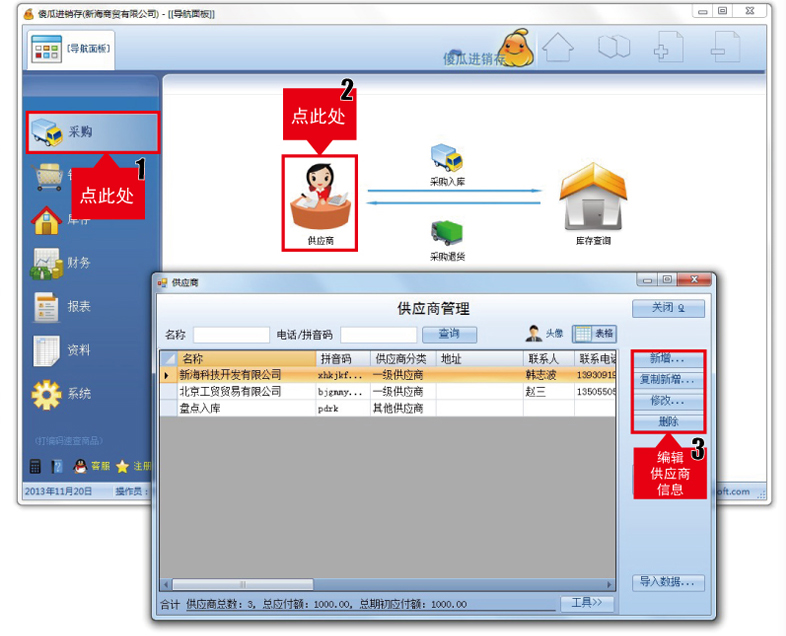
How to take inventory with Fool's Invoicing Software
1. Open the Fool Invoicing software downloaded and installed on this site. After opening the software, click the [Purchase] option in the left interface, and then click the [Inventory Inventory] option in the right interface.
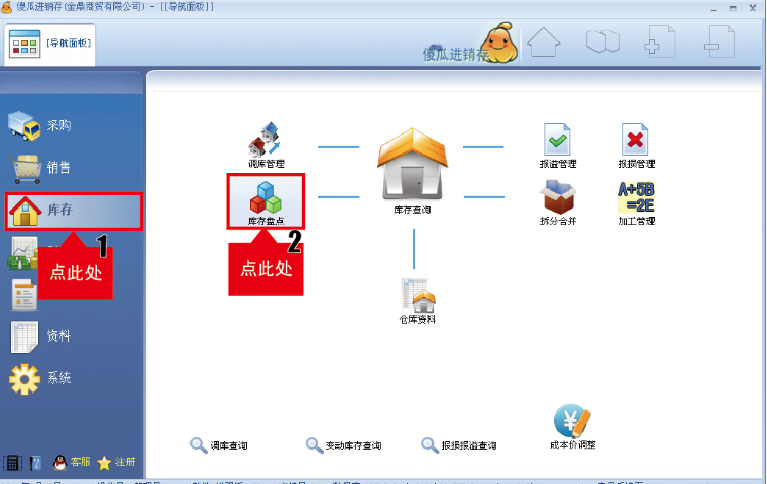
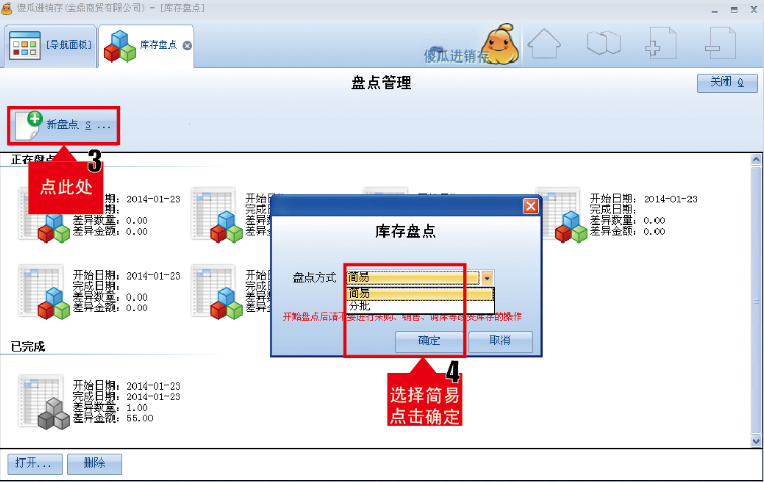
2. In the inventory management window that opens, click [Inventory Count] on the top tab, then click the [New Inventory] option. In the inventory inventory option that opens, select the inventory method [Simple]
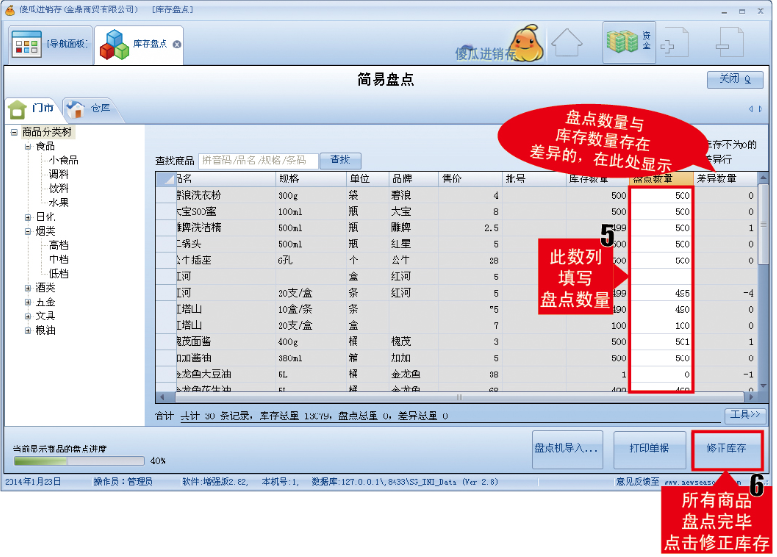
3. Open the inventory window of Fool's Invoicing Software to check whether there is any difference between the inventory amount and the inventory amount. After the inventory is completed, click the [Correction Inventory] option.
Frequently Asked Questions about Fool's Invoicing Software
How to purchase and store goods with Fool's Invoicing Software
1. Open the Fool Invoicing software downloaded and installed on this site. After opening the software, click the [Purchase] option in the left interface, and then click the [Purchasing and Warehousing] option in the right interface.
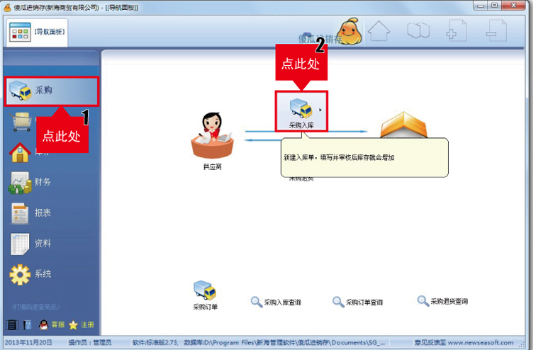
2. In the open window, switch the tab at the top to the [Purchasing and Warehousing] selection, and then click the [New Invoice] option.
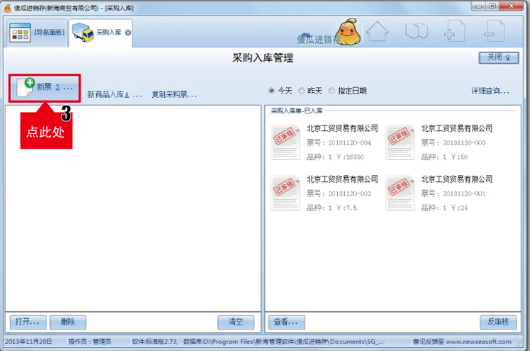
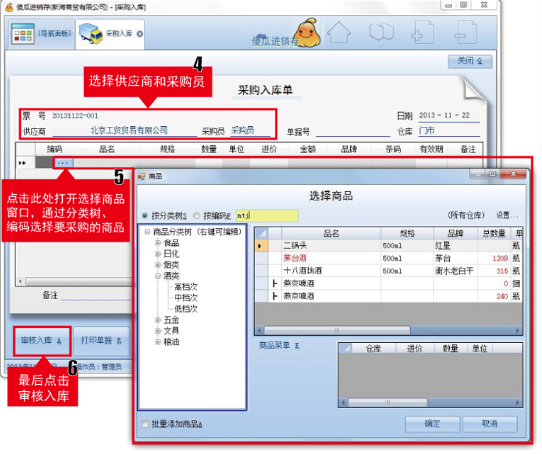
3. Then select the supplier and buyer. After the selection is completed, click the product option to open the product selection window. Click the classification option on the left. After the selection is completed, click [OK], and finally click the [Audit and Warehousing] option.
How to check inventory in Fool's Invoicing Software
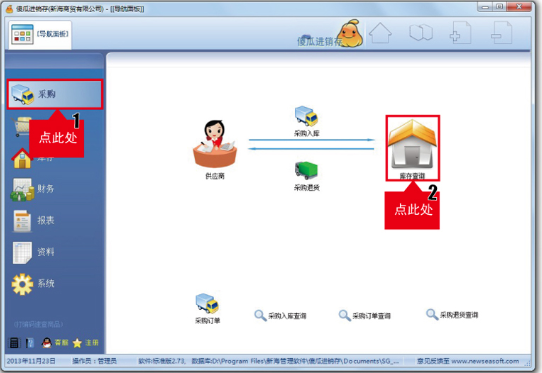
1. Then click the [Purchase] option on the left side of the Fool's Purchase, Sales and Inventory software, and click the [Inventory Query] option in the right interface.
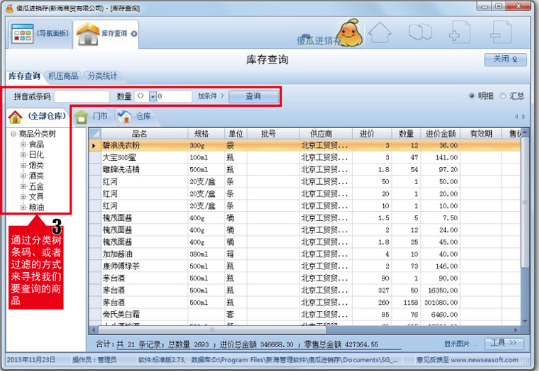
2. In the inventory query window that opens, you can find the corresponding product through the barcode of the software, or click on the classification option on the left.
Fool's Invoicing Software Update Log
1. Sales outbound order
·When importing into Excel, the matching method adds "batch number"
2. Coping with management
·The payment window allows the discount amount to be entered as a negative number, but the value is not allowed to exceed the zero erasure limit
Added the function of "Search the current ticket receipt" in the transaction record
Huajun editor recommends:
Fool's Inventory Software is a powerful commodity management software that integrates purchasing, sales, finance and other functions, allowing you to manage your commodities more conveniently. The software's visual operation interface makes your operation easier. The editor has also prepared Shaanxi Coal Trading Center trading client, .NET, batch manager and other software for you. You are welcome to download it.
Version: 3.697 official version | Update time: 2025-10-23
Similar recommendations




Latest updates





Fool’s Invoicing Software Review
-
1st floor Huajun netizen 2021-12-12 09:29:52The interface design of Fool's Purchase, Sales and Inventory software is very easy to use and has rich functions. I highly recommend it!
-
2nd floor Huajun netizen 2021-12-17 17:07:38Fool's Invoicing Software is awesome! 100 million likes! ! !
-
3rd floor Huajun netizen 2022-02-09 06:17:22Fool's purchase, sales and inventory software is convenient, practical and powerful. The software is very easy to use!
Recommended products
-

Max(TM) Procurement Management System
-

Meituan Takeout Merchant Edition
-

new business alliance
-

Ele.me Business Edition
-
Fool's Invoicing Software
-

Xingyu Free Supermarket Cashier Software
-

Medical device purchase, sale and inventory financial management system software
-

Taobao Alliance PC version
-
Excel purchase, sales and inventory
-

MT4 (MetaTrade) mobile platform
- Diablo game tool collection
- Group purchasing software collection area
- p2p seed search artifact download-P2P seed search artifact special topic
- adobe software encyclopedia - adobe full range of software downloads - adobe software downloads
- Safe Internet Encyclopedia
- Browser PC version download-browser download collection
- Diablo 3 game collection
- Anxin Quote Software
- Which Key Wizard software is better? Key Wizard software collection