





RecoveRx Highlights
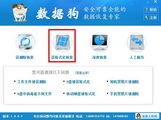
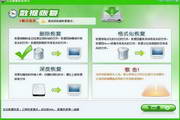
General Rescue (Quick Scan)
For recently deleted or mistakenly formatted files, the recoverable data can be quickly located through file system metadata (such as FAT/NTFS/exFAT tables). The recovery speed is fast and suitable for non-deep damage scenarios.
Advanced Rescue (Deep Scan)
When the file system is severely damaged, RecoveRx reads the storage medium sector by sector (covering logical sectors and physical sectors) and reconstructs the file structure based on file signatures (such as JPEG's FF D8 FF, DOCX's 50 4B 03 04). The recovery success rate is higher, but it takes a longer time.
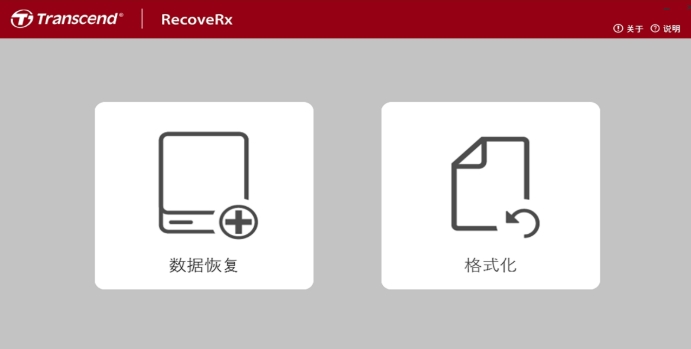
RecoveRx Features
Data recovery:
RecoveRx has a simple operation interface and can easily repair various types of digital files such as photos, documents, music, and videos.
Supports data recovery from various storage devices such as memory cards, USB flash drives, external hard drives, and solid-state drives.
Provides general rescue and advanced rescue functions to meet the data recovery needs of different users.
Formatting Functions:
Supports formatted SD cards, CompactFlashCF cards and StoreJet storage devices.
Users can securely format storage devices for reuse.
Device Management:
RecoveRx also supports StoreJet/SD/CompactFlash card formatting and data rescue functions, providing users with the most complete and convenient way to manage storage devices.
You can add a password lock to the mobile storage device to ensure data security.
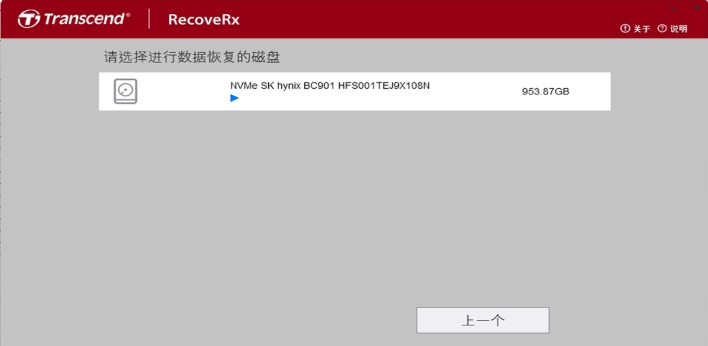
RecoveRx Features
Strong compatibility:
RecoveRx supports multiple operating systems, including Windows and macOS (some versions may only support Windows).
Supports a variety of storage device types, including but not limited to memory cards, USB flash drives, external hard drives, and solid-state drives.
Easy to operate:
The interface is simple and clear, and tasks such as data recovery or formatting can be completed in just a few steps.
Provides operation wizards to help users easily complete the data recovery process.
Safe and reliable:
During the data recovery process, no modification or damage is done to the original data.
Use advanced recovery algorithms to improve the success rate of data recovery.
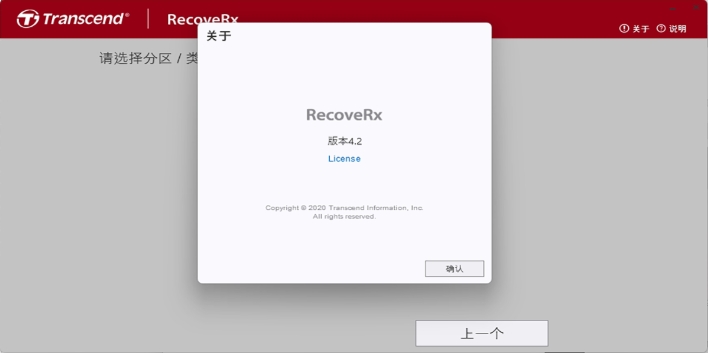
RecoveRx FAQ
How do I recover specific file types (such as photos)?
Steps:
In the scan results, click "File Type" on the left → select "Picture" (such as JPG, PNG).
Right-click to preview the file to confirm whether it is complete.
Check the photos to be recovered → click "Recover".
File names are garbled or lost after recovery
Reason:
File system corruption results in metadata loss.
Deep scan only recovers file contents and does not preserve file names.
Solution:
Determine the file type by file content or preview (for example, a photo is opened with a picture viewer).
Manually rename files (e.g. by date or content).
RecoveRx update log:
1. Fixed BUG, the new version has a better experience
2. Some pages have been changed
Huajun editor recommends:
The editor promises that as long as you use RecoveRx, if you don’t like it, you can come and hit me! The editor has also prepared for youDiskGenius Free Edition,filerecovery 2016,Gecko Data Recovery,YumSote Universal Data Recovery Master,Prickly Pear Data Recovery



















Your comment needs to be reviewed before it can be displayed