
Hot search terms: 360 Security Guard Office365 360 browser WPS Office iQiyi Huawei Cloud Market Tencent Cloud Store
Hot search terms: 360 Security Guard Office365 360 browser WPS Office iQiyi Huawei Cloud Market Tencent Cloud Store

web browsing Storage size: 10.29MB Time: 2022-11-03
Software introduction: Google Chrome PC version is a simple and convenient web browsing tool officially developed by Google. Google Chrome for PC can help...
Google Chrome is a web browser carefully built by Google. It is deeply optimized for the characteristics of 64-bit systems, thus providing more excellent performance. As a fast, secure, and free browser, Google Chrome is the perfect choice for surfing the web. Next, let Huajun editor explain to you how to open the task manager in Google Chrome and how to open the task manager in Google Chrome!
first step
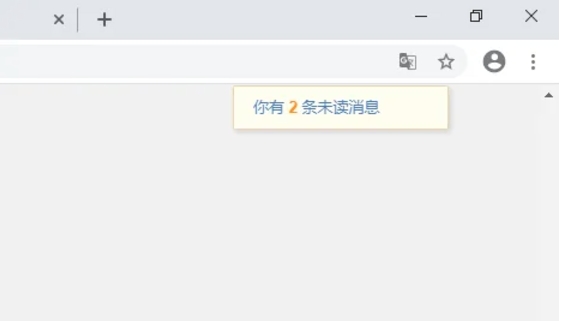
In the upper right corner of Google Chrome, you can find an icon that usually appears as three horizontal lines or three dots. This is the "Customize & Control" button.
Step 2
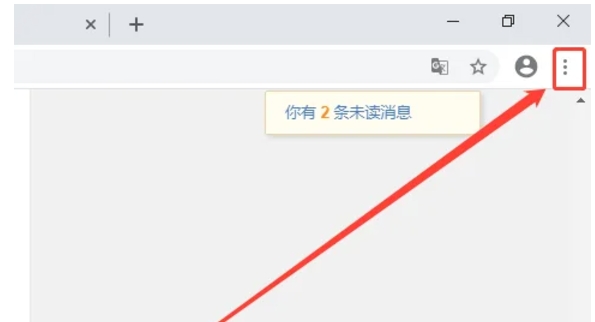
Click the "Customize and Control" button and a drop-down menu will pop up. This menu contains many browser features and settings options.
Step 3
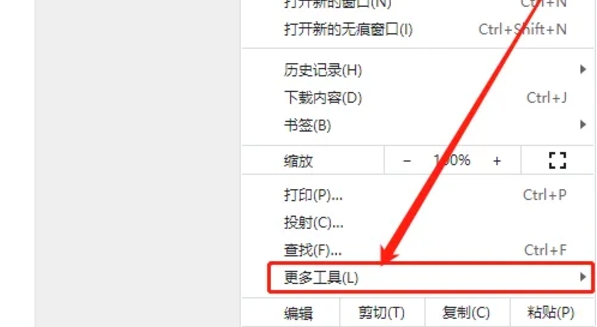
In the drop-down menu, find and click the "More Tools" option. This option usually lists some additional tools and features for managing the browser.
Step 4
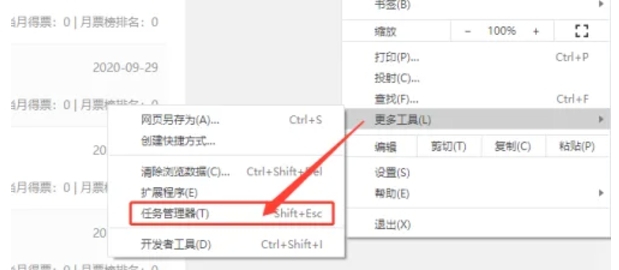
In the "More Tools" menu, you will see the "Task Manager" option. Click on it, and a new window or pane will pop up, which is Google Chrome’s task management pane.
Step 5
The task management pane displays information about all tabs, extensions, background processes, etc. currently running in the browser, including their memory and CPU usage. You can monitor and manage browser performance through this pane.
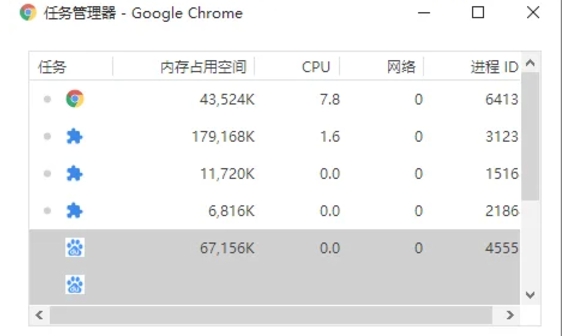
The above is how the editor of Huajun compiled for you how to open the task manager in Google Chrome and how to open the task manager in Google Chrome. I hope it can help you!

 How to add background music in python-How to add background music in python
 How to configure environment variables in python - How to configure environment variables in python
 How to run python - How to run python
 How to create a project in python - How to create a project in python
 How to make a blue sky background with scratch-How to make a blue sky background with scratch
 Steam
Steam
 Tencent Video
 WPS Office
 iQiyi
iQiyi
 Sohu video player
 Lightning simulator
 MuMu emulator
 Eggman Party
 WPS Office 2023
 What to do if there is no sound after reinstalling the computer system - Driver Wizard Tutorial
 How to switch accounts in WPS Office 2019-How to switch accounts in WPS Office 2019
 How to clear the cache of Google Chrome - How to clear the cache of Google Chrome
 How to fire bullets in scratch-How to fire bullets in scratch
