-
SoftMedia Rubik's Cube (formerly Rubik's Cube Computer Master)
- Size: 12.09M
- Language: Simplified Chinese
- Category: System settings
- System: WinAll






SoftMedia Rubik's Cube (Rubik's Cube Computer Master) is a new generation of computer optimization master. It is easy to operate. You can perform physical examination optimization, cleaning acceleration, etc. on the computer directly in the software interface. SoftMedia Rubik's Cube (Rubik's Cube Computer Master) has various functions, which can help you beautify your desktop, protect system security, etc. SoftMedia Rubik's Cube (Rubik's Cube Computer Master) brings you an efficient and convenient experience, which is worth downloading and using.
Features of SoftMedia Rubik's Cube (Rikik's Cube Computer Master):
1. SoftMedia Rubik's Cube (Rubik's Cube Computer Master) has common computer optimization functions, such as cleaning, anti-virus, beautification, etc.
2. You can set up scheduled cleaning tasks, and the computer will automatically help you optimize your computer.
3. SoftMedia Rubik's Cube (Rubik's Cube Computer Master) supports shortcut command settings, making your operation more convenient and faster
4. The soft media Rubik's Cube (Rubik's Cube Computer Master) has powerful functions, simple user interface and good user experience.
SoftMedia Rubik's Cube (Rubik's Cube Computer Master) installation steps:
1. Download the SoftMedia Rubik's Cube (Rubik's Cube Computer Master) installation package from this site, unzip it and double-click the .exe. An immediate installation interface will appear. Select the installation path. It is recommended to install on the D drive. Check the desktop shortcut and click "Install Now".
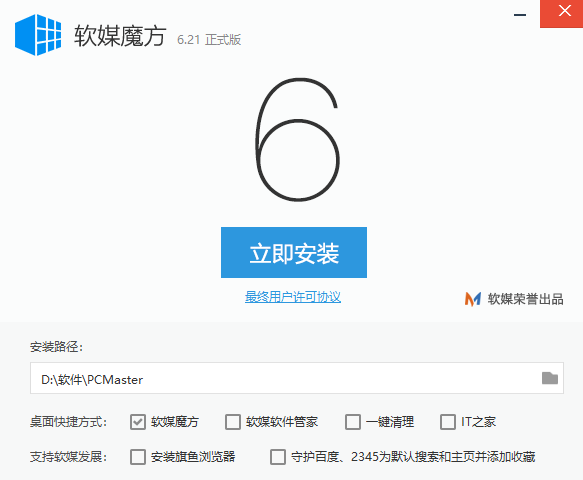
2. SoftMedia Rubik's Cube (Rubik's Cube Computer Master) is being installed. The process is very fast. Please wait patiently.

Tips for using SoftMedia Rubik's Cube (Rubik's Cube Computer Master)
1. First, after you download and install the SoftMedia Rubik's Cube software on this site, you can find the software shortcut on the desktop and open it. When you run it for the first time, the setup wizard interface will appear, as shown in the figure below. You can set the SoftMedia time, SoftMedia desktop, association settings, network optimization, etc. If you don't want to set it, you can directly click the "X" in the upper right corner to close the interface.

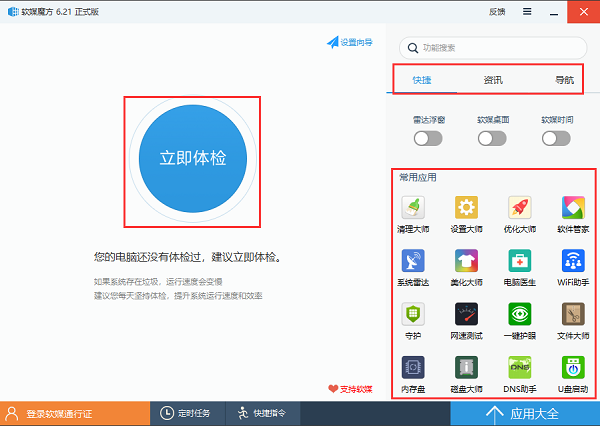
2. Enter the main interface of the SoftMedia Rubik's Cube software, as shown in the figure below. There is an immediate physical examination option in the middle of the interface, and there are three types: shortcut, information, and navigation on the upper right side of the interface. There are also commonly used applications below, which contain many gadgets that are needed in life. Overall, the interface is very simple and neat.
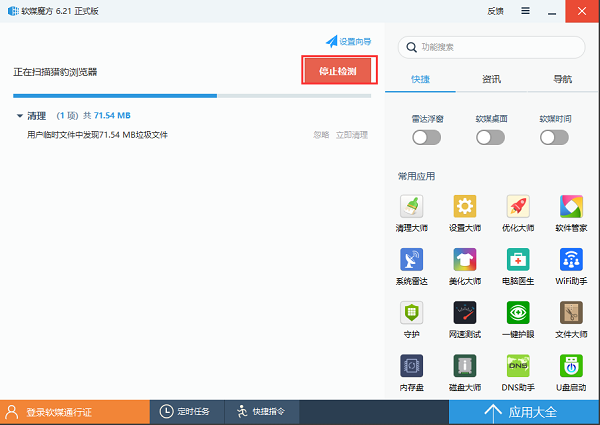
3. Next, we can click on the immediate physical examination option on the interface. The software can test your computer. As shown in the picture below, the test is in progress. If you do not want to test, you can click to stop the test and return to the interface. The editor's personal test is that the detection speed is very fast, you only need to wait for a while.
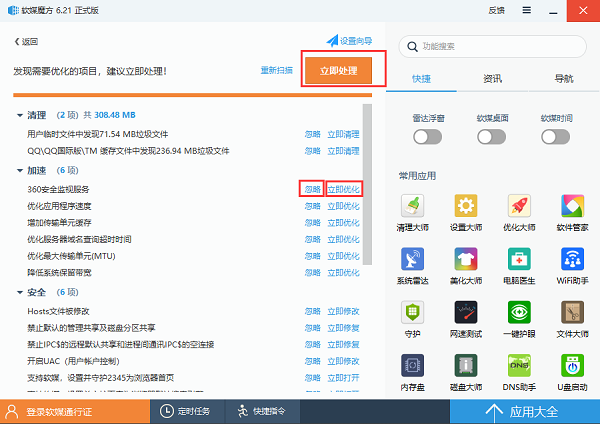
4. After the physical examination of the SoftMedia Rubik's Cube software is completed, the options for computer problems will be listed below, including garbage cleaning, network acceleration, system installation and other categories. You can directly click on the immediate processing option to clean up and repair these problems. If there are some problems that you do not want to clean up, you can click on the ignore option behind the problem, and then you can not clean it up.
Frequently Asked Questions about Soft Media Rubik's Cube:
1. How to optimize the icon of SoftMedia Rubik’s Cube?
1. First open the SoftMedia Rubik's Cube software and click "Application Directory", as shown in the figure below:

2. Click "Computer Doctor"

3. Click "Icon Cache"

4. Click "Rebuild Icon Cache"

5. Click "OK", as shown in the figure:

6. Click "Restore Icon Thumbnails"

7. Recovering, please wait.

8. When prompted to restart the resource manager, click "OK"

9. Click "Automatic Optimization", as shown in the figure below:

10. The icon cache settings are changed successfully, click "OK"

11. Click the "X" in the upper right corner to close the software

Which one is better, SoftMedia Rubik's Cube or 360 Security Guard?
1. Interface:
The interfaces of both SoftMedia Rubik's Cube and 360 Security Guard are very simple and neat. You will feel very clear at first glance, and you can find specific function options. Both software interfaces are quite good.
2. Function:
Compared with 360 Security Guard, SoftMedia Rubik's Cube has richer functions, including memory disk, disk master, USB boot, etc. 360 Security Guard has a rich tool library, which contains many commonly used tools. Not only that, 360 Security Guard also has anti-virus functions, which SoftMedia Rubik's Cube software does not have.
3. Summary:
Both SoftMedia Rubik's Cube and 360 Security Guard software have advantages and disadvantages. You can choose the software that suits you to download and use according to your own needs. Friends who want to download 360 Security Guard can click the link below to download.
360 Security GuardDownload address:http://softwaredownload4.com/soft/50671.htm
SoftMedia Rubik's Cube (Rubik's Cube Computer Master) update log
Improvement: Interface - areas with scroll bars support touch
Improvement: After upgrading the Win10 system, remove the right-click menu of functions added by the old version of the system and no longer supported by Win10.
|
Huajun editor recommends: The editor highly recommends this soft media Rubik's Cube (Rubik's Cube Computer Master) software as a system optimization software. It not only has a user-friendly and concise interface, but also can help you optimize your computer and clean up junk. Not only that, there are many features waiting for you to experience. I believe you will not be disappointed. Huajun Software Park also provides you with official downloads of Windows Optimization Master, Perfect Optimization Master, and Rubik's Cube Optimization Master. |
Version: 6.25 | Update time: 2025-10-23
Similar recommendations





Latest updates

Tutorial on how to use the SoftMedia Rubik's Cube virtual optical drive
Tutorial on how to clean the registry using SoftMedia Rubik's Cube
How to draw a lottery in 360 Software Butler - How to draw a lottery in 360 Software Butler
How to collect software in 360 Software Manager - How to collect software in 360 Software Manager
How does 360 Software Manager evaluate software - How does 360 Software Manager evaluate software?
Reviews of SoftMedia Rubik's Cube (formerly Rubik's Cube Computer Master)
-
1st floor Huajun netizen 2022-01-26 18:01:21SoftMedia Rubik's Cube (formerly Rubik's Cube Computer Master) is very useful, thank you! !
-
2nd floor Huajun netizen 2020-04-06 12:49:35The interface design of SoftMedia Rubik's Cube (formerly Rubik's Cube Computer Master) is easy to use and has rich functions. I highly recommend it!
-
3rd floor Huajun netizen 2021-11-17 22:10:14SoftMedia Rubik's Cube (original Rubik's Cube Computer Master) is not bad, the download is very fast, I give you a good review!
Recommended products





- Diablo game tool collection
- Group purchasing software collection area
- p2p seed search artifact download-P2P seed search artifact special topic
- adobe software encyclopedia - adobe full range of software downloads - adobe software downloads
- Safe Internet Encyclopedia
- Browser PC version download-browser download collection
- Diablo 3 game collection
- Anxin Quote Software
- Which Key Wizard software is better? Key Wizard software collection