-
VMware Workstation (virtual machine software)
- Size: 615.58M
- Language: Simplified Chinese
- Category: System settings
- System: winall






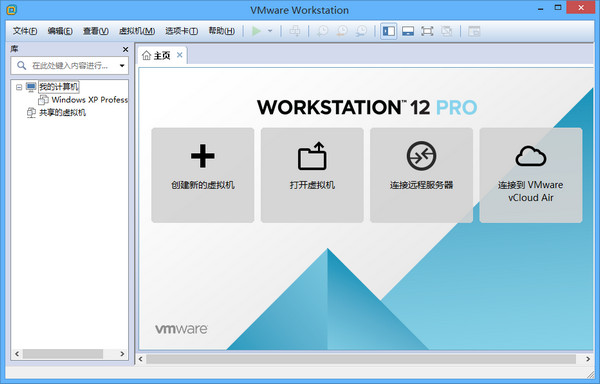
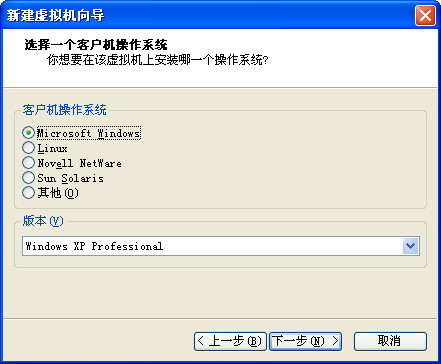
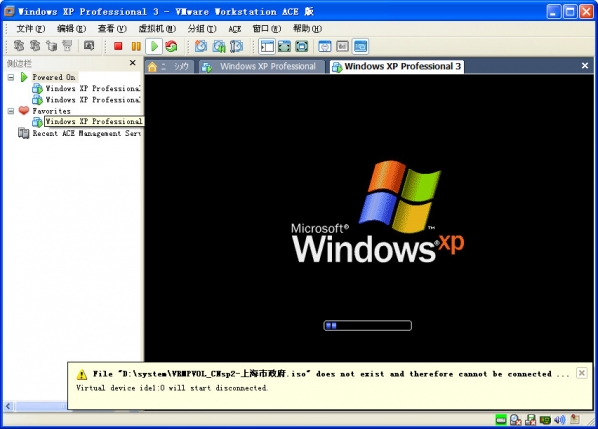
VM virtual machine (VMware Workstation)Is a "virtual PC" software, VMware virtual machine allows you to run two or more Windows, DOS, and LINUX systems on one machine at the same time. Compared with "multi-boot" systems, vmvirtual machineA completely different concept is used. A multi-start system can only run one system at a time, and the machine needs to be restarted when the system is switched. Friends who need it, come to Huajun Software Park to download and experience it!
How to use VM virtual machine
First, check whether the computer configuration meets the requirements of the VM virtual machine
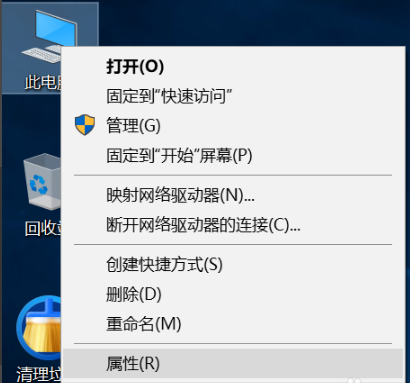
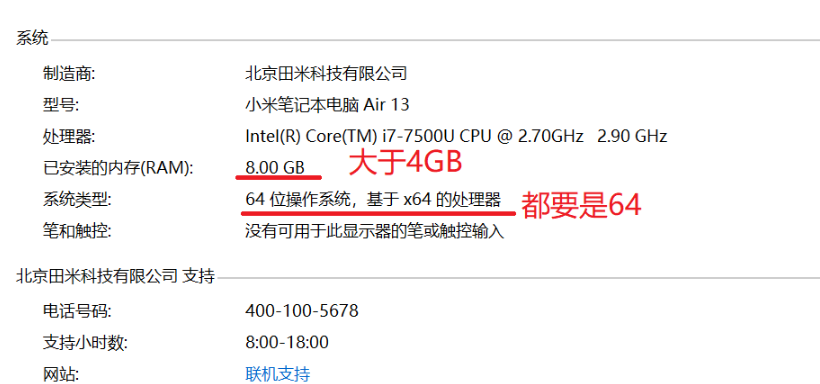
Right-click "Computer" on the desktop ("This Computer" for Win8, "This Computer" for Win10) and click the [Properties] button.
2 If the processor is x64, the system is also x64, and the memory is greater than 4GB, then you can use it!
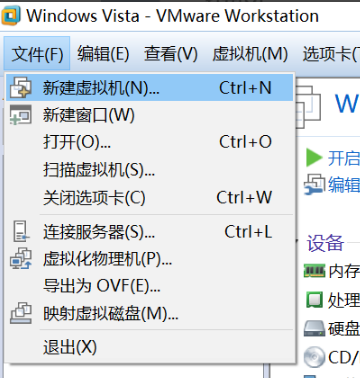
Then click VMware Workstation Pro on the desktop and click [New Virtual Machine].
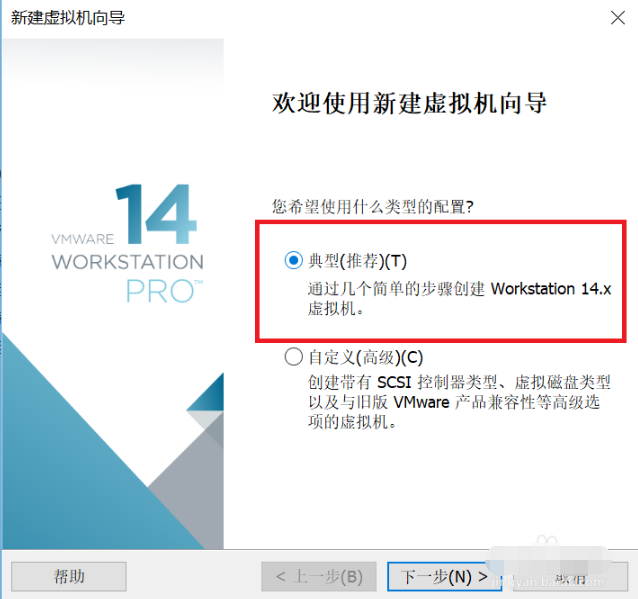
Click [Typical] to next step.
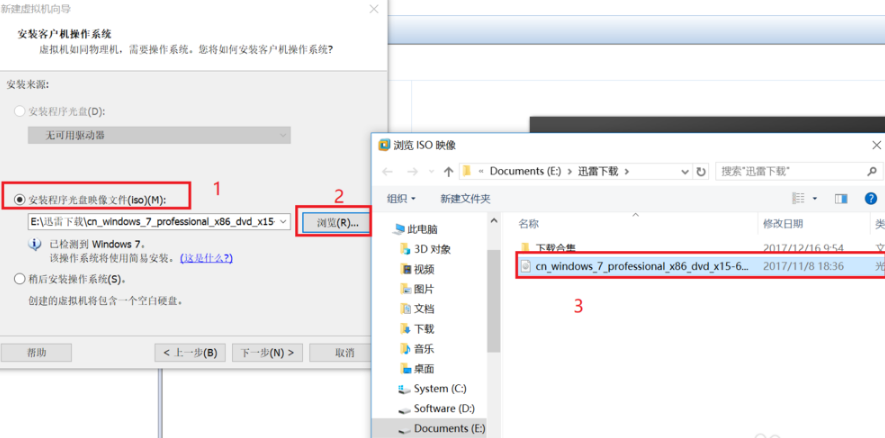
Click [Installer CD Image File], click [Browse], and select the system image you just downloaded (cn_Windows7xxxxxxxxxx.iso)
Set as shown in the picture.
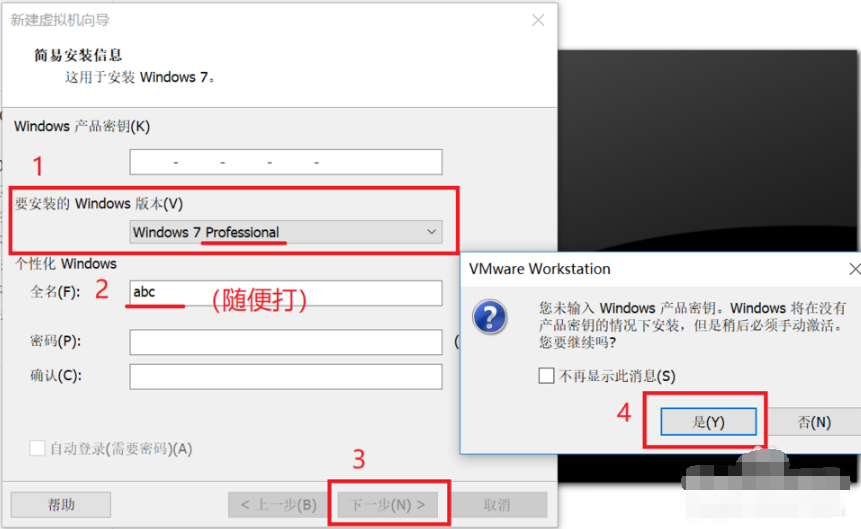
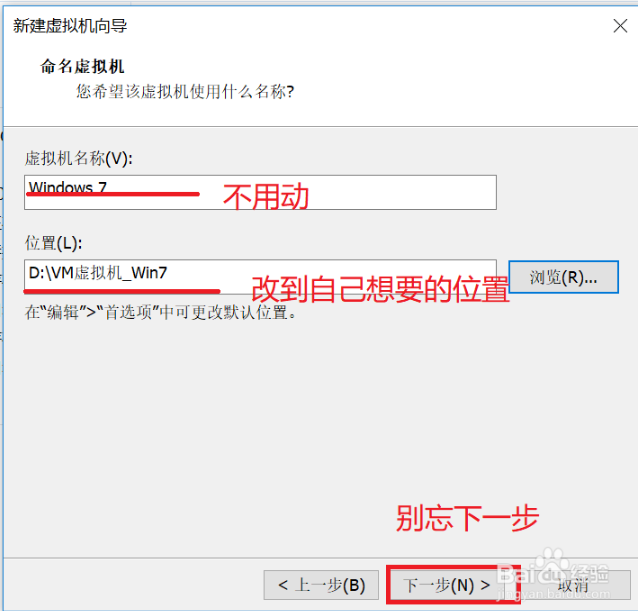
Don’t change the virtual machine name above. Click [Browse] on the location below and change it to the folder you want.
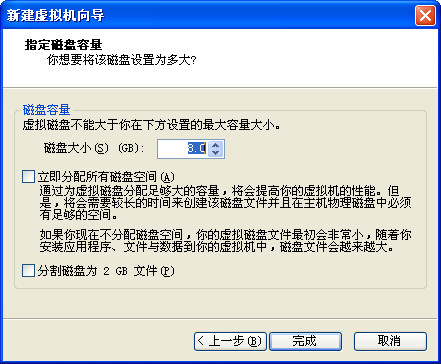
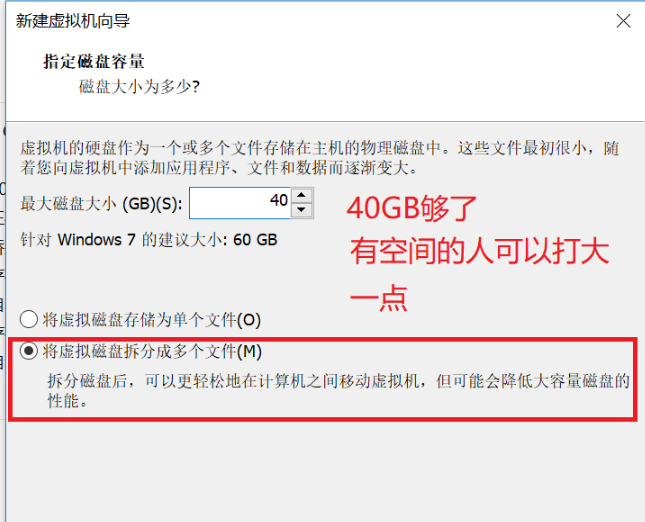
This is how much hard disk space is allocated to the virtual machine. Generally, 40G is enough. If you have space, you can go larger.
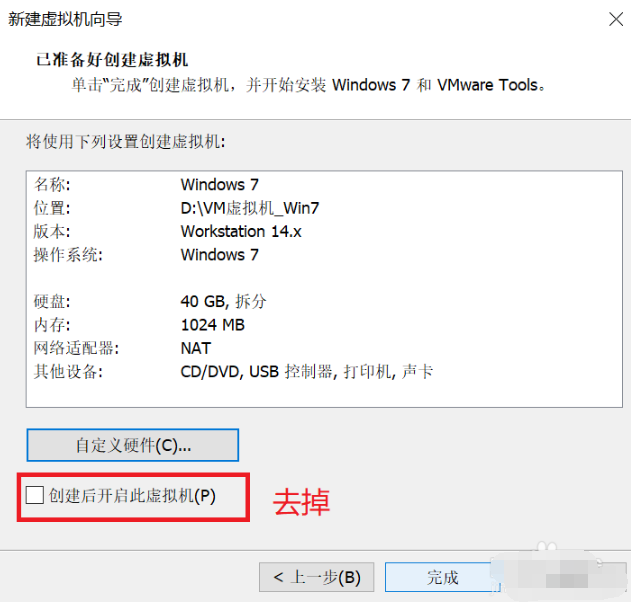
Uncheck the box below and click [Finish]
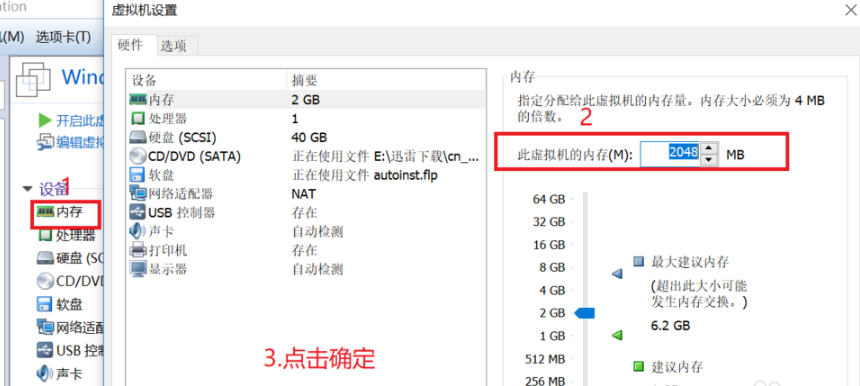
Click the [Memory] option and modify it according to the memory size.
Generally, 4G memory is divided into 1024MB
8G memory is divided into 2048~4096
16G memory can be divided into 4096~10000
Finally, click [OK].
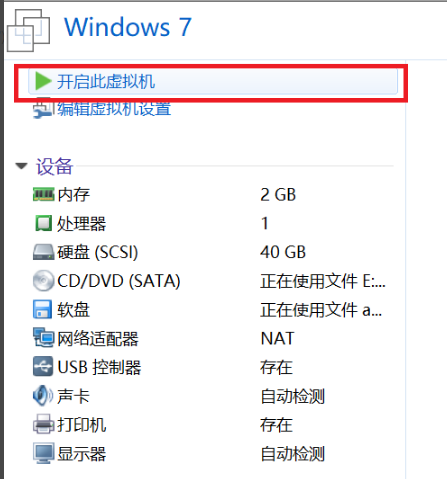
The setting is successful! Click [Start Virtual Machine]!
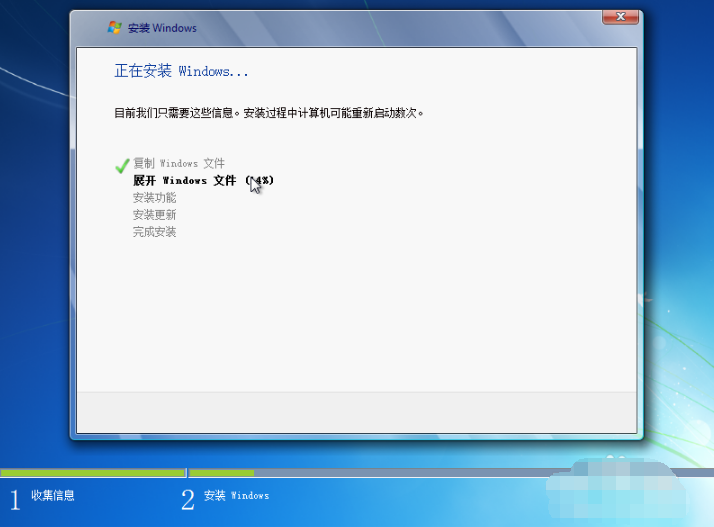
Clear those prompts and the system will automatically install them.
PS: After the virtual machine is turned on, the memory will soar. It can be repaired by shutting down the virtual machine~
If you want to return to the host after moving the mouse to the virtual machine, just press Ctrl+Alt on the keyboard~ (very important)
When you enter the WINDOWS desktop after the installation is successful, a series of windows will pop up. Do not close them. This is the installation process of VMware Tools (virtual machine tools), which will be very useful in the future. VMware Tools will automatically restart the virtual machine after installation.
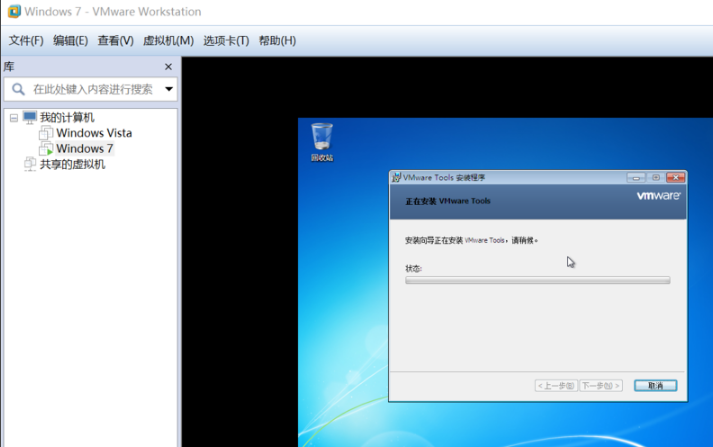
Then the entire installation series is complete!
PS: The original Windows installed is not activated, so you need to activate it yourself. Recommended activation tool: windows7 activation
VM virtual machine FAQ
1. How to set up Chinese on VMware
Windows system: Open VMware, click "Edit" - "Preferences", select "User Interface" in the left menu, select "Chinese (Simplified)" in the "Language" drop-down menu, and then restart the software.
Mac system: Click "VMware Fusion" - "Preferences", in the "General" option, select "Chinese (Simplified)", and then restart the software.
3. How to delete a virtual machine in VMware
Shut down the virtual machine to be deleted.
In the virtual machine list on the VMware main interface, select the virtual machine you want to delete.
Select "Virtual Machine" - "Management" - "Delete from Disk" and follow the prompts to completely delete the virtual machine and its related files.
4. How to copy and paste in VMware
Make sure VMware Tools is installed in the virtual machine. If it is not installed, install it first (see subsequent questions for the installation method).
In the VMware main interface, select "Virtual Machine" - "Settings", in the "Options" tab, find "Shared Folders" and "Copy and Paste", make sure "Copy and Paste" is set to "Bidirectional".
You can then copy and paste between the host and the virtual machine.
5. How to return to the previous step in VMware
VMware itself doesn't have a universal "back to previous" action like regular software. If you are operating in a virtual machine, in the virtual machine application, you can try to use the application's own return operation, such as the browser's return button.
6. How to open the terminal in VMware
Linux virtual machine: You can usually use shortcut keys such as Ctrl + Alt + T to open the terminal; you can also find the "Terminal" icon in the application menu on the desktop and click to open it.
macOS virtual machine: Find the Terminal app in Launchpad and open it.
7. How to release the mouse in VMware
In a VMware virtual machine, press Ctrl + Alt (Windows/Linux virtual machine) or Command + Ctrl (macOS virtual machine) to release the mouse and return it to host control.
8. How to exit exclusive mode in VMware
Press Ctrl + Alt (Windows/Linux virtual machine) or Command + Ctrl (macOS virtual machine) key combination to exit exclusive mode.
9. VMware How to install VMware Tools
Start the virtual machine and log in to the system.
On the VMware main interface, select "Virtual Machine" - "Install VMware Tools".
Windows virtual machine: A CD icon will pop up in the virtual machine. Double-click it to open it, run the installation program, and follow the prompts to complete the installation.
Linux virtual machine: After mounting the CD image, decompress the file, run the installation script in the terminal, and follow the prompts to complete the installation.
10. How to gain root privileges in VMware
Linux virtual machine:
If you know the root password, enter sudo -i in the terminal, then enter the current user password. After verification, you can switch to the root user.
If you forget the root password, you need to enter single-user mode when the virtual machine starts to reset the root password, and then use sudo -i to switch.
VM virtual machine software introduction
VMware is a professional virtualization software that uses hardware resource abstraction technology to create and run multiple independent virtual machines on a single physical machine (supports Windows, Linux, macOS and other systems). Its core functions include rapid deployment of virtual machines, dynamic allocation of hardware resources, snapshots and clones for system backup and recovery, virtual network configuration to simulate real network environments, and optimization of virtual machine performance through VMware Tools, supporting interactive operations such as file sharing, copy and paste, etc. between the host and virtual machines. It is suitable for development and testing, multi-system compatibility, server integration and other scenarios. It has become a mainstream choice for enterprise and individual users with its efficient, flexible and secure features.
Introduction to VM virtual machine functions
Basic functions
Multi-system operation: Multiple different operating systems can be run simultaneously on one physical computer, such as Windows, Linux, macOS, etc. This provides users with the convenience of testing different operating system environments and running specific system-dependent software on the same machine without the need for additional hardware.
Flexible resource allocation: Users can allocate system resources such as CPU, memory, hard disk space, etc. to each virtual machine according to needs. For example, if a virtual machine needs to handle complex tasks, its number of CPU cores and memory size can be appropriately increased; for virtual machines that are only used for simple testing, less resources can be allocated to improve hardware resource utilization.
System management functions
Snapshot management: It can create snapshots of virtual machines and save the system state at a certain moment. If a problem or configuration error occurs in the system later, you can quickly restore it to the state when the snapshot was saved. For example, create a snapshot before performing operations such as software installation and system configuration changes. If the operation fails, you can roll back at any time.
Clone function: You can copy a virtual machine and quickly create multiple copies of the same configured virtual machine. This is very practical in scenarios where you need to build a test environment, simulate a multi-node cluster, etc., and can save a lot of installation and configuration time.
Network function
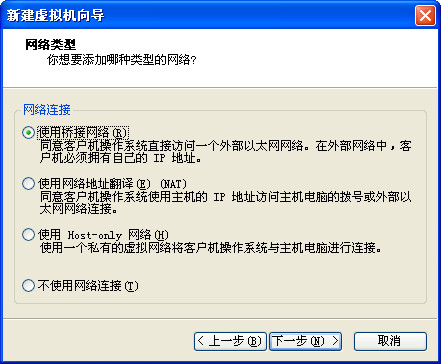
Virtual network configuration: Supports multiple virtual network connection methods, such as bridge mode, NAT mode, host-only mode, etc. In bridge mode, the virtual machine can be directly connected to the physical network and has an independent IP address; in NAT mode, the virtual machine can connect to the external network through the host's network; in host-only mode, the virtual machine can only communicate with the host, which is suitable for internal testing environments with high security requirements.
Network isolation: It can realize network isolation between virtual machines. Different virtual machines can be in different virtual networks, which enhances the security of the system and the flexibility of network management.
Performance optimization features
Hardware acceleration: Supports hardware virtualization technology (such as Intel VT-x, AMD-V), which can significantly improve the performance of virtual machines and bring them close to the running speed of physical machines. At the same time, it also supports 3D graphics acceleration, which can smoothly run some applications that require high graphics performance in virtual machines.
Memory compression and sharing: Memory compression technology reduces the physical memory usage of virtual machines; the memory sharing function allows multiple virtual machines to share the same memory page, further improving memory utilization.
Data security features
Data backup and recovery: Virtual machine data can be backed up and restored when needed. Users can regularly back up the virtual machine's disk files to prevent data loss or damage.
Security protection: Provide certain security protection mechanisms, such as virtual machine encryption, access control, etc., to protect the security of data in virtual machines. Basic functions
Multi-system operation: Multiple different operating systems can be run simultaneously on one physical computer, such as Windows, Linux, macOS, etc. This provides users with the convenience of testing different operating system environments and running specific system-dependent software on the same machine without the need for additional hardware.
Flexible resource allocation: Users can allocate system resources such as CPU, memory, hard disk space, etc. to each virtual machine according to needs. For example, if a virtual machine needs to handle complex tasks, its number of CPU cores and memory size can be appropriately increased; for virtual machines that are only used for simple testing, less resources can be allocated to improve hardware resource utilization.
System management functions
Snapshot management: It can create snapshots of virtual machines and save the system state at a certain moment. If a problem or configuration error occurs in the system later, you can quickly restore it to the state when the snapshot was saved. For example, create a snapshot before performing operations such as software installation and system configuration changes. If the operation fails, you can roll back at any time.
Clone function: You can copy a virtual machine and quickly create multiple copies of the same configured virtual machine. This is very practical in scenarios where you need to build a test environment, simulate a multi-node cluster, etc., and can save a lot of installation and configuration time.
Network function
Virtual network configuration: Supports multiple virtual network connection methods, such as bridge mode, NAT mode, host-only mode, etc. In bridge mode, the virtual machine can be directly connected to the physical network and has an independent IP address; in NAT mode, the virtual machine can connect to the external network through the host's network; in host-only mode, the virtual machine can only communicate with the host, which is suitable for internal testing environments with high security requirements.
Network isolation: It can realize network isolation between virtual machines. Different virtual machines can be in different virtual networks, which enhances the security of the system and the flexibility of network management.
Performance optimization features
Hardware acceleration: Supports hardware virtualization technology (such as Intel VT-x, AMD-V), which can significantly improve the performance of virtual machines and bring them close to the running speed of physical machines. At the same time, it also supports 3D graphics acceleration, which can smoothly run some applications that require high graphics performance in virtual machines.
Memory compression and sharing: Memory compression technology reduces the physical memory usage of virtual machines; the memory sharing function allows multiple virtual machines to share the same memory page, further improving memory utilization.
Data security features
Data backup and recovery: Virtual machine data can be backed up and restored when needed. Users can regularly back up the virtual machine's disk files to prevent data loss or damage.
Security protection: Provide certain security protection mechanisms, such as virtual machine encryption, access control, etc., to protect the security of data in virtual machines.
VM virtual machine installation steps
1. Download the latest version of the vm virtual machine software installation package from this site and double-click to open it.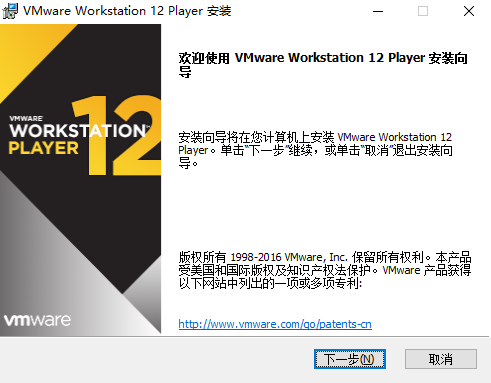
2. Follow the prompts and click [Next].
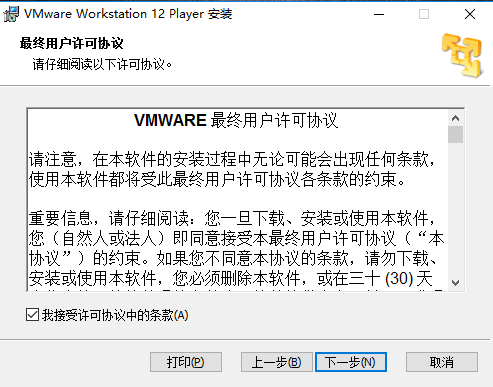
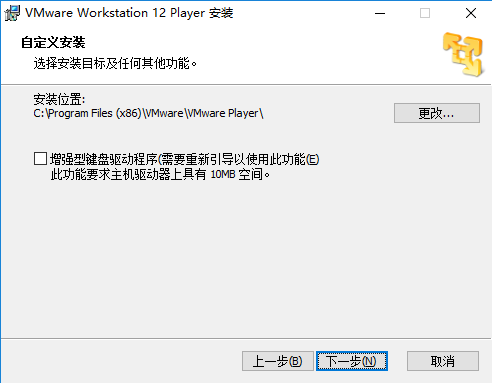
3. As shown in the picture above, you can click [Change] to customize the installation location of the software.
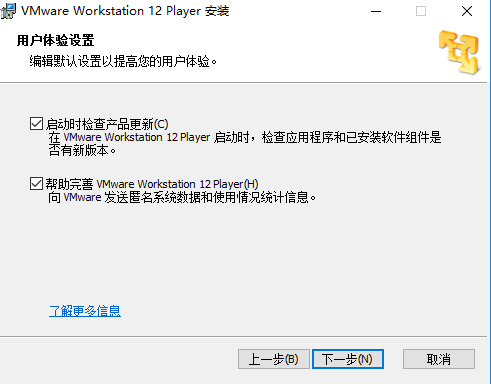
4. After setting, click [Install].
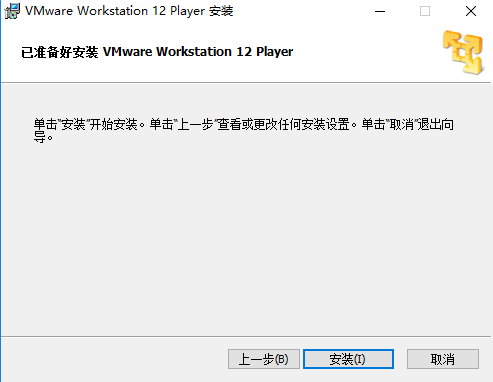
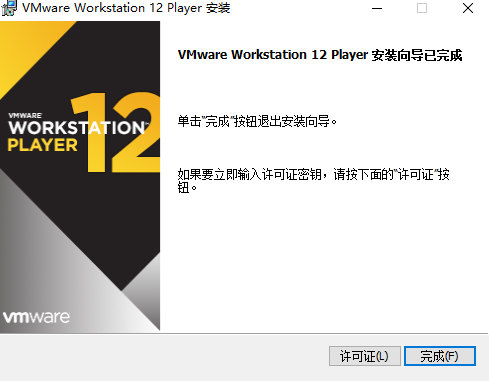
5. The software installation may take a few minutes, please wait patiently. There will be a prompt when the installation is complete, click [Finish].
VM virtual machine update log
- The Chinese version of VM virtual machine newly supports Windows 10 Anniversary Update and Windows Server 2016 server operating system;- Fixed some other issues, security updates and improved performance;
Huajun editor recommends:
It is highly recommended to download VMware Workstation (virtual machine software). Who knows who uses it? Anyway, I have already used it. In addition, .NET, Cloud Machine Manager, and Cloud Machine Manager are also good software. Welcome to click to download and experience it!
Version: 17.5.1 official latest version | Update time: 2025-10-30
Similar recommendations




Latest updates

VMware Workstation (virtual machine software) reviews
Recommended products










- Diablo game tool collection
- Group purchasing software collection area
- p2p seed search artifact download-P2P seed search artifact special topic
- adobe software encyclopedia - adobe full range of software downloads - adobe software downloads
- Safe Internet Encyclopedia
- Browser PC version download-browser download collection
- Diablo 3 game collection
- Anxin Quote Software
- Which Key Wizard software is better? Key Wizard software collection