360 Software Manager is a powerful assistant for computer software. It brings together a large number of official and genuine software that have been tested for safety, keeping you away from malicious bundling and download traps. Through it, you can "install" the required programs with "one click" and "upgrade" the installed software to the latest version with "one click", saying goodbye to tedious manual searches. At the same time, its powerful "uninstall" function can deeply clean the registry and residual files to ensure system purity. Whether you are looking for office tools, entertainment tools or system components, 360 Software Manager can provide you with a safe, convenient and one-stop software management experience. Next, let the editor of Huajun explain to you how to upgrade the software of 360 Software Butler and how to upgrade the software of 360 Software Butler!
first step
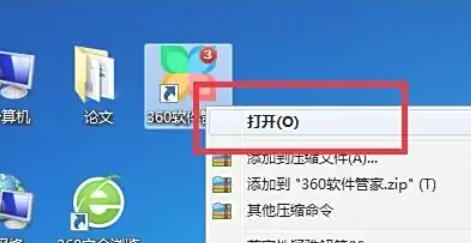
Find the shortcut icon of 360 Software Manager on the computer desktop, double-click the icon to start the software, and enter the main interface of 360 Software Manager.
Step 2
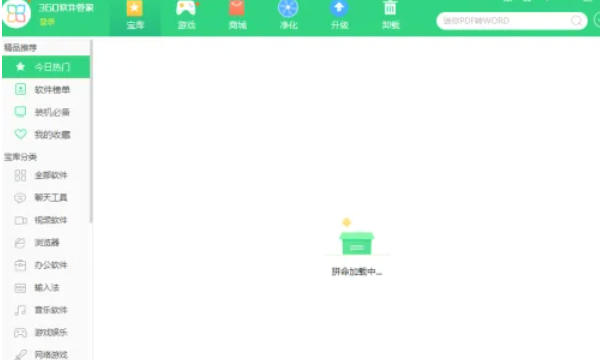
In the main interface of 360 Software Manager, carefully observe the page layout. You can usually find the "Upgrade" option in the navigation bar above the interface or on the left. In different versions of 360 Software Manager, the location of this option may be slightly different, but it is generally more conspicuous and easy to find.
Step 3
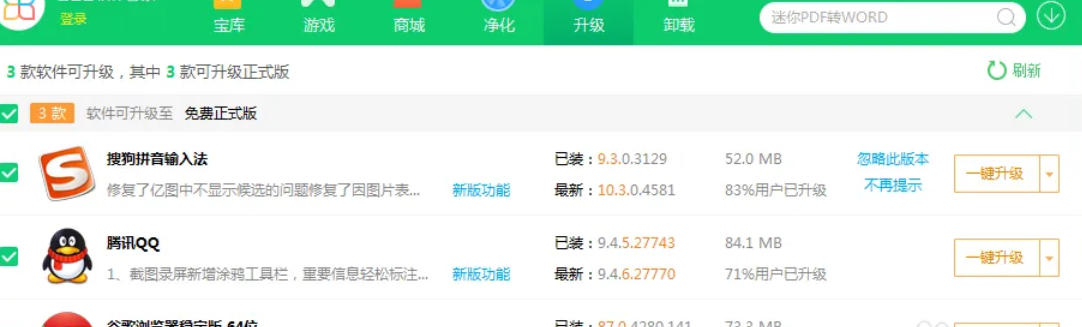
After clicking the "Upgrade" option, 360 Software Manager will automatically scan the computer for installed and new versions of software and display the software that needs to be upgraded in a list. You can see the name, current version, and latest version that can be upgraded to each software in this list.

Step 4
In the list of software to be upgraded, you can select a single software to upgrade according to your needs, or you can directly click the "One-click upgrade" button. After clicking "One-click upgrade", 360 Software Manager will automatically download and install the software that needs to be upgraded in order, without you having to manually operate one by one.
Step 5
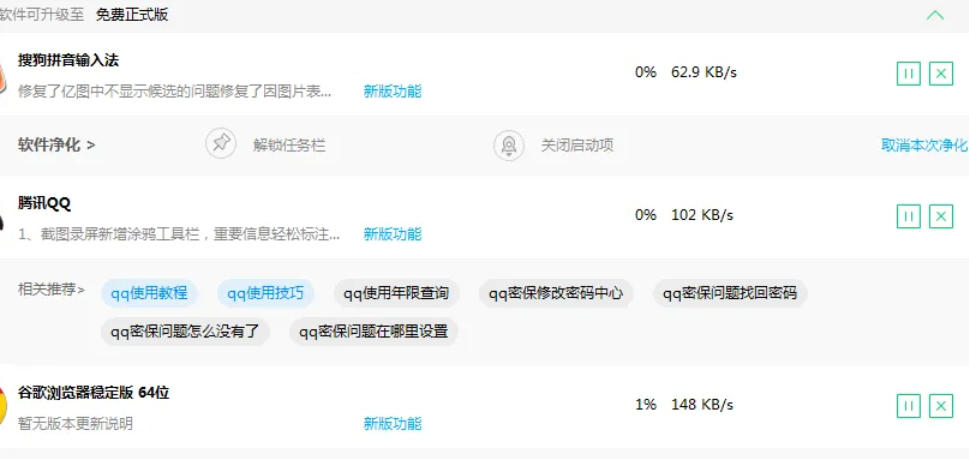
During the upgrade process, you can see the upgrade progress bar of each software on the 360 Software Manager interface. Wait until the upgrade progress bars of all software show the completion status, which means that all software has been successfully upgraded to the latest version. At this point, you can close 360 Software Manager or continue to use it for other operations.
The above is what Huajun editor compiled for you on how to upgrade the software of 360 Software Manager and the method of upgrading the software of 360 Software Manager. I hope it can help you!