
Hot search terms: 360 Security Guard Office365 360 browser WPS Office iQiyi Huawei Cloud Market Tencent Cloud Store
Hot search terms: 360 Security Guard Office365 360 browser WPS Office iQiyi Huawei Cloud Market Tencent Cloud Store

Text editing Storage: 248MB Time: 2021-09-17
Software introduction: PS Office 2019PDF web browser WPS Office 2019WPSWPS Office 2019
WPS Office 2019 is an efficient office software suite developed by Kingsoft that integrates word processing, table calculation and presentation production. It contains three major components that are highly compatible with MS Office: WPS text, WPS table and WPS presentation, and can seamlessly read and write documents in docx, xlsx, pptx and other formats. With the core advantages of being lightweight, fast, free and easy to use, this software provides a large number of online templates and cloud synchronization functions, and perfectly supports Windows, Linux, macOS and mobile terminals. It is an excellent choice for individual users for daily study and work. Next, let Huajun editor explain to you how to split workbooks in WPS Office 2019 and how to split workbooks in WPS Office 2019!
first step
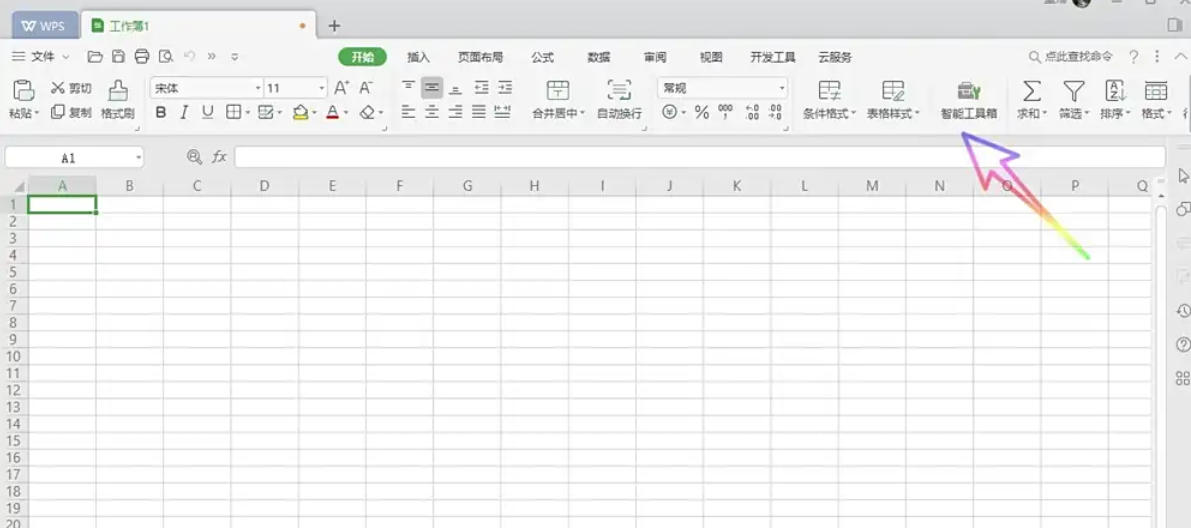
Start WPS Office 2019 and open the workbook that needs to be split (an Excel file containing multiple worksheets).
Step 2
Click the "Smart Toolbox" tab in the upper right corner of the table interface (if it is not displayed, you can check whether it is enabled in "Features" or "Application Center").

Step 3
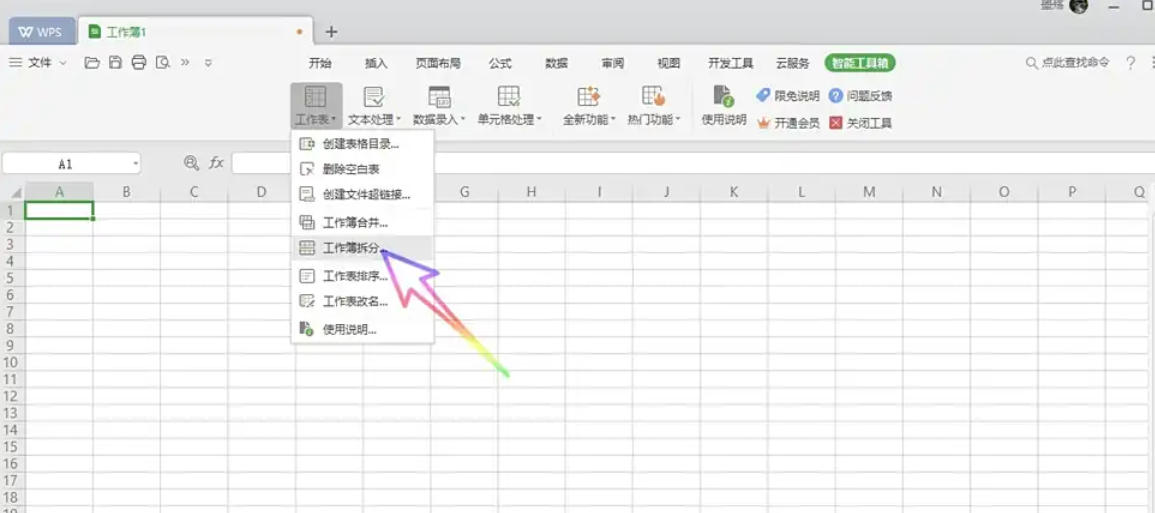
In the ribbon of the Smart Toolbox, click the "Worksheet" category. In the drop-down list, select the "Split Workbook" function (some versions may display "Split Workbook").
Step 4
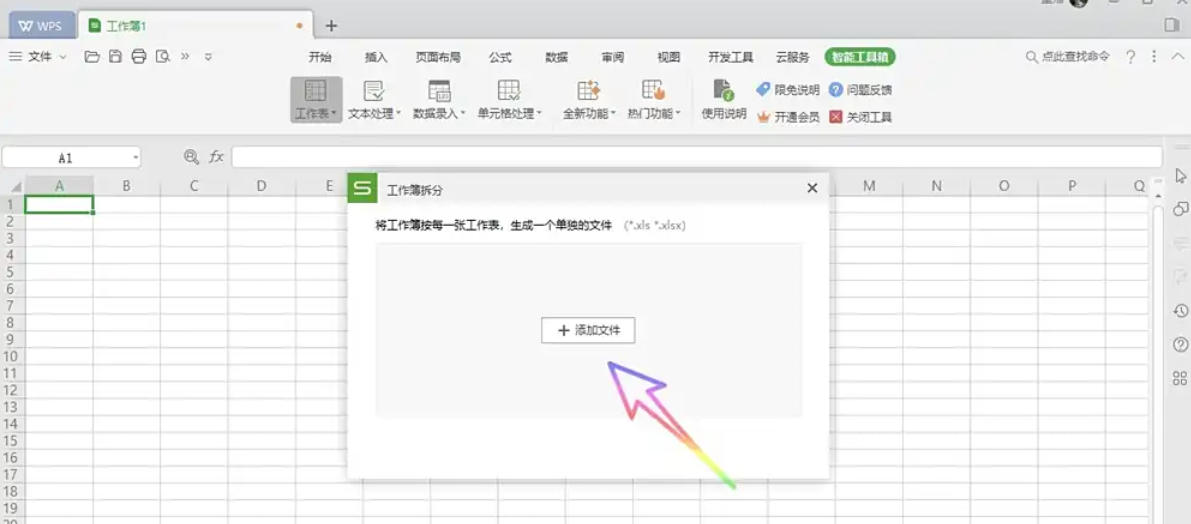
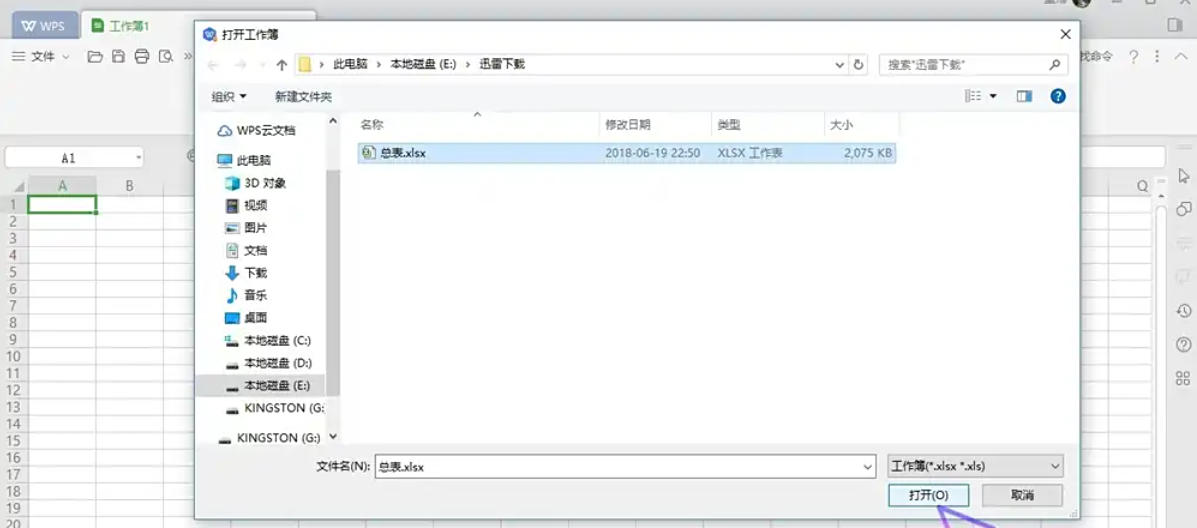
In the pop-up split window, click the "Add File" button in the middle of the page. Find the target workbook in the computer folder, select it and click "Open".
Step 5
Some versions support custom splitting rules (such as by worksheet name, number of pages, etc.), which can be adjusted according to needs. By default, WPS will split each worksheet into independent files, no additional settings are required.
Step 6
After confirming that the files have been added, click the "Start Splitting" button in the lower right corner of the page. Wait for the progress bar to complete, the splitting time depends on the number of worksheets and file size.

Step 7
After the split is completed, the system will prompt "Split Successfully". Open the folder where the original file is located, and you will see that each worksheet has been saved as an independent .xlsx file (the file name contains the name of the original worksheet by default).
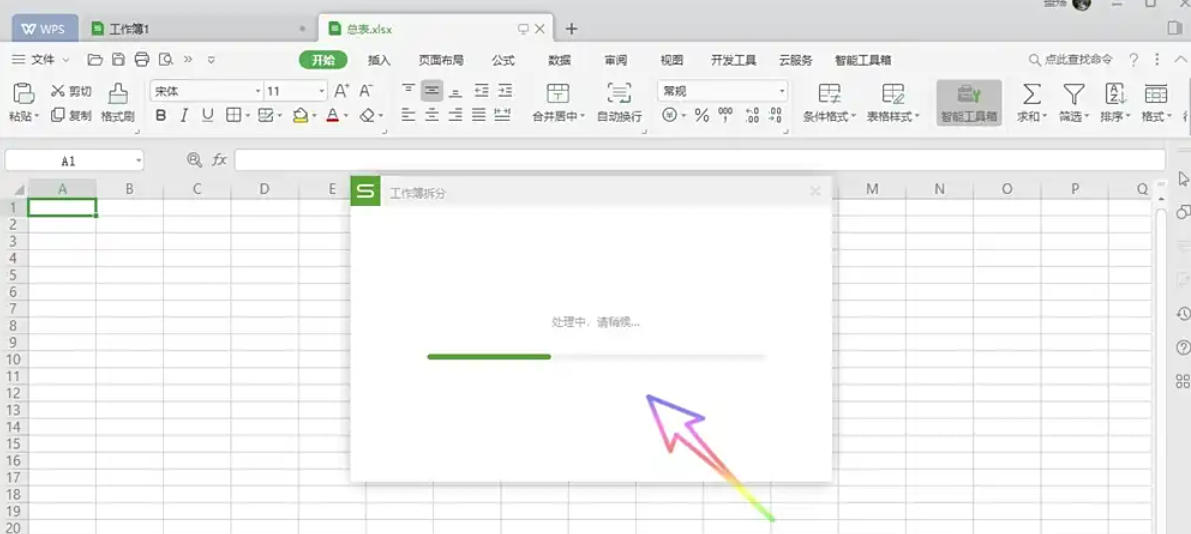
The above is the editor of Huajun who has compiled for you how to split workbooks in WPS Office 2019 and how to split workbooks in WPS Office 2019. I hope it can help you!

 How to add background music in python-How to add background music in python
 How to configure environment variables in python - How to configure environment variables in python
 How to run python - How to run python
 How to create a project in python - How to create a project in python
 How to make a blue sky background with scratch-How to make a blue sky background with scratch
 Steam
Steam
 Tencent Video
 WPS Office
 iQiyi
iQiyi
 Sohu video player
 Lightning simulator
 MuMu emulator
 Eggman Party
 WPS Office 2023
 What to do if there is no sound after reinstalling the computer system - Driver Wizard Tutorial
 How to switch accounts in WPS Office 2019-How to switch accounts in WPS Office 2019
 How to clear the cache of Google Chrome - How to clear the cache of Google Chrome
 How to fire bullets in scratch-How to fire bullets in scratch
