
Hot search terms: 360 Security Guard Office365 360 browser WPS Office iQiyi Huawei Cloud Market Tencent Cloud Store
Hot search terms: 360 Security Guard Office365 360 browser WPS Office iQiyi Huawei Cloud Market Tencent Cloud Store

Text editing Storage: 248MB Time: 2021-09-17
Software introduction: PS Office 2019PDF web browser WPS Office 2019WPSWPS Office 2019
WPS Office 2019 is an efficient, lightweight and comprehensive domestic office software suite launched by Kingsoft Office, integrating the three core applications of word processing, spreadsheets and presentations. The software is deeply compatible with Microsoft Office formats, supports cross-platform seamless editing and file exchange, adopts a modern flat interface design, and operates smoothly and intuitively. It integrates PDF toolkit, cloud document synchronization, massive online templates and multi-person collaboration functions, while providing low memory usage and fast startup experience. It takes into account free use for individual users and enterprise-level security control needs. It is suitable for diversified office scenarios such as document editing, data analysis, and slide production. It is a reliable choice to improve work efficiency. Next, let Huajun editor explain to you how to convert tables into pictures in WPS Office 2019 and how to convert tables into pictures in WPS Office 2019!
first step
Open the WPS document that needs to be converted (such as an Excel table or a table in Word). Use the mouse to drag to select table contents, or press Ctrl + A to select all (current worksheet/page only).

Step 2
Click the "Cloud Services" tab in the top menu bar (if it is not displayed, check whether it is under "Features" or a similar label). Find the "Export as Picture" button in the ribbon and click it (the icon may appear in the shape of a camera or a picture).

Step 3
In the pop-up dialog box, check "High quality without watermark" (make sure the picture is clear and has no WPS logo). In the "Format" drop-down menu, select JPG (universal format, strong compatibility) or PNG (supports transparent background). Click "Advanced Settings" to adjust the resolution (such as 300DPI), but the default value is usually clear enough.

Step 4
Click the "Browse" or "Select Folder" button. In the pop-up window, select the save path (such as the desktop) and enter the file name (the document name is used by default). Click "OK" to confirm the save location.
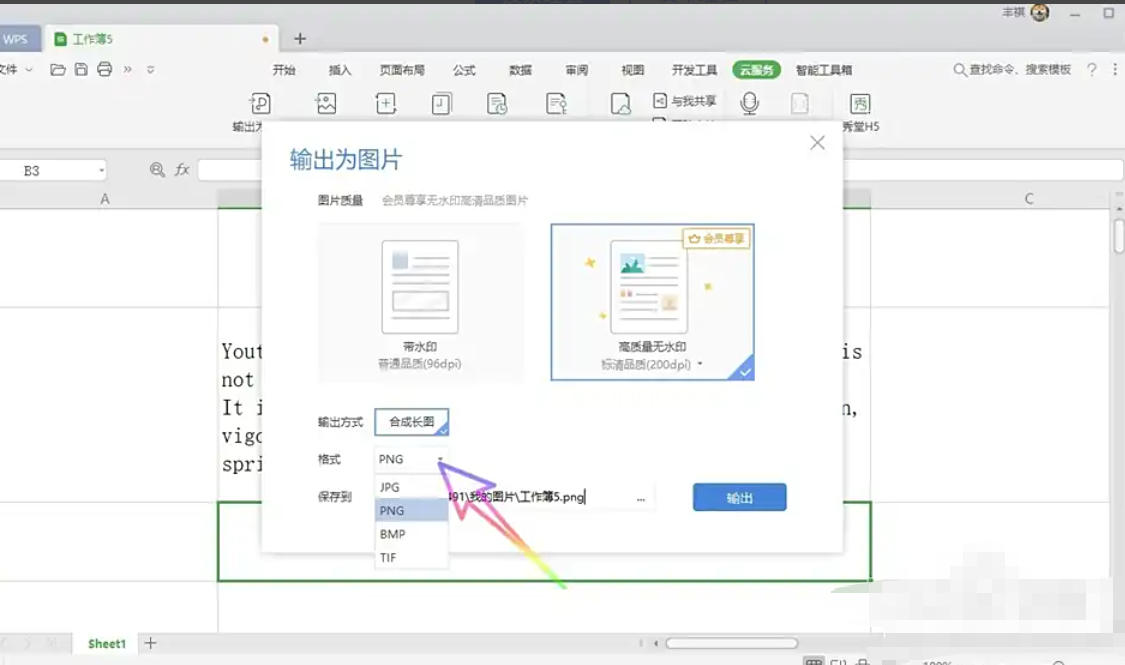
Step 5
Click the "Export" or "OK" button and WPS will start converting.
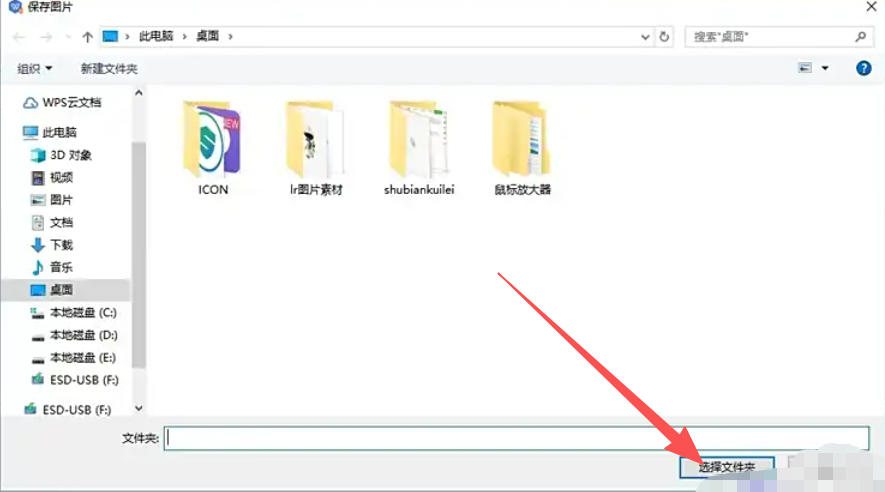
Step 6
After the conversion is completed, the system will prompt "Output successful" and automatically open the folder where the images are saved.
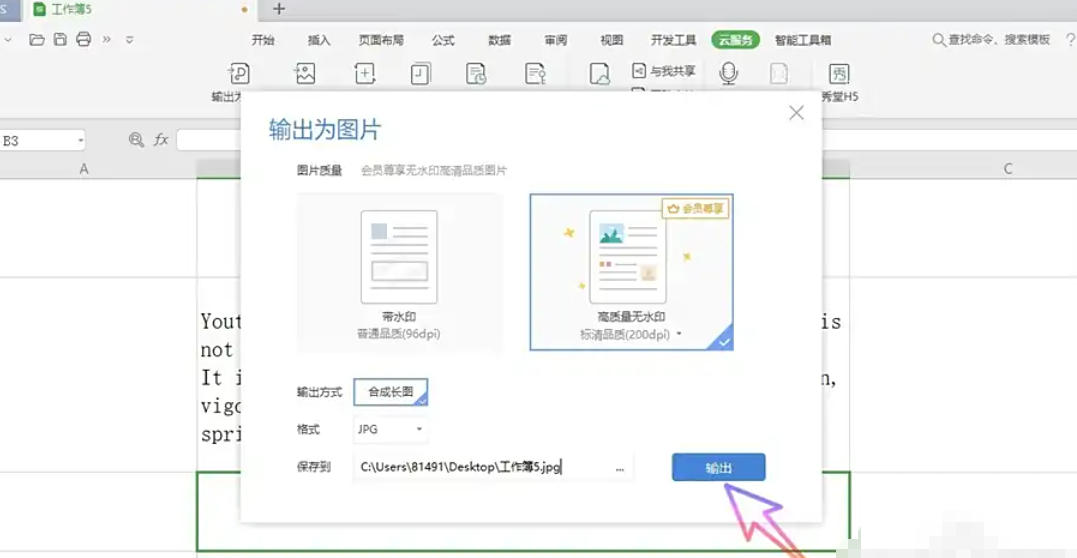
The above is the editor of Huajun who has compiled for you how to convert tables into pictures in WPS Office 2019 and how to convert tables into pictures in WPS Office 2019. I hope it can help you!

 How to add background music in python-How to add background music in python
 How to configure environment variables in python - How to configure environment variables in python
 How to run python - How to run python
 How to create a project in python - How to create a project in python
 How to make a blue sky background with scratch-How to make a blue sky background with scratch
 Steam
Steam
 Tencent Video
 WPS Office
 iQiyi
iQiyi
 Sohu video player
 Lightning simulator
 MuMu emulator
 Eggman Party
 WPS Office 2023
 What to do if there is no sound after reinstalling the computer system - Driver Wizard Tutorial
 How to switch accounts in WPS Office 2019-How to switch accounts in WPS Office 2019
 How to clear the cache of Google Chrome - How to clear the cache of Google Chrome
 How to fire bullets in scratch-How to fire bullets in scratch
