
Hot search terms: 360 Security Guard Office365 360 browser WPS Office iQiyi Huawei Cloud Market Tencent Cloud Store
Hot search terms: 360 Security Guard Office365 360 browser WPS Office iQiyi Huawei Cloud Market Tencent Cloud Store

Text editing Storage: 248MB Time: 2021-09-17
Software introduction: PS Office 2019PDF web browser WPS Office 2019WPSWPS Office 2019
WPS Office 2019 is an efficient and highly compatible domestic office software suite launched by Kingsoft Office. It integrates the three core functions of word processing (Writer), spreadsheets (Spreadsheets), and presentation (Presentation). The software is deeply compatible with Microsoft Office formats (such as .docx/.xlsx/.pptx), supports seamless reading, writing and editing, adopts a lightweight design, has fast startup speed and low system usage. It has built-in PDF toolkit, cloud document synchronization, massive online templates and multi-person collaborative editing functions. It also provides personalized interface customization and cross-platform support, taking into account free use by individual users and enterprise-level security management needs. It is an all-round tool to improve office efficiency. Next, let Huajun editor explain to you how to display the hidden ribbon in WPS Office 2019 and how to display the hidden ribbon in WPS Office 2019!
first step
Open WPS Office and create or open any document.
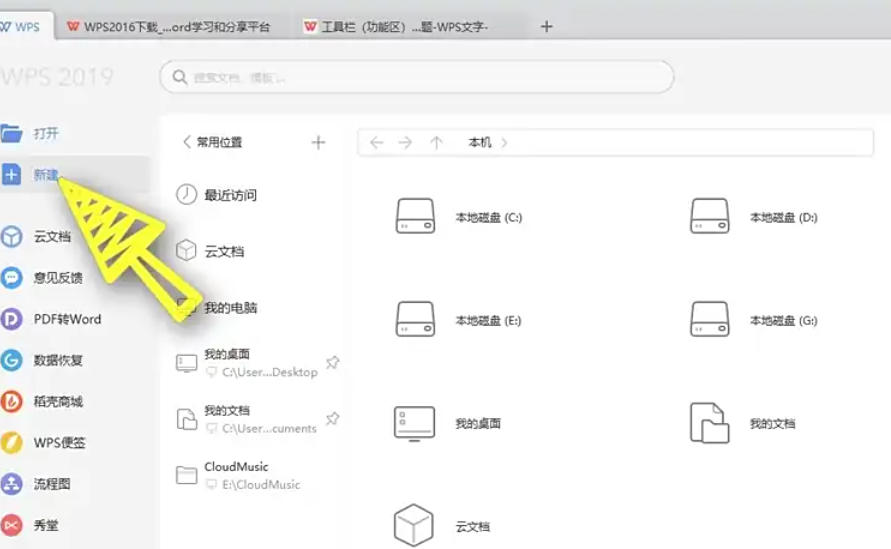
Step 2
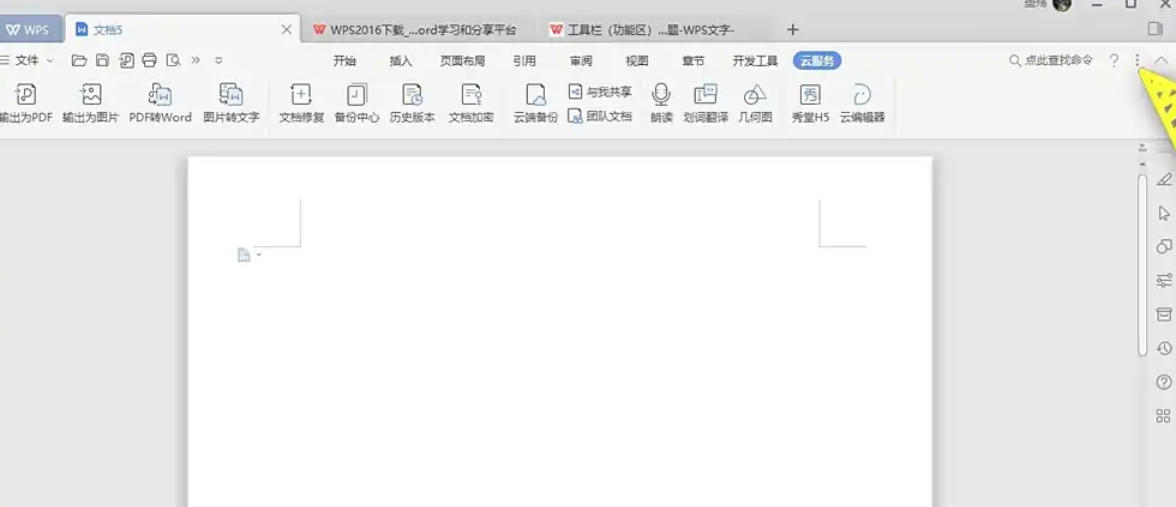
Open a WPS document (such as Word, Excel or PPT), and the ribbon will be displayed at the top (including tabs such as "File", "Start" and "Insert").
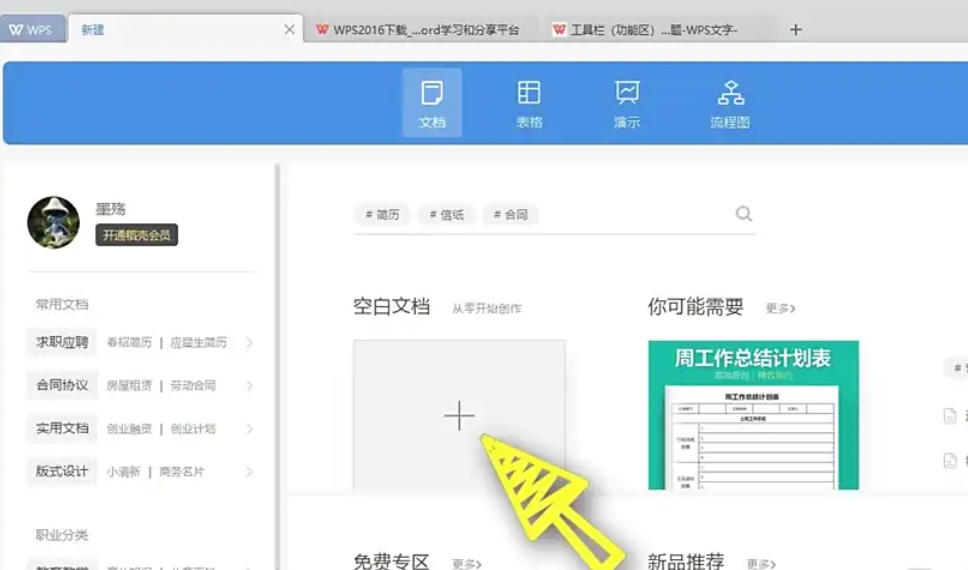
Step 3
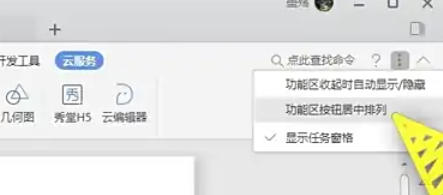
Click the "small upward arrow" icon in the upper right corner (also known as the "Collapse Ribbon" button), and the ribbon will be hidden immediately, leaving only the label names (such as "Start" and "Insert").
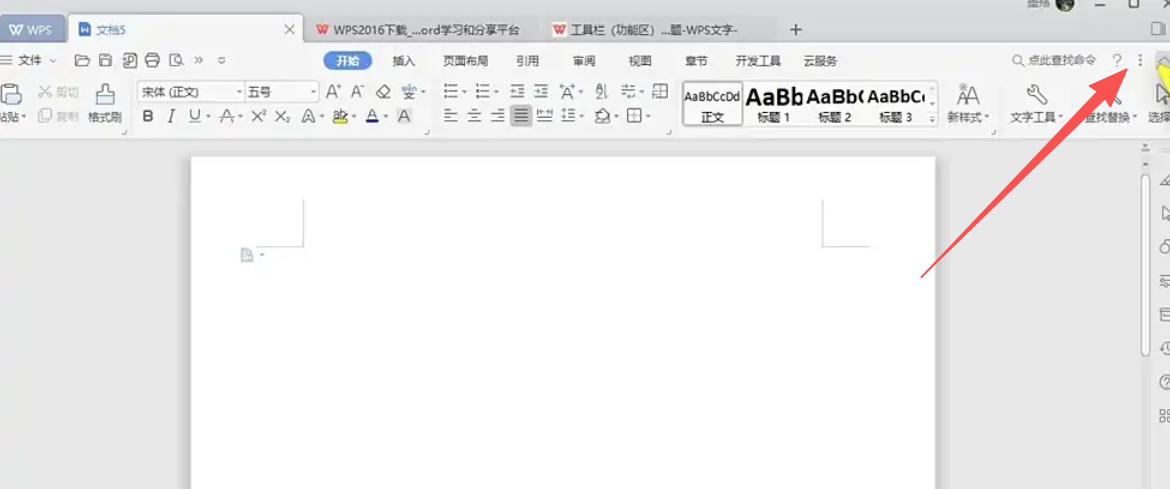
Step 4
When the ribbon is hidden, click the "down arrow" icon in the upper right corner again (or directly press the keyboard shortcut Ctrl + F1). The ribbon will re-expand to show all tool buttons.
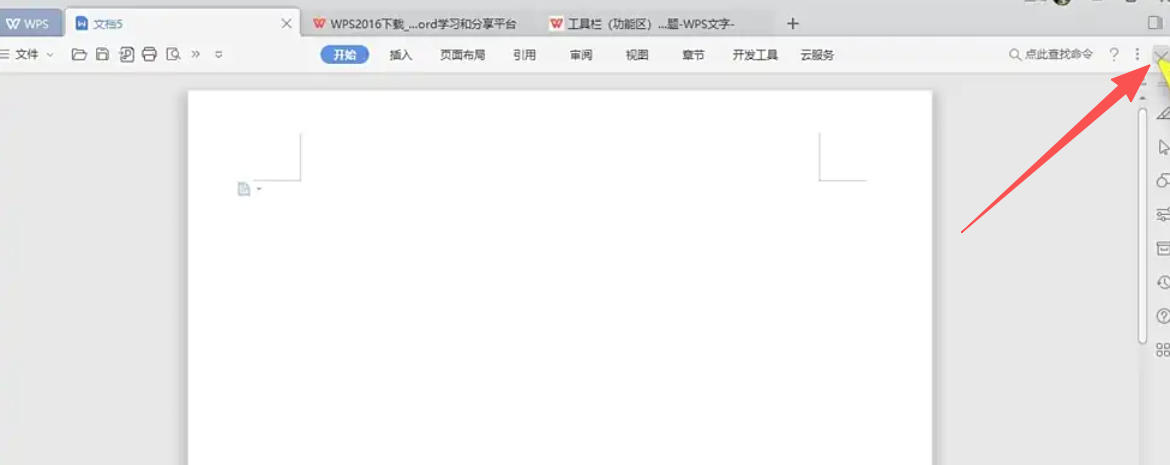
Step 5
Quickly switch with shortcut keys
Hide/show the ribbon: press Ctrl + F1 directly (applicable to all WPS components, such as Word, Excel, PPT).
Tip: This shortcut key does not require clicking the icon, making the operation more efficient.
Step 6
Temporarily expand the ribbon (use tools in hidden state)
If the ribbon is hidden but you need to use a tool (such as Font Bold):
Hover your mouse over a label name (such as "Home" or "Insert") and the ribbon will temporarily expand.
After selecting the required tool, the ribbon will automatically hide and the simple interface will be restored.
The above is the editor of Huajun who has compiled for you how to display the hidden ribbon in WPS Office 2019 and how to display the hidden ribbon in WPS Office 2019. I hope it can help you!

 How to add background music in python-How to add background music in python
 How to configure environment variables in python - How to configure environment variables in python
 How to run python - How to run python
 How to create a project in python - How to create a project in python
 How to make a blue sky background with scratch-How to make a blue sky background with scratch
 Steam
Steam
 Tencent Video
 WPS Office
 iQiyi
iQiyi
 Sohu video player
 Lightning simulator
 MuMu emulator
 Eggman Party
 WPS Office 2023
 What to do if there is no sound after reinstalling the computer system - Driver Wizard Tutorial
 How to switch accounts in WPS Office 2019-How to switch accounts in WPS Office 2019
 How to clear the cache of Google Chrome - How to clear the cache of Google Chrome
 How to fire bullets in scratch-How to fire bullets in scratch
