
Hot search terms: 360 Security Guard Office365 360 browser WPS Office iQiyi Huawei Cloud Market Tencent Cloud Store
Hot search terms: 360 Security Guard Office365 360 browser WPS Office iQiyi Huawei Cloud Market Tencent Cloud Store

audio playback Storage: 152.69 MB Time: 2022-10-17
Software introduction: It is a software that focuses on discovery and sharing. The PC version of NetEase Cloud Music is simple and convenient to operate. You can use it to listen to your favorite high-quality music...
NetEase Cloud Music has the advantages of personalized recommendations, song synchronization, following celebrities, social functions, and high-quality music playback, and stands out in the field of music playback. It provides users with rich music resources and convenient usage experience, and has become the first choice application for many music lovers. Next, let the editor of Huajun explain to you how to download NetEase Cloud Music to a U disk and how to download NetEase Cloud Music to a U disk!
first step
Open the NetEase Cloud Music client and log in to your account.
Step 2
Enter the name of the song you want to download in the search box to search. Find the target song in the search results and click on the song name to enter the play page.
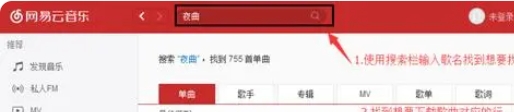
Step 3
On the playback page, find and click the Download button. At this point, the song will begin downloading to your computer's local music library.
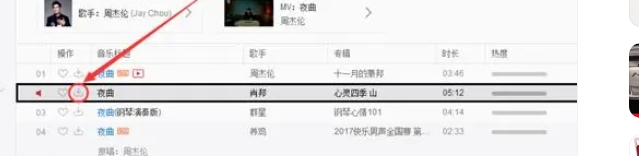
Step 4
After the download is completed, you can view the downloaded songs in the "Download Management" of the NetEase Cloud Music client. In "Download Management", you can see the download status, download path and other information of the song.
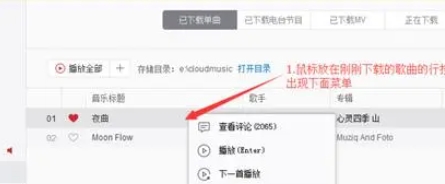
Step 5
Insert the U disk into the USB interface of the computer and ensure that the U disk can be recognized normally. Check the status of the USB flash drive in the file manager and make sure the USB flash drive has enough storage space to store the songs you want to copy.
Step 6
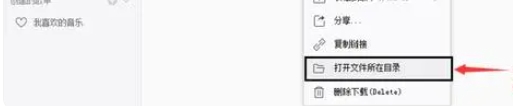
Find the downloaded song file according to the download path provided in "Download Management". By default, NetEase Cloud Music stores downloaded songs in the "NetEase Cloud Music" folder under the "My Music" folder. The specific path may vary depending on the operating system. For example, Windows systems may be stored in C:UsersyourusernameMusicNetease Cloud Music, while macOS systems may be stored in /Users/yourusername/Music/Netease Cloud Music.
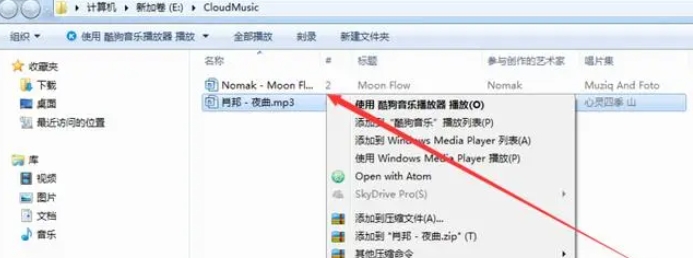
Step 7
Select the song files you want to copy, and you can use the Ctrl key (Windows) or the Command key (macOS) to select multiple songs. Right-click on the selected song file and select the "Copy" option. Or you can use the shortcut Ctrl+C (Windows) or Command+C (macOS) to copy. Find the U disk icon in the file manager and double-click it to open the U disk. In the window of the USB flash drive, right-click on the blank space and select the "Paste" option. Or you can use the shortcut Ctrl+V (Windows) or Command+V (macOS) to paste. At this point, the song files will begin to be copied to the USB flash drive.

The above is how to download NetEase Cloud Music to a USB flash drive and how to download NetEase Cloud Music to a USB flash drive compiled by Huajun editor for you. I hope it can help you!

 How to add background music in python-How to add background music in python
 How to configure environment variables in python - How to configure environment variables in python
 How to run python - How to run python
 How to create a project in python - How to create a project in python
 How to make a blue sky background with scratch-How to make a blue sky background with scratch
 Steam
Steam
 Tencent Video
 WPS Office
 iQiyi
iQiyi
 Sohu video player
 Lightning simulator
 MuMu emulator
 Eggman Party
 WPS Office 2023
 What to do if there is no sound after reinstalling the computer system - Driver Wizard Tutorial
 How to switch accounts in WPS Office 2019-How to switch accounts in WPS Office 2019
 How to clear the cache of Google Chrome - How to clear the cache of Google Chrome
 How to fire bullets in scratch-How to fire bullets in scratch
