Hot search terms: 360 Security Guard Office365 360 browser WPS Office iQiyi Huawei Cloud Market Tencent Cloud Store
Hot search terms: 360 Security Guard Office365 360 browser WPS Office iQiyi Huawei Cloud Market Tencent Cloud Store

audio playback Storage size: 152.69 MB Time: 2022-10-17
Software introduction: It is a software that focuses on discovery and sharing. The PC version of NetEase Cloud Music is simple and convenient to operate. You can use it to listen to your favorite high-quality music...
NetEase Cloud Music is a powerful and easy-to-use music player that provides users with rich music resources and a personalized experience. If you are a music lover, you might as well try this player, I believe it will bring you a different music enjoyment. Next, let Huajun editor explain to you how to set fonts for NetEase Cloud Music and how to set fonts for NetEase Cloud Music!
first step
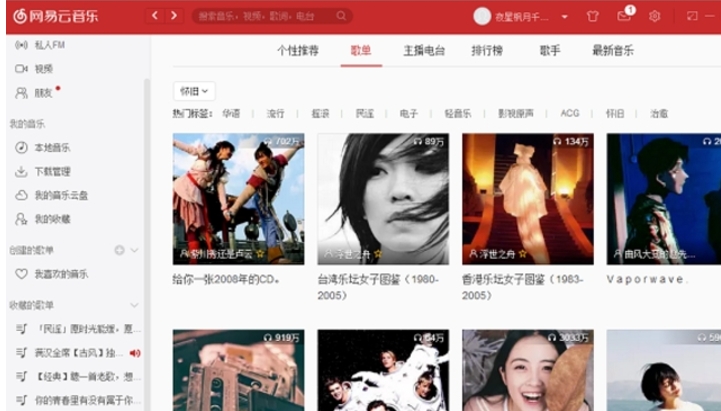
Double-click the NetEase Cloud Music icon on your computer to start the NetEase Cloud Music PC version.
Step 2
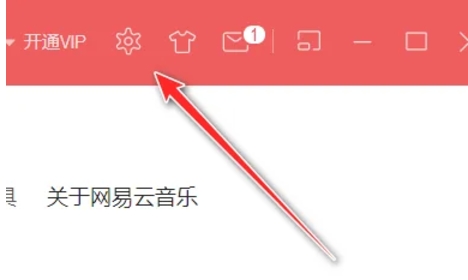
On the main interface of NetEase Cloud Music, find and click the settings button in the upper right corner. This button is usually designed as a gear or similar icon and is used to open the software's settings panel.
Step 3
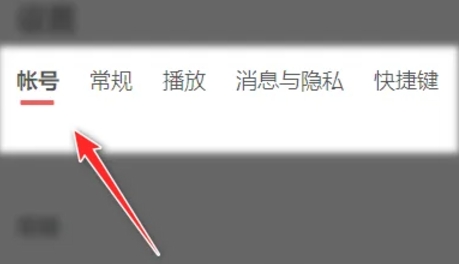
On the settings page, find and click the "General" option. General settings usually include some basic configurations of the software, such as fonts, interface layout, etc.
Step 4
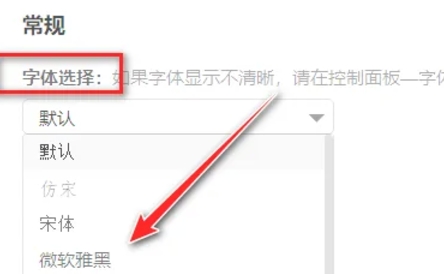
In the general settings page, find the "Font Selection" option. Click the inverted triangle icon below the option and a drop-down menu will pop up.
Step 5
In the drop-down menu, browse and select a font you like. NetEase Cloud Music provides a variety of fonts for users to choose from to meet different personalized needs.
Step 6
After selecting a font, click OK or a similar button to apply the settings. At this time, the interface font of NetEase Cloud Music will be changed to the font you selected.
The above is how the editor of Huajun compiled for you how to set fonts on NetEase Cloud Music and how to set fonts on NetEase Cloud Music. I hope it can help you!

 Microsoft Edge browser
 Steam
Steam
 Tencent Video
 WPS Office
 iQiyi
iQiyi
 Sohu video player
 Lightning simulator
 MuMu emulator
 Eggman Party
 What to do if there is no sound after reinstalling the computer system - Driver Wizard Tutorial
 How to switch accounts in WPS Office 2019-How to switch accounts in WPS Office 2019
 How to clear the cache of Google Chrome - How to clear the cache of Google Chrome
 How to fire bullets in scratch-How to fire bullets in scratch