
Hot search terms: 360 Security Guard Office365 360 browser WPS Office iQiyi Huawei Cloud Market Tencent Cloud Store
Hot search terms: 360 Security Guard Office365 360 browser WPS Office iQiyi Huawei Cloud Market Tencent Cloud Store

audio playback Storage size: 152.69 MB Time: 2022-10-17
Software introduction: It is a software that focuses on discovery and sharing. The PC version of NetEase Cloud Music is simple and convenient to operate. You can use it to listen to your favorite high-quality music...
NetEase Cloud Music uses advanced algorithms to analyze users' listening history and preferences, and provides users with personalized song and playlist recommendation software. This helps users discover more music that suits their tastes. Users can synchronize their playlists and listening records between different devices. Whether it is a mobile phone, tablet or computer, they can seamlessly connect and continue to enjoy music. Next, let the editor of Huajun explain to you how to clear the music cache of NetEase Cloud Music and how to clear the music cache of NetEase Cloud Music!
first step
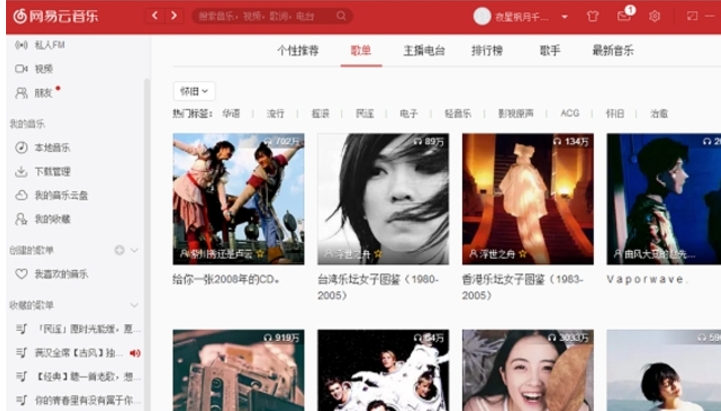
Double-click the NetEase Cloud Music icon on your computer to start the NetEase Cloud Music application.
Step 2
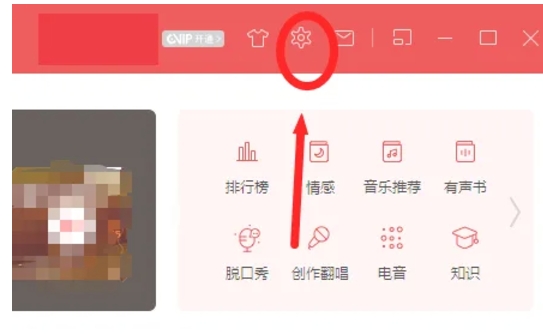
In the upper right corner of NetEase Cloud Music's main interface, find and click the gear-shaped "Settings" icon. This will open the settings page of NetEase Cloud Music.
Step 3
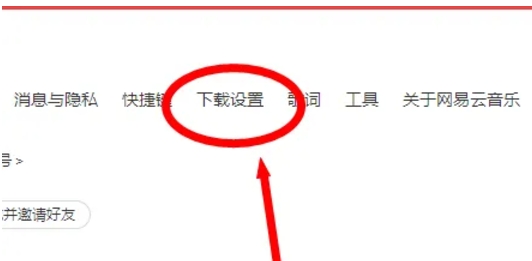
In the settings page, browse and find the "Download settings" option. Clicking this option will jump to the corresponding interface for download settings.
Step 4
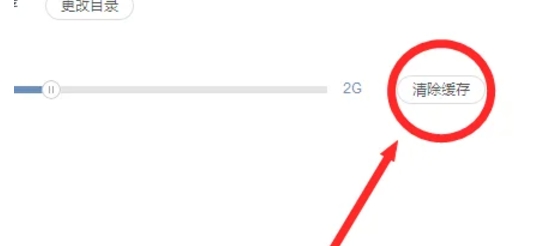
In the download settings interface, find the options related to "Cache". Typically, this option will be labeled "Cache Settings" or something similar. Click the "Clear Cache" button next to this option. The system will start clearing the music cache. This process may take some time, depending on the size of the cache and the performance of your computer.
Step 5
Please wait patiently while the cache is being cleared. Once the clearing is completed, the system will automatically close the cache clearing window and return to the download settings interface.
Step 6
If you want to verify whether the cache has been successfully cleared, you can try restarting NetEase Cloud Music and check whether the size of the cache folder has been reduced.
The above is how the editor of Huajun compiled for you how to clear the music cache of NetEase Cloud Music and the method of clearing the music cache of NetEase Cloud Music. I hope it can help you!

 How to draw a lottery in 360 Software Butler - How to draw a lottery in 360 Software Butler
 How to collect software in 360 Software Manager - How to collect software in 360 Software Manager
 Microsoft Edge browser
 Steam
Steam
 Tencent Video
 WPS Office
 iQiyi
iQiyi
 Sohu video player
 Lightning simulator
 MuMu emulator
 Eggman Party
 What to do if there is no sound after reinstalling the computer system - Driver Wizard Tutorial
 How to switch accounts in WPS Office 2019-How to switch accounts in WPS Office 2019
 How to clear the cache of Google Chrome - How to clear the cache of Google Chrome
 How to fire bullets in scratch-How to fire bullets in scratch


