
Hot search terms: 360 Security Guard Office365 360 browser WPS Office iQiyi Huawei Cloud Market Tencent Cloud Store
Hot search terms: 360 Security Guard Office365 360 browser WPS Office iQiyi Huawei Cloud Market Tencent Cloud Store

audio playback Storage size: 152.69 MB Time: 2022-10-17
Software introduction: It is a software that focuses on discovery and sharing. The PC version of NetEase Cloud Music is simple and convenient to operate. You can use it to listen to your favorite high-quality music...
NetEase Cloud Music is a music product developed by NetEase. Users can create, collect and share playlists according to their own preferences and needs, and easily manage their own music libraries. NetEase Cloud Music provides interactive communication methods such as comments and private messages, where users can find like-minded music lovers and share their music discoveries and feelings. Next, let the editor of Huajun explain to you how to change the cache directory of NetEase Cloud Music and how to change the cache directory of NetEase Cloud Music!
first step
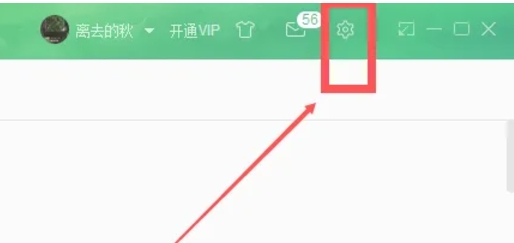
Open the PC version of NetEase Cloud Music and enter the main interface. Find and click the settings icon (usually a gear-shaped icon) in the upper right corner of the main interface to open the settings interface.
Step 2
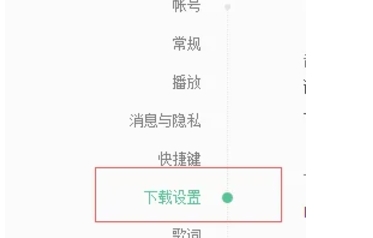
In the settings interface, browse and find the "Download Settings" option. Click this option to enter the detailed page of download settings.
Step 3
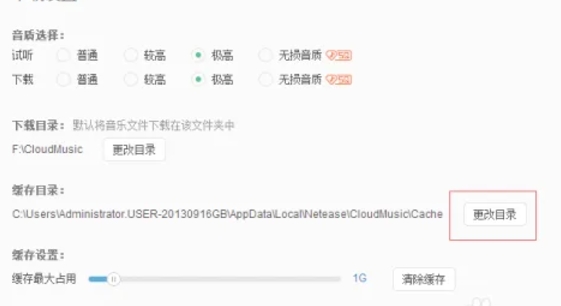
In the download settings page, find the option related to "Cache Directory". Click the "Change Directory" button next to this option. At this point, a file selection window will pop up, allowing you to select a new cache directory.
Step 4
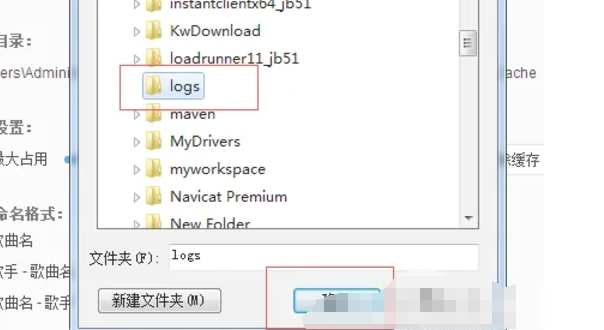
In the file selection window, browse your local folders to find the folder you created earlier to store the cache. Select the folder and click the OK button to confirm your selection.
Step 5
After confirming the selection of the new cache directory, NetEase Cloud will prompt you that the setting has been successful. According to the prompts, click the corresponding button to restart NetEase Cloud Music. After restarting, the new cache directory will take effect.
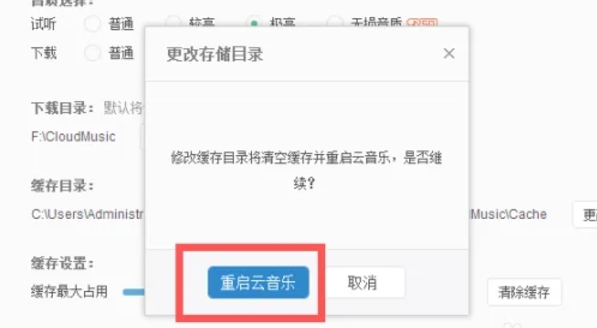
The above is how the editor of Huajun compiled for you how to change the cache directory of NetEase Cloud Music and the method of changing the cache directory of NetEase Cloud Music. I hope it can help you!

 How to draw a lottery in 360 Software Butler - How to draw a lottery in 360 Software Butler
 How to collect software in 360 Software Manager - How to collect software in 360 Software Manager
 Microsoft Edge browser
 Steam
Steam
 Tencent Video
 WPS Office
 iQiyi
iQiyi
 Sohu video player
 Lightning simulator
 MuMu emulator
 Eggman Party
 What to do if there is no sound after reinstalling the computer system - Driver Wizard Tutorial
 How to switch accounts in WPS Office 2019-How to switch accounts in WPS Office 2019
 How to clear the cache of Google Chrome - How to clear the cache of Google Chrome
 How to fire bullets in scratch-How to fire bullets in scratch


