-
3DMark 11
- Size: 268.16M
- Language: English
- Category: Graphics card driver
- System: Win ALL







3DMark 11 is a testing software specially designed for testing PC game performance. The advantage of 3dmark11 is that it uses the native DirectX 11 engine and applies a large number of new DX11 features including Tessellation, Compute Shader and multi-threading in the test scene. Huajun Software Park provides you with free download of 3DMark 112025, come and experience it!
3DMark 11 features
DX11 native support:
Test tessellation, compute shaders, multi-threaded rendering and other core DX11 technologies.
Scenes include the deep sea, temples, etc., simulating complex light, shadow and geometric processing.
Multi-dimensional testing:
Graphics test: Evaluate the rendering capabilities of the graphics card (such as light, shadow, materials).
Physical test: Based on Bullet engine, test CPU multi-thread performance (fixed resolution 640×480).
Comprehensive testing: GPU and CPU collaboration (such as dynamic interaction scenarios).
Presets and customizations:
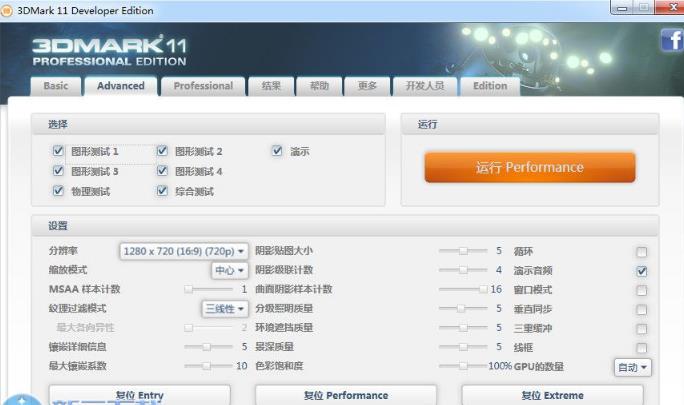
Entry / Performance / Extreme three-speed preset (resolution 1024×600/1280×720/1920×1080).
Supports custom resolution, anti-aliasing, and texture filtering.
Ratings and Analysis:
Total score (E/P/X level) + sub-score (Graphics/Physics/Combining).
The professional version supports offline saving and comparison of test results.
Professional features:
Image quality tools (pixel-level comparison), command line automation, multi-GPU optimization.
How to use 3DMark 11 (with activation code)
1. You are prompted to enter the activation code before downloading and running the program. Here I will give you a 3D11-ADV-2Y4Z-DEX7-S96Z-X3XM-ZSWA
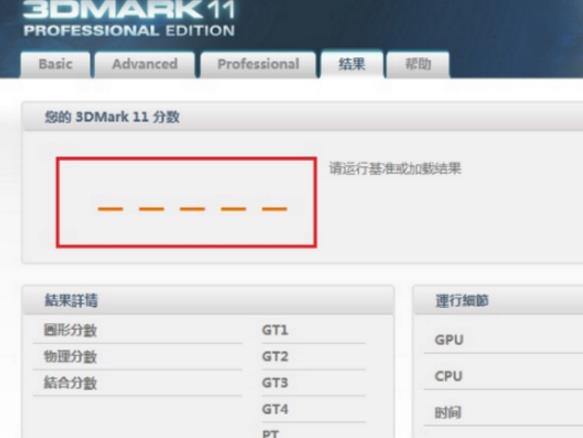
2. Because you have not registered for the test and there is no score, it is not that there is no result. You can only view the results through the web page and cannot display or save the results.
3. Don’t think about how to set it up when running. Just leave them all as default.
4. There is only one prompt to choose from. E low-end P mid-range X high-end. You can choose to run.
3DMark11 Instructions for Use
System requirements:
Minimum: Win Vista/7/8/10 (64-bit), DX11 graphics card (such as HD 5000/GTX 400 series), 2GB RAM.
Recommended: Quad-core CPU, 4GB RAM, high-end graphics card (such as GTX 680/HD 7970).
Test process:
Startup: Select language and enter Basic (quick preset) or Advanced (custom parameter) mode.
Run: Click "Run 3DMark" and test for about 10-15 minutes.
Results: View total score, sub-scores, and real-time data (frame rate, temperature, etc.).
Advanced tips:
Multi-GPU: Automatically recognize SLI/CrossFire (requires driver support).
Stability test: The professional version supports loop testing to monitor hardware stability.
Command line: The professional version can control parameters (such as resolution, number of loops) through scripts.
3DMark11 installation steps
1. First, you need to find the download address on this page and select any address to download the 3DMark11 software package locally. After downloading, double-click to unzip and run the installation program in the package.
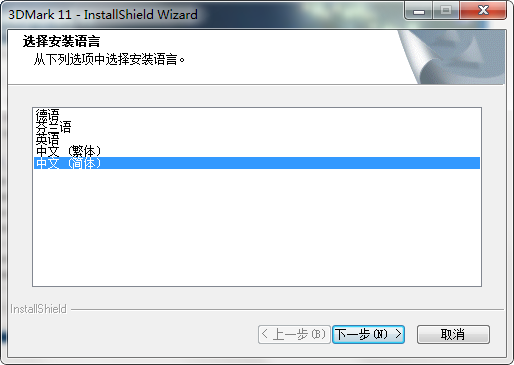
2. When you start the installation, you will enter the 3DMark11 language selection area. Just select the language that suits you.
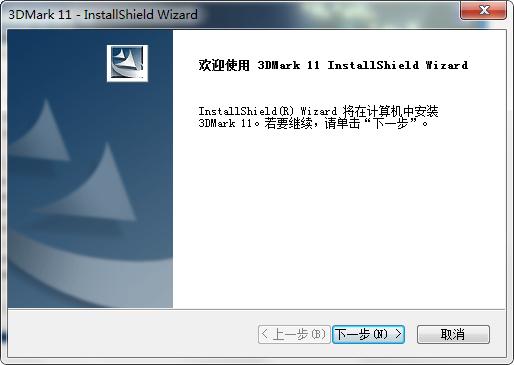
3. After selecting, you will officially enter the 3DMark11 installation process. Click [Next] to start the installation.
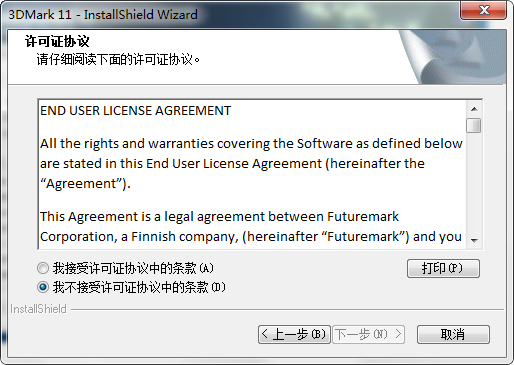
4. After starting the installation, you will enter the 3DMark11 installation agreement interface. Please understand the content of the agreement and agree to it, and then continue to [Next step]
5. After agreeing to the agreement, enter the 3DMark11 installation type selection, select the installation type that suits you and continue [Next step]
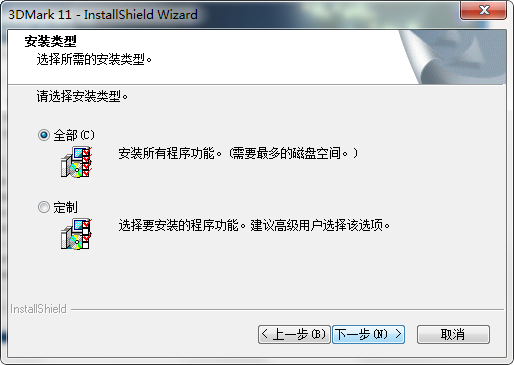
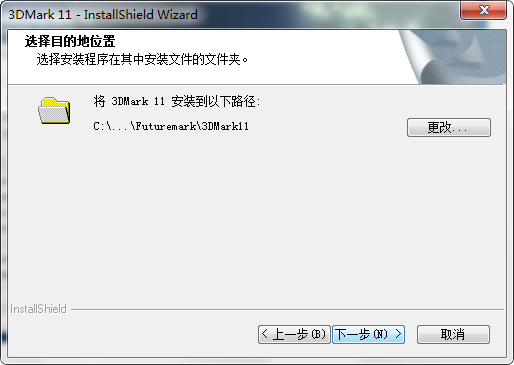
6. The editor chose the customized installation type, and then entered the 3DMark11 installation path setting interface. Select [Change] to set it.
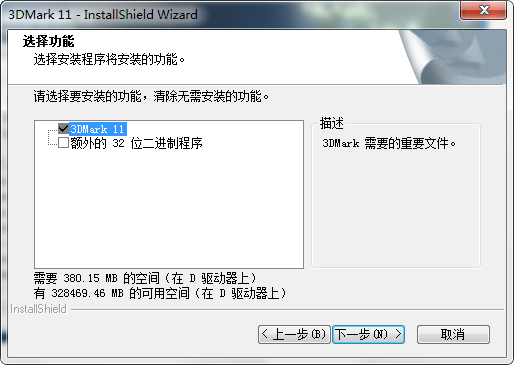
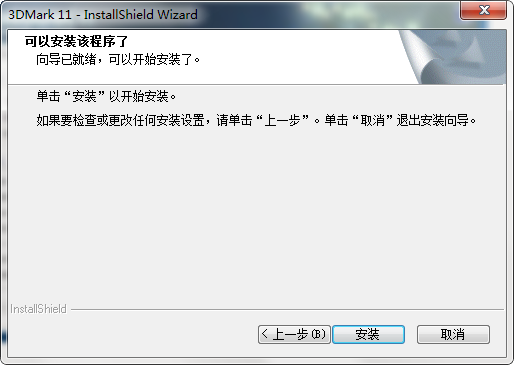
7. After setting the 3DMark11 installation path, enter the 3DMark11 installation function. If you need to, please check and continue [Next] and [Installation]
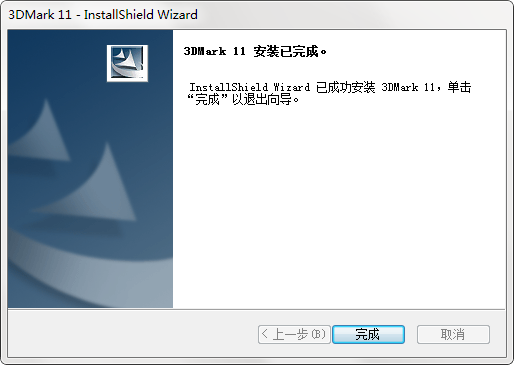
8. Finally, the installation of 3DMark11 is completed, click [Finish] to start the experience.
How to use 3DMark11?
3DMark 11 benchmarking method? And how to use 3DMark11 to test graphics cards?
1. First we need to run and open 3DMark11. After opening, a pop-up window will appear for you to enter the 3DMark11 registration code. Just fill in the 3DMark11 registration code you obtained.
2. 3DMark11 has officially entered the user interface. Please follow the prompts to select the options that suit you.
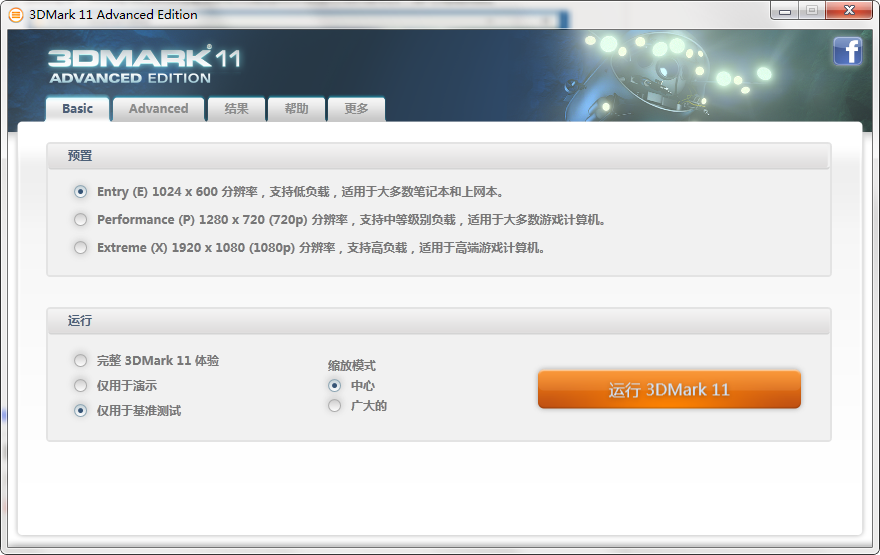
3. If your computer equipment configuration is not very high, please choose low configuration instead of high configuration.
4. Please select the functions you want to use when running 3DMark11. The full experience is limited to demonstration or benchmark testing. In addition, the zoom mode can be selected according to the actual situation.
5. Finally, choose to run 3DMark11 to start the experience.
3DMark11 FAQ
How to read 3dmark11 running scores?
1. First, let’s see that p4467 is a total score, and the score levels in 3DMark are divided into three levels: E, P, and X. Among these three levels, X level is the highest and E level is the lowest.
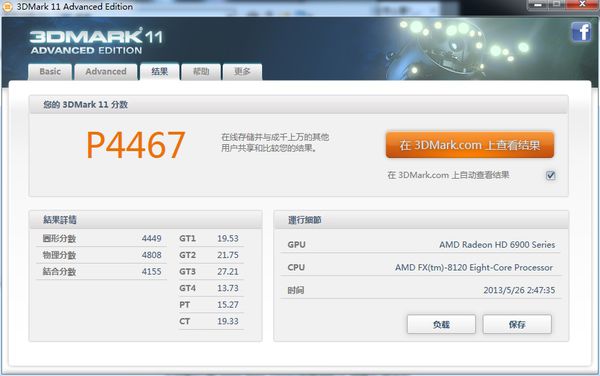
2. The result details are divided into three types of grade scores, namely graphics score, physical score, and combination score.
3. The graphics score mainly shows the status of the graphics card tested, the physical score looks at the CPU, and the combined score is an overall average score.
Recommended software of the same type as 3DMark11
Directx 9.0c, referred to as dx9.0c, is an essential driver for computer games launched by Microsoft. Directx 9.0c is the abbreviation for directx 9.0c that people are used to searching for. DirectX 9.0c gives you better graphics, scalable multiplayer gaming, and includes better audio.
Download address:http://softwaredownload4.com/soft/578579.htm
NVIDIA GeForce Experience graphics card driver update software can help you check your computer's geforce driver, easily optimize game settings and update the driver, so that your graphics card driver is always kept at the latest version, which is beneficial to running games more stably and smoothly. The "GeForce Experience" application automatically notifies you and you will be able to update your drivers directly with a simple click without leaving your desktop.
Download address:http://softwaredownload4.com/soft/589001.htm
More useful driver software is available in Huajun Software Park. Friends in need should go and have a look!
3DMark11 update instructions
1. The SystemInfo module has been updated to 4.15, fully compatible with Windows 8.
2.3DMark 11 updates DirectX redistributable component package.
Huajun editor recommends:
As a long-lasting graphics card driver, 3DMark 11 has been updated in version after version, bringing users a very high user experience. It is highly recommended for users who need the download experience. It is also recommended to download and use related software such as Epson LQ-630KII printer driver, Aerospace Information Aisino SK-600ii printer driver, and Cloud Machine Manager.
Version: v11.0.5 Chinese full version | Update time: 2025-08-04
Similar recommendations



Latest updates





Pixel Naruto online play entrance-Pixel Naruto web version online play-Huajun Software Park
How to add background music in python-How to add background music in python
How to configure environment variables in python - How to configure environment variables in python
How to run python - How to run python
How to create a project in python - How to create a project in python
How to make a blue sky background with scratch-How to make a blue sky background with scratch
How to create a linked list in scratch-How to create a linked list in scratch
How to add local programs to scratch-How to add local programs to scratch
How to input Chinese in scratch-How to input Chinese in scratch
3DMark 11 Review
Recommended products




- Diablo game tool collection
- Group purchasing software collection area
- p2p seed search artifact download-P2P seed search artifact special topic
- adobe software encyclopedia - adobe full range of software downloads - adobe software downloads
- Safe Internet Encyclopedia
- Browser PC version download-browser download collection
- Diablo 3 game collection
- Anxin Quote Software
- Which Key Wizard software is better? Key Wizard software collection