





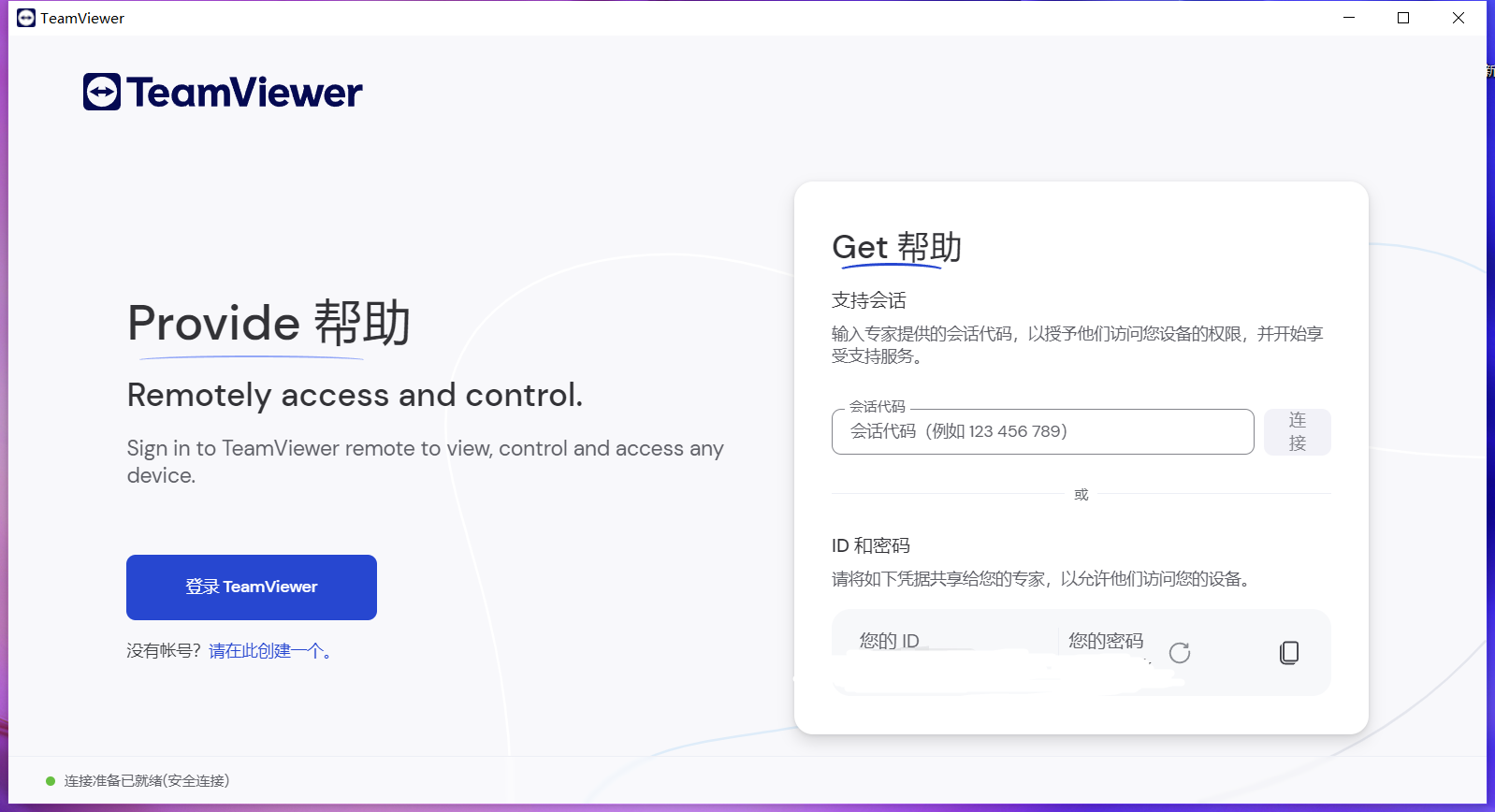
TeamViewer features
1. One-click script execution
By automating script execution during a session, you can save a lot of time and money.
2. Customize device information
Please add the information you need for your daily work to the devices in your PC & Contact list: operating system, manufacturer, department, company - anything can be added.
3. Performance optimization under low bandwidth
On average, 1 in 5 TeamViewer connections is low bandwidth (<1 Mbit/s). The new version adopts adaptive intelligent compression technology, which can automatically identify low bandwidth and perform adaptive compression.
4. Improve connection quality
Shorter waiting times and better connection quality: When you start TeamViewer, the connection is established to the nearest server instead of the main server in Frankfurt.
5. The page is concise
Experience the advanced user interface with clear layout, concise and easy to understand, convenient touch control and fast operation.
6. Higher performance
Intelligent connection settings and routing, through optimized image quality and more intelligent resource allocation, efficient use of bandwidth, fast data transmission, remote session frame rate up to 60 fps, automatic image quality adjustment - these ensure the best user experience.
TeamViewer Installation Guide
1. Download the teamviewer installation package from this site and double-click to run it.
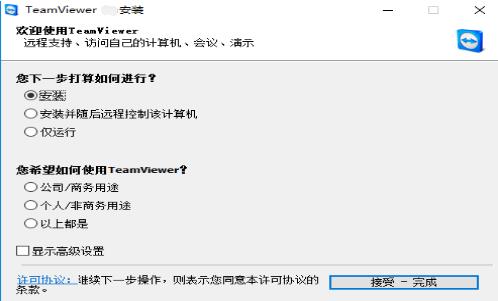
2. After completing the selection according to the prompts, click [Accept Complete] and wait patiently for the TeamViewer software to be installed.

Installation summary: After downloading the TeamViewer installation package, just open the exe file and install it according to the steps of the installation wizard. You can experience it after a short wait.
How to use TeamViewer
1. When connecting with teamviewer, both computers need to be turned on in advance at the same time, and both computers must be equipped with teamviewer.
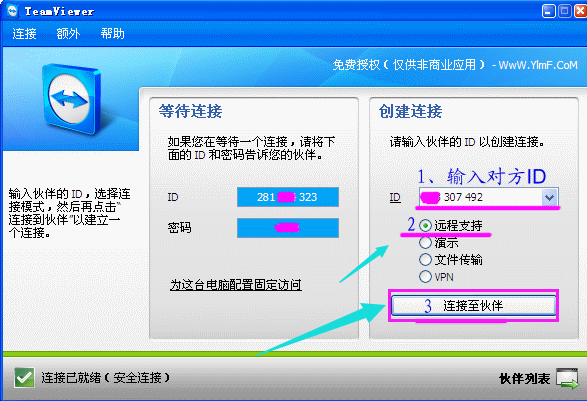
2. Run the green version of teamviewer on two computers at the same time (no installation required). After the software is started for the first time, it will automatically generate a partner ID. Remember this ID. Both parties can obtain the ID number and password of the other party's computer through various methods such as phone calls, online chat software, and recording.
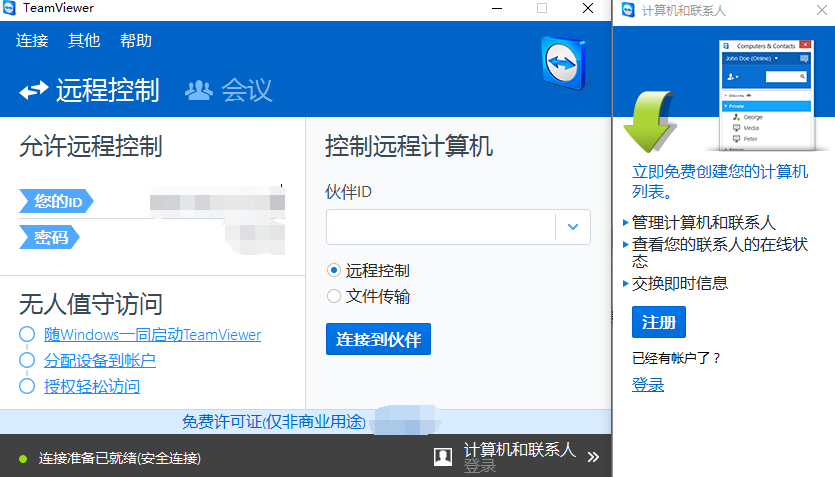
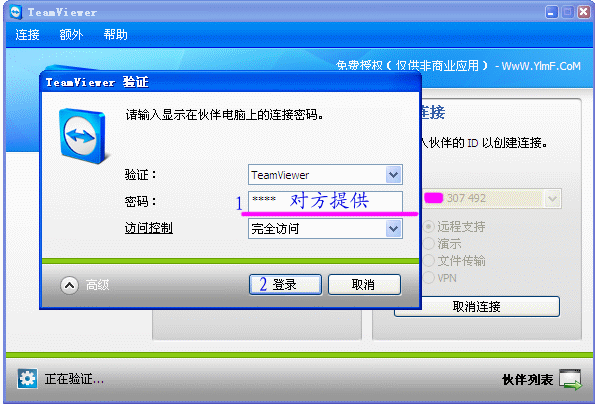
3. In the green version of teamviewer on another computer, enter the partner ID of the original computer, click the link, and enter the password to establish the connection. But remember to create a teamviewer account.
4. Enter the password provided by the other party.
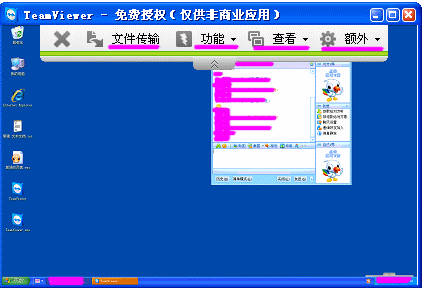
5. Successfully connected to the remote computer.
6. Wait a moment. If the password verification is passed and the network is normal, you can see the other party’s desktop:
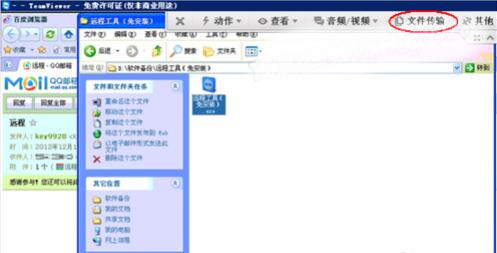
7. File transfer function to realize file transfer between the local machine and the remote machine.

TeamViewer FAQ
1.How to solve the upper limit of the number of teamviewer devices?
TeamViewer paid users have encountered this problem. Please restart the TeamViewer service and try to log in to the TeamViewer authorized email account again.
2. How to register as a TeamViewer user?
Method one, we can register on the official website:
1. We usually register an account on its official website. Open the browser, enter the TeamViewer address in the address bar, and press Enter to go to the teamviewer homepage.
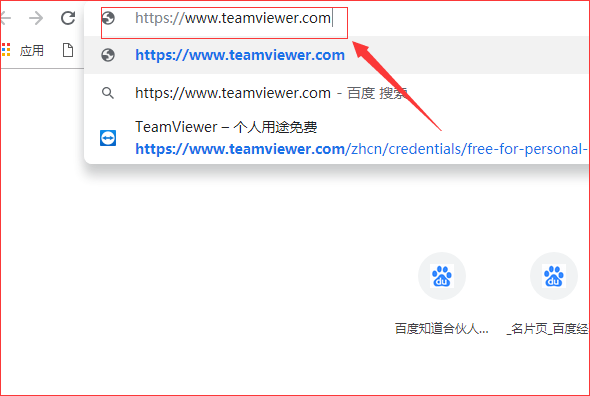
2. After entering the teamviewer homepage, click "Login" to open the login page.

3. On the login page, under "I don't have a TeamViewer account yet", click "Register" to enter the registration page.
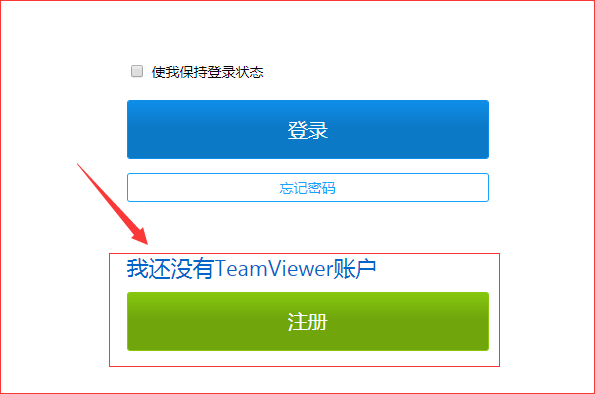
4. After entering the registration page, follow the prompts and enter "email address", "your name" and "password" in order, then enter the verification code and click "Register".
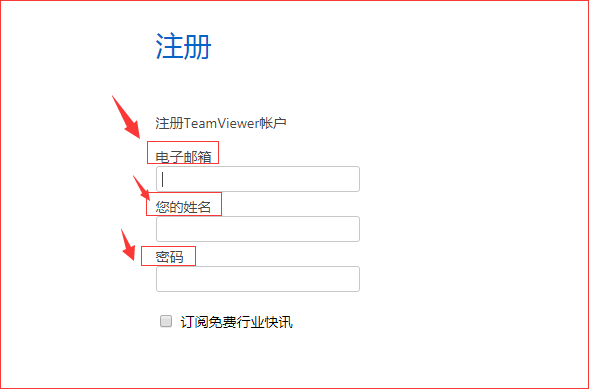
Method 2: Register within the software:
Step 1:
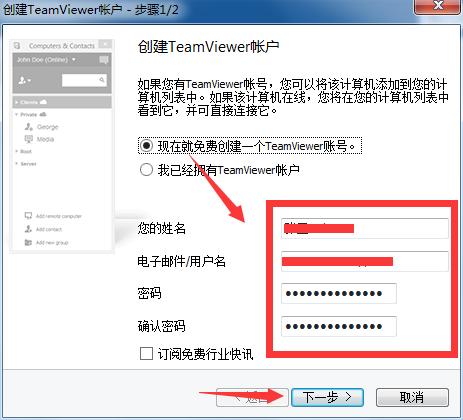
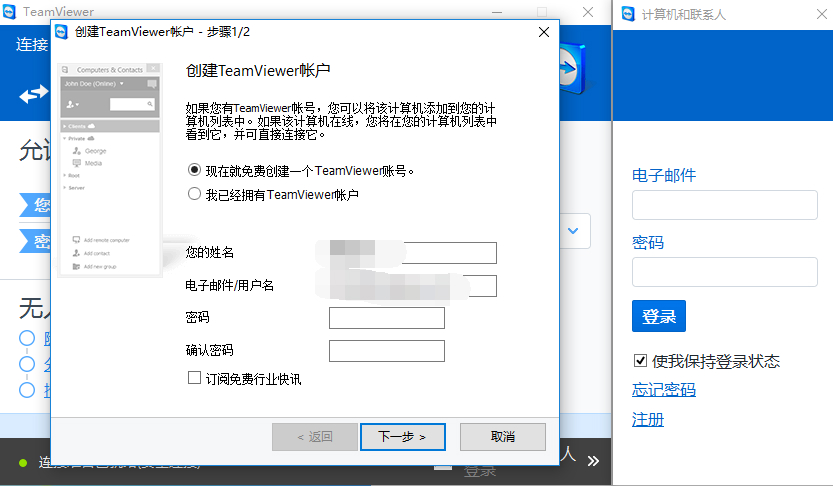
In the Create TeamViewer account interface, click: Create a TeamViewer account for free now. Then enter name, email/username, password, confirm password below. Click Next.
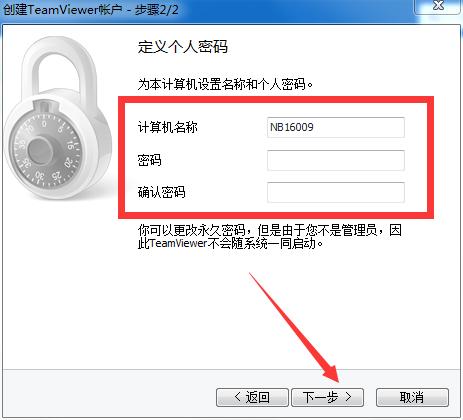
In this interface you can choose whether to define your personal password, fill in the computer name and password, and click Next.
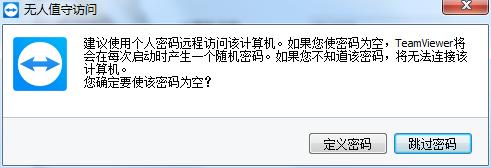
(If a password is not required, just click Next and click the "Skip Password" button in the pop-up window to skip this step) If you want to know about unattended access, please refer to: How to use TeamViewer unattended access.
Step 3:
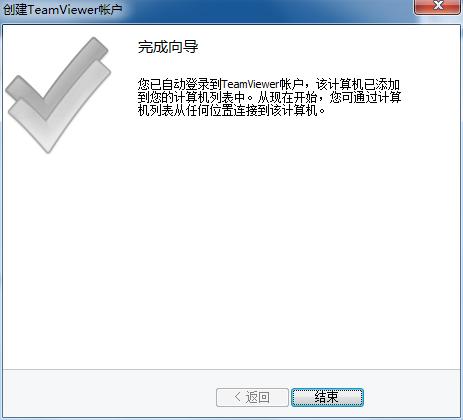
Complete the wizard. In this way, you have successfully registered an account. When you need to use this account or ** account in the future, you will need to enter your username (email address) and password, so please remember it.
If you forget your password, you can click the "Forgot Password" button on the login account interface and follow the prompts on the pop-up web page to reset your password.
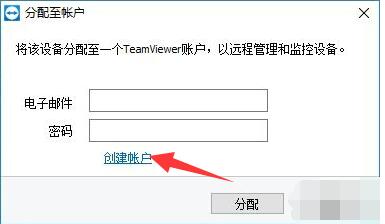
3. How to delete unused (trusted) devices in teamviewer
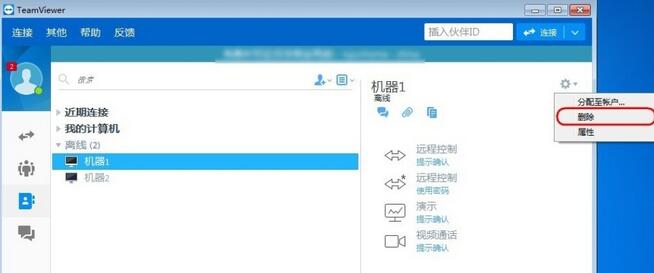
1. Open teamviewer, as shown in the picture, click the computer list icon in the menu bar on the left side of the software interface.
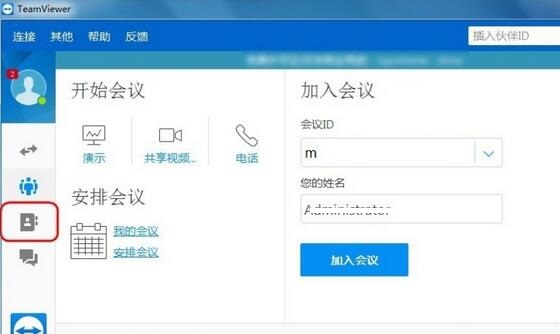
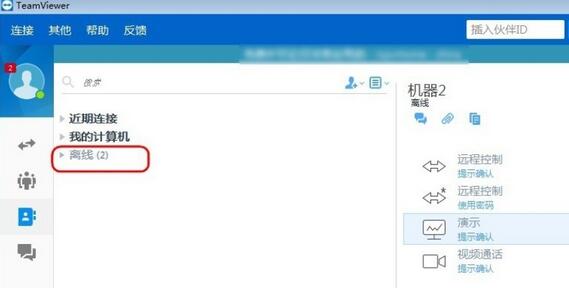
2. After clicking, find the offline option in the computer list group that appears. Here you can see which computers are not connected.
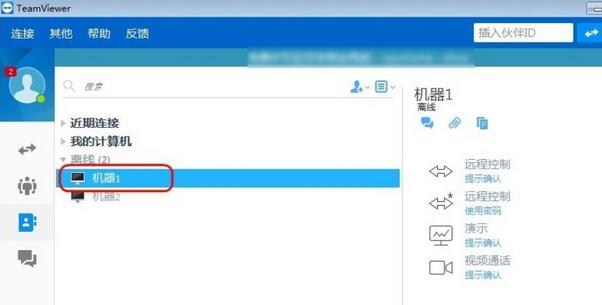
3. After opening the offline list, you can see the machine option in the offline list that appears. Select the machine you want to delete the trust.
4. First click this to delete the trusted machine, then click the gear icon in the upper right corner of the interface.
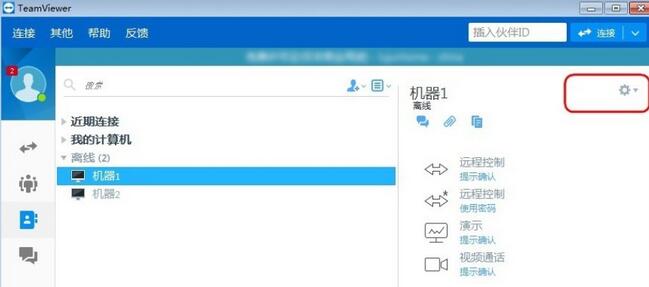
5. After clicking the gear icon, click Delete in the options that appear, and then click to delete the currently selected trusted device.
6. A prompt interface will pop up to confirm the deletion, click Delete.
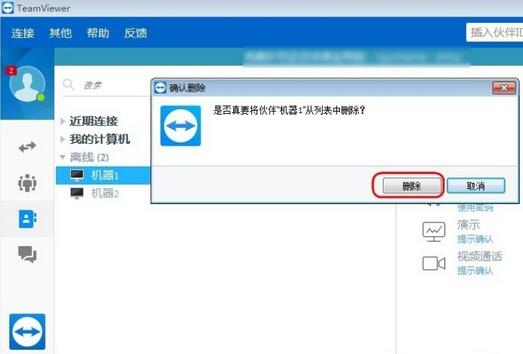
The above are the steps on how to delete trusted devices in teamviewer for your reference.
TeamViewer FAQ
TeamViewer fails to start or crashes
Possible reasons: system compatibility issues, installation file corruption, firewall or anti-virus software blocking, lack of necessary system components.
Solution:
Make sure your operating system meets the minimum requirements for TeamViewer and is updated to the latest version.
Check the firewall or anti-virus software settings and add TeamViewer to the trusted list.
Install missing system components such as .NET Framework or Visual C++ Redistributable.
Comparison of similar software in TeamViewer
Networker remote control softwareand the latest version of teamviewer are two good remote control software. Apart from the differences in interface, the software functions and operation methods are not much different. However, from the perspective of security, Netman is slightly better.
All versions of Netman Remote Control are free, which is good for us users. One disadvantage of it is that the desktop monitoring screen is not real-time, there will be delays, and the stability is average.
The difference between TeamViewer and Netman is that it has a personal version and a commercial version. The personal version is free. Compared with Netman remote control software, its remote speed is faster and more stable. It has complete functions and is sufficient for daily use. If you have higher needs, you can choose to purchase the commercial version.
Networker remote control software download link:http://softwaredownload4.com/soft/246211.htm
TeamViewer update log
现在可以把一个设备分配给一个公司,而不是像以前那样只分配给一个经理。 This allocation can be done through the client user interface or through the CLI using allocation configuration.
You can now add multiple managers in a distribution configuration to assign multiple administrators to a device during rollout.
The meeting preview screen is now available to users joining or starting a meeting, allowing users to control various options in advance.
Huajun editor recommends:
There are many software similar to remote control on the Internet, but I prefer teamviewer. It has a simple interface and complete functions. The key is that the operation is very simple. You only need both parties to run teamviewer at the same time and remember each other's IDs to easily achieve remote control. I believe that friends who have used TeamViewer know how excellent it is. If you need it, hurry up and download it to experience it.























Useful
Useful
Useful