
Hot search terms: 360 Security Guard Office365 360 browser WPS Office iQiyi Huawei Cloud Market Tencent Cloud Store
Hot search terms: 360 Security Guard Office365 360 browser WPS Office iQiyi Huawei Cloud Market Tencent Cloud Store

Office software Storage size: 8.28MB Time: 2020-10-28
Software introduction: The official version of the office software Office 2007 installation package will be downloaded through the Microsoft official authorized product Office Assistant (software size: 5.15MB)...
Office 2007 is a software that introduces the Ribbon interface, replacing the traditional menu bar design. This innovative interface layout intuitively displays commonly used functions, greatly improving user operation efficiency. All function buttons are arranged in logical categories, so even novices can get started quickly. Next, let Huajun editor explain to you how to enable macros in office 2007 and how to enable macros in office 2007!
first step
First, start the Office 2007 program on your computer. Here we take Word 2007 as an example, but the steps for Excel, PowerPoint and other components are similar.

Step 2
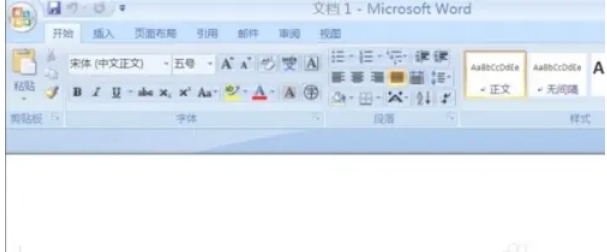
After opening Word 2007, you will see the main interface of Word. At this point, move the mouse pointer to the upper left corner of the window.
Step 3
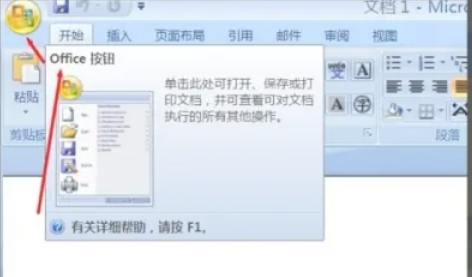
In the upper left corner, you'll see a round Office button (usually with the Microsoft Office logo). Hover your mouse over this button and a drop-down menu will pop up.
Step 4
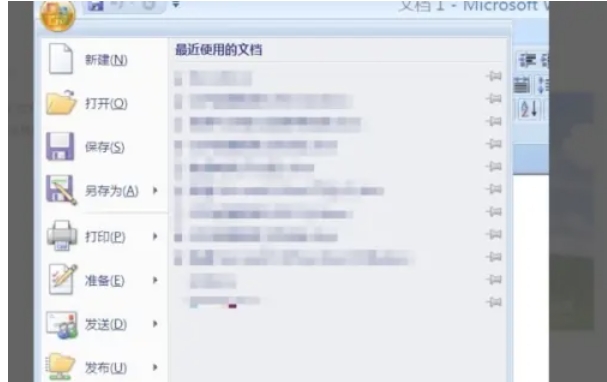
In the drop-down menu, find and click "Word Options." This will open the Word Options dialog box, which contains various settings and configuration options.
Step 5
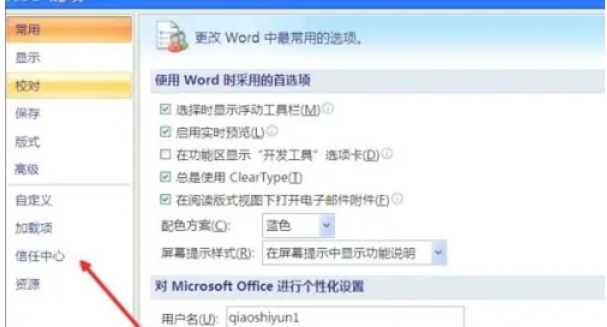
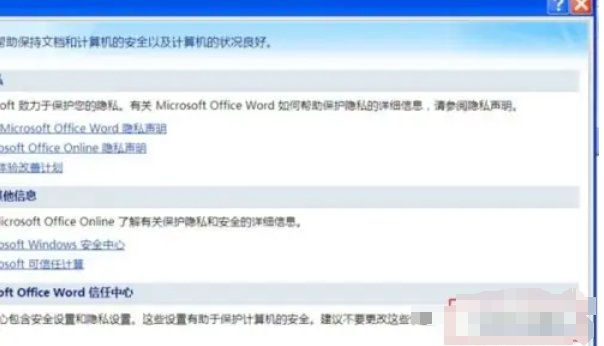
In the Word Options dialog box, you will see a column of tabs on the left. Find and click the "Trust Center" tab. This tab contains options related to macros and other security settings. In the Trust Center tab, you will see a "Trust Center Settings" button on the right. Clicking this button will open the Trust Center dialog box.
Step 6
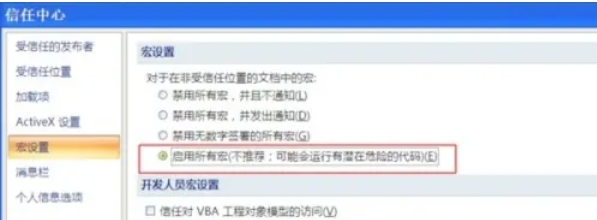
In the Trust Center dialog box, select the Macro Settings option. Here you can see several macro-related setting options:
Disable all macros without notification: Select this option to completely disable macro functionality without prompting the user.
Disable all macros, and notify: Select this option to disable macros but notify the user when a document containing macros is encountered.
Disable all macros without digital signatures: Selecting this option will only allow macros digitally signed by trusted publishers to run.
Enable all macros (not recommended except in a fully trusted environment): Selecting this option will allow all macros to run, but may increase security risks.
Step 7
Choose appropriate macro settings based on your security needs and usage scenarios. If you are sure you want to enable macros and understand the potential security risks, you can select Enable all macros or Disable all macros without digital signatures (if you have a trusted macro publisher).
The above is how to enable macros in office 2007 and how to enable macros in office 2007 compiled by Huajun editor for you. I hope it can help you!

 How to add background music in python-How to add background music in python
 How to configure environment variables in python - How to configure environment variables in python
 How to run python - How to run python
 How to create a project in python - How to create a project in python
 How to make a blue sky background with scratch-How to make a blue sky background with scratch
 Steam
Steam
 Tencent Video
 WPS Office
 iQiyi
iQiyi
 Sohu video player
 Lightning simulator
 MuMu emulator
 Eggman Party
 WPS Office 2023
 What to do if there is no sound after reinstalling the computer system - Driver Wizard Tutorial
 How to switch accounts in WPS Office 2019-How to switch accounts in WPS Office 2019
 How to clear the cache of Google Chrome - How to clear the cache of Google Chrome
 How to fire bullets in scratch-How to fire bullets in scratch
