
Hot search terms: 360 Security Guard Office365 360 browser WPS Office iQiyi Huawei Cloud Market Tencent Cloud Store
Hot search terms: 360 Security Guard Office365 360 browser WPS Office iQiyi Huawei Cloud Market Tencent Cloud Store

video playback Storage size: 33.4MB Time: 2021-09-09
Software Introduction: QQ Video Player Advertisement QQ Video Player FAQ 1. After opening the QQ video player, click on the tool, and...
QQ Video is a professional-grade local video playback software carefully built by Tencent. It has become a classic in the field of video playback with its powerful decoding engine and pure user experience. This player perfectly supports various video formats including 4K Ultra HD and H.265/HEVC. It uses intelligent hardware acceleration technology to play smoothly even high-bitrate videos. The software interface design is simple and elegant, completely eliminating the intrusion of advertisements. It provides professional functions such as 0.1-5.0 times stepless speed change, frame-by-frame playback, and fine-tuning of audio and video synchronization. The specially equipped video toolbox supports one-click screenshots, GIF creation, clip capture and other practical operations, making video processing simple and efficient. Although version updates have been stopped, its excellent compatibility, stable playback performance and ultimate resource optimization make it still the best choice for users who pursue a pure playback experience. Next, let the editor of Huajun explain to you how to change the speed of QQ Video and how to change the speed of QQ Video!
first step
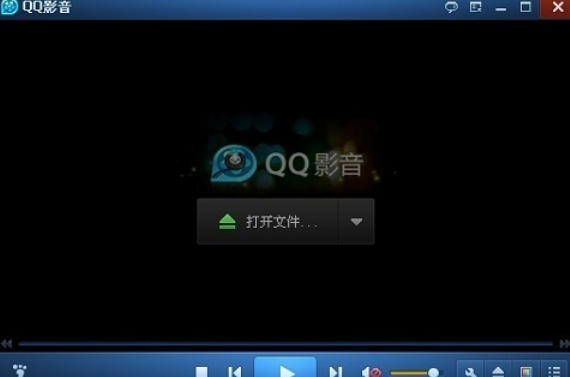
Start the QQ video client and click the [Open File] button on the main interface (or drag the file directly to the player window).
Step 2
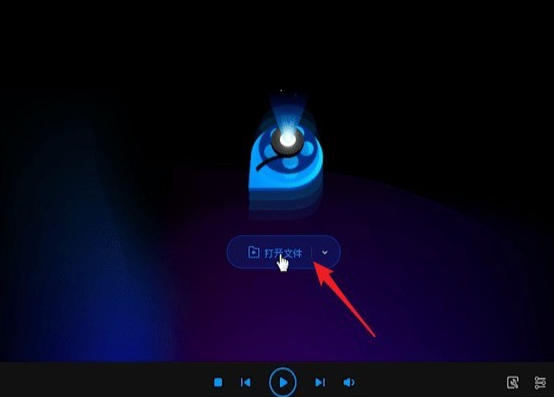
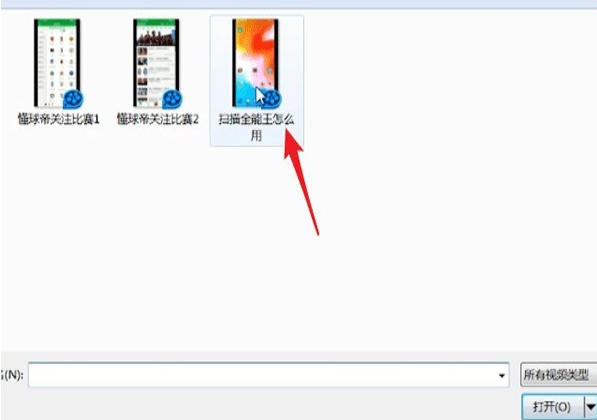
Double-click to select the video/audio file you want to play. Enter effect settings
Step 3
Find the [Effect Settings] icon (gear-shaped or magic wand icon) in the lower right corner of the playback interface
Step 4
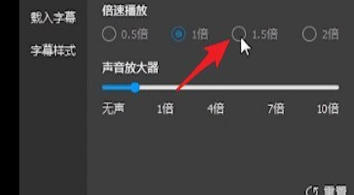
After clicking [Effect Settings], select the [Playback] tab in the pop-up window.

Step 5
Click on the preset value: such as 0.5x (slow), 1.0x (normal), 1.5x/2.0x (fast). Drag the slider: finely adjust the speed (supported by some versions).

Step 6
The adjusted speed takes effect immediately without confirmation.
The above is the editor of Huajun who has compiled for you how to change the speed of QQ video and the method of changing the speed of QQ video. I hope it can help you!

 How to draw a lottery in 360 Software Butler - How to draw a lottery in 360 Software Butler
 How to collect software in 360 Software Manager - How to collect software in 360 Software Manager
 Microsoft Edge browser
 Steam
Steam
 Tencent Video
 WPS Office
 iQiyi
iQiyi
 Sohu video player
 Lightning simulator
 MuMu emulator
 Eggman Party
 What to do if there is no sound after reinstalling the computer system - Driver Wizard Tutorial
 How to switch accounts in WPS Office 2019-How to switch accounts in WPS Office 2019
 How to clear the cache of Google Chrome - How to clear the cache of Google Chrome
 How to fire bullets in scratch-How to fire bullets in scratch


