
Hot search terms: 360 Security Guard Office365 360 browser WPS Office iQiyi Huawei Cloud Market Tencent Cloud Store
Hot search terms: 360 Security Guard Office365 360 browser WPS Office iQiyi Huawei Cloud Market Tencent Cloud Store

video playback Storage size: 39.37MB Time: 2022-12-28
Software introduction: . PotPlayer software comes with a professional codec, which is convenient and fast. After being installed together, you can watch video files in any format. It is very powerful...
PotPlayer is a player that has more advantages than other players with no ads, no bundles, a pure experience and optimization of old hardware (low CPU usage). It can be called a "Swiss Army Knife" playback tool on the Windows platform. Next, let Huajun editor explain to you how PotPlayer adjusts the audio track and how PotPlayer adjusts the audio track!
first step
Open the player interface.

Step 2
While playing a video, right-click on PotPlayer's playback area.

Step 3
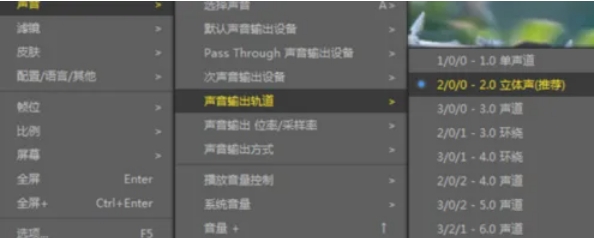
In the pop-up menu, move the mouse to the [Sound] option.
Step 4
In the submenu of [Sound], select [Sound Output Track].
Step 5
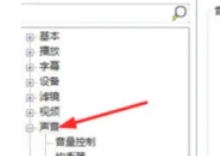
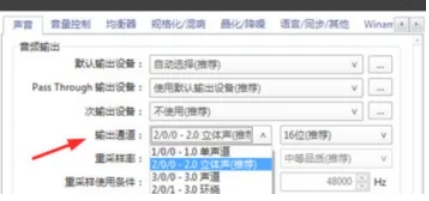
According to your needs, select the appropriate audio track (such as "English", "Chinese", etc.) from the pop-up audio track list.
Step 6
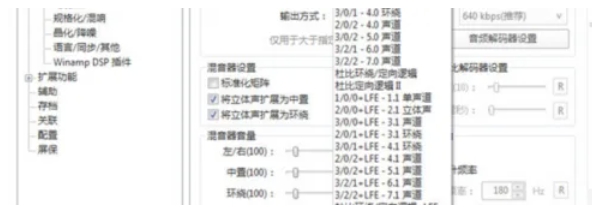
Click [OK] or [Apply] to save the settings.
The above is how to adjust the audio track in PotPlayer and how to adjust the audio track in PotPlayer compiled by Huajun editor for you. I hope it can help you!

 How to add background music in python-How to add background music in python
 How to configure environment variables in python - How to configure environment variables in python
 How to run python - How to run python
 How to create a project in python - How to create a project in python
 How to make a blue sky background with scratch-How to make a blue sky background with scratch
 Microsoft Edge browser
 Steam
Steam
 Tencent Video
 WPS Office
 iQiyi
iQiyi
 Sohu video player
 Lightning simulator
 MuMu emulator
 Eggman Party
 What to do if there is no sound after reinstalling the computer system - Driver Wizard Tutorial
 How to switch accounts in WPS Office 2019-How to switch accounts in WPS Office 2019
 How to clear the cache of Google Chrome - How to clear the cache of Google Chrome
 How to fire bullets in scratch-How to fire bullets in scratch
