Hot search terms: 360 Security Guard Office365 360 browser WPS Office iQiyi Huawei Cloud Market Tencent Cloud Store
Hot search terms: 360 Security Guard Office365 360 browser WPS Office iQiyi Huawei Cloud Market Tencent Cloud Store

video playback Storage size: 39.37MB Time: 2022-12-28
Software introduction: . PotPlayer software comes with a professional codec, which is convenient and fast. After being installed together, you can watch video files in any format. It is very powerful...
PotPlayer is a player that can customize the mouse wheel, keyboard shortcuts, and trackpad gestures (such as three-finger slide to jump progress) to meet personalized operation needs. By enhancing decoding with LAV Filters, improving image quality with madVR, and optimizing subtitle rendering with XY-VSFilter, you can create exclusive playback solutions. Automatically skips the opening and ending of the film, suitable for those watching dramas. Essential for language learning, dance and practice, etc. Next, let Huajun editor explain to you how potplayer displays icons in the tray and how potplayer displays icons in the tray!
first step
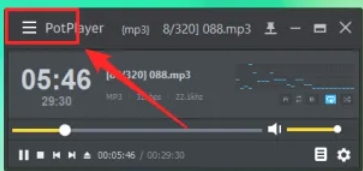
On the PotPlayer interface, click the Main Menu Button in the upper left corner (usually displayed as a "three" or "≡" icon) to open the main menu.
Step 2
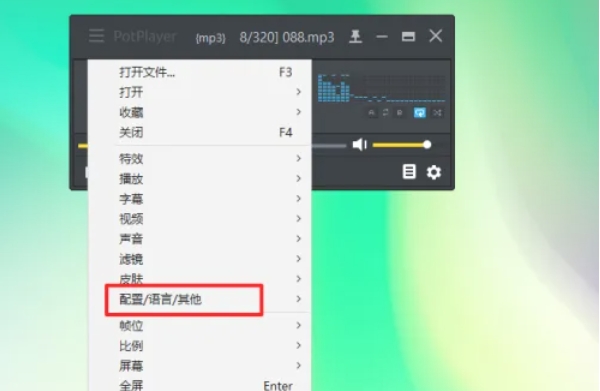
In the main menu, click the [Configuration/Language/Others] option to enter the setting interface.
Step 3
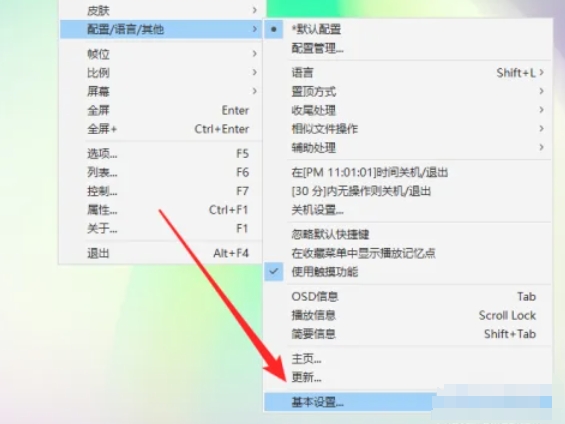
In the settings interface, find and click the [Basic Settings] option to enter the basic settings page.
Step 4
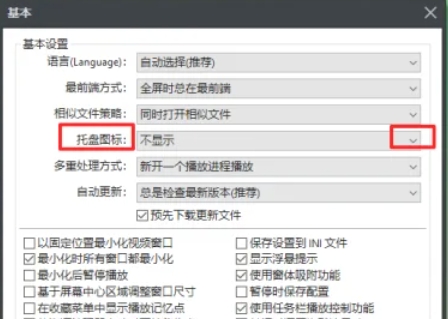
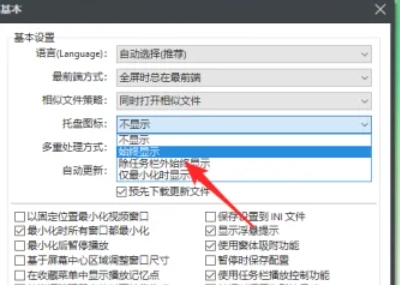
In the basic settings page, scroll down or search to find the [Tray Icon] option. Click the drop-down button to the right of this option.
Step 5
In the drop-down menu, select the [Always show] option to ensure that the PotPlayer icon is always displayed in the tray area of the taskbar.
Step 6
After the settings are completed, close the settings window. At this point, you can see the PotPlayer icon in the tray area of the taskbar.

The above is how potplayer displays icons in the tray and how potplayer displays icons in the tray compiled by Huajun editor for you. I hope it can help you!

 Microsoft Edge browser
 Steam
Steam
 Tencent Video
 WPS Office
 iQiyi
iQiyi
 Sohu video player
 Lightning simulator
 MuMu emulator
 Eggman Party
 What to do if there is no sound after reinstalling the computer system - Driver Wizard Tutorial
 How to switch accounts in WPS Office 2019-How to switch accounts in WPS Office 2019
 How to clear the cache of Google Chrome - How to clear the cache of Google Chrome
 How to fire bullets in scratch-How to fire bullets in scratch