
Hot search terms: 360 Security Guard Office365 360 browser WPS Office iQiyi Huawei Cloud Market Tencent Cloud Store
Hot search terms: 360 Security Guard Office365 360 browser WPS Office iQiyi Huawei Cloud Market Tencent Cloud Store

video playback Storage size: 39.37MB Time: 2022-12-28
Software introduction: . PotPlayer software comes with a professional codec, which is convenient and fast. After being installed together, you can watch video files in any format. It is very powerful...
PotPlayer is a software that allows users to freely adjust the hardware acceleration mode (supports DXVA, CUDA, etc.), color space, subtitle rendering (supports ASS special effects, automatic loading of external subtitles) and audio equalizer through the built-in "Filter/Decoder Management" module, and supports customizing the interface layout through the "Skin Editor". In addition, PotPlayer also provides practical tools such as live source capture, screenshot/GIF recording, and frame step playback. With the "bookmark" and "chapter navigation" functions, it is especially suitable for film and television enthusiasts, subtitle group workers, and learning users to conduct refined content management. Next, let Huajun editor explain to you how potplayer plays video frame by frame and how potplayer plays video frame by frame!
first step
Double-click the PotPlayer icon on your desktop, or find and launch PotPlayer from the Start menu.
Step 2
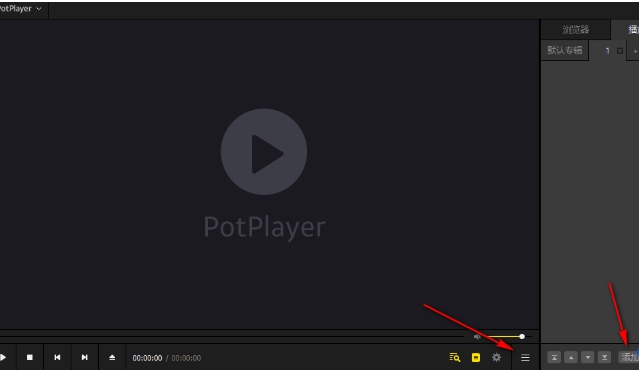
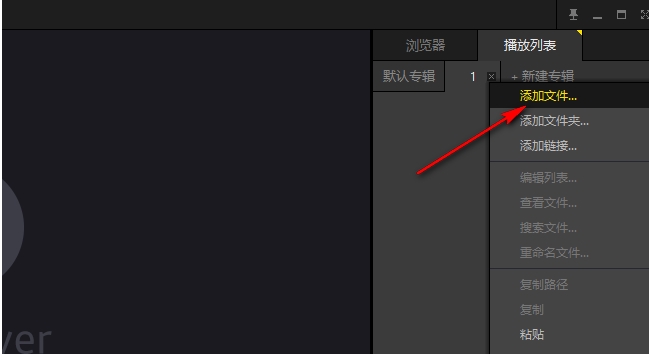
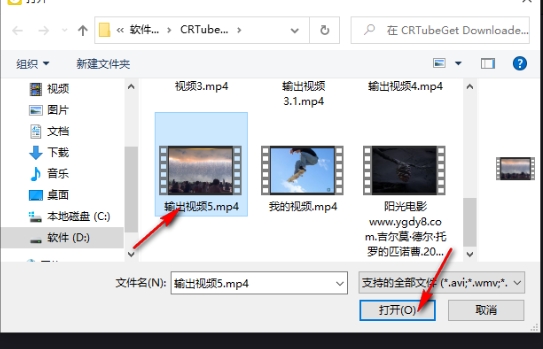
Below the PotPlayer interface, find and click the "three" icon (usually located near the playback control button). In the pop-up menu, click the "Add" option. In the pop-up folder selection window, find and select the video file you want to play, and click "Open".
Step 3
After adding a video, the video file will appear in the playlist. In the playlist, double-click the video file you want to play, and PotPlayer will start playing the video. In the video page, right-click, select the "Play" option, and make sure the video is playing.
Step 4
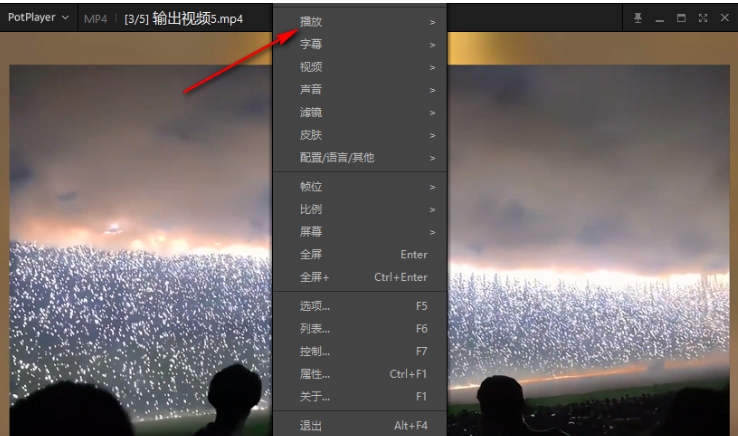
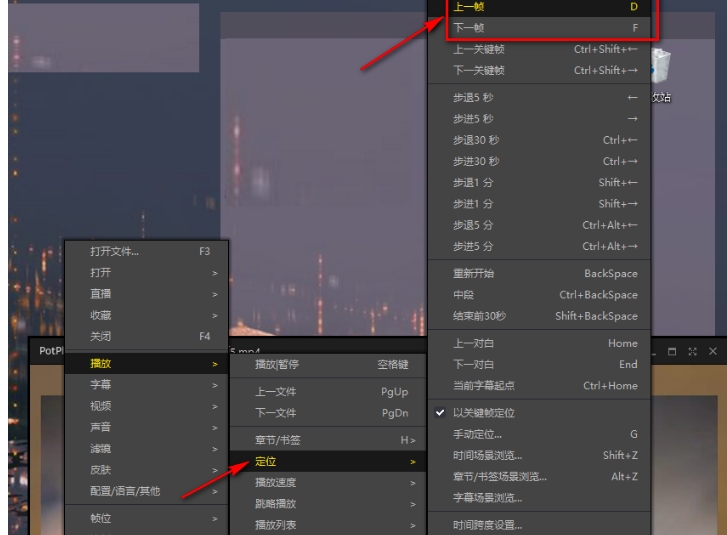
In the video playback page, right-click and select the "Play" option. In the submenu bar of "Playback", find and click the "Position" option. In the submenu bar of "Positioning", you can see the options of "Previous Frame" and "Next Frame".
Step 5
In the video playback page, directly press the "D" key on the keyboard to jump to the previous frame. Press the "F" key to jump to the next frame.
Step 6
By continuously pressing the "D" and "F" keys, you can view the video content frame by frame to facilitate video analysis, editing or screenshots.

The above is how the editor of Huajun compiled for you how to play video frame by frame in potplayer and how to play video frame by frame in potplayer. I hope it can help you!

 How to draw a lottery in 360 Software Butler - How to draw a lottery in 360 Software Butler
 How to collect software in 360 Software Manager - How to collect software in 360 Software Manager
 Microsoft Edge browser
 Steam
Steam
 Tencent Video
 WPS Office
 iQiyi
iQiyi
 Sohu video player
 Lightning simulator
 MuMu emulator
 Eggman Party
 What to do if there is no sound after reinstalling the computer system - Driver Wizard Tutorial
 How to switch accounts in WPS Office 2019-How to switch accounts in WPS Office 2019
 How to clear the cache of Google Chrome - How to clear the cache of Google Chrome
 How to fire bullets in scratch-How to fire bullets in scratch


