Hot search terms: 360 Security Guard Office365 360 browser WPS Office iQiyi Huawei Cloud Market Tencent Cloud Store
Hot search terms: 360 Security Guard Office365 360 browser WPS Office iQiyi Huawei Cloud Market Tencent Cloud Store

web browsing Storage size: 126.39 MB Time: 2022-09-16
Software introduction: It is an extremely fast and safe seamless dual-core. 360 Speed Browser can not only help users have a faster browsing experience, but also protect...
360 Speed Browser is a browser application that uses advanced browser kernels, such as Chromium (an open source project based on Chrome), to provide users with a fast and smooth web browsing experience. This means users can load web pages, watch videos and play online games faster. Next, let the editor of Tiantian explain to you how to record the screen of 360 Speed Browser and how to record the screen of 360 Speed Browser!
first step
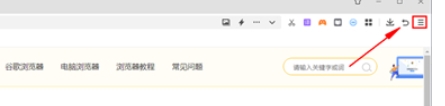
Click the "Menu" button in the upper right corner of the 360 browser (usually an icon with three horizontal lines). Select the "Settings" option in the drop-down menu.
Step 2
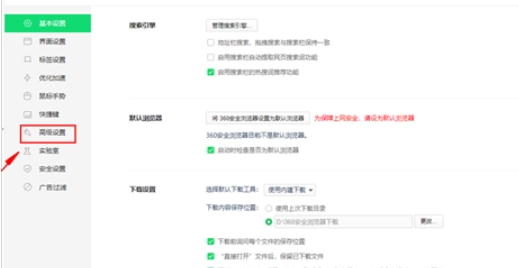
In the "Settings" interface, click "Advanced Settings" on the left.

Step 3
In the "Advanced Settings" interface, scroll the mouse wheel to find and check the "Show toolbar in the upper right corner of the video" option. In this way, when the video is playing, a toolbar will appear in the upper right corner of the video with an icon for recording the video.
Step 4
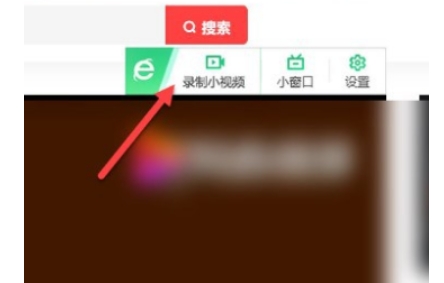
Open the video you want to record. Whether it is a video on a web page, a live broadcast or an online course, as long as it supports playback in the 360 browser. When the video starts playing, you'll see a record video icon in the upper right corner of the video.

Step 5
Click the recording icon and a recording window will pop up. In the window, you can select the recording area (such as the entire screen or a specific window), whether to turn on the microphone, and other options. After adjusting, click the "Start Recording" button to start recording the video.
Step 6
After the recording is completed, click the "Stop Recording" button in the recording window to end the recording.
The above is how to record the screen of 360 Speed Browser and the method of recording screen of 360 Speed Browser compiled by Huajun editor for you. I hope it can help you!

 Microsoft Edge browser
 Steam
Steam
 Tencent Video
 WPS Office
 iQiyi
iQiyi
 Sohu video player
 Lightning simulator
 MuMu emulator
 Eggman Party
 What to do if there is no sound after reinstalling the computer system - Driver Wizard Tutorial
 How to switch accounts in WPS Office 2019-How to switch accounts in WPS Office 2019
 How to clear the cache of Google Chrome - How to clear the cache of Google Chrome
 How to fire bullets in scratch-How to fire bullets in scratch