
Hot search terms: 360 Security Guard Office365 360 browser WPS Office iQiyi Huawei Cloud Market Tencent Cloud Store
Hot search terms: 360 Security Guard Office365 360 browser WPS Office iQiyi Huawei Cloud Market Tencent Cloud Store

web browsing Storage size: 126.39 MB Time: 2022-09-16
Software introduction: It is an extremely fast and safe seamless dual-core. 360 Speed Browser can not only help users have a faster browsing experience, but also protect...
360 Speed Browser is a browser with extremely fast browsing experience, powerful security and privacy protection, intelligent ad blocking, video acceleration and rich extension functions, bringing users a better user experience. Whether it is daily surfing the Internet or working and studying, it can become a powerful assistant for users. Next, let the editor of Huajun explain to you how to clear the cache of 360 Speed Browser and how to clear the cache of 360 Speed Browser!
first step
Double-click the 360 Speed Browser icon on the desktop to open the browser.
Step 2
In the upper right corner of the browser interface, find and click the three-line icon (often called the Menu or Settings icon).

Step 3
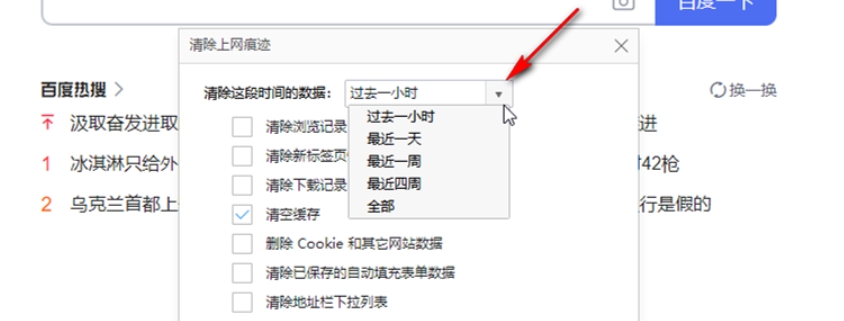
In the pop-up menu, click the "Tools" option, and then select "Clear Internet Traces" in the lower-level menu. You can also directly press the Ctrl+Shift+Delete key combination on the keyboard to quickly open this interface.
Step 4
In the "Clear Internet Traces" window that opens, you will see a drop-down arrow for selecting the time range in which the cache needs to be cleared. You can choose options like "All," "One day ago," "One week ago," etc., depending on the time period you want to clean.

Step 5
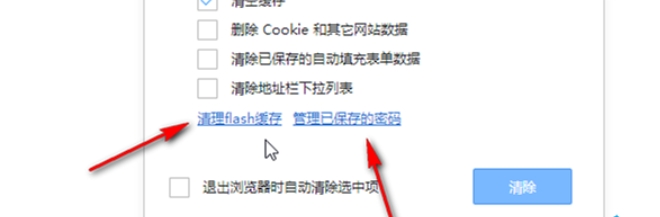
Check the "Status cache" option, this will clear the web page data in the browser cache. If you also need to clean up other content, such as browsing history, cookies, saved form data, etc., you can also check the corresponding options as needed.

Step 6
Click the "Clear" button at the bottom of the window to start the cleaning operation. The browser will delete the data based on the options and time range you select.
The above is how to clear the cache of 360 Speed Browser and the method of clearing cache of 360 Speed Browser compiled by Huajun editor for you. I hope it can help you!

 How to draw a lottery in 360 Software Butler - How to draw a lottery in 360 Software Butler
 Microsoft Edge browser
 Steam
Steam
 Tencent Video
 WPS Office
 iQiyi
iQiyi
 Sohu video player
 Lightning simulator
 MuMu emulator
 Eggman Party
 What to do if there is no sound after reinstalling the computer system - Driver Wizard Tutorial
 How to switch accounts in WPS Office 2019-How to switch accounts in WPS Office 2019
 How to clear the cache of Google Chrome - How to clear the cache of Google Chrome
 How to fire bullets in scratch-How to fire bullets in scratch


