
Hot search terms: 360 Security Guard Office365 360 browser WPS Office iQiyi Huawei Cloud Market Tencent Cloud Store
Hot search terms: 360 Security Guard Office365 360 browser WPS Office iQiyi Huawei Cloud Market Tencent Cloud Store
web browsing Storage size: 118.88 MB Time: 2020-08-24
Software introduction: The latest version of Maxthon Browser is a dual-core engine browser independently developed by Maxthon. The official version of Maxthon Browser has efficient browsing speed and stability...
Some friends who have just come into contact with Maxthon Browser still don’t know how to take screenshots, so how exactly does Maxthon Browser take screenshots? Let’s follow the editor to see how to take screenshots in Maxthon Browser.
First open the Aoyou browser. Find the downward arrow icon (if your screenshot tool is already on the title bar, you can find it directly in the title bar, if not, you only need this operation)
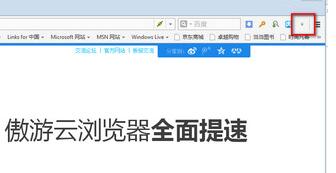
Find the screenshot tool below, and you can check the box to have it appear on your browser's toolbar.
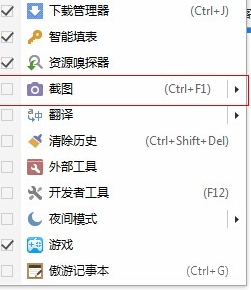
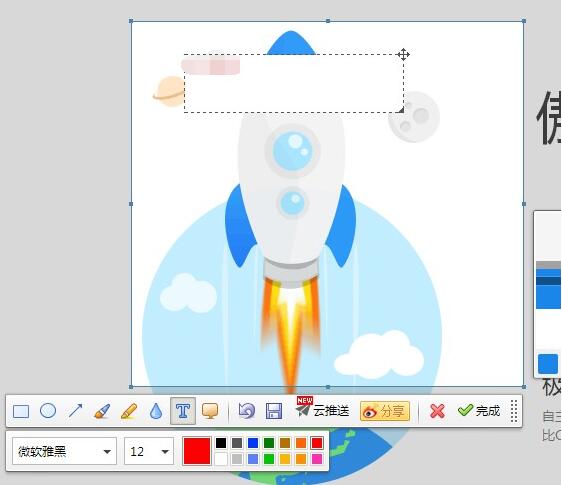
Click on Maxthon "Screenshot" → Regional screenshot to enter the screenshot page, hold down the left mouse button to start taking screenshots, release the mouse after selecting the area, the toolbar will appear, click the function to pop up the editing bar, you can edit the corresponding function, and then save or save to the clipboard.
The above article explains the operation process of taking screenshots on Maxthon Browser. I hope friends in need can learn from it.

 How to add background music in python-How to add background music in python
 How to configure environment variables in python - How to configure environment variables in python
 How to run python - How to run python
 How to create a project in python - How to create a project in python
 How to make a blue sky background with scratch-How to make a blue sky background with scratch
 Microsoft Edge browser
 Steam
Steam
 Tencent Video
 WPS Office
 iQiyi
iQiyi
 Sohu video player
 Lightning simulator
 MuMu emulator
 Eggman Party
 What to do if there is no sound after reinstalling the computer system - Driver Wizard Tutorial
 How to switch accounts in WPS Office 2019-How to switch accounts in WPS Office 2019
 How to clear the cache of Google Chrome - How to clear the cache of Google Chrome
 How to fire bullets in scratch-How to fire bullets in scratch
