
Hot search terms: 360 Security Guard Office365 360 browser WPS Office iQiyi Huawei Cloud Market Tencent Cloud Store
Hot search terms: 360 Security Guard Office365 360 browser WPS Office iQiyi Huawei Cloud Market Tencent Cloud Store

web browsing Storage size: 10.29MB Time: 2022-12-29
Software introduction: Translated into English is Google Chrome, which is a very professional browser Google Chrome search engine owned by Google, 360...
360 Browser, Google Chrome, and Baidu Browser are some of the mainstream browsers that everyone loves, and Google is the most popular. However, many friends have encountered this problem: they want to save videos they see online, but the website does not have a download entrance. After watching it, you don’t know where to download it. In this case, you need to find the cached video file. The editor below will help you.
To find cached video files in Chrome browser: 1: Enter "chrome://cache" to open the page as shown:
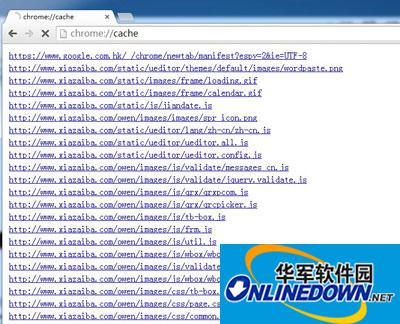
Enter "chrome://cache"
2: Press the ctrl+f keys on the keyboard at the same time to open the search dialog window in the upper right corner as shown in the figure. Enter the video file suffix name, generally .flv .swf .avi .wmv .rmvb. The figure takes .flv as an example:
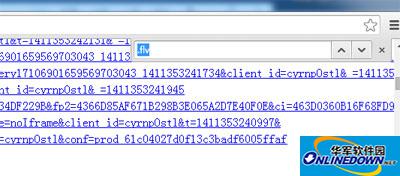
Find dialog window
3: Find the file you want, copy the path and paste it into the browser to open it and check whether it is the required file.

Copy the path and paste it into the browser
This is how the editor brings you the steps on how to find cached video files in the Chrome browser. I hope it will help you.

 How to draw a lottery in 360 Software Butler - How to draw a lottery in 360 Software Butler
 How to collect software in 360 Software Manager - How to collect software in 360 Software Manager
 Microsoft Edge browser
 Steam
Steam
 Tencent Video
 WPS Office
 iQiyi
iQiyi
 Sohu video player
 Lightning simulator
 MuMu emulator
 Eggman Party
 What to do if there is no sound after reinstalling the computer system - Driver Wizard Tutorial
 How to switch accounts in WPS Office 2019-How to switch accounts in WPS Office 2019
 How to clear the cache of Google Chrome - How to clear the cache of Google Chrome
 How to fire bullets in scratch-How to fire bullets in scratch


