
Hot search terms: 360 Security Guard Office365 360 browser WPS Office iQiyi Huawei Cloud Market Tencent Cloud Store
Hot search terms: 360 Security Guard Office365 360 browser WPS Office iQiyi Huawei Cloud Market Tencent Cloud Store

Utility tools Storage size: 334.7 MB Time: 2023-06-27
Software Description: Microsoft Teams is your teamwork hub, bringing together everything your team needs: chat and threaded conversations, meetings and video...
Teams is a software that supports customization and expansion. External applications, robots, and connectors can be added according to the needs of the team to adapt to different work scenarios and business needs. As part of Microsoft 365, Teams can be seamlessly integrated with other Office applications to improve work efficiency. Provides multiple communication methods, including chat, audio and video calls, to facilitate communication between team members. Next, let the editor of Huajun explain to you how to delete avatars in teams and how to delete avatars in teams!
first step
After logging into Microsoft Teams, find and click your avatar in the interface, which is usually located in the upper left or right corner of the screen. After clicking on the avatar, a menu with several options will pop up.
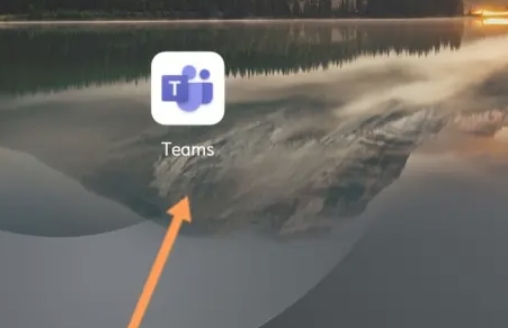
Step 2
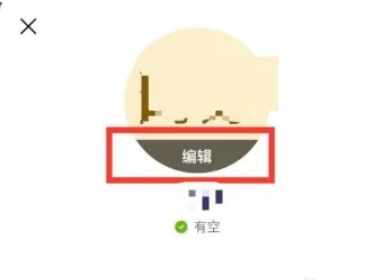
In the pop-up menu, find and click the editing option related to the avatar. This option may be directly labeled "Edit" or similar text, and is used to enter the editing mode of the avatar.
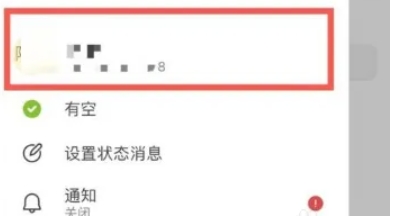
Step 3
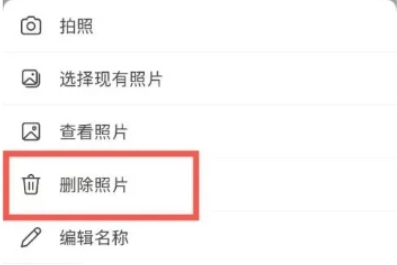
After entering the avatar editing page, you will see the currently set avatar photo. On this page, look for and click an explicit "Delete Photos" option. This option is usually marked in red or another conspicuous color so that users can quickly identify it.
Step 4
After clicking the "Delete Photo" option, the system may pop up a confirmation dialog box asking you if you are sure you want to delete the current avatar. In this dialog box, click Confirm or a similar button to complete the deletion.
Step 5
After you delete your avatar, your changes will usually be saved automatically. In some cases, you may need to manually click a Save button to ensure changes are saved.
Step 6
After completing the above steps, you can return to the Personal Center interface or wherever your avatar is displayed to see if the new (or default) avatar has been successfully applied.
The above is how the editor of Huajun compiled for you how to delete avatars in teams and how to delete avatars in teams. I hope it can help you!

 How to set the font for Toutiao today? -How to set font in Toutiao
 How to register for Toutiao? -How to register for Toutiao
 How does Toutiao publish news? -How to publish news in Toutiao today
 How to find the cover of Toutiao today? -How to find the cover of Toutiao today
 Quark Browser
 little red book
 Chinese University MOOC computer version
 Xiaoetong
 Traffic control 12123
 Minecraft Bedrock Edition
 KMPlayer
 watermelon video
 Meijia Market TV version
 How to use Fliggy’s student discount? List of student certification methods on Fliggy
 How to find the help center for Panzhi Sales - How to find the help center for Panzhi Sales
 How to change ID card with taptap-How to change ID card with taptap
 How to add friends on steam mobile version - How to add friends on steam mobile version
 How to Chineseize ourplay with one click - How to Chineseize ourplay with one click
